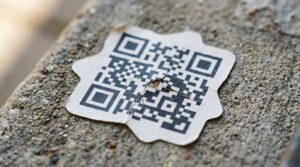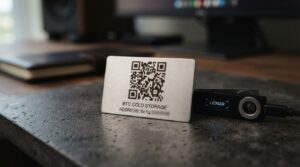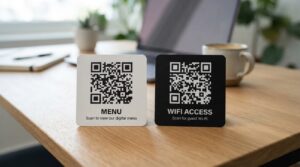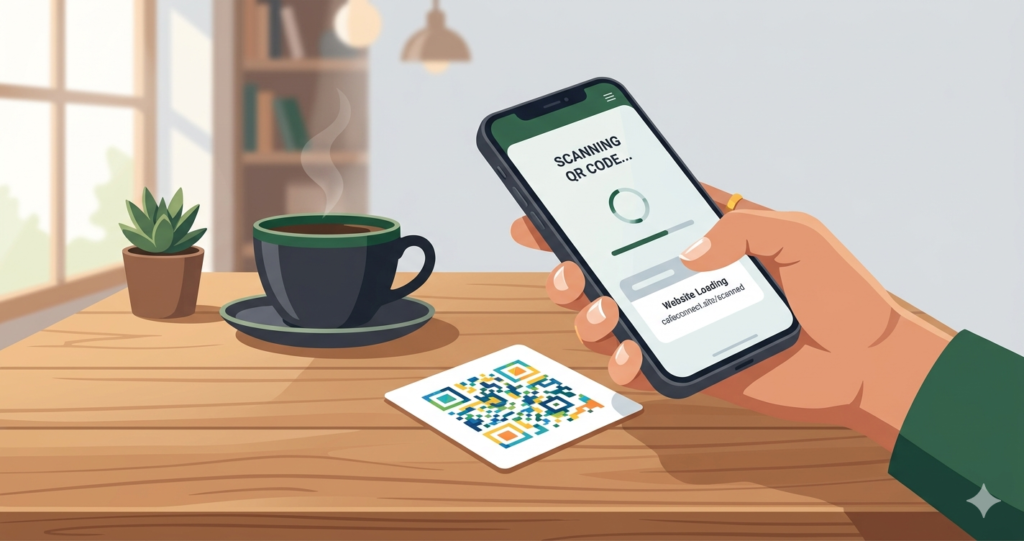
You have seen them on restaurant tables, product boxes, event tickets, and shop windows. You probably scan them without thinking twice. But if someone asked you to explain exactly what a QR code is and how it works, could you?
This guide covers everything. What a QR code actually is. How it stores and sends information. The different types. How to scan one. And how to create your own for free in under a minute.
No jargon. No technical background needed.
What Does QR Stand For?
QR stands for Quick Response.
The name tells you exactly what it does. You point your phone at it, and you get a quick response. One second you are looking at a square pattern. The next second you are on a website, connected to WiFi, or looking at someone’s contact details.
QR codes were invented in 1994 by a Japanese engineer named Masahiro Hara at Denso Wave. The original purpose was tracking car parts moving through a factory. Nobody predicted they would end up on every restaurant menu in the world thirty years later.
What is a QR Code?
A QR code is a square, scannable pattern that stores information.
Think of it as a barcode that can store far more data. A regular barcode stores a short number, usually a product code. A QR code stores a lot more, including full website addresses, contact details, WiFi passwords, calendar events, and plain text messages.
The key difference is direction. A barcode only stores data horizontally. A QR code stores data both horizontally and vertically, which is why it can hold so much more in such a small space. According to QRcode.com, the official QR code information site run by Denso Wave, a single QR code can store up to 7,089 numeric characters or 4,296 alphanumeric characters.
When you scan a QR code with your phone camera, the camera reads that pattern, decodes the data stored inside it, and opens whatever the code points to. The whole process takes about one second.
What is Actually Inside a QR Code?
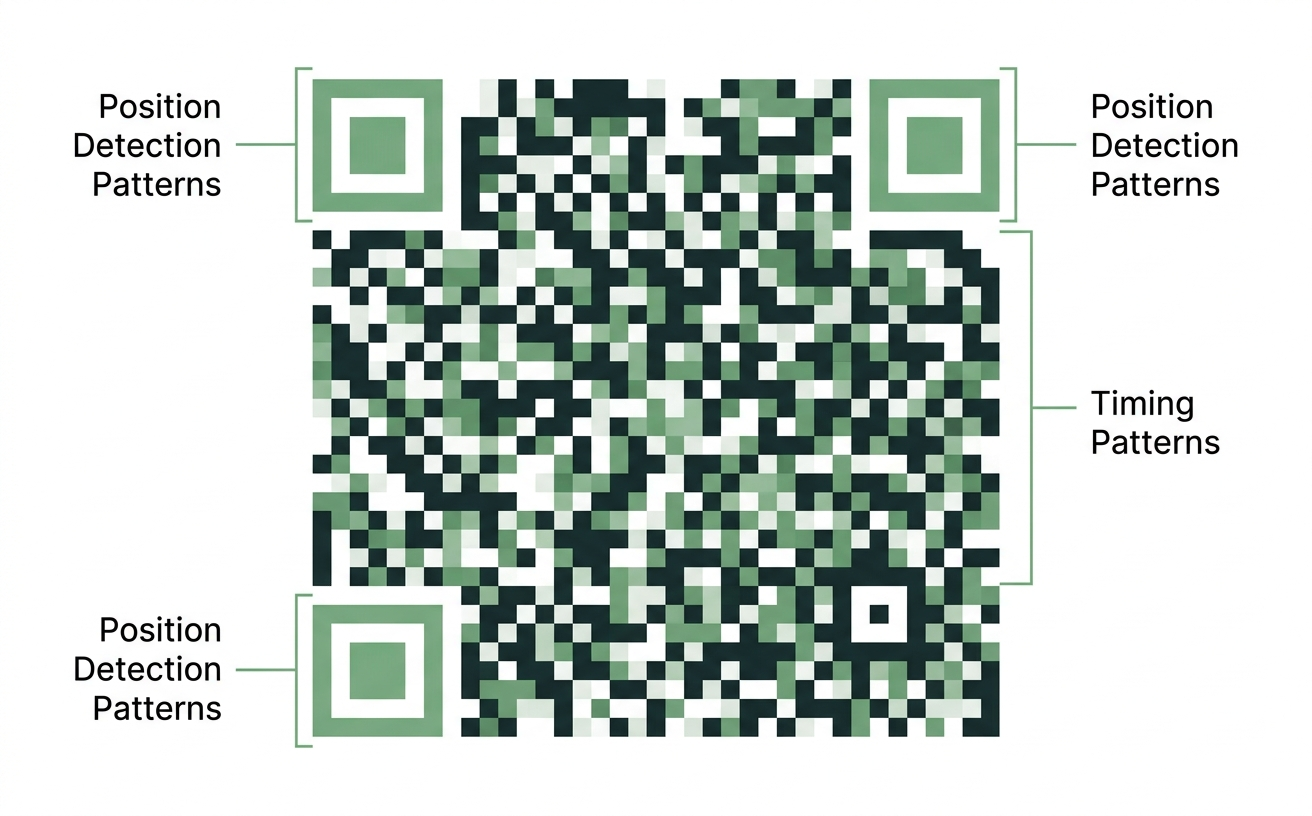
A QR code looks like a random mess of black and white squares. It is not random at all. Every part has a specific job.
The three large corner squares
These are called finder patterns. Their job is to help your phone’s camera find and orient the QR code, no matter what angle you are holding your phone at. As long as at least two corners are visible and in focus, most phones can still read the code.
The smaller squares filling the middle
This is the actual data. Each tiny square, or the absence of one, represents a binary value. A combination of 1s and 0s that your phone decodes into a URL, a phone number, or whatever information was stored when the code was created.
The white border around the outside
This is called the quiet zone. It tells your phone’s camera where the QR code starts and ends. Never remove it or print a QR code right to the edge of a sticker or card. Without the quiet zone, scanners struggle to read the code reliably.
Error correction
QR codes have something built into them that most people do not know about. Even if part of the code is damaged, scratched, or covered by a logo, it can still scan correctly. This is called error correction, and it comes in four levels as defined in the ISO/IEC 18004 QR code standard:
- L (Low): recovers up to 7% damage. Use for clean digital displays.
- M (Medium): recovers up to 15%. A solid choice for most everyday uses.
- Q (Quartile): recovers up to 25%. Use when adding a logo to the centre.
- H (High): recovers up to 30%. Best for print materials that might get worn, wet, or partially covered.
If you are adding a logo to your custom QR code, always switch to Q or H error correction to keep it scannable.
What Can a QR Code Link To?
A QR code can point to almost anything digital:
- Website or URL: the most common use. Link to your homepage, a product page, a booking form, or any URL.
- WiFi network: guests scan it and connect automatically, no password typing needed. Great for cafes, hotels, and Airbnb hosts.
- Contact card (vCard): one scan saves your name, phone number, email, and social media profiles directly to someone’s phone.
- Phone number: tap to call instantly from a scan.
- SMS: open a pre-written text message to a specific number.
- Email address: open a pre-addressed email ready to send.
- Social media profiles: Instagram, TikTok, Facebook, WhatsApp, Twitter/X, YouTube.
- Location: open a specific address directly in Google Maps.
- Calendar event: add an event to someone’s calendar automatically.
- Plain text: display any message without needing a browser or internet connection.
Static vs Dynamic QR Codes
Not all QR codes work the same way. There are two types, and knowing the difference matters before you print anything.
Read the full breakdown here: Static vs dynamic QR codes: which one do you actually need?
Static QR codes
A static QR code has the information baked permanently into the code itself. Once it is created and printed, you cannot change where it points.
Static QR codes are free to create, work forever with no expiry date, have no scan limits, and need no account to generate.
The downside is that if the URL changes or the page moves, the QR code becomes useless. You have to create a new one and reprint your materials.
Best for personal use, one-time events, and simple link sharing where you are confident the destination will not change.
Dynamic QR codes
A dynamic QR code uses a short redirect link in the background. The QR code itself always points to the same redirect, but you can change the final destination anytime without changing the printed code.
Dynamic codes also come with scan tracking. You can see how many people scanned your code, when they scanned it, what device they used, and roughly where they were located.
The trade-off is that dynamic codes usually require an account and sometimes a paid plan, depending on the tool you use.
Best for restaurant menus, product packaging, marketing campaigns, and anything you might need to update after printing.
Why Are QR Codes Everywhere Now?
QR codes have been around since 1994, but adoption accelerated sharply from 2020 onwards as contactless interactions became standard across hospitality, retail, and events.
According to Statista, the number of US smartphone users scanning a QR code at least once increased from 83.4 million in 2022 to an estimated 99.5 million by 2025. That is over a third of the entire US population.
For businesses, they have become one of the most affordable ways to connect in-store customers to their online presence. No app required on either side. No equipment to buy. Just a printed square and a phone camera.
How to Scan a QR Code
Scanning a QR code is built into every modern smartphone. You do not need to download a separate app.
On iPhone (iOS 11 and above)
- Open the Camera app on your iPhone (the standard one, not a third-party camera).
- Point the camera at the QR code and hold it steady for a moment.
- A yellow notification banner appears at the top of your screen.
- Tap the banner to open the link.
Apple confirmed native QR code scanning support starting from iOS 11 in their official support documentation.
On Android
- Open the Camera app.
- Point it at the QR code. Most Android phones detect and read it automatically.
- A pop-up appears showing the link.
- Tap it to open.
If your Android camera does not pick it up automatically, look for the Google Lens icon inside your camera app and use that instead. Google Lens supports QR code scanning on all Android devices running Android 8 or above, as noted in Google’s official Lens support documentation.
On a computer or laptop
- Take a screenshot of the QR code.
- Go to Google Lens.
- Upload the screenshot.
- The decoded link appears instantly.
How to Create a QR Code for Free
Creating a custom QR code takes less than 60 seconds. You do not need an account, a credit card, or any design experience.
Here is how to do it at toolshash.com, completely free with no signup required.
Step 1: Choose your QR type
Open the generator and pick what your QR code will link to. You can choose from 14 types including URL, WiFi, vCard, Instagram, WhatsApp, TikTok, Facebook, Location, Event, and more.
Step 2: Enter your content
Paste your URL, type your WiFi network name and password, or fill in your contact information. The input form changes depending on which QR type you selected.
Step 3: Customise the design
This is where toolshash.com goes beyond a basic generator. You can:
- Change colors to match your brand using the foreground and background color pickers
- Upload your logo in PNG, JPG, or SVG format to embed it in the centre of the code
- Pick a dot shape: square, dots, or rounded
- Choose an eye style: square, rounded, leaf, or diamond
- Try AI Colors to generate a color combination automatically
- Add a gradient: linear or radial, with a full angle control slider
None of these features are locked behind a paywall. Everything is free.
Step 4: Generate and preview
Click the Generate button. A live preview appears on the right side of the screen. Grab your phone and scan the preview to test it before you download anything.
Step 5: Download
Choose PNG for digital use, social media, and on-screen displays. Choose SVG for print materials. SVG is a vector format that scales to any size without losing quality. That is exactly what you want for business cards, posters, and signage.
Your QR code is ready. Create yours free at toolshash.com.
What Makes a QR Code Scan Reliably?
Not every QR code scans on the first try. Here is what separates a reliable QR code from one that frustrates people.
High contrast between colors
This is the most important factor. Dark dots on a light background scan best, every time. If you use custom colors, keep a strong contrast ratio. A mid-grey code on a white background will fail. A dark green code on white will work fine.
The official QR code guidelines from Denso Wave specify that the code modules should always be darker than the background and the contrast ratio should be sufficient for a camera to distinguish them clearly.
The right error correction level
When keeping the design simple with no logo, Medium (M) error correction is fine. When adding a logo that covers part of the code, switch to High (H). This stores more redundant data in the code so it can still be read even with part of it covered.
Minimum print size
For anything printed, your QR code needs to be at least 2cm by 2cm to scan reliably on most phones. According to Denso Wave’s official printing guidelines, the recommended minimum size is 2cm x 2cm, and the scanning distance should not exceed ten times the width of the code.
Always test before printing
Scan your finished QR code on at least two different phones before sending anything to print. Test on both an iPhone and an Android. Test in different lighting conditions. A QR code that fails after 500 flyers are printed is an expensive problem.
Are QR Codes Safe to Scan?
QR codes themselves are completely safe. They are just a visual pattern. The code cannot do anything on its own.
The risk comes from where a QR code points. The FBI issued a public warning in January 2022 about malicious QR codes being used to redirect people to phishing websites. This is relatively rare in everyday use, but it is worth knowing about.
To stay safe when scanning codes from unknown sources:
- Check the URL preview your phone shows you before tapping through to any site.
- Be cautious of QR codes on random stickers placed in public spaces, especially if they are covering an existing sign.
- Do not enter login details on any page you reached via a QR code unless you are confident in the source.
For businesses creating QR codes, this is a non-issue. The codes you create point to wherever you specify. There is nothing harmful in the code itself.
How Long Does a QR Code Last?
Static QR codes last forever. There is no expiry date and no scan limit. As long as the website or content they point to still exists, the QR code keeps working.
Dynamic QR codes depend on the platform. Some free services deactivate dynamic codes after a period of inactivity or cap the number of scans on a free plan. Always check the terms before printing dynamic codes on permanent materials like packaging or signage.
Codes created at toolshash.com are static by default. They do not expire and have no scan limits.
QR Code vs Barcode
You have seen both. Here is how they differ.
A barcode stores data in one direction only. According to GS1, the global standards body for barcodes, a standard EAN or UPC barcode holds 8 to 13 digits. You typically need a dedicated barcode scanner to read one, though most modern phone cameras can now handle it.
A QR code stores data in two directions. As noted earlier, it can hold up to 7,089 numeric characters or 4,296 alphanumeric characters in a single code. Any modern smartphone camera reads one instantly with no app needed.
For marketing, menus, contact sharing, and digital links, a QR code is the right tool. For product pricing and retail inventory at scale, barcodes still dominate.
Frequently Asked Questions
Do QR codes need internet to work?
To open a website link, yes. Your phone needs an internet connection to load the page. But some QR code types like WiFi, vCard, and plain text work completely offline because the information is encoded directly into the code itself.
Are QR codes really free to create?
Yes. Creating a basic QR code costs nothing. At toolshash.com you can create, customise, and download QR codes with no account and no cost. Features including logo upload, custom colors, and SVG download are all included free.
Can a QR code be any color?
Yes, as long as there is enough contrast between the foreground and background colors. Dark on light works best. You can match your exact brand colors using the color picker in the QR code generator.
How many times can a QR code be scanned?
Static QR codes have no scan limit at all. They can be scanned thousands of times and keep working indefinitely.
Can I add my logo to a QR code?
Yes. The toolshash.com generator lets you upload a logo in PNG, JPG, or SVG format and embed it in the centre of your branded QR code. Use error correction level Q or H when adding a logo to keep the code scannable.
Will my QR code stop working if I close the browser?
No. Once you download the QR code file, it works independently. You do not need to keep the browser open or maintain an account anywhere.
Create Your First QR Code Now
You now know exactly what a QR code is, how it stores information, and what it can do.
The next step is making one. It takes 60 seconds, costs nothing, and needs no signup.
Create your free QR code at toolshash.com
No watermark. No account. No cost. Download in PNG or SVG, ready to use immediately.