You built a Google Form. Now you need people to fill it in. Sharing a URL that runs to 150 characters is not practical on a poster, a printed handout, or a table sign. Most people will not type it. Most people who try will make a mistake.
A QR code solves this in 60 seconds. Scan the code, the form opens, they fill it in. No typing, no URL, no friction.
This guide walks through exactly how to get the shareable link from any Google Form and turn it into a working QR code, free, in under a minute.
What You Need Before You Start
Two things:
- A Google Form that is published and set to accept responses. If your form is still in draft or responses are paused, the QR code will take people to a form they cannot submit.
- The shareable link to your form, not the editing link. These are different URLs. The wrong one gives scanners access to edit the form rather than fill it in. The steps below show exactly which link to copy.
Step-by-Step: Google Form to QR Code in Under 60 Seconds
Step 1: Get the shareable link from your Google Form
Open your Google Form. Make sure you are viewing it in editing mode (the pencil icon view, not the preview).
Click the Send button in the top right corner. A dialog box opens with three sharing options: email, link, and embed code. Click the link icon (the chain link in the middle).
You will see a URL in the format: https://docs.google.com/forms/d/e/[form-id]/viewform
Click Copy to copy the link to your clipboard. This is the responder link, the one that takes people to the form to fill in rather than to edit it.
If you want a shorter URL, tick the Shorten URL checkbox before copying. Google shortens it to a forms.gle/ link. The shorter URL produces a simpler, less dense QR code that scans more reliably at small sizes.
Step 2: Open the QR code generator
Go to toolshash.com/custom-qr-code-generator. No account. No signup. The tool loads immediately.
Step 3: Select Website / URL and paste the form link
From the QR Type dropdown, select Website / URL. Paste the Google Form link into the input field. Confirm it starts with https://docs.google.com/forms/ or https://forms.gle/ depending on whether you shortened it.
Step 4: Customize the design (optional but recommended)
A plain black and white code works. If the QR code is going on a printed handout or an event sign, matching the design to your context takes two minutes and looks considerably more professional.
- Change the foreground color to match your school, organization, or event branding
- Upload your logo as a transparent PNG if you want it embedded in the center. Set error correction to H (High) first.
- Choose a dot shape and eye style that fits the aesthetic of the material it will appear on
Step 5: Generate, test, and download
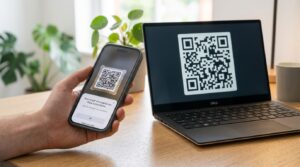
Click Generate. A live preview appears. Before downloading, open your phone camera and scan the preview. Confirm the Google Form opens and is accepting responses. Submit a test response and verify it appears in the form responses.
Download as SVG for any printed material that might be resized. Download as PNG for digital use including presentation slides, emails, and websites.
Create your Google Form QR code free at toolshash.com
Shortening the URL: Why It Matters for QR Code Quality
A full Google Form URL looks like this:
https://docs.google.com/forms/d/e/1FAIpQLSc[long-string-of-characters]/viewform
This is a long URL. The more characters a URL contains, the more data the QR code needs to store, and the denser the grid of squares becomes. A denser code is harder to scan at small sizes, in lower light, or at an angle.
Google’s built-in URL shortener converts a full Google Form URL to a https://forms.gle/[short-code] link that is typically under 30 characters. This produces a significantly simpler QR code pattern that scans more reliably at small print sizes.
Use the shortened URL wherever possible, particularly if the QR code will be printed at 2cm x 2cm or smaller. According to Denso Wave’s printing guidelines, scan reliability decreases at sizes below 2cm x 2cm regardless of URL length, but a shorter URL improves reliability at the margins.
Where to Use a Google Form QR Code
The same QR code works in every context where you want people to fill in the form without typing a URL.
Printed handouts and worksheets
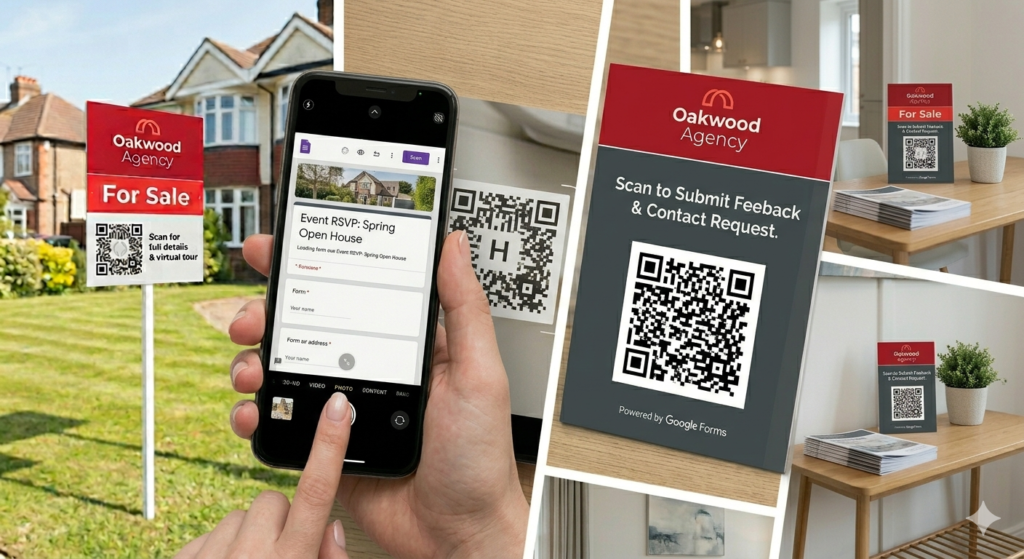
A QR code in the corner of a printed handout that links to a quiz, a feedback form, or an RSVP form removes the URL entirely. Students, attendees, or customers scan and submit without leaving the page they are reading.
Event registration and check-in
A QR code on an event sign, a poster, or a table card that links to a registration or feedback form captures responses at the point of engagement. An attendee standing at a session sign can register their attendance in 15 seconds. For a full guide on using QR codes at events, see QR codes for events: check-in, tickets, WiFi, and schedules in one scan.
Classroom attendance and exit tickets
Teachers can display a QR code at the start or end of a lesson linking to an attendance form or an exit ticket. Students scan and submit in under 30 seconds. Responses appear in the linked Google Sheet in real time. For more classroom applications, see QR codes for schools: 10 ways teachers use them in the classroom.
Customer feedback at point of experience
A QR code on a receipt or table card linking to a short feedback form captures responses while the experience is fresh. A three-question Google Form takes under a minute to complete and produces structured data the business can act on. For the related use case of Google review QR codes, see how to get more Google reviews using a QR code.
Research and survey distribution
For researchers, academics, and students collecting primary data, a QR code on printed materials, posters, or community notice boards gives potential respondents a frictionless path to the survey. Physical distribution of a QR code often reaches populations who are harder to contact digitally.
Troubleshooting: What to Do If the Form Does Not Open
If scanning the QR code shows an error or opens a form in editing mode rather than response mode, one of three things has happened.
You copied the editing URL instead of the responder URL. The editing URL looks like https://docs.google.com/forms/d/[form-id]/edit. The responder URL contains /viewform at the end. Go back to the form, click Send, copy the link from the send dialog rather than from the address bar.
The form is not accepting responses. Open the form in editing mode and check the Responses tab. If responses are paused, click the toggle to enable them. The QR code will then work immediately.
The form requires sign-in to a specific Google account. If the form is restricted to users within a specific domain, people outside that domain see an access error. This is common in school and workplace Google Workspace accounts. Adjust the form settings to allow responses from anyone if the QR code is intended for a general audience.
Does the Google Form QR Code Expire?
No. The QR code created at toolshash.com is a static code. It stores the Google Form URL directly in the pattern of the code. There is no redirect, no platform dependency, and no expiry date.
The code keeps working as long as the Google Form URL stays active and the form is set to accept responses. If you close the form to new responses, the code still scans and opens the form. The form itself shows a closed message rather than accepting submissions.
For a full explanation of QR code expiry, see do QR codes expire?
Frequently Asked Questions
Can I use the same QR code for multiple forms?
No. Each QR code stores a specific URL. To link to a different Google Form, create a new QR code pointing to the new form’s URL. The process at toolshash.com takes under 60 seconds. For one QR code that links to different forms at different times, create a Google Sites page as a landing page. Point the QR code there and update the link on that page whenever the form changes.
Can people fill in the Google Form without a Google account?
Yes, by default. Google Forms are publicly accessible without requiring a Google account. Respondents can fill in and submit the form without signing in. If you want to collect email addresses or restrict responses to your organization’s domain, those settings are available in the form settings under Responses. For a public QR code intended for any audience, leave the form open to all respondents.
How big should the QR code be on a printed handout?
At minimum 2cm x 2cm for close-range scanning on a desk. For a poster or sign scanned from standing distance, 5cm x 5cm or larger. The shortened forms.gle/ URL produces a simpler code that is more forgiving at smaller sizes. According to Denso Wave’s guidelines, the maximum reliable scanning distance is ten times the code width, so a 3cm code scans from up to 30cm.
Can I add a logo to a Google Form QR code?
Yes. Upload your logo at toolshash.com as a transparent PNG and set error correction to H (High) before uploading. Keep the logo under 25% of the code area. The full process is covered in how to create a QR code with your logo.
Will the QR code stop working if I edit the form?
No. Editing the form content, adding questions, changing the order, or updating the design does not change the form’s URL. The QR code points to the URL, not the content at the URL. Edit the form as many times as you need to. The QR code keeps pointing to the same address and respondents always see the current version of the form.
What is the difference between sharing a Google Form link and a Google Form QR code?
They do the same thing. The link is text. The QR code is a visual pattern encoding that same text. The QR code is more useful on printed materials where typing a URL is impractical. The text link is more useful in digital contexts like emails and websites where it can be tapped directly. For any physical placement, a QR code removes the barrier entirely.