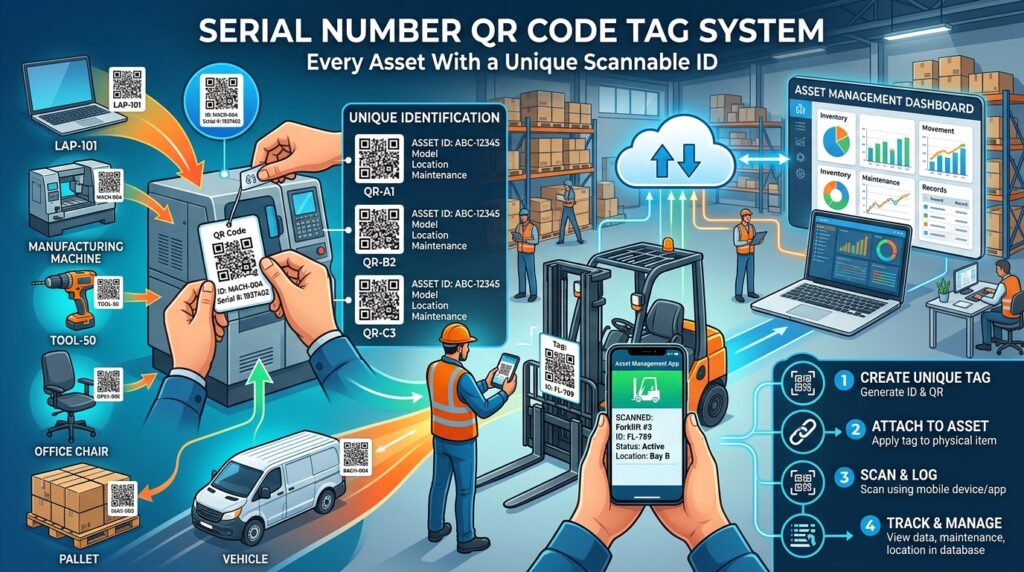
Every piece of equipment in your inventory has a serial number. That serial number lives in a spreadsheet, on a sticker that fades in six months, or in nobody’s head. Finding it when a technician needs it at the point of service takes longer than the repair itself.
A QR code label on each asset that encodes the serial number solves three problems at once. The number is instantly accessible by anyone with a phone. It links to the full service record for that specific asset. And it cannot be misread, transposed, or forgotten because the scan decodes it precisely every time.
This guide covers creating serial number QR codes individually and in bulk from a spreadsheet. It also covers how to link each code to a record that travels with the asset.
What to Encode in a Serial Number QR Code
A serial number QR code can encode the serial number itself as plain text, or it can encode a URL that includes the serial number as a parameter. The choice between these two approaches determines what happens when someone scans the code.
Plain text encoding
Select Text as the QR type at toolshash.com and enter the serial number. When scanned, the phone displays the text directly. No internet connection required. No URL to load. The serial number appears on screen immediately.
This approach is the right choice when:
- The asset will be scanned in environments with unreliable internet access (warehouses, outdoor sites, remote locations)
- The only requirement is displaying the serial number quickly for identification
- There is no linked database or record system to connect the code to
URL encoding with serial number as a parameter
Select Website / URL as the QR type and encode a URL that contains the serial number. For example: https://yourcompany.com/assets?serial=SN-00142 or a pre-filled Google Form URL with the serial number embedded.
When scanned, the browser opens the linked record for that specific asset. The technician immediately sees the full asset history, service log, warranty status, or whatever the linked page contains.
This approach is the right choice when:
- The asset has a service history or record that staff need to access and update at the point of scanning
- You want the scan to open a specific form pre-populated with the serial number, removing manual entry
- Multiple people across multiple locations need to access and update the same asset record
How to Create a Single Serial Number QR Code for Free
Go to toolshash.com/custom-qr-code-generator. No account required.
- Select Text for plain serial number display, or Website / URL for a linked record.
- Enter the serial number or the URL containing it.
- Set error correction to H (High). Asset labels get scratched, marked, and handled over years of service life. H-level correction recovers up to 30% of damaged data, as defined by the ISO/IEC 18004 standard. For any asset label, H is the right setting.
- Keep the design simple. A high-contrast dark foreground on white background is the most reliable for scanning in variable industrial lighting conditions. Color customisation is fine but prioritise contrast over aesthetics for operational labels.
- Click Generate. Scan the preview. Confirm the serial number displays correctly or the correct record loads.
- Download as SVG for print. SVG scales to any label size without quality loss. A label printer, standard laser printer, or professional label printing service all accept SVG.
How to Create Serial Number QR Codes in Bulk From a Spreadsheet
For any inventory of more than a handful of assets, creating codes one at a time is not practical. The Google Sheets formula method generates a QR code for every serial number in a spreadsheet column automatically.
Step 1: Prepare your serial number list
Open a Google Sheet. In column A, enter all your serial numbers, one per row. If you are encoding URLs rather than plain numbers, build the full URL for each asset in column A. For example:
- Row 1:
https://yoursite.com/assets?serial=SN-00141 - Row 2:
https://yoursite.com/assets?serial=SN-00142 - Row 3:
https://yoursite.com/assets?serial=SN-00143
If building URLs from serial numbers, use a formula to concatenate the base URL with each serial number automatically. In column A, with serial numbers in column B starting at B1:
=CONCATENATE("https://yoursite.com/assets?serial=",B1)
Copy down column A for every row in your list.
Step 2: Generate QR codes using the Google Chart API
In column B (or column C if column B holds serial numbers), enter this formula in row 1:
=IMAGE("https://chart.googleapis.com/chart?chs=300x300&cht=qr&chl="&ENCODEURL(A1))
Press Enter. A QR code image appears in the cell, generated for the value in A1. Drag the formula down to generate a code for every row in your list. The codes update automatically if any value in column A changes.
Step 3: Export as individual image files
For printing, you need individual image files rather than cells in a spreadsheet. Use the Google Apps Script method in bulk QR code generator to export the full batch as individual PNG files to Google Drive. Each file is named by row number and corresponds to the serial number in that row.
For large inventories where you need branded, SVG-quality output with logos and custom colors applied to every code in the batch, a paid bulk QR platform handles this cleanly. The Google Sheets method produces functional plain codes. A paid platform produces branded codes. For most operational asset labelling, the functional plain codes are exactly what is needed.
Linking the QR Code to a Service Record
A QR code that displays a serial number on scan is useful for identification. A QR code that opens the complete service record for that serial number changes how maintenance and field service operations work.
Google Sheets as a free asset record database
Create a Google Sheet with one row per asset. Columns: serial number, asset name, location, purchase date, warranty expiry, last service date, next service due, service notes, assigned technician. Share the sheet with everyone who needs to update records.
For the QR code URL, use the Google Sheets sharing link with the serial number pre-filtered. The format for filtering a Google Sheet by a specific value is:
https://docs.google.com/spreadsheets/d/[sheet-id]/edit#gid=0&fvid=[filter-view-id]
For a simpler approach, create a Google Form for service log entries with the serial number pre-filled as a URL parameter (see the method described in QR code inventory management). Scanning the asset’s QR code opens the log entry form with the serial number already populated. The technician adds the service note and submits. Every submission appends to the Google Sheet for that asset’s serial number.
Dedicated asset management software
For larger operations, dedicated platforms like Sortly, Snipe-IT, or Asset Panda provide purpose-built asset records with service history, photo attachments, and check-in and check-out workflows. Each asset gets a QR code generated by the platform. Scanning opens the asset record directly in the platform’s interface.
For the full comparison of free and paid asset management options, see QR code inventory management: track assets and stock with a simple scan.
Serial Number QR Codes for Product Authentication
A serial number QR code on a product serves a different purpose from an asset tracking label. Rather than linking to a service record, it links to a verification page that confirms the product is genuine.
The pattern: each product unit gets a unique serial number encoded in a QR code. The code links to a URL on the brand’s website that confirms the serial number is registered and valid. A consumer who wants to verify authenticity scans the code. If the serial number exists in the database and has not been previously scanned an unusual number of times, the page confirms authenticity. If it does not exist or shows signs of duplication, the page flags a potential counterfeit.
This approach is used by luxury goods brands, pharmaceutical manufacturers, and electronics producers to give consumers a verifiable authenticity signal at the point of purchase. For small producers implementing this at low volume, a simple Google Sheet lookup linked from the QR code handles the verification without any custom development.
Label Size and Durability for Serial Number QR Codes
Asset labels face harder conditions than most QR code applications. Here is what matters for longevity.
Minimum size: 2cm x 2cm for close-range scanning at 15 to 25cm. For assets scanned from a standing or reaching distance, go to at least 3cm x 3cm. According to Denso Wave’s printing guidelines, a QR code scans reliably at up to ten times its own width. Size up from these minimums wherever the asset surface allows.
Label material: polyester or polypropylene for any asset that will be exposed to moisture, oils, cleaning chemicals, or outdoor conditions. Standard paper labels do not survive workshop or outdoor environments beyond a few months. For assets in extreme environments such as high heat, UV exposure, or chemical contact, use specialist label stock rated for those conditions.
Include the serial number in plain text below the QR code. When a label is beyond the error correction threshold and the QR code fails to scan, the text provides a manual fallback. A technician who can read the serial number can still look up the record without scanning.
For a full guide on label materials and printers for QR code asset tags, see QR code label printer: the best way to print QR codes on labels.
Frequently Asked Questions
Can I generate a QR code from any serial number format?
Yes. QR codes encode any text string. Serial numbers with letters, numbers, dashes, underscores, or any other printable characters all encode correctly. The length of the serial number affects the density of the QR code. Very long serial numbers (over 50 characters) produce denser codes that are harder to scan at small sizes. For long serial numbers, use the URL encoding approach and shorten the URL with a service like Bitly before encoding it in the QR code. This reduces the character count and produces a simpler, more scannable pattern.
Does each asset need a different QR code?
Yes, if each asset has a unique serial number and you want the scan to identify the specific asset. Two assets with the same QR code cannot be distinguished by scanning. Each unique serial number requires its own unique QR code. For identical assets that only need generic product information rather than individual identification, one shared code pointing to the product page is sufficient.
Can I reuse a QR code label from a retired or sold asset?
Not reliably. The QR code encodes the original serial number. If the label is moved to a different asset, every scan returns the original asset’s serial number, which now belongs to the wrong asset. Always create a new label with the correct serial number for any reassigned or replacement asset. Archive rather than delete the old serial number record so historical service data is preserved.
How do I prevent someone from copying the QR code label and applying it to a different asset?
For high-value assets, use tamper-evident label stock. These labels leave a visible pattern or the word “VOID” on the surface when removed, making relabeling immediately apparent. For product authentication use cases, combine the QR code with a holographic or sequential numbering element that is harder to replicate. The QR code alone is not tamper-proof, but tamper-evident label stock raises the barrier significantly.
Do serial number QR codes expire?
Static QR codes created at toolshash.com never expire. The encoded text or URL is stored permanently in the code pattern with no platform dependency. The label will physically degrade before the code’s data becomes invalid. For URL-based codes, the code keeps working as long as the destination URL stays live. If your asset management system changes URLs, update the destination but consider that labels already applied to assets would need to be replaced. For the full explanation, see do QR codes expire?
Can I encode additional data beyond the serial number?
Yes. A QR code stores up to 7,089 numeric characters or 4,296 alphanumeric characters according to the ISO/IEC 18004 standard. You can encode the serial number alongside a manufacturer code, a product category, a manufacture date, or any other identifier. However, adding more data makes the QR code denser and harder to scan at small sizes. For most asset labelling, encoding the serial number as a URL parameter and keeping the record in a linked database is better than encoding everything in the code itself.