You have equipment spread across three sites and no reliable way to know which item is where. Or stock in a warehouse that takes twenty minutes to locate because the labelling system fell apart six months ago. Or tools that walk out of a workshop and never come back because there is no check-out system.
These are not enterprise problems requiring expensive software. They are small-scale operational problems that QR codes solve for the cost of a label printer and an afternoon of setup.
This guide covers how to build a practical QR code inventory system from scratch. What software you need (most of it free), and which setups work best for different asset types and business sizes.
How QR Code Inventory Tracking Works
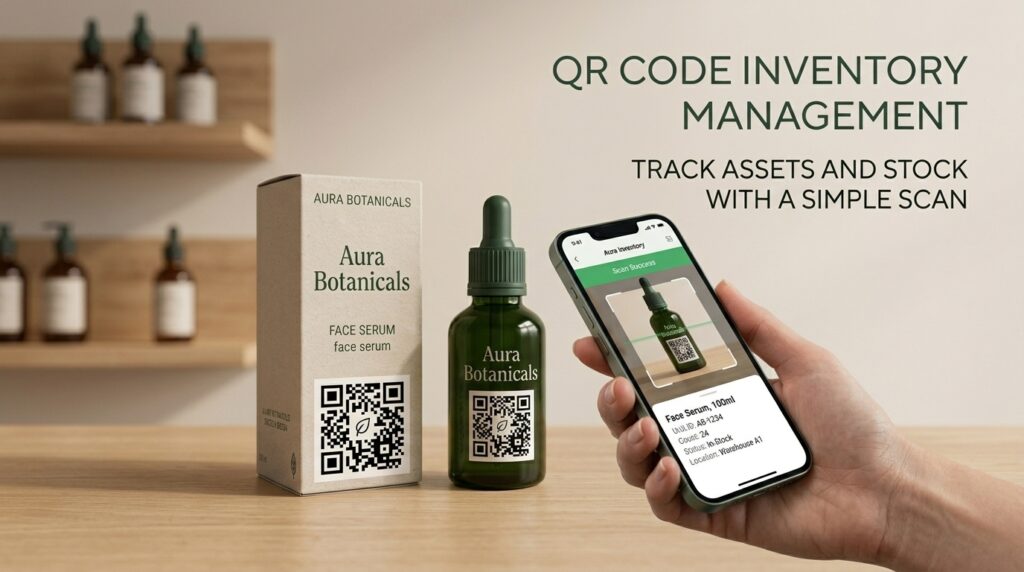
The principle is simple. Every asset or stock item gets a unique QR code label. The code links to a record for that item: its description, location, quantity, condition, maintenance history, or whatever fields are relevant to your operation. When someone scans the code, the record opens instantly on their phone.
This is different from a barcode system in one important way. A barcode requires a dedicated scanner and a connected database. A QR code works with any smartphone and any web-accessible record. No specialist hardware. No proprietary software. A staff member with a phone can scan, check, and update a record from anywhere in the building.
For a full comparison of the two formats, see QR code vs barcode: what is the difference and when to use each.
What You Can Track With QR Codes
QR code inventory systems work well for any physical item that benefits from a record attached to it.
- Fixed assets: office equipment, machinery, vehicles, IT hardware, tools, furniture. Each item gets a permanent QR code label. The record holds serial number, purchase date, warranty expiry, maintenance log, and current location.
- Consumable stock: warehouse inventory, retail stock, catering supplies, stationery, raw materials. Each shelf location or storage container gets a QR code. The record shows current quantity, reorder threshold, and supplier details.
- Borrowed or loaned items: library books, equipment lent to staff or clients, keys, uniforms. The QR code check-out system records who has an item, when they took it, and when it is due back.
- Maintenance and inspection records: fire extinguishers, first aid kits, plant and machinery, vehicles. Each item’s QR code links to an inspection log updated after each check.
- Classroom or shared resources: textbooks, tablets, sports equipment, musical instruments. For the education context specifically, see QR codes for schools: 10 ways teachers use them in the classroom.
Setting Up a Free QR Code Inventory System With Google Sheets
The simplest functional system requires three things: a Google Sheet as the database, a Google Form for updates, and QR code labels linking each item to its form. All three are free.
Step 1: Build the inventory database in Google Sheets
Create a Google Sheet with one row per asset or stock item. Columns should cover whatever fields are relevant to your operation. A basic fixed asset register needs at minimum:
- Item ID (a unique reference number, e.g. AST-001, AST-002)
- Item name and description
- Category
- Current location
- Assigned to (if applicable)
- Condition (Good / Fair / Needs attention)
- Last checked date
- Notes
A consumable stock sheet adds:
- Current quantity
- Reorder quantity threshold
- Supplier name and contact
- Last restocked date
Step 2: Create a Google Form for each type of update
Create a Google Form that lets staff submit updates for a scanned item. For a fixed asset check-in system, the form needs: Item ID (pre-filled via URL parameter), staff name, action (check out / check in / condition update), new location, and notes.
The most efficient approach is to create the Google Form URL with the Item ID pre-filled as a query parameter. When a staff member scans the QR code on AST-001, the form opens with AST-001 already in the Item ID field. They only need to fill in their name, the action, and any notes.
To pre-fill a Google Form field: open the form, click the three-dot menu, and select Get pre-filled link. Enter the item ID, click Get link, and copy the URL. That URL, with the item ID pre-populated, becomes the destination for that item’s QR code.
Step 3: Create individual QR codes for each item
For small inventories under 50 items, create each QR code individually at toolshash.com. Select Website / URL, paste the pre-filled Google Form URL for that specific item, generate, and download as PNG. Repeat for each item.
For larger inventories, use the Google Sheets bulk generation method described in bulk QR code generator: create hundreds of unique QR codes at once. Build a column of pre-filled form URLs and use the Google Sheets IMAGE formula to generate a QR code for each row automatically.
Step 4: Print and apply labels
Print each QR code on adhesive label stock and apply to the corresponding item. For office equipment and tools, a 3cm x 3cm label fits most surfaces. For small items like individual tools, a 2cm x 2cm label works at close scanning range.
Use a label printer for clean, durable output. Standard desktop label printers from brands like Brother and Dymo print on weather-resistant polyester label stock that holds up to handling, moisture, and moderate temperature variation. For outdoor assets or items in harsh environments, use laminated or UV-resistant label stock.
QR Code Label Best Practices for Inventory
Use error correction level H
Inventory labels get handled. They get scratched, marked, partially covered, and exposed to whatever environment the asset lives in. Set error correction to H (High) when creating every inventory QR code at toolshash.com. The ISO/IEC 18004 standard defines High error correction as recovering up to 30% of damaged data. A label that is 30% obscured or scratched still scans.
Include the item ID in human-readable text below the code
A QR code that cannot be scanned, due to damage beyond the error correction threshold, is useless without a fallback. Printing the item ID in plain text below every QR code means staff can manually look up the record even if the code fails. This is a redundancy worth adding to every label.
Place labels consistently and visibly
Decide on a standard label placement for each asset category and apply it consistently. IT equipment: top right corner of the device. Vehicles: inside the driver door frame. Storage shelves: eye level on the front edge. Consistency means staff know exactly where to look for the code on any item without searching for it.
Photograph each labelled asset
When you apply a QR label to an asset, photograph the item showing the label in place and add the image to the Google Sheet record. If a label is ever damaged or removed, you have a reference image confirming which asset the label belongs to. This also helps when onboarding new staff who are unfamiliar with the asset inventory.
Dedicated QR Code Inventory Apps Worth Knowing
Several dedicated apps use QR codes as their scanning interface and provide more comprehensive inventory features than a Google Sheets setup.
Sortly
Sortly is a visual inventory management app designed for small and medium businesses. It generates QR code labels for every item you add, supports custom fields, and provides a mobile scanning interface for quick lookups. The free plan handles up to 100 items with limited features. Paid plans start at around $24 per month and are suitable for businesses with up to several thousand assets.
Asset Panda
Asset Panda is a full-featured asset tracking platform that supports QR codes, barcodes, and RFID. It is designed for larger organizations and includes check-in and check-out workflows, maintenance scheduling, and audit trails. Pricing is on request and reflects its enterprise positioning.
Snipe-IT
Snipe-IT is a free, open-source IT asset management system that supports QR code labels. It is self-hosted, which means you run it on your own server or a cheap cloud instance. It is particularly popular with IT teams managing laptops, monitors, and peripherals. The open-source version has no per-item or per-user costs.
When to use a dedicated app vs Google Sheets
Google Sheets works well for inventories up to a few hundred items where the primary need is a simple check-in and check-out log and a searchable asset register. A dedicated app is worth the cost when you need audit trails, maintenance scheduling, automated low-stock alerts, multi-site management, or integration with accounting software.
QR Code Inventory for Specific Use Cases
Tool tracking in a workshop or trades business
Tools are high-value, frequently moved, and regularly lent between jobs and staff. A QR code on every tool linking to a check-out form in Google Sheets creates a record of every movement. When a tool goes missing, the last check-out record shows who had it and when. For a trades business, this reduces tool loss significantly without requiring expensive asset tracking hardware.
IT equipment in an office
A QR code label on every laptop, monitor, and peripheral linking to a record with serial number, warranty, and assigned user gives an IT manager a complete, scannable register. Annual IT audits that once required a spreadsheet and a clipboard now take minutes: walk the office, scan each item, confirm the record matches the location. Discrepancies surface immediately.
Stock management in a small warehouse or retail stockroom
A QR code on each shelf location or storage bin rather than on individual items works well for high-volume consumables. Scanning the shelf code opens the record for that location’s stock, shows current quantity, and provides a link to a quantity update form. Staff update the count after each pick or restock. The Google Sheet becomes a live view of stock levels across every location.
Charitable organizations and community groups
Charities and community groups often manage donated equipment, shared resources, and loaned items across volunteers who have no formal training. A simple QR code system gives an administrator visibility over what is where without requiring anyone to learn specialist software. A scan and a form submission is a low enough barrier that volunteers actually use it.
Frequently Asked Questions
Do I need special scanning hardware for QR code inventory tracking?
No. Any modern smartphone scans QR inventory codes natively through the camera app. For high-volume warehouses where speed matters, a dedicated Bluetooth QR scanner paired with a phone is faster than a camera. But it is not required to start. Most small business inventory systems work fine with standard smartphones.
What happens if a QR code label gets damaged?
A QR code created with High (H) error correction at toolshash.com recovers from up to 30% damage and still scans. Beyond that threshold, the code fails. Printing the item ID in text below the code provides a manual fallback. For assets in harsh environments, protect labels with a clear laminate overlay. If a label is completely unreadable, print and apply a replacement using the same item ID and QR code file.
Can I update inventory records without reprinting QR labels?
Yes. The QR code links to a URL. As long as the URL stays active and the Google Sheet or form it connects to is updated, the code keeps working with current data. Change the stock quantity, update the location, or add a maintenance note. The label on the item never needs reprinting. Only if the URL changes does the label need replacing. For a full explanation, see do QR codes expire?
Is this system secure? Can anyone scan the QR code?
A QR code label is visible to anyone who can physically see it. For most inventory use cases, this is fine. Staff who can reach an asset in your warehouse or office can scan its label. If you need to restrict access to inventory records, set the Google Sheet or Form to require Google account sign-in and share it only with specific users. Anyone who scans the code and is not signed in to an authorised account will see an access denied message.
How many items can I track with this system?
Google Sheets handles up to 10 million cells per spreadsheet, which is sufficient for any small to medium inventory. The limiting factor at scale is the time it takes to create individual QR codes and labels. For inventories over 500 items, use the bulk QR code generator method to produce the full label set from a spreadsheet, not one at a time.
How is this different from a barcode system?
A traditional barcode system requires a dedicated laser scanner and a connected inventory database. A QR code system works with any smartphone camera and any web-accessible record. QR codes also store more data than barcodes and can encode a full URL, making them self-contained without needing a separate lookup database. For a detailed comparison, see QR code vs barcode: what is the difference and when to use each.