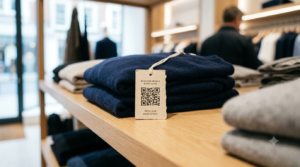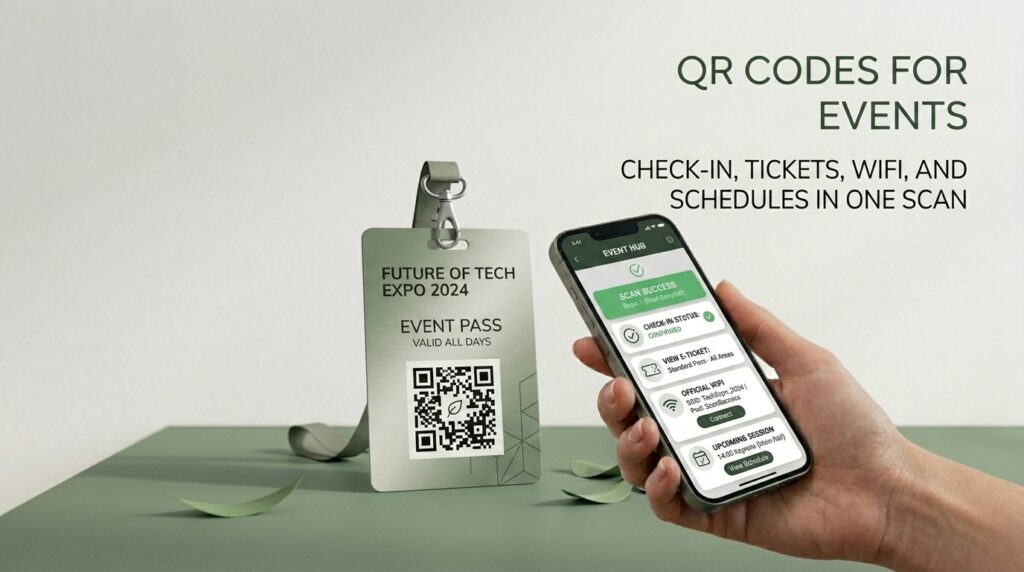
Registration queues at the door. WiFi passwords shouted across a crowded room. Paper schedules that are already out of date by the time they are printed. Events have always had logistics problems that frustrated attendees before they even sat down.
QR codes solve most of them. A check-in QR code on each badge eliminates the registration queue. A WiFi QR code on the welcome sign ends the password question. A live schedule QR code means no reprinting when a speaker drops out at noon.
This guide covers every practical QR code application for events. How to set each one up for free, and what separates a code that works on the day from one that causes more problems than it solves.
The 7 QR Code Applications Every Event Organizer Should Know
1. Attendee check-in
A unique QR code on each badge scanned at the entrance confirms arrival, marks attendance in a spreadsheet, and takes under two seconds per person. No searching lists. No ticking names off paper. No queue forming while a volunteer flicks through a printed register.
The setup: create a unique check-in URL for each attendee in the format https://yoursite.com/check-in?id=[attendee-id] or use a pre-filled Google Form URL for each person. Generate a unique QR code for each URL using the bulk generation method in bulk QR code generator: create hundreds of unique QR codes at once. Print each code on the corresponding badge. At the door, scanning the badge marks the attendee present in the linked sheet.
For events under 50 attendees, a shared check-in QR code linking to a Google Form is faster to set up and still eliminates the paper register. For the Google Form setup, see how to turn a Google Form into a QR code.
2. WiFi access
The most-asked question at any indoor event is the WiFi password. A WiFi QR code on the welcome sign or each table answers it permanently. Attendees scan, connect automatically, and never need to ask.
Create a WiFi QR code at toolshash.com by selecting the WiFi type and entering the network name, password, and encryption type. Print it on a sign large enough to scan from a standing distance. For a dedicated venue where WiFi credentials do not change, one large printed sign near the entrance handles the question for every event held there. For the full setup guide, see WiFi QR code generator: share your password without saying a word.
3. Live event schedule
A QR code in the printed program or on signs around the venue that links to a live Google Doc or Google Sites schedule means the schedule is always current. When a speaker cancels, a session moves, or a room changes, update the Google Doc and every attendee who scans the code sees the current version instantly. No reprinting. No announcements that half the room misses. The QR code is static. The page it links to is editable.
4. Session feedback forms
A QR code displayed at the end of each session linking to a short Google Form collects feedback while the session is still fresh. Attendees scan before they leave the room and submit two or three questions in under a minute. Organizers have real-time data on which sessions landed well and which did not before the event is over.
Create one Google Form with a dropdown for session name to reuse the same QR code, or create a separate form per session to isolate responses. For the full Google Form to QR code setup, see how to turn a Google Form into a QR code.
5. Shared photo album
A QR code on table cards or the entrance sign linking to a shared Google Photos album lets every attendee upload their pictures to one place in real time. By the end of the event you have candid shots from every corner of the venue, all in one album, without chasing anyone for photos afterwards.
Create a shared Google Photos album, enable “Anyone with the link can add photos,” copy the sharing URL, and create a QR code at toolshash.com. For weddings and social events, see the full guide at wedding QR code: RSVP, photo sharing, and seating charts made easy.
6. Sponsor and exhibitor pages
A QR code on each sponsor’s materials linking to their website, product page, or a special offer gives sponsors a direct audience connection without requiring a stand or breakout session. For exhibitors, a QR code at the booth linking to a catalogue, demo video, or lead capture form outlasts any printed brochure and is easier to update.
7. Networking and contact sharing
A QR code on an attendee’s badge linking to their LinkedIn profile or vCard turns every handshake into a connection without business cards. The other person scans the badge, the profile opens, and the connection is made before they part.
Create a vCard QR code at toolshash.com by selecting the vCard type and entering the attendee’s contact details. Or use a Website / URL type pointing to their LinkedIn profile. Either approach works on any smartphone without any additional app. For the full vCard guide, see vCard QR code generator: share your contact details with one scan.
Setting Up Event QR Codes: What to Do Before the Day
An event QR code that fails on the day is worse than no QR code. The preparation that prevents failure is straightforward but often skipped in the rush of event production.
Test every code on the actual printed material
Scan codes on screen test the digital file. Scan codes on printed materials test what attendees will actually experience. Print a sample of every QR code you plan to use at the event and scan them in conditions similar to those on the day. Check-in codes should be tested at the scanning distance and lighting conditions at the entrance. WiFi codes should be tested from the distance a person would scan the welcome sign. Schedule codes should be tested on both iPhone and Android.
Confirm every destination is live and accessible
Open every URL that a QR code links to in a browser on the day before the event. Confirm the Google Form is accepting responses. Confirm the schedule Google Doc is set to public viewing. Confirm the photo album has sharing enabled. A QR code pointing to a document with the wrong sharing settings shows an access denied message to every attendee who scans it.
Have a fallback for WiFi
Print the WiFi password in text alongside the WiFi QR code. Some older phones and devices do not support QR-based WiFi connection and will need to type the password manually. The QR code handles the majority. The printed password handles the rest.
Size codes for the actual scanning distance
An attendee badge is scanned from 20 to 40cm away. A welcome sign is scanned from 60 to 100cm. A large venue sign may be scanned from further. According to Denso Wave’s printing guidelines, a QR code scans reliably at up to ten times its own width. A code on a badge needs to be at least 2.5cm x 2.5cm. A code on a welcome sign needs to be at least 8cm x 8cm. Size up from those minimums wherever the design allows.
How to Create Every Event QR Code for Free
Every application in this guide uses the same process at toolshash.com. No account. No signup. Completely free.
- Go to toolshash.com/custom-qr-code-generator.
- Select the correct QR type: WiFi for network access codes, vCard for contact sharing, Website / URL for everything else.
- Enter the content: WiFi credentials, contact details, or the destination URL.
- Match the design to your event branding. Set the foreground color to your event’s primary color. Upload your event logo as a transparent PNG if you want it embedded. Set error correction to H (High) for any code that will be printed on a badge or sign.
- Click Generate. Scan the preview on your phone before downloading.
- Download as SVG for print and PNG for digital display on screens.
For check-in codes where each attendee needs a unique QR code, use the bulk generation method rather than creating individual codes. See bulk QR code generator for the full spreadsheet-based workflow.
Create your event QR codes free at toolshash.com
QR Codes for Different Event Types
Conferences and corporate events
The highest-value applications for conferences are check-in, session feedback, and networking badges. Check-in eliminates the registration queue that starts every conference on a frustrated note. Session feedback gives the programme committee the data to improve the event next year. Networking badges replace a stack of business cards with a single scan.
QR codes on each exhibitor table linking to lead capture forms give sponsors measurable ROI without requiring dedicated staff at every booth.
Festivals and outdoor events
WiFi is rarely an option at outdoor events, so QR codes that require an internet connection work differently in this context. The most reliable outdoor event applications are check-in codes that store the attendee ID in the code itself, requiring no connectivity. Schedule codes linking to a page that can be loaded and cached before the event. And post-event feedback codes sent by email after the day.
For outdoor entry tickets, a QR code printed on the ticket that is scanned at the gate works on any phone with the camera app open, regardless of connectivity. The scanning device (usually a tablet with mobile data) needs the connection. The ticket-holder’s phone does not.
Community and social events
For smaller community events, weddings, birthday parties, and reunions, the shared photo album QR code and the WiFi QR code are the two highest-impact applications. Both are quick to set up and immediately improve the attendee experience. A photo album QR code on a table card gives guests something to do and creates a shared memory that outlasts the event.
Tracking Whether Your Event QR Codes Are Working
For any event QR code that links to a website you control, add UTM parameters to the URL before creating the code. This gives you Google Analytics data on exactly how many people scanned the code and what they did after landing on the page.
For example, a session feedback form URL with UTM parameters: https://forms.gle/[form-id]?utm_source=session_qr&utm_medium=print&utm_campaign=conference_2025
For check-in codes, the check-in data itself is your tracking mechanism. The Google Sheet linked to the check-in form shows exactly who scanned, when, and from which entry point if you use different codes for different entrances.
For a full guide on tracking QR code performance, see QR code tracking: how to know how many people scanned your code.
Frequently Asked Questions
Can I use QR codes for event ticketing?
Yes. A QR code on a ticket that encodes a unique attendee identifier is a standard ticketing mechanism used by everything from small community events to large music festivals. For a simple free setup: generate a unique URL per attendee, create a QR code for each, email the code, and scan at the gate. Dedicated event ticketing platforms like Eventbrite generate QR codes automatically for every ticket sold. If you are building your own system, see bulk QR code generator for creating a batch of unique codes from a spreadsheet.
What happens if an attendee’s phone battery dies?
For check-in: have a backup paper list. For any event where QR codes are the primary check-in mechanism, keep a printed attendee list at the desk for exactly this situation. The QR code handles 95% of check-ins faster than any other method. The paper list handles the edge cases. For WiFi and schedule codes, a printed fallback (the password in text, a printed schedule) covers attendees who cannot scan for any reason.
Do QR codes work for virtual or hybrid events?
Yes, though differently. For virtual events, QR codes in digital materials (PDFs, presentation slides, email confirmations) give attendees a quick-scan path to session links, resource downloads, and feedback forms without typing URLs. For hybrid events: a code in the venue links to the livestream, and a code on screen lets in-person attendees access resources available to remote participants.
How do I handle QR codes for last-minute attendee additions?
Create the new attendee’s QR code at toolshash.com using the same URL format as the rest of the batch. The process takes under two minutes. Print the badge on site if a printer is at the desk, or add the attendee to the manual backup list if printing is not available.
Should event QR codes be static or dynamic?
Static for everything that does not change between creation and the event day. The schedule, feedback form, photo album, and WiFi codes are all static codes pointing to editable destinations. If the destination content changes (the schedule updates), edit the linked page rather than reprinting the code. The only scenario where a dynamic code is worth considering is a large recurring event where you want to reuse the same printed materials with an updated destination each year. For a full comparison, see static vs dynamic QR codes: which one do you actually need?
Can the same QR code be used for multiple events?
If the code points to a URL you control and you update the page content between events, yes. A standing check-in form cleared before each event, or a schedule page updated each time, can use the same printed QR code year after year. This is useful for recurring events using the same printed program or signage. The code is permanent. The content it links to changes.