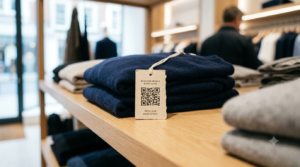
Your WiFi password is 16 characters long, has two capital letters, a number, and a symbol that nobody can find on their keyboard. Every new guest, every visiting colleague, and every customer who sits down at your cafe asks for it. You repeat it out loud, they mistype it, you repeat it again.
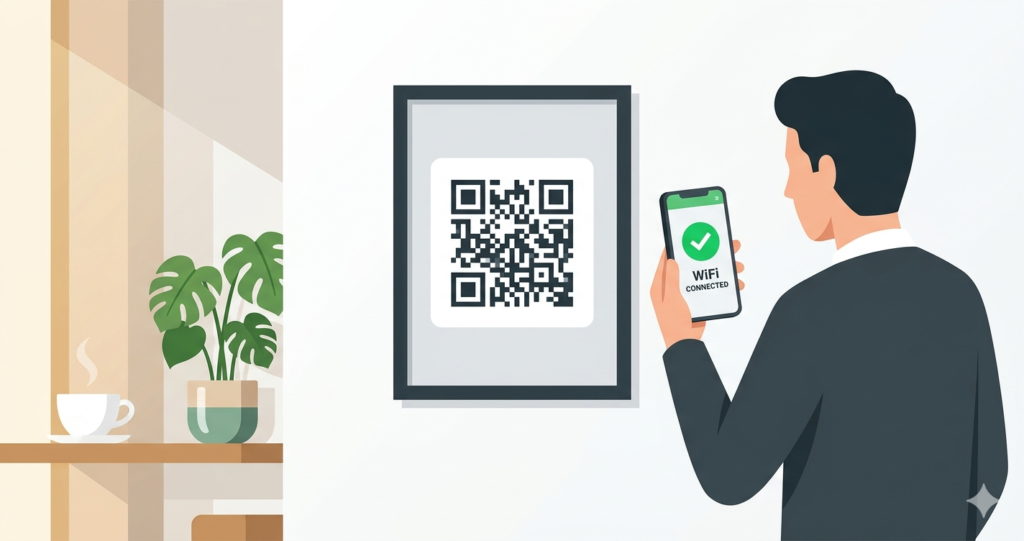
A WiFi QR code fixes this entirely. One scan and the phone connects. No typing. No repeating. No frustrated customers holding up the queue.
This guide explains how to create a WiFi QR code in 30 seconds, where to display it, and how to make it look good enough that people actually use it.
What is a WiFi QR Code?
A WiFi QR code is a scannable code that stores your network name (SSID) and password in a standardised format. When a customer or guest scans it with their phone camera, the phone reads the network credentials and automatically prompts them to connect to your WiFi network.
No password typing. No spelling out characters over background noise. No showing someone your phone screen with the password visible to everyone nearby.
The format used to encode WiFi credentials in a QR code is defined in the Wi-Fi Alliance’s QR code specification. It follows the structure WIFI:T:WPA;S:YourNetworkName;P:YourPassword;;, where T is the security type, S is the network name, and P is the password. The QR generator handles all of this automatically. You just enter your network details and the tool creates the correctly formatted code.
How to Create a WiFi QR Code in 30 Seconds
Go to toolshash.com/custom-qr-code-generator. No account. No signup. Completely free.
Step 1: Select WiFi as your QR type
From the QR Type dropdown, select WiFi. A form appears with three fields: network name, password, and security type.
Step 2: Enter your network details
Fill in the following:
- Network name (SSID): exactly as it appears in your WiFi settings, including capitalisation and spaces
- Password: your full WiFi password, exactly as entered in your router settings
- Security type: WPA/WPA2 is correct for almost every modern router. Use WEP only if your router is very old. Select None if your network has no password.
Double-check both the network name and password for typos before generating. A single wrong character means the code will not connect.
Step 3: Customise the design
A plain code works. But a branded WiFi QR code that matches your space looks intentional and professional rather than like something printed on a home printer five minutes before opening.
In the design section at toolshash.com you can change the foreground and background colors, upload your logo, choose a dot shape, and pick an eye style. If you are a cafe, a dark green code on a cream background tends to scan well and fits most interiors. If you are a hotel, matching the brand color palette keeps everything consistent.
If you add a logo, switch the error correction level to H (High). This protects scannability when the logo covers part of the data area. The ISO/IEC 18004 QR code standard defines High error correction as recovering up to 30% of obscured data modules. That is more than enough for a centred logo at normal size.
Step 4: Generate and test
Click Generate. A live preview appears on the right. Before downloading, scan the preview with your phone camera and confirm it connects to your network successfully.
Test it on an iPhone and an Android if you have access to both. Test it from the distance you expect guests to scan from. A code on a wall sign needs to scan from standing distance. A code on a table card needs to scan from seated distance, typically 40 to 60cm.
Step 5: Download and print
For any printed display, download the SVG format. SVG scales to any size without losing quality. Whether you are printing a small table card or a large framed sign for the wall, the same SVG file produces a sharp result at any resolution.
Download PNG if your printer or designer cannot handle SVG files.
Does the WiFi QR Code Work on Every Phone?
Yes, on every modern smartphone without any additional app.
Apple added native WiFi QR code support in iOS 11, released in September 2017. Point the camera at the code and a banner appears asking if you want to join the network. Tap it and you are connected.
Android phones running Android 10 and above support WiFi QR codes natively. Google’s Android support documentation confirms that Android 10 added the ability to share and join networks via QR code directly through the WiFi settings menu. For older Android devices, Google Lens handles the scan instead.
According to Statista’s global smartphone operating system data, Android and iOS together account for over 99% of all smartphones in use globally. Every customer or guest with a smartphone made in the last five years can scan your WiFi QR code without installing anything.
Where to Display Your WiFi QR Code
Placement determines whether the code actually gets used. Here is where it works best for each type of business.
Cafes and coffee shops
The most effective placement is a small printed sign on each table alongside a larger one near the counter for customers waiting to order. Customers typically look for WiFi as soon as they sit down or while they wait. A table-level sign catches them at that exact moment.
A standard A6 card (105 x 148mm) works well for most cafe tables. Put the QR code on the top half and a short prompt text beneath it. For high-traffic counters, a laminated A5 sign tends to survive daily cleaning better than a paper card.
Hotels and guesthouses
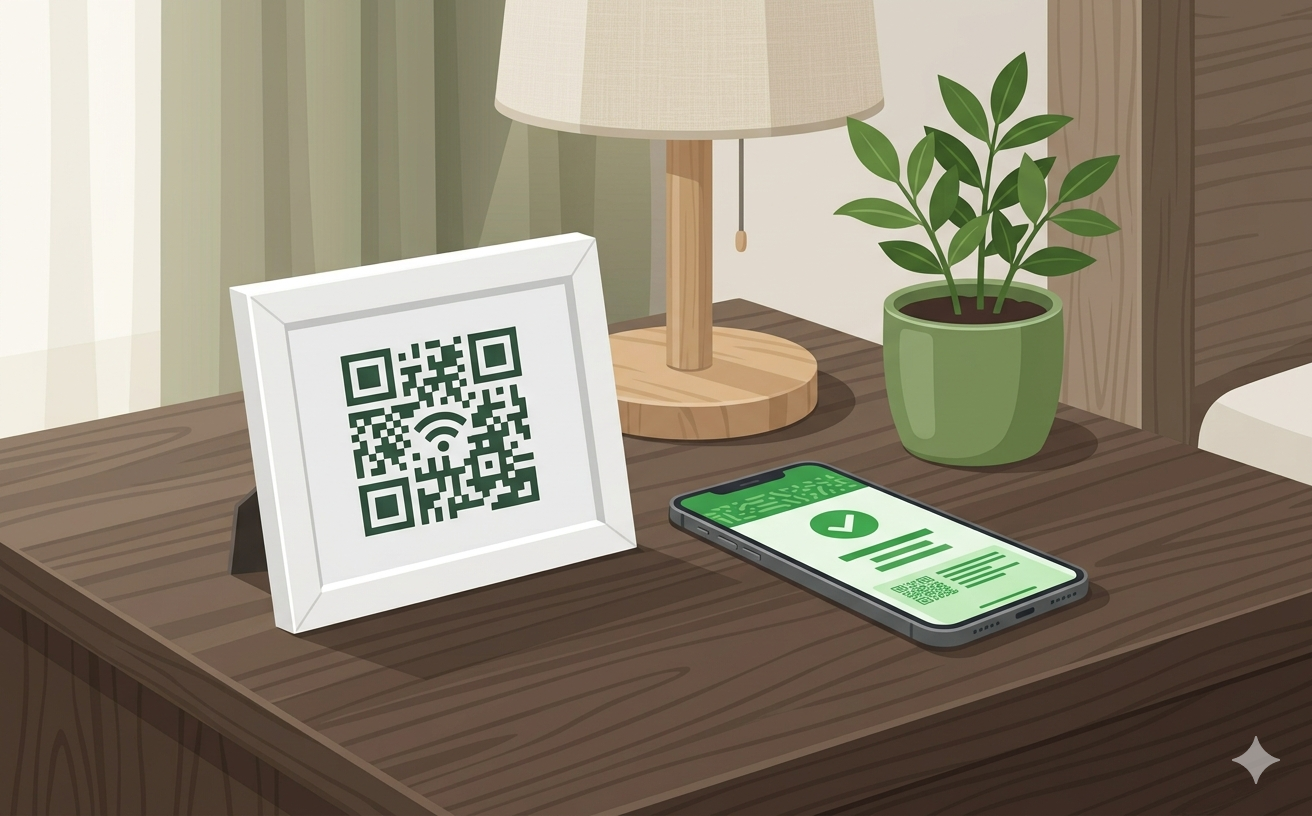
Placing a WiFi QR code sign on the bedside table or the desk in each room removes one of the most common guest frustrations at check-in. Guests arrive tired, want to connect immediately, and often cannot read the small font on the welcome card with the password printed on it.
A small framed card matching the room decor looks considerably more professional than a laminated sheet. Print one per room and replace it only if the password changes.
Airbnb and short-term rentals
Airbnb hosts consistently report WiFi as the top amenity guests mention in reviews, according to Airbnb’s own research on what guests prioritise. A WiFi QR code on the kitchen counter or welcome booklet removes any friction around connecting and reduces the number of messages hosts receive from guests asking for the password.
Offices and coworking spaces
Placing a WiFi QR code near the reception desk or in meeting rooms gives visiting clients and contractors a frictionless way to connect without having to ask anyone. It also means your staff do not have to stop what they are doing to help every visitor get online.
Events and conferences
For events, print the WiFi QR code on the back of name badges, on table centerpieces, and on a screen slide shown during registration. Multiple touchpoints mean every attendee can connect regardless of when they arrive or where they sit. For a full guide on using QR codes at events, see QR codes for events: check-in, tickets, WiFi, and schedules in one scan.
Restaurants
Placing a WiFi QR code alongside your menu QR code on the table tent card covers both needs in one printed item. A two-sided tent card works well: menu QR code on one side, WiFi QR code on the other.
What to Include on the Printed Sign
The QR code alone is not always enough. Not every customer knows they can scan it with their camera app, and some may not realise it connects them to WiFi without prompting.
A well-designed WiFi QR code sign includes:
- The QR code at a size appropriate for the scanning distance
- A short prompt: “Scan with your phone camera to connect to our WiFi”
- The network name printed below the code as a fallback for anyone whose phone does not scan automatically
- Optionally, a small WiFi symbol icon near the top of the sign to make the purpose immediately obvious without reading any text
Do not print the password on the sign. The entire point of the QR code is that the password never needs to be seen or typed. Printing it defeats the purpose and is a security consideration in high-traffic public spaces.
What Happens When You Change Your WiFi Password?
If you change your WiFi password, the existing QR code stops working. The code stores the old credentials permanently. You need to create a new QR code with the updated password and replace all printed copies.
This is worth planning for. A few things that help:
- Use a dedicated guest WiFi network with a password you control separately from your main business network. Change the guest password as rarely as possible.
- Keep the original SVG file from toolshash.com. When the password changes, create a new code, download it, and send the updated file to your printer. The process takes five minutes.
- If you change passwords frequently, consider a dynamic QR code setup where you can update the destination without reprinting. For a full explanation of how that works, see static vs dynamic QR codes.
Is It Safe to Put Your WiFi Password in a QR Code?
For a guest or public WiFi network, yes. The QR code stores the credentials and anyone who scans it can connect. That is exactly the intended behaviour for a guest network designed for customer use.
For your main business or personal network, think carefully. Anyone who photographs the QR code can decode the credentials and connect to the network at any time, even after they leave your premises. For sensitive networks, keep the QR code only for a dedicated guest network and never share your primary network via QR code.
The UK National Cyber Security Centre guidance on WiFi QR codes recommends using a separate guest network specifically for this purpose, isolating guest traffic from your main business systems.
Create Your WiFi QR Code Now
The whole process takes 30 seconds. Open the generator, select WiFi, enter your network name and password, customise if you want to, generate, test the scan, download the SVG, and print.
No account. No fee. No limit on how many you create.
Create your free WiFi QR code at toolshash.com
Frequently Asked Questions
Does a WiFi QR code expire?
No. The QR code itself does not expire. It will keep working as long as the network name and password stored in it match your current router settings. It only stops working if you change your WiFi password or rename the network.
Can guests join a hidden WiFi network using a QR code?
Yes. The WiFi QR format supports hidden networks. In the toolshash generator, enter the exact network name even though it does not appear in the visible network list. The phone uses the stored credentials to find and connect to the hidden network automatically.
What security type should I choose?
WPA/WPA2 is correct for virtually every modern router sold in the last ten years. WEP is an older, less secure standard used on routers from the early 2000s. If you are unsure which your router uses, log into your router settings page (usually at 192.168.1.1 or 192.168.0.1 in a browser) and check the wireless security section. Select None only if your network genuinely has no password.
Do I need an app to scan a WiFi QR code?
No. iPhones running iOS 11 or later and Android phones running Android 10 or later connect to WiFi via QR code using the built-in camera app. For Android phones running Android 8 or 9, Google Lens handles the scan and connects to the network. No third-party app download is needed on any of these devices.
Can I add my logo to the WiFi QR code?
Yes. The toolshash.com generator lets you upload your logo in PNG, JPG, or SVG format and embed it in the centre of the code. Set the error correction level to H (High) when adding a logo to ensure the code remains scannable with part of the data area covered.
How large should I print the WiFi QR code?
For a table card scanned from a seated position, 4cm x 4cm is the minimum. For a wall-mounted sign scanned from standing distance, 8cm x 8cm or larger. According to Denso Wave’s printing guidelines, a QR code scans reliably at a distance of up to ten times its width. An 8cm code covers scanning distances up to 80cm, which is comfortable for most wall sign placements.