Every time your menu prices change, you reprint. Every time a supplier runs out of something, you reprint. Every time you add a seasonal dish, you reprint. And every reprint costs money, takes time, and means a pile of outdated menus that have to go in the bin.
A QR code menu fixes all of that. Update your digital menu once and every table in your restaurant instantly shows the new version. No reprinting. No cost. No lag.
This guide walks you through how to create a QR code for your restaurant menu. Where to put it, how to design it so it gets scanned, and what to do when your menu changes.
Why Restaurants Are Switching to QR Code Menus
QR code menus became mainstream during 2020 when contactless dining became a necessity. But restaurants that adopted them quickly found they solved problems that had nothing to do with hygiene.
According to Statista, the number of US smartphone users scanning QR codes grew from 83.4 million in 2022 to an estimated 99.5 million by 2025. Customers now expect to scan rather than handle a physical menu, and that expectation is not going away.
For restaurant owners, the practical benefits go beyond customer preference:
- No reprinting costs. A printed menu typically costs between $1 and $5 per copy depending on size, material, and quantity. A 30-table restaurant reprinting menus four times a year spends hundreds of dollars on paper that goes straight in the bin.
- Instant updates. Change a price, add a dish, or remove a sold-out item and every QR code in your restaurant shows the change immediately.
- No more laminated menus. Laminated menus accumulate bacteria. According to research published in the journal Food Control, menus rank among the highest-touched surfaces in a restaurant and can harbour pathogens between cleanings. A QR code eliminates this entirely.
- Works on any smartphone. No app download required. Any iPhone running iOS 11 or later and any Android phone running Android 8 or above can scan a QR code with the built-in camera. Apple confirmed native QR scanning in iOS 11 and Google confirmed it for Android via Google Lens.
What You Need Before You Start
Before creating your QR code, you need one thing: a URL that points to your menu.
This can be any of the following:
- A PDF hosted online. Upload your menu as a PDF to Google Drive, Dropbox, or your website. Copy the shareable link. This is the simplest option and works for most small restaurants.
- A page on your website. If your restaurant has a website with a dedicated menu page, use that URL. When the page updates, the QR code automatically shows the new version.
- A Google Doc or Google Sheet. Some restaurants use a shared Google Doc as their live menu. Make it publicly viewable and use the sharing link.
- A third-party menu platform. Services like MenuTiger, GloriaFood, or Square for Restaurants generate a menu URL automatically. Paste that URL into your QR code.
Once you have a stable URL that points to your menu, you are ready to create the QR code.
Step-by-Step: How to Create Your Restaurant Menu QR Code
This takes under 60 seconds at toolshash.com. No account needed. Completely free.
Step 1: Open the QR code generator
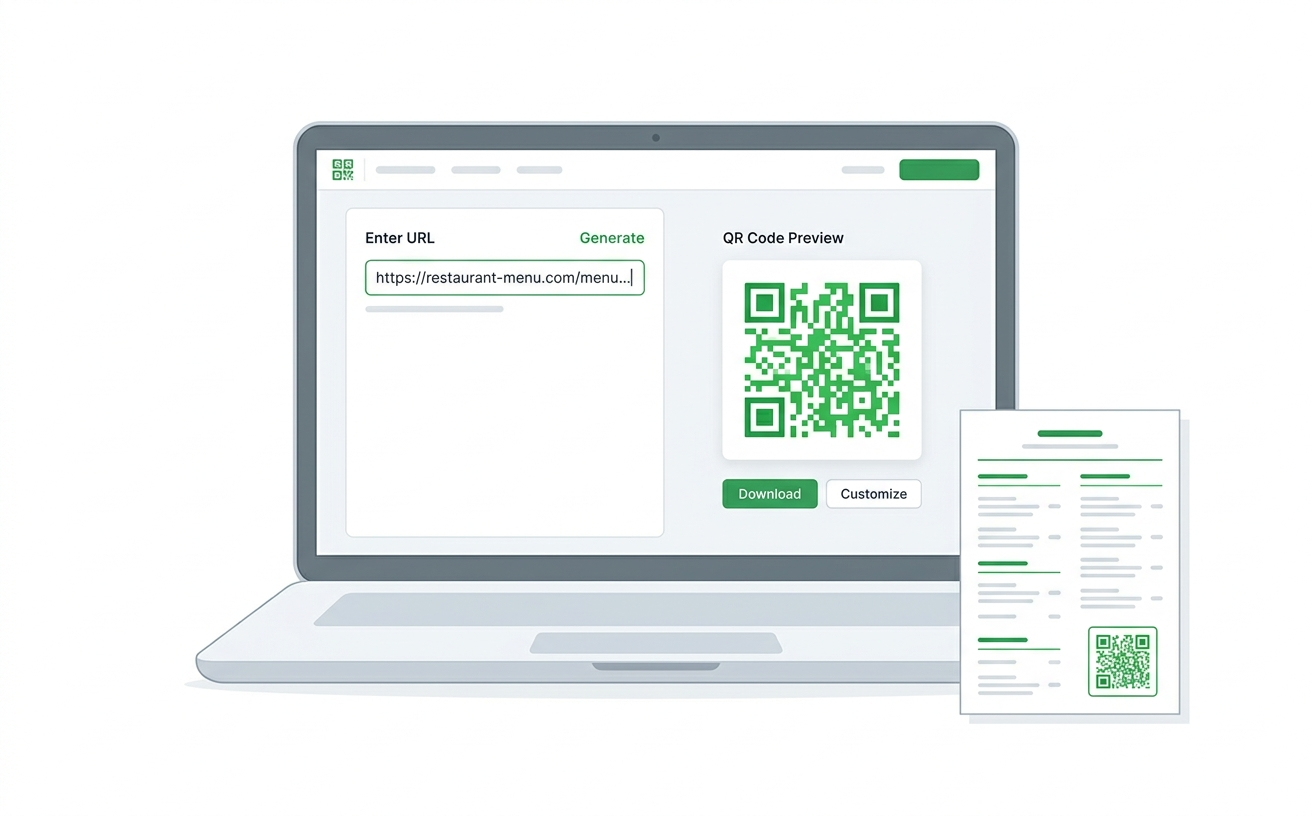
Go to toolshash.com/custom-qr-code-generator. The tool loads immediately with no signup screen or paywall.
Step 2: Select “Website / URL” as the QR type
From the QR Type dropdown at the top of the tool, select Website / URL. This is the right type for linking to any online menu, whether it is a PDF, a webpage, or a third-party menu platform.
Step 3: Paste your menu URL
In the input field that appears, paste the full URL of your menu. Make sure it starts with https:// and double-check that it opens correctly in a browser before proceeding.
Step 4: Customise the design (recommended)
A plain black and white QR code works. But a branded QR code that matches your restaurant’s colors and includes your logo gets scanned more often. Branded QR codes look intentional rather than generic, and customers are more likely to trust and scan them.
In the design section you can:
- Change the foreground color to match your brand (a dark green on a cream background works well for most restaurant aesthetics)
- Upload your restaurant logo in PNG, JPG, or SVG format to embed it in the centre of the code
- Change the dot shape to “rounded” for a softer, more modern look
- Change the eye style to “rounded” or “leaf” to add character
- Try the AI Colors button to generate a color combination automatically
If you add a logo, set the error correction level to H (High). This ensures the code still scans reliably even with the logo covering part of the data area.
Step 5: Click Generate and test the scan
Click the Generate button. A live preview appears on the right. Before downloading anything, grab your phone, open the camera app, and scan the preview. Confirm it opens your menu correctly.
Test it on both an iPhone and an Android if you have access to both. Lighting conditions in a restaurant can vary significantly between a sunny window table and a darker corner booth.
Step 6: Download in the right format
For print materials like table cards, tent signs, and printed menus, always download the SVG format. SVG is a vector file that scales to any size without losing quality. Whether you are printing a small tent card or a large wall-mounted sign, an SVG will look sharp at any resolution.
If your printer or designer cannot work with SVG, download the PNG at the highest resolution available.
Where to Place Your QR Code in the Restaurant
Placement matters as much as design. A QR code nobody sees does not get scanned.
Table tent cards
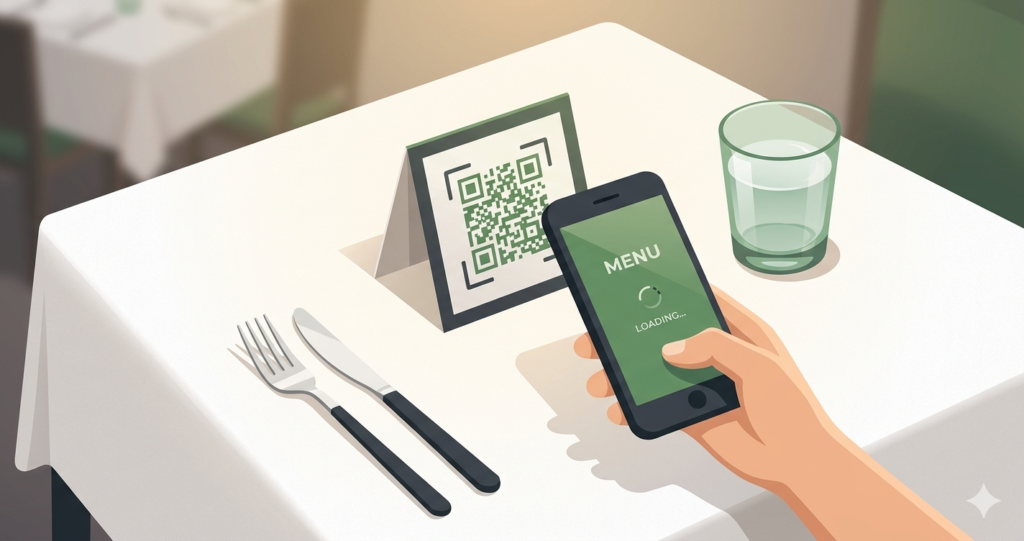
A small folded card standing upright on each table is the most common placement. It sits at eye level, is easy to scan from a seated position, and can include a short prompt like “Scan for our menu” to guide first-time QR code users. Print on both sides: QR code on one face, a daily special or loyalty program on the other.
Printed placemat or table liner
Printing the QR code directly onto a paper placemat works well for casual dining and fast food settings. It removes the need for a separate card and every customer automatically has the code in front of them.
Wall-mounted sign near the entrance
Placing a QR code sign at the entrance or waiting area lets customers browse the menu while they wait for a table. This reduces the time between being seated and placing an order, which improves table turnover. For entrance placement, use a larger printed size. For a wall sign, print the QR code at 10cm x 10cm or larger for comfortable scanning from standing distance.
At the bar or counter
For restaurants with a bar or ordering counter, placing a QR code stand here lets customers browse the full menu at their own pace rather than holding up the line.
On receipts and takeaway packaging
Printing the QR code on receipts or takeaway bags encourages repeat visits. A customer who ordered delivery or takeaway can scan the code at home to browse the dine-in menu and make a reservation.
How to Update Your Menu Without Changing the QR Code
This is the question most restaurant owners ask after their first QR menu is live.
The answer depends on which type of QR code you created.
If you used a static QR code (which is what toolshash.com creates by default), the QR code points directly to the URL you entered. As long as you update the menu at that same URL, the QR code automatically shows the new version. You do not touch the QR code at all. Simply update the PDF, webpage, or Google Doc that the code points to.
If the URL changes, you need a new QR code. Create one at toolshash.com with the updated URL and reprint your table materials.
To avoid this situation, keep your menu at a permanent, stable URL. A dedicated page on your website like yourrestaurant.com/menu that you update in place is far better than uploading a new PDF with a new link every time you make changes.
For a full explanation of static versus dynamic codes and when each one makes sense, see static vs dynamic QR codes: which one do you actually need?
Designing a QR Code That Actually Gets Scanned
Most restaurant QR codes fail for one of three reasons. They are too small to scan from a seated position. The contrast between the code and the background is too low. Or there is no clear prompt telling the customer what to do.
Here is how to avoid each one.
Size
For a table tent card, the QR code should be at least 4cm x 4cm. For a wall-mounted sign, go larger. According to Denso Wave’s official printing guidelines, the recommended minimum size is 2cm x 2cm and the maximum recommended scanning distance is ten times the width of the code. A 4cm code is comfortably scannable from 40cm, which is a typical distance from a menu card on a restaurant table.
Contrast
Dark modules on a light background scan best. If your restaurant branding uses a light foreground color, do not try to reverse the contrast. Stick with dark on light. If your brand color is dark, use it as the foreground with a white or cream background.
A clear prompt
Not every customer knows they can scan a QR code with their camera app. Add a short line of text beneath or beside the code. Something like “Scan with your phone camera to view our menu” removes any uncertainty. This is especially important for older customers who may be less familiar with QR codes.
What Customers Actually Think About QR Code Menus
Customer opinion on QR menus is mixed, and it is worth knowing this before you go fully digital.
A survey by Restaurant Business Online found that a significant portion of diners, particularly older customers, prefer physical menus over QR codes. The main reasons cited were battery anxiety (worrying their phone battery would die), difficulty reading on a small screen, and a preference for the tactile experience of a physical menu.
The practical solution is to offer both. Keep a small number of printed menus available for customers who prefer them. Use the QR code as the primary option but never remove the fallback entirely. This covers every customer and avoids the frustration of someone who arrives at your restaurant with a dead phone and cannot see the menu.
QR Code Menu Checklist Before You Go Live
Before placing your new QR code cards on every table, run through this checklist:
- Scan the QR code on an iPhone and confirm the menu loads correctly
- Scan the same code on an Android and confirm it loads correctly
- Test the scan in low light (dim restaurant lighting, not just bright office light)
- Check that the menu URL is a permanent link that will not change
- Confirm the menu page loads in under 3 seconds on a mobile connection
- Make sure the menu is mobile-responsive and readable on a small screen
- Add a prompt text near the QR code telling customers what to do
- Keep at least a few printed menus available as a backup
Creating Your QR Code Right Now
Everything above takes longer to read than it does to do. The actual QR code creation takes 60 seconds.
Go to toolshash.com/custom-qr-code-generator, paste your menu URL, customise the design to match your branding, and download the SVG. Print it, place it on your tables, and you are done.
No account. No monthly fee. No watermark on the code.
Create your restaurant menu QR code free at toolshash.com
Frequently Asked Questions
Do customers need an app to scan the QR code?
No. Any iPhone running iOS 11 or later and any Android phone running Android 8 or above scans QR codes using the built-in camera app. No download required. According to Pew Research, 97% of Americans own a mobile phone and 85% own a smartphone. The vast majority of your customers already have everything they need to scan your code.
What if a customer does not have a smartphone?
Keep a small number of printed menus available. A QR code menu works well as the primary option for most customers, but it should never be the only option. Older customers or anyone without a smartphone should always be able to get a physical menu without having to ask twice.
Can I update my menu without changing the QR code?
Yes, as long as the URL stays the same. If your menu lives at a stable URL (a permanent webpage or a Google Doc at a fixed link), simply update the content at that URL. Every printed QR code instantly shows the updated version. You only need to create a new QR code if the URL itself changes.
What format should I download the QR code in for printing?
Always download SVG for print materials. SVG is a vector format that scales to any size without losing quality. PNG works for digital display and for printers that cannot handle SVG files. If you are printing large format items like wall signs or outdoor banners, SVG is essential.
How big should the QR code be on a table tent card?
At minimum 4cm x 4cm for comfortable scanning from a seated position. According to Denso Wave’s printing guidelines, a QR code should be readable at a distance of up to ten times its width. A 4cm code scans cleanly from 40cm, which covers a typical table setting distance.
Will the QR code stop working if I change my menu?
No, as long as the URL stays the same. The QR code points to a URL, not the content at that URL. Update your menu at that URL as often as you need to. The QR code keeps pointing to the same address and customers always see the latest version.