You do good work. Your customers are happy when they leave. And your Google review count sits at eleven, three of which are from family members.
The problem is not the quality of your service. The problem is friction. Leaving a Google review requires opening a browser, searching for the business, finding the right listing, clicking through to the review section, and actually writing something. Most satisfied customers mean to do it and never get around to it.
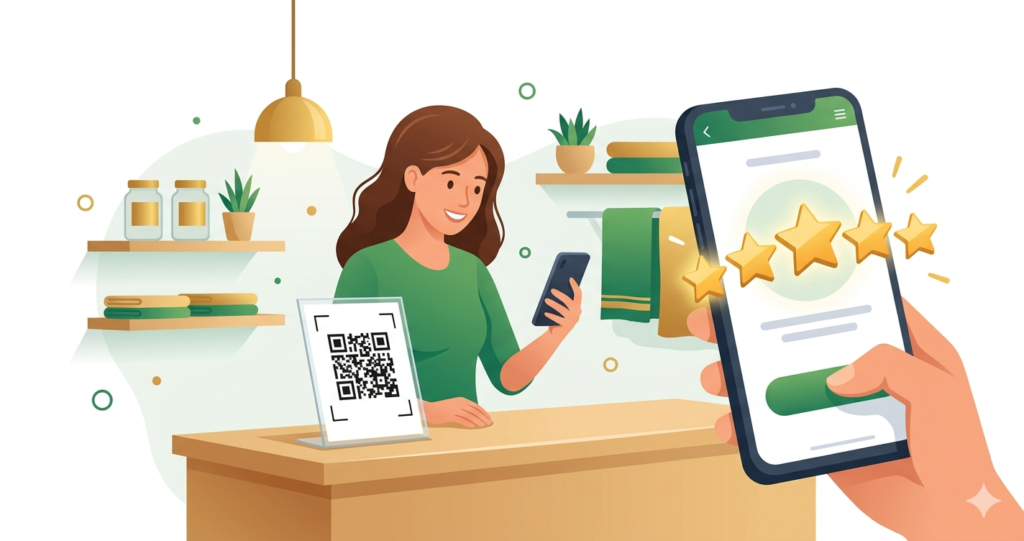
A QR code that goes directly to your Google review page removes every step except the last one. The customer scans, lands directly on the review form, and writes. That reduction in friction makes a measurable difference.
Why Google Reviews Matter More Than Most Business Owners Realise
Google reviews directly affect how your business appears in local search results. According to BrightLocal’s Local Consumer Review Survey, 98% of consumers used the internet to find information about local businesses in 2023. The quantity and recency of Google reviews are among the top factors Google uses to determine which businesses appear in the Map Pack. Those are the three highlighted local results above organic listings.
The same survey found that 87% of consumers read Google reviews before visiting a local business. A business with 4 reviews and a competitor with 47 reviews are not equally visible or equally trusted, even if their actual quality of service is identical.
Reviews also decay in relevance. Google’s local ranking algorithm weights recent reviews more heavily than older ones. A business that received 20 reviews two years ago but none since then is at a disadvantage against a business that has been receiving steady reviews month by month. Consistency matters as much as volume.
How a QR Code Increases Review Rates
The main barrier to leaving a review is not willingness. Most customers who had a good experience are happy to leave a review if asked at the right moment in the right way. The barrier is the number of steps required.
Research by Podium on online review behaviour found that 77% of customers are willing to leave a review when asked. The same research found that the most effective review requests happen immediately after a positive experience. When the customer is still present and still feeling good about the interaction.
A QR code placed at the point of experience captures that moment. On the counter as someone pays. On the table after a meal. On the receipt they take with them. The customer scans, lands on the review form without any search or navigation, and leaves the review while the experience is still fresh.
Compare that to asking someone to find you on Google and leave a review. Even a motivated customer has to search the right listing, click through several screens, and find time to write. Most of them do not.
How to Find Your Google Review Link
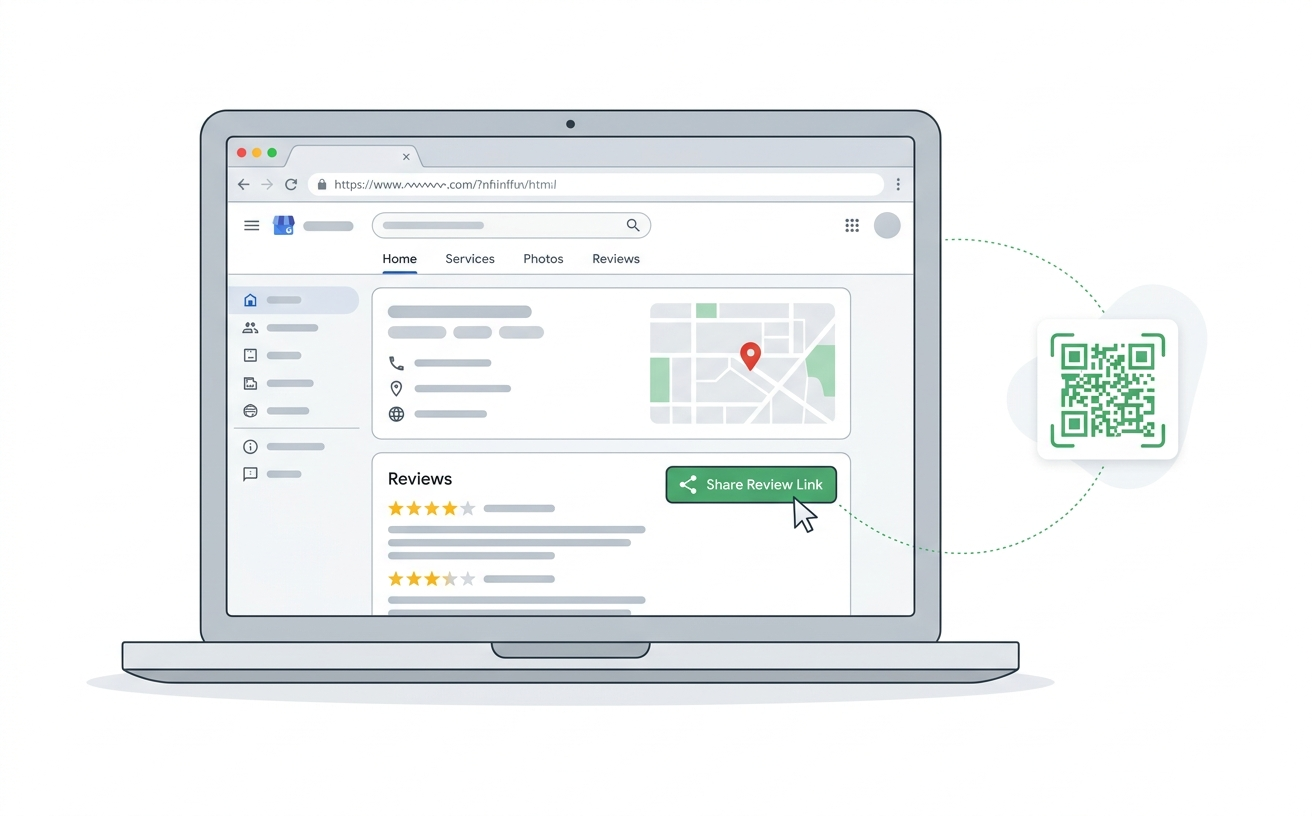
Before creating your QR code, you need the direct link to your Google review form. Here is how to get it.
Method 1: Through Google Business Profile (recommended)
- Go to business.google.com and sign in with the Google account that manages your listing.
- Select the business you want to get reviews for.
- In the menu on the left, click Home.
- Look for the card that says Get more reviews. It shows your review link.
- Click Share review form to copy the link.
The link looks something like https://g.page/r/[your-business-id]/review. Copy it exactly.
Method 2: Through Google Search
- Search for your business name on Google.
- Find your Google Business Profile panel on the right side of the results page.
- Scroll down until you see the reviews section.
- Click Write a review.
- Copy the URL from your browser address bar. This is your direct review link.
Both methods produce the same link. Use whichever is quicker for you. Once you have the URL, do not close it yet. Open it in a browser and confirm it takes you directly to the review prompt before turning it into a QR code.
How to Create Your Google Review QR Code
With your review link ready, creating the QR code takes under 60 seconds at toolshash.com. No account. No signup. Completely free.
Step 1: Open the generator and select Website / URL
Go to toolshash.com/custom-qr-code-generator. From the QR Type dropdown, select Website / URL. This is the correct type for a Google review link.
Step 2: Paste your Google review link
Paste the full review URL into the input field. Double-check that it is complete and starts with https://.
Step 3: Customise to match your brand
A branded QR code that matches your business colors performs better than a plain black square. When a customer sees a QR code that looks intentional and professional, they are more likely to trust and scan it.
In the design section you can change the foreground color, upload your business logo, choose a dot shape, and select an eye style. If you add a logo, set error correction to H (High). The ISO/IEC 18004 standard defines H level as recovering up to 30% of obscured data, which keeps the code scannable with a logo in the centre.
Step 4: Generate, test, and download
Click Generate. Scan the preview with your phone and confirm it opens your Google review form directly. Download as SVG for print materials or PNG for digital use.
Create your Google review QR code free at toolshash.com
Where to Place Your Google Review QR Code
Placement is what separates a QR code that collects reviews from one that gets ignored. The goal is to put it where customers are at their most satisfied and most likely to act.
At the point of payment
The moment a customer pays is one of the highest points of engagement in any transaction. They have just made a decision they are happy with. Placing a small QR code sign next to the card reader or cash register, with a short prompt like “Enjoyed your visit? Leave us a review,” catches them at exactly the right moment. This is the single most effective placement for most retail and hospitality businesses.
On printed receipts
Adding the QR code to the footer of printed receipts means every customer leaves with a direct link to your review form in their pocket or bag. This works particularly well for businesses where the customer takes time to evaluate the experience after leaving, such as restaurants, hair salons, and service businesses.
On table cards in restaurants and cafes
For food and drink businesses, a table card with both your menu QR code and a separate review QR code covers both needs in one printed item. Place the review code on the back with a line like “Loved your meal? Tell Google.”
On thank you cards and packaging
For product-based businesses and online sellers, print the QR code on a small thank you card inside the package. The customer sees it at the moment they open the product, when the experience is still fresh.
At the reception desk or checkout area
For service businesses like gyms, dentists, and accountants, place a small printed sign at the reception desk or in the waiting area. It captures clients as they finish their appointment, before they leave the premises.
In follow-up emails
Export your QR code as a PNG and embed it in a follow-up email sent within 24 hours of a visit. This reinforces the request at a second point of contact. Many businesses see strong results combining a QR code sign at the point of sale with an email follow-up shortly afterwards.
What to Say Next to the QR Code
The text alongside your QR code matters as much as the code itself. Here are three prompts that work well across different business types:
- For restaurants and cafes: “Enjoyed your meal? We would love a Google review. Scan to leave one in under a minute.”
- For retail shops: “Happy with your purchase? A quick Google review helps other customers find us. Scan here.”
- For service businesses: “Thank you for choosing us. If you are happy with today’s service, a Google review means the world to a small business. Scan to leave one now.”
Keep the prompt honest and genuine. Customers respond better to a direct, human ask than to corporate language. Do not offer incentives for reviews. Google’s review policies explicitly prohibit offering incentives in exchange for reviews, and violations can result in the removal of reviews or penalties to the business listing.
How Many Reviews Do You Actually Need?
There is no universal target, but context matters. According to BrightLocal’s research, consumers typically read between two and five reviews before forming an opinion about a business. However, the number of reviews also signals trustworthiness. A business with 200 reviews is perceived as more established and reliable than one with 12, even if the average star rating is similar.
For local businesses competing in the Google Map Pack, a consistent flow of new reviews is more valuable than a large number of old ones. Aim for a sustainable cadence rather than a one-time push. A QR code that stays in place at your counter or on your receipts does this automatically.
Responding to Reviews Once They Come In
Creating the QR code is the first step. What happens after reviews arrive matters too.
According to BrightLocal’s consumer research, 88% of consumers say they would use a business that responds to all reviews. Only 47% would use a business that does not respond at all. Responding to reviews, both positive and negative, signals to potential customers and to Google that the business is active and engaged.
Google also confirms in its own Business Profile guidelines that responding to reviews is considered a positive engagement signal for the listing. Keep responses short, genuine, and specific to the review. A one-line personalised response outperforms a copy-pasted generic thank you.
Frequently Asked Questions
Can I use a QR code to get reviews on platforms other than Google?
Yes. The same process works for any review platform that has a public URL. Find your profile link on Yelp, Trustpilot, TripAdvisor, or any other platform, paste it into the toolshash.com generator, and create a QR code for that URL. You can create separate QR codes for each platform and display the one most relevant to your business type in each location.
Do I need a Google Business Profile to get the review link?
Yes. Your business needs a verified Google Business Profile for customers to leave reviews. If you have not set one up yet, go to business.google.com to create and verify your listing. Verification typically takes a few days and involves Google sending a postcard with a code to your business address. Once verified, your review link is available immediately through the Business Profile dashboard.
Is it against Google’s rules to ask customers to leave a review?
No. Asking customers to leave a review is permitted and encouraged by Google. What is not permitted is offering incentives in exchange for reviews, writing fake reviews, or discouraging negative reviews. A QR code that takes customers to your review form is a neutral tool that makes it easier for them to do something they were already willing to do. The full Google review policies are published here.
What star rating do customers tend to give?
According to BrightLocal’s research, the average star rating across all Google reviews is 4.42 stars. Customers who were satisfied tend to leave positive reviews when prompted. The customers most likely to go out of their way to leave an unprompted review are those with very strong feelings, either very positive or very negative. By proactively prompting satisfied customers via QR code, you balance the review distribution toward the positive experience most of your customers actually had.
How do I know if the QR code is working?
Watch your Google Business Profile for new reviews appearing in the days and weeks after you place the QR code. If your review count starts increasing, the code is working. For more detailed tracking, use a URL with a UTM parameter before creating the QR code. For example, add ?utm_source=qr&utm_medium=counter_sign to your review URL and track clicks through Google Analytics. This tells you exactly how many people clicked through via the QR code rather than finding the review form another way.
Can I use the same QR code in multiple locations?
Yes. A single QR code pointing to your Google review link can be printed on any number of materials and displayed in any number of locations. There is no limit on scans. Every customer who scans any copy of the code lands on the same review form.