You already know you need a QR code. You have a menu to link, a WiFi password to share, a business card to update, or a social media profile to promote. You just want to create the code and get on with your day.
This guide gives you the fastest path from zero to a finished, scannable QR code. No signup form to fill in. No premium upsell halfway through. No watermark on the finished file. Just a free QR code you can download and use immediately.
What You Need Before You Start
Before opening the generator, have the following ready depending on your QR code type:
- For a URL QR code: the full web address starting with
https://. Open it in a browser tab first and confirm it loads correctly. - For a WiFi QR code: your exact network name (SSID) and password, including correct capitalization. One wrong character means the code will not connect.
- For a vCard QR code: your name, job title, company name, phone number, and email address. Have these ready to type rather than looking them up mid-creation.
- For a social media QR code: the full profile URL for the platform you want to link. Go to your profile page, copy the URL from the address bar, and paste it into a notes app before starting.
- For a logo: if you want to add your logo to the code, have the file ready in PNG, JPG, or SVG format. A transparent PNG works best for clean embedding.
Having these details ready before you open the generator means the whole process takes 60 seconds rather than five minutes of searching for passwords and profile links.
Step-by-Step: How to Create a QR Code at toolshash.com
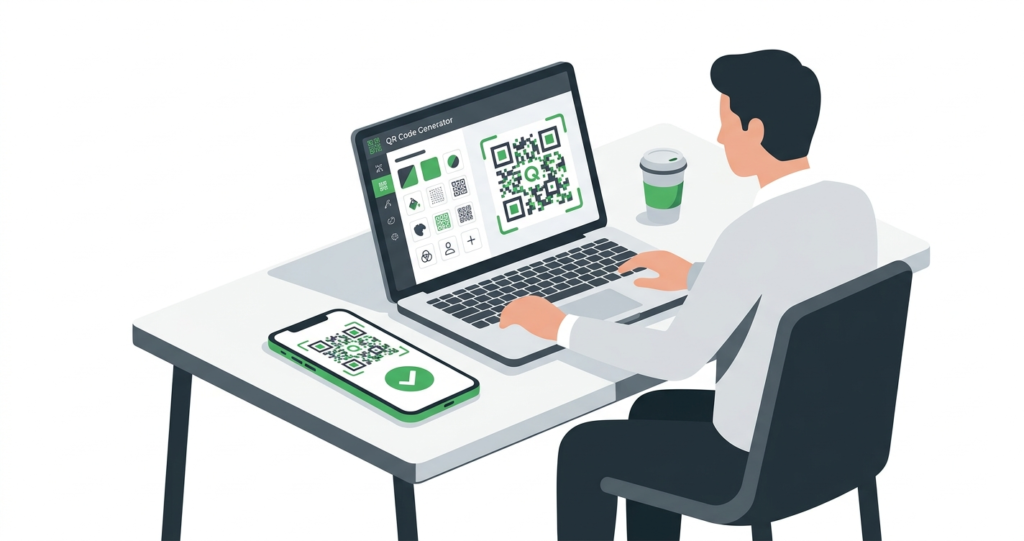
Go to toolshash.com/custom-qr-code-generator. The tool loads immediately with no login screen, no popup asking for your email, and no countdown timer pressuring you to upgrade.
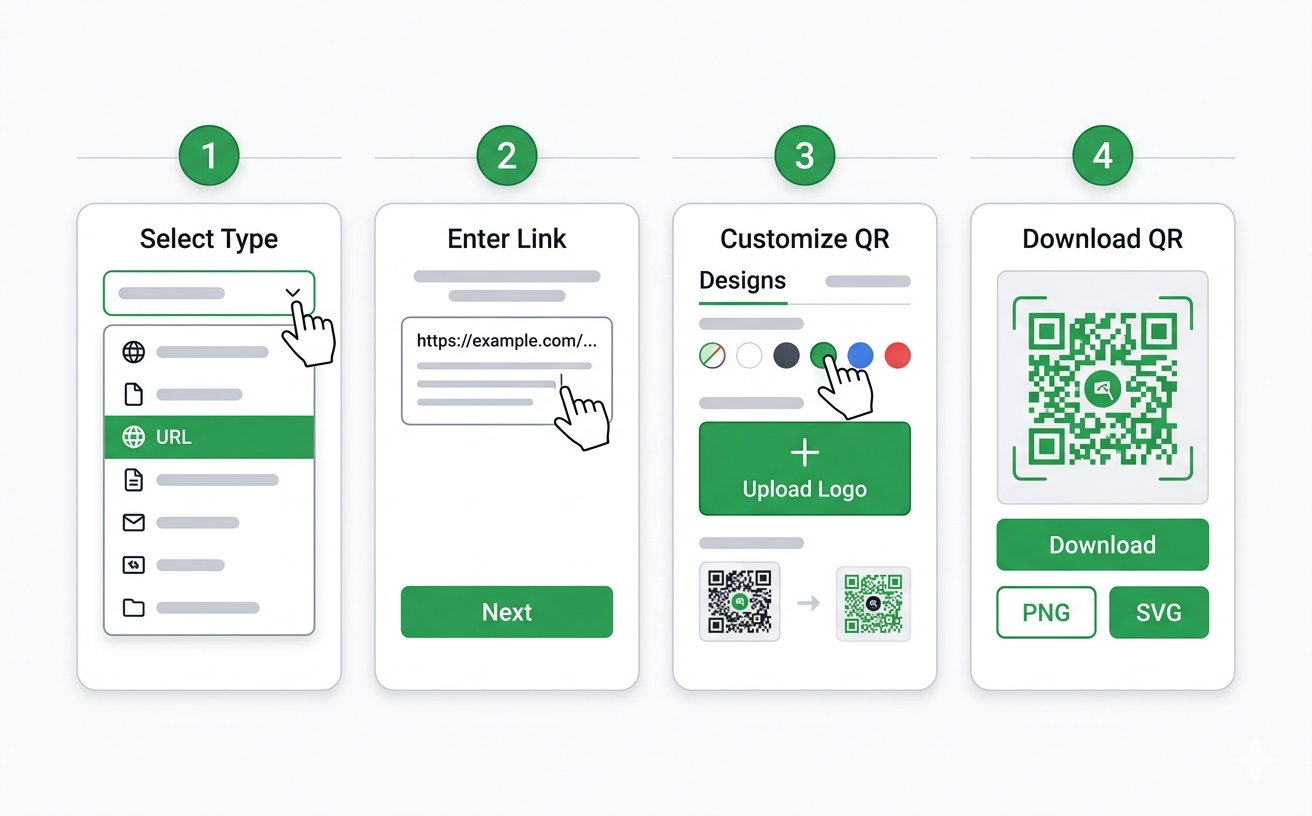
Step 1: Select your QR code type
The first dropdown lets you choose what your QR code will contain. There are 14 types available:
- Website / URL: links to any web address
- Text: displays a plain text message when scanned
- Email: opens a pre-addressed email
- Phone: prompts a phone call to a specific number
- SMS: opens a pre-written text message
- WiFi: connects to a network automatically
- vCard: saves contact details to the phone’s address book
- Location: opens a specific address in Google Maps
- Event: adds a calendar event automatically
- Instagram: links directly to an Instagram profile
- WhatsApp: opens a WhatsApp conversation
- Facebook: links to a Facebook page or profile
- TikTok: links to a TikTok profile
- Twitter / X: links to a Twitter or X profile
Select the type that matches what you want the QR code to do. The form below the dropdown changes to match your selection.
Step 2: Enter your content
Fill in the form that appears. For a URL code, paste the full web address. For a WiFi code, enter the network name and password. For a vCard, fill in your contact fields. The generator formats everything correctly behind the scenes.
Double-check every character before moving on. Typos in a URL, a WiFi password, or a phone number produce a QR code that either does not work or connects to the wrong place. It takes five seconds to check. It saves the cost of reprinting 500 business cards.
Step 3: Customise the design
This step is optional but worth doing. A plain black and white QR code works. A branded one that matches your colors and includes your logo gets scanned more often and looks professional rather than generic.
The design controls include:
- Foreground color: the color of the QR code dots. Can be any dark color that maintains contrast against the background.
- Background color: the color behind the dots. White or very light colors work best for scannability.
- Gradient: toggle on to apply a two-color gradient across the foreground. Choose linear or radial, pick a second color, and set the angle.
- AI Colors: click this button to generate a color combination automatically. Useful if you want a branded look without spending time on color theory.
- QR shape: square, dots, or rounded. Dots and rounded shapes give a softer, more modern look while remaining fully scannable.
- Eye style: the three corner squares can be styled as square, rounded, leaf, or diamond. This is the most visible design element at a glance.
- Error correction level: L, M, Q, or H. Use M for most cases. Use H if you are adding a logo.
- Logo upload: upload a PNG, JPG, or SVG logo to embed in the centre of the code. Use the size slider to adjust how much of the code it covers.
If you are creating a QR code for print material, matching your brand colors here makes a noticeable difference to how the finished piece looks.
Step 4: Generate the QR code
Click the Generate button. A live preview appears on the right side of the screen. The preview updates whenever you change any design setting.
Step 5: Test the scan before downloading
This step is not optional. Pick up your phone, open the camera app, and scan the preview on your screen. Confirm it takes you to the right URL, connects to the right network, or saves the correct contact details.
Test it on at least one device before downloading. If anything is wrong, fix it now. The generator costs nothing to use again, but reprinting materials because the QR code linked to the wrong page is an avoidable expense.
According to Denso Wave’s official testing guidelines, QR codes should always be verified by scanning before use in any printed or displayed material. This applies regardless of which generator you used.
Step 6: Download your QR code
Two download formats are available.
PNG: a raster image file. Use this for digital display, social media posts, email signatures, and website use. PNG is also fine for print if the resolution is high enough, but SVG is the safer choice for anything that will be scaled up.
SVG: a vector file. Use this for all print materials. SVG scales to any size without losing quality. A business card, a billboard, and everything in between can all use the same SVG file and each one will be sharp. If you are sending your QR code to a designer or a print shop, always send the SVG.
Create your free QR code now at toolshash.com
Which QR Type Should You Use?
The right QR type depends on what you want the person scanning it to do. Here is the most common match between goal and type:
| Your goal | QR type to use |
|---|---|
| Send someone to your website | Website / URL |
| Let guests connect to your WiFi | WiFi |
| Share your contact details | vCard |
| Link to your restaurant menu | Website / URL (pointing to your menu page or PDF) |
| Get more Instagram followers | |
| Let people message you on WhatsApp | |
| Get more Google reviews | Website / URL (pointing to your Google review link) |
| Share a location or address | Location |
| Display a message without internet | Text |
| Let people call you directly | Phone |
| Add an event to someone’s calendar | Event |
Design Tips That Make a Difference
Creating the code takes 60 seconds. Spending two minutes on the design is worth it for anything that will be seen by customers or clients.
Keep the contrast high
The most important factor in scannability is contrast. Dark dots on a light background scan reliably in almost every lighting condition. Light dots on a dark background are technically possible but scan less reliably in dim lighting and are harder for older phone cameras to read. If your brand uses a dark background, test the code thoroughly before printing at scale.
Match your brand colors exactly
The foreground color picker accepts any hex code. If you know your brand color in hex format, enter it directly to get an exact match. This makes a branded QR code look intentional rather than approximate.
Use rounded shapes for digital, square for print
Rounded dot shapes and rounded eye styles tend to look better on screen and in photography. Square shapes maintain slightly better scannability in low resolution print applications. For most uses, rounded looks good and scans well. For high-volume print runs on low-quality paper, square is safer.
Size the logo correctly
The logo size slider controls what percentage of the QR code area the logo covers. The ISO/IEC 18004 QR code standard specifies that error correction level H recovers up to 30% of obscured data. Keep your logo below 30% of the total code area and use H level error correction. Going larger risks scan failures, particularly in dim lighting or on low-resolution prints.
Add a call to action near the code
A QR code with no context next to it gets scanned less often than one with a short prompt. “Scan to view our menu,” “Scan to connect to WiFi,” or “Scan to save my contact details” all increase the chance that someone actually scans rather than ignores the code. This is especially true for customers who are less familiar with QR codes.
Common Mistakes and How to Avoid Them
Not testing before printing
The most expensive mistake in QR code creation. A typo in the URL, an extra space in the WiFi password, or a mistyped email address produces a code that either fails completely or goes somewhere wrong. Always scan the preview before downloading. Always scan the downloaded file before printing.
Using a URL that changes
If you link a QR code to a URL that later moves or goes offline, the code becomes useless. For anything printed at scale, use a stable, permanent URL. A dedicated page on your website is better than a Google Drive link that might expire or be moved. For full details on handling this, see static vs dynamic QR codes: which one do you actually need?
Printing at too small a size
According to Denso Wave’s official printing guidelines, the minimum recommended print size for reliable scanning is 2cm x 2cm. For business cards, 2.5cm x 2.5cm is a safer minimum. For table cards scanned from a seated distance of 40 to 60cm, 4cm x 4cm is recommended.
Removing the quiet zone
The white border around the outside of a QR code is called the quiet zone. It is not decorative. It tells the scanner where the code starts and ends. Never crop the quiet zone or print the QR code right to the edge of a sticker, card, or label. Without it, scanners fail or take much longer to recognise the code.
Downloading PNG for large print
PNG is a raster format, which means it has a fixed number of pixels. Scale a PNG up beyond its native resolution and it becomes blurry. For any print material larger than roughly A5 size, always download SVG and send that to your printer or designer.
How Long Does a QR Code Take to Create?
For a basic QR code with no design customisation, under 30 seconds from opening the tool to downloading the file.
For a fully branded QR code with custom colors, a logo, and a chosen dot and eye style, around two to three minutes.
The generator at toolshash.com has no loading screens between steps, no account creation flow, and no upsell interruptions. You enter your details, customise if you want to, click Generate, and download.
Frequently Asked Questions
Is it really free with no hidden costs?
Yes. Creating, customising, and downloading QR codes at toolshash.com is completely free. There is no premium tier for the features covered in this guide. No credit card required. No trial period that converts to a paid plan. The features available include all 14 QR types, custom colors, gradient, logo upload, dot shape, eye style selection, and both PNG and SVG download formats.
Do I need to create an account?
No. The generator works without any account or signup. Open the tool, create your QR code, download it, and close the tab. Nothing is saved to any account because there is no account to save it to. If you want to recreate a QR code later, simply enter the same details again.
Will my QR code have a watermark?
No. QR codes downloaded from toolshash.com have no watermark of any kind. The finished file is clean and ready to use on any material without attribution or branding from the generator tool.
How many QR codes can I create?
As many as you need. There is no limit on the number of QR codes you can create in a single session or over time. Each one is independent and there is no account linking them together.
What is the difference between PNG and SVG for QR codes?
PNG is a raster format with a fixed pixel count. It looks sharp at its native size and at smaller sizes, but becomes blurry if scaled up significantly. SVG is a vector format with no fixed size. It renders sharply at any size because it stores the shape of the code mathematically rather than as pixels. Use PNG for digital use. Use SVG for print. When in doubt, download both and use whichever your workflow requires.
Can I create a QR code on my phone?
Yes. The toolshash.com generator is mobile-responsive and works on any smartphone browser. The full design controls are available on mobile, including logo upload, color picking, and all download formats. You can create and download a QR code entirely from your phone without needing a desktop or laptop.