You hand over a business card. The other person thanks you, puts it in their pocket, and you never hear from them again. Three weeks later it is at the bottom of a bag with a coffee stain on it. Your phone number is still there but nobody is reading it.
The problem is not the card. The problem is the gap between receiving a card and actually saving the contact. Most people never bridge that gap.
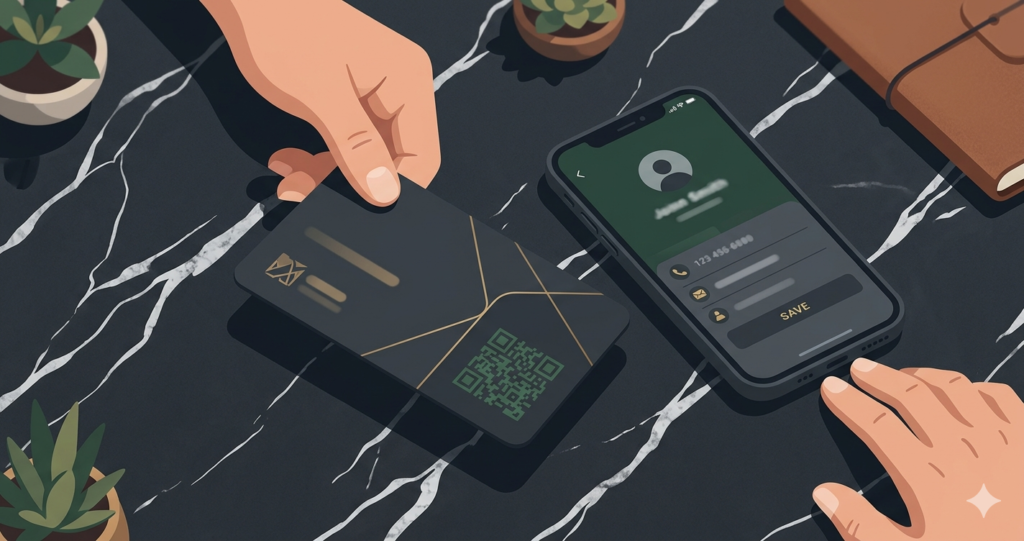
A QR code on your business card closes it. One scan and every detail you put on the card is saved to their phone automatically. Name, number, email, company, website, social media links. All of it. No typing, no waiting, no lost details.
Why QR Codes on Business Cards Work
The business card has not fundamentally changed since the 17th century. According to a history documented by Smithsonian Magazine, visiting cards were used in Europe as early as the 1600s as a way of announcing one’s arrival. The format of name, title, and contact information has stayed largely the same ever since.
What has changed is how people save and use contact information. Nobody transfers a phone number from a physical card to their phone by typing it out anymore. They expect a faster path. A QR code provides exactly that.
Research on networking behaviour published by Harvard Business Review found that follow-through after networking interactions depends heavily on how easy the next step is. The harder the action required, the less likely it happens. Saving contact details manually from a business card is a friction point. A QR code removes it entirely.
What QR Code Type Should You Use on a Business Card?
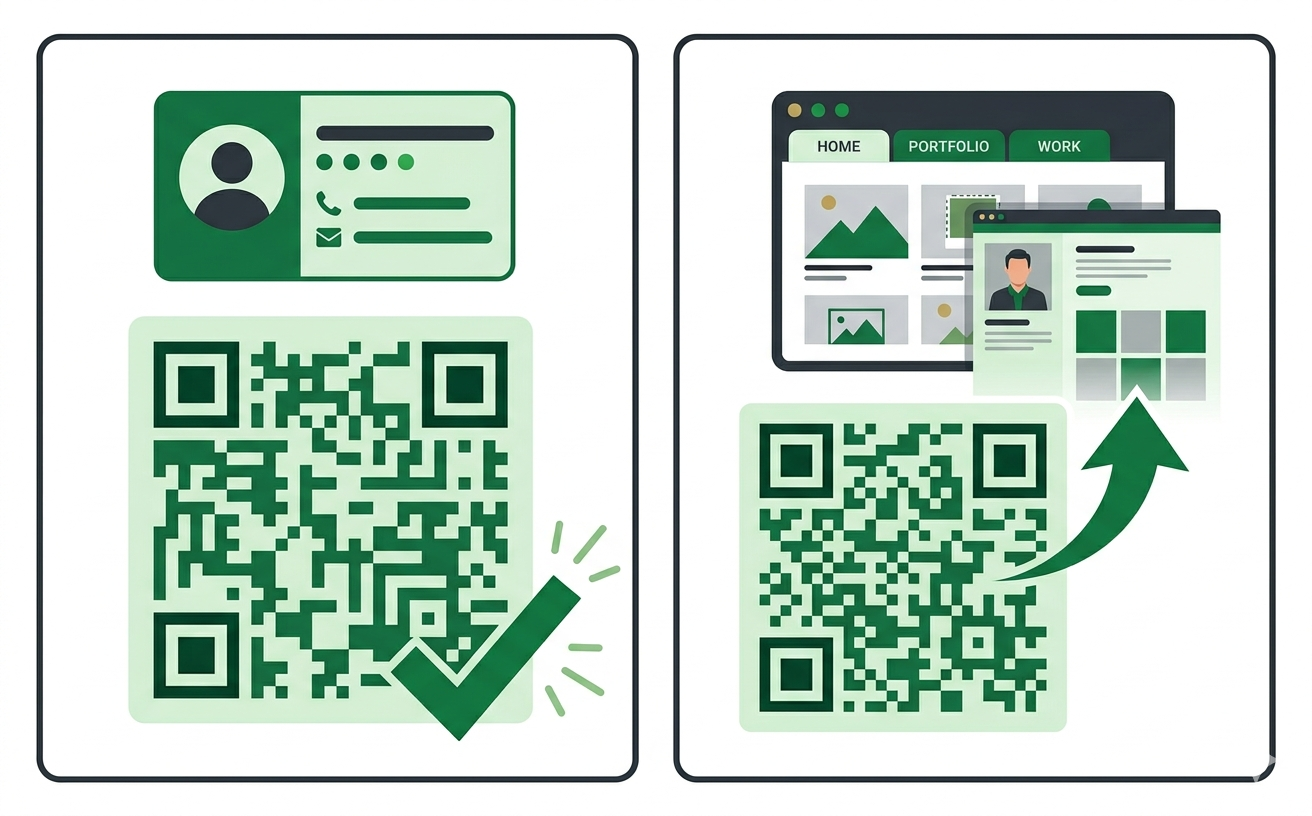
There are two good options for a business card QR code. Which one is right depends on what you want the person scanning it to do.
vCard QR code
A vCard QR code stores your contact information directly inside the code itself. When someone scans it, their phone immediately prompts them to save your details to their address book. One tap and your name, number, email, company, and website are all saved.
The vCard format is an open standard defined in RFC 6350 by the Internet Engineering Task Force. Every major smartphone operating system supports it natively. No app download is needed on either side.
Best for: anyone whose primary goal is getting people to save their contact details immediately. Sales professionals, consultants, freelancers, and anyone at a networking event where speed and ease matter.
URL QR code
A URL QR code points to any web address you choose. That might be your personal website, your LinkedIn profile, your portfolio, or a dedicated landing page you created specifically for people who receive your card.
The advantage over a vCard is that you can update the destination at any time. If your website changes or you want to point the card to a new page, you change the page content and the QR code continues working without any reprinting. The disadvantage is that opening a website requires more steps than saving a contact, and it does not work without an internet connection.
Best for: creatives, photographers, designers, and anyone whose work needs to be seen rather than just noted. A portfolio page does more than a saved contact in many professional contexts.
Can you use both?
Yes. Many professionals use a two-sided approach. A vCard QR code on the back for quick contact saving. A URL QR code linking to a portfolio or LinkedIn on the front alongside printed details. This covers both needs without cluttering either side of the card.
How to Create a QR Code for Your Business Card
The whole process takes under two minutes at toolshash.com. No account. No signup. Completely free.
Step 1: Choose your QR type
Go to toolshash.com/custom-qr-code-generator. Select vCard from the QR Type dropdown if you want people to save your contact details directly. Select Website / URL if you want to link to your portfolio, LinkedIn, or personal site.
Step 2: Enter your details
For a vCard, fill in your name, job title, company, phone number, email address, and website. Include the country code on your phone number if you work internationally. Double-check every field. Anything you enter here goes directly into someone’s address book when they scan the code.
For a URL, paste the full web address starting with https://. Open it in a browser first to confirm it loads correctly.
Step 3: Design the code to match your card
A business card QR code that clashes with your card design looks like it was added as an afterthought. One that matches your brand palette looks deliberate and professional. Take two minutes here and it shows.
- Foreground color: use your primary brand color or a dark neutral that matches your card. If you know your brand color hex code, type it directly into the color picker for an exact match.
- Background color: white is almost always correct for scannability. If your card has a colored background, test the code carefully before printing.
- Logo upload: if you have a logo mark or simplified icon version of your logo, upload it as a transparent PNG. Set error correction to H (High) first and keep the logo under 25% of the code area. See the full guide on adding a logo to a QR code for the complete process.
- Dot shape: rounded dots tend to look more refined on a business card than standard squares. Dots and rounded options both work well in this context.
- Eye style: rounded or leaf eyes give the code a designed quality without affecting how it scans.
Step 4: Generate, test, then download SVG
Click Generate. Scan the preview with your phone. For a vCard code, confirm every detail saves correctly. For a URL code, confirm the right page opens. Fix anything that is wrong before downloading.
Always download SVG for print. Business cards are typically printed at high resolution and SVG scales perfectly to any print size without any loss of quality. Send the SVG file to your designer or print shop alongside your card artwork.
Create your business card QR code free at toolshash.com
Where to Place the QR Code on the Card
Placement is a design decision as much as a practical one. Here are the three most common approaches.
Back of the card, centred
The most common placement. The back of the card is dedicated entirely to the QR code. Add a short line beneath it: “Scan to save my contact details” or “Scan to see my portfolio.” The front stays clean with your printed information.
Back of the card, corner placement
If you want to include other information on the back, a corner placement works well. Bottom right is the most common position. Keep the QR code at least 2.5cm x 2.5cm at this size. Smaller than that and it becomes awkward to scan at close range.
Front of the card, small corner placement
Some professionals prefer to have the QR code visible on the front alongside their printed details. This works if the card layout has space for it without crowding the text. Keep it small, at least 1.5cm x 1.5cm, and in a corner rather than competing with the name and contact details.
What Size Should the QR Code Be on a Business Card?
For comfortable scanning at close range, the QR code should be at least 2cm x 2cm. According to Denso Wave’s official printing guidelines, the maximum reliable scanning distance is ten times the width of the code. A 2cm code scans from up to 20cm. That is well within the range of someone holding a business card.
For back-of-card centred placement, 2.5cm x 2.5cm to 3cm x 3cm is more comfortable and easier to scan quickly. The larger the code, the more forgiving it is for phone cameras that are not perfectly focused or held at an angle.
Never print a QR code at less than 1.5cm x 1.5cm on a business card. Below that threshold, many phone cameras struggle to lock onto the finder patterns, particularly on older devices or in dim lighting.
The Quiet Zone: A Mistake That Costs Nothing to Avoid
The white border around a QR code is called the quiet zone. It is not a design choice. It is a functional requirement. The quiet zone tells the scanner where the code starts and ends. Without it, or with it too narrow, scanners either fail or take significantly longer to recognise the code.
When you send your QR code SVG to a designer, tell them explicitly: do not crop the quiet zone. Do not let the card bleed design elements into the white border around the code. Keep a clear white margin of at least 4 modules (the width of four small squares in the code) on all four sides.
This is the most common print mistake with QR codes on business cards. The designer adjusts the layout, the code gets cropped, and 500 printed cards scan poorly or not at all.
Testing Before You Print 500 Cards
Test your QR code on at least two devices before sending anything to print. Use both an iPhone and an Android if you have access to both. Test in normal office lighting and in lower light conditions. Test at a slight angle rather than pointing the camera directly at the code.
A vCard code should prompt the contact save correctly with every field populated. A URL code should open the right page. If anything is wrong at this stage, the fix costs nothing. If you find the problem after 500 cards are printed, it costs the full print run.
For vCard codes in particular, confirm how the contact saves on both iOS and Android. The two operating systems handle vCard fields slightly differently. Most fields, including name, phone, email, company, and website, save identically. Edge cases like multiple phone numbers or custom fields can behave differently across platforms. Test these specifically if you are using them.
Frequently Asked Questions
Does everyone know how to scan a QR code on a business card?
Most people do. According to Statista, QR code scanning in the United States has grown consistently since 2020, with an estimated 99.5 million users scanning a QR code at least once in 2025. A short prompt on the card, such as “Scan with your phone camera to save my details,” removes any uncertainty for people who are less familiar with the process.
What if the person’s phone cannot scan a QR code?
Any iPhone running iOS 11 or later scans QR codes natively, per Apple’s iOS documentation. Any Android running Android 8 or above does the same, per Google’s Android documentation. The QR code does not replace your printed contact details. It complements them. Anyone who cannot or does not scan the code can still read the card normally.
Can I use the same QR code on business cards, my email signature, and my website?
Yes. A QR code is just an image file. The same SVG or PNG you use on your business card can be placed in your email signature, on your website, on presentation slides, or anywhere else. Every copy of the same code points to the same destination.
Should I use a static or dynamic QR code on my business card?
For most professionals, a static QR code is the right choice. It is free, lasts forever, has no scan limits, and does not depend on any third-party service staying active. The only reason to use a dynamic code is if you expect the destination to change frequently or if you need scan analytics. For a vCard QR code where the information changes rarely, static is simpler and more reliable. See the full comparison at static vs dynamic QR codes: which one do you actually need?
How do I update the QR code if my contact details change?
For a vCard QR code, create a new code with the updated details and reprint your cards. The process takes under two minutes at toolshash.com. For a URL QR code pointing to a profile page or website, simply update the content at that URL. The QR code keeps working without any reprinting because it points to the URL, not the content at the URL.
Can I make a circular QR code for my business card?
A fully circular QR code is not technically possible while keeping it scannable. The finder patterns in the three corners are square by the ISO/IEC 18004 standard and cannot be changed. However, you can achieve a softer, rounder look by using the dots dot shape and rounded eye style in the toolshash.com generator. This gives the overall code a circular aesthetic while keeping every element technically correct and scannable.