You finish a set. The crowd is energised. Someone comes up and asks what that last track was. You tell them the name, they nod, and you both know they are never going to find it later.
A Spotify QR code on your merch table, your poster, or the back of your business card fixes that. They scan it before they walk away. Your track, album, or playlist opens in Spotify immediately. One scan and they are listening on the way home.
This guide explains how to create a Spotify QR code. It covers the difference between Spotify’s own scan code and a custom QR code, and where musicians and podcasters get the most out of using one.
What is a Spotify QR Code?
A Spotify QR code is a standard QR code that stores the URL of any Spotify content. When someone scans it, their phone opens the Spotify app directly on that song, album, playlist, artist page, or podcast episode. If Spotify is not installed, it opens the Spotify web player instead.
It is different from Spotify’s own built-in scan code, which uses a proprietary bar-and-dot format. Both serve a similar purpose, but they work very differently. More on that below.
Spotify’s Built-In Code vs a Custom QR Code
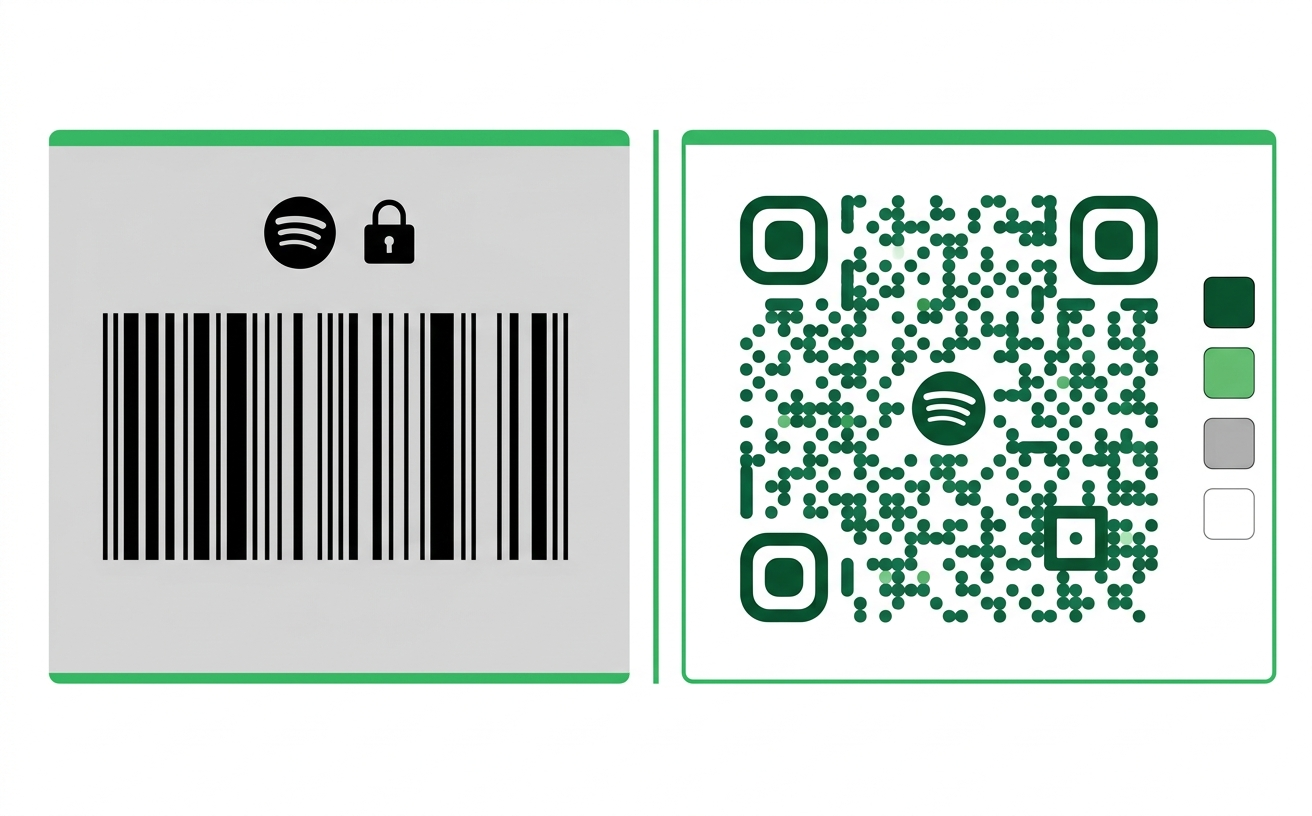
Spotify has its own native scan code system. You can find it by opening any song, album, or playlist in the Spotify app, tapping the three-dot menu, and selecting Share. Spotify generates a proprietary code that looks like a horizontal bar of dots sitting above a Spotify logo.
The catch is that Spotify’s native code only works inside the Spotify app. You have to open Spotify first, go to the camera or scan feature within the app, and then scan the code. A regular phone camera does not read it. A printed poster with a Spotify native code is only useful to someone who already knows to open Spotify before scanning.
A custom QR code from toolshash.com works with any phone camera, no app pre-loading required. The person points their camera at the code, Spotify opens, and the music plays. That is a significantly lower barrier for anyone seeing your code in the real world.
There are also design advantages. Spotify’s native code is fixed in appearance. You cannot change the colors, add your logo, or match it to your visual identity. A custom QR code gives you full control over every design element.
How to Get Your Spotify Link
Before creating the QR code, you need the Spotify URL for the content you want to share. Here is how to get it for each content type.
For a song or track
- Open Spotify on desktop or mobile.
- Find the track you want to share.
- Right-click the track on desktop, or tap the three-dot menu on mobile.
- Select Share then Copy Song Link.
- The link looks like:
https://open.spotify.com/track/[track-id]
For an album
- Open the album page in Spotify.
- Tap or click the three-dot menu near the album title.
- Select Share then Copy Album Link.
- The link looks like:
https://open.spotify.com/album/[album-id]
For a playlist
- Open the playlist in Spotify.
- Tap or click the three-dot menu.
- Select Share then Copy Playlist Link.
- The link looks like:
https://open.spotify.com/playlist/[playlist-id]
For a podcast episode
- Open the episode in Spotify.
- Tap the three-dot menu.
- Select Share then Copy Episode Link.
- The link looks like:
https://open.spotify.com/episode/[episode-id]
Once you have the link, paste it into a notes app to keep it ready. Open it in a browser first to confirm it loads the right content before building a QR code around it.
How to Create a Spotify QR Code for Free
This takes under 60 seconds at toolshash.com. No account. No signup. Completely free.
Step 1: Open the generator and select Website / URL
Go to toolshash.com/custom-qr-code-generator. From the QR Type dropdown, select Website / URL. This is the correct type for a Spotify link.
Step 2: Paste your Spotify link
Paste the full Spotify URL into the input field. Confirm it starts with https://open.spotify.com/. A link starting with spotify: is a deep link format that may not work reliably on all devices. Use the web URL format every time.
Step 3: Customise to match your visual identity
Musicians and creators with a strong visual identity get the most from this step. Here is what to adjust.
- Foreground color: match your artist branding or album artwork palette. The foreground should always be dark enough to maintain contrast against the white background.
- Gradient: toggle on for a two-color fade. A gradient from your primary color to a complementary shade looks strong on posters and album artwork.
- AI Colors: click to generate a visually appealing color combination automatically. Good if you want a polished result quickly.
- Logo: upload your artist logo or band logo as a transparent PNG. Set error correction to H (High) first and keep the logo under 25% of the code area. Full details at how to add a logo to a QR code.
- Dot shape: rounded or dots shapes work better for music and creative brands than standard squares. They give the code a softer, more designed quality.
- Eye style: leaf or rounded eyes add character without affecting how the code scans.
Step 4: Generate, test, and download
Click Generate. Scan the preview with your phone. Confirm Spotify opens on the correct content. Test on both iPhone and Android if possible. Download as SVG for print materials and PNG for digital use.
Create your Spotify QR code free at toolshash.com
Where Musicians and Creators Use Spotify QR Codes
The value of a Spotify QR code depends entirely on placement. Here are the placements that generate the most streams and followers.
Merchandise tags and inserts
A QR code on a clothing tag, sticker sheet, or insert inside a merchandise package links buyers directly to your Spotify artist page or latest release. Someone who bought your merch is already your most engaged fan. According to the IFPI Global Music Report 2023, streaming accounts for 67% of global recorded music revenue. Converting a physical purchase into a streaming follow is one of the highest-value actions a fan can take.
Gig posters and event flyers
A QR code on a gig poster gives anyone who sees it a direct path to your music before they decide whether to attend. Hearing two tracks builds more intent to come to the show than reading a genre description. Place the code with a short prompt: “Listen before you come.”
Physical releases and album artwork
For artists releasing vinyl, CDs, or cassettes, a QR code on the sleeve or liner notes bridges the physical product with the streaming catalogue. Fans who buy physical formats are often heavy streamers too. A QR code lets them switch formats without searching.
Business cards for musicians and industry professionals
A Spotify QR code on a musician’s business card replaces the need to spell out a Spotify URL or write down a playlist link. Anyone you hand the card to can scan it and start listening within seconds. See the full guide on QR codes for business cards for design and placement advice.
Music lesson materials
Music teachers using Spotify in lessons can create QR codes for listening exercises. A printed worksheet with a QR code linking to a specific track removes the need for students to search for the right version. This saves lesson time and stops students from finding the wrong recording.
Social media and digital content
A Spotify QR code embedded in a YouTube description, a newsletter, or an Instagram post gives audiences a frictionless path to your streaming content. Unlike a text link, a QR code in an image is scannable from a printed newsletter or a screen without clicking anything.
Does the Spotify QR Code Work Without the App Installed?
Yes. The QR code stores a web URL in the format https://open.spotify.com/. When someone scans it, the phone first checks whether Spotify is installed. If it is, the app opens directly on the linked content. If it is not, the Spotify web player opens in the browser instead.
The web player requires a Spotify account to listen beyond a short preview. For anyone without Spotify, the QR code still gets them to the right page. Whether they create an account is their decision. The code removes every barrier on your end.
What to Put Next to the QR Code
A QR code with no context gets scanned less often than one with a specific prompt. For music, the prompt should create curiosity or give a reason to listen now.
- On a gig poster: “Listen before you come. Scan for our latest release.”
- On merchandise: “Scan to hear the album this collection was made for.”
- On a business card: “Scan to hear our music on Spotify.”
- On a playlist QR code: “Scan for the full playlist. Updated monthly.”
Specific prompts outperform vague ones every time. “Scan here” tells nobody anything. “Listen before you come” creates a reason to act.
Frequently Asked Questions
Can I create a QR code for someone else’s Spotify content?
Technically yes. A QR code stores any URL, including public Spotify content. However, using another artist’s music in your own promotional materials without permission raises ethical and legal questions. For your own content, playlists, podcasts, and music you have rights to share, there is no issue.
Will the Spotify QR code stop working if I delete the playlist?
Yes. If the Spotify URL no longer exists, the scan will return an error. If you delete content, create a new QR code pointing to updated material and replace any printed copies. For long-term use, pointing the code to your Spotify artist page is safer than a specific release. Your artist page always shows your latest work and never becomes outdated.
What is the difference between a Spotify QR code and a Spotify scan code?
Spotify’s native scan code only works inside the Spotify app itself. A Spotify QR code created at toolshash.com is a standard QR code that any phone camera reads. For posters, merch, and print materials where you cannot control what app the person has open, a standard QR code is always the better choice.
Can I link to a private Spotify playlist?
No. Private playlists are not accessible via URL to anyone other than the owner. A QR code pointing to a private playlist shows an error to anyone who scans it. Set your playlist to public or collaborative in Spotify settings before creating the QR code.
How do I update the QR code when I release a new album?
Create a new QR code pointing to the new album URL and replace physical materials carrying the old code. For ongoing use, point the QR code to your Spotify artist page rather than a specific album. Your artist page always shows your latest release at the top and stays relevant indefinitely. One QR code on a standing banner or business card works for every release.
Can I track how many people scanned my Spotify QR code?
Not directly through the QR code itself, since it is static with no analytics. For tracking, create a free account at Bitly and generate a short tracked link that redirects to your Spotify URL. Use that link in your QR code instead. The Bitly dashboard shows click counts, device types, and locations. Spotify for Artists also shows stream source data that helps correlate physical QR code placements with streaming spikes.