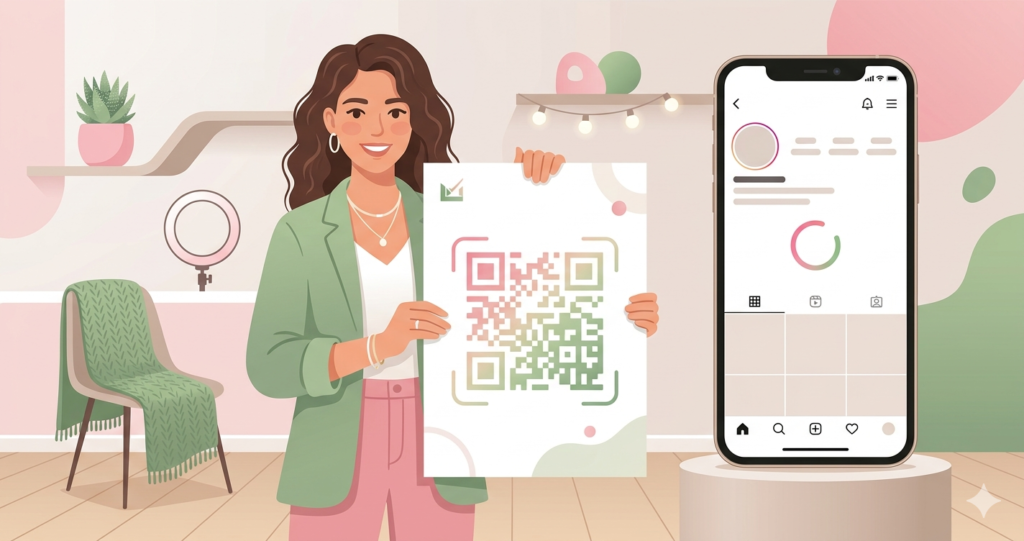
You meet someone at a market stall. They love your product. You tell them to follow you on Instagram. They smile, say they will, and forget the moment they walk away.
A QR code on your packaging, your business card, or your stall banner fixes this. They scan it before they walk away. Your profile opens. One tap and they are following you. The interaction that used to end with “I’ll look you up later” now ends with a new follower in the moment.
This guide covers how to create a free Instagram QR code, where to use it, and how to design one that people actually want to scan.
What is an Instagram QR Code?
An Instagram QR code is a QR code that stores the URL of your Instagram profile. When someone scans it, their phone opens the Instagram app or the Instagram web page directly on your profile. No searching for your handle, no spelling out a username with an underscore in the middle, no hoping they remember to look later.
It is the same as handing someone a direct link to your profile, except the link lives on something physical they can scan in the moment.
Instagram’s Built-In QR Code vs a Custom One
Instagram has its own built-in QR code feature. You can find it in your profile settings by tapping the menu and selecting QR Code. Instagram generates a code that links to your profile.
The problem with Instagram’s built-in code is that it is fixed and it carries Instagram’s own branding. You cannot change the colors, add your logo, choose a dot style, or adjust the design in any way. You get what Instagram gives you.
A custom QR code from toolshash.com gives you complete control. You set the colors to match your brand. You add your logo. You choose the dot shape and eye style. You download it in SVG for print use or PNG for digital. The finished code looks like it was designed as part of your brand, not pulled from a settings menu.
For anyone using their Instagram QR code on printed materials, merchandise, packaging, or business cards, a custom designed code is worth the extra two minutes it takes to create.
How to Get Your Instagram Profile URL
Before creating the QR code, you need your Instagram profile URL. There are two versions and only one works well in a QR code.
Option 1: The web URL (recommended)
Your Instagram web URL follows this format: https://www.instagram.com/yourusername/
Replace yourusername with your actual Instagram handle. This URL works on every device, opens in the Instagram app if it is installed, and falls back to the Instagram website if the app is not present. This is the URL to use in your QR code.
Option 2: The app deep link (not recommended for QR codes)
Instagram also uses deep links in the format instagram://user?username=yourusername. These open directly in the app but fail entirely on devices that do not have Instagram installed. For a QR code that will be seen by a wide audience, always use the web URL. It works on every device every time.
How to Create Your Instagram QR Code
This takes under 60 seconds at toolshash.com. No account. No signup. Completely free.
Step 1: Open the generator and select Instagram
Go to toolshash.com/custom-qr-code-generator. From the QR Type dropdown, select Instagram. A field appears for your Instagram profile URL or username. Enter your full profile URL in the format https://www.instagram.com/yourusername/.
Step 2: Customise the design
This is where a custom code separates itself from Instagram’s built-in option. Creators and businesses with a strong visual identity get the most from this step.
- Colors: match your foreground color to your brand palette. If your brand uses a warm terracotta or a deep navy, use that here. Keep the background white or very light for scannability.
- Gradient: toggle the gradient on for a two-color fade effect. A subtle gradient from one brand color to another works well for creators who want a more editorial look. Keep colors in a similar tonal range so contrast against the background stays high.
- AI Colors: click this to generate a color combination automatically. The tool produces a visually appealing result that maintains scannability. Useful if you want a polished look quickly.
- Logo: upload your profile picture, brand logo, or icon as a PNG with a transparent background. Set error correction to H (High) before uploading. Keep the logo under 25% of the code area. For full detail on this, see how to add a logo to a QR code.
- Dot shape: rounded dots give a softer look that tends to work better for lifestyle, food, beauty, and creative brands. Square dots are cleaner for corporate and tech-adjacent brands.
- Eye style: leaf or rounded eyes add personality to the code without reducing scannability.
Step 3: Generate, test, and download
Click Generate. Scan the preview with your phone. Confirm your Instagram profile opens. Test it on both an iPhone and an Android if you can. Download as SVG for anything printed and PNG for digital use.
Create your Instagram QR code free at toolshash.com
Where to Use Your Instagram QR Code
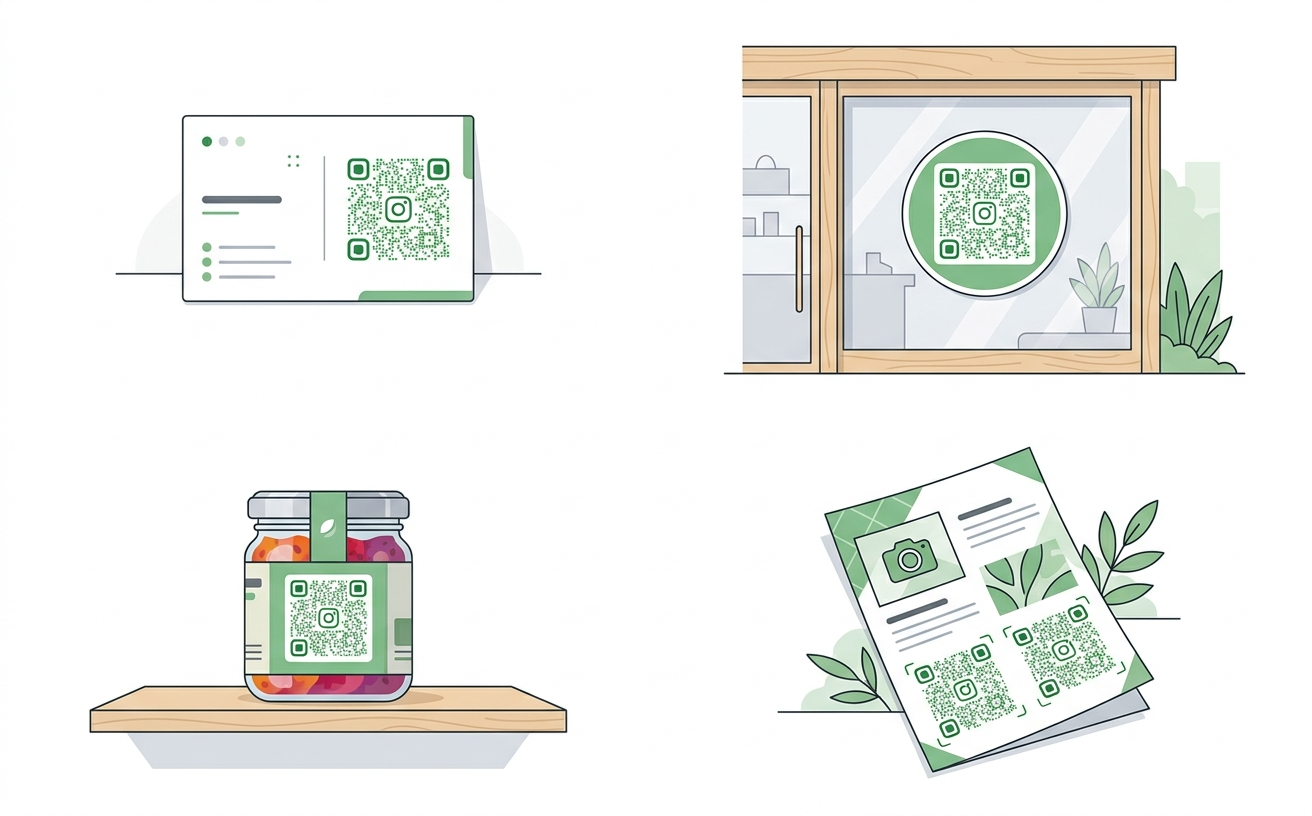
The value of an Instagram QR code comes entirely from where you place it. Put it somewhere people are not looking and nothing happens. Put it at the right moment in the right physical space and every placement becomes a passive follower acquisition channel.
Product packaging
For product-based businesses, putting an Instagram QR code on your packaging is one of the highest-return placements available. A customer who buys your product and loves it is already in the right emotional state to follow you. The QR code on the box, bag, or label gives them a frictionless path to your profile at exactly that moment. According to Statista, Instagram had approximately 2 billion monthly active users globally as of 2023, making it one of the highest-reach platforms for product discovery and repeat engagement.
Business cards
An Instagram QR code on the back of your business card gives anyone you meet in person a direct path to your profile without typing your handle. This works well for photographers, designers, stylists, consultants, and anyone whose Instagram acts as a portfolio. For a full guide on combining QR codes with business cards, see QR code for business cards.
Shop window and in-store signage
A small sign or sticker at your counter with your Instagram QR code turns foot traffic into followers. Add a short prompt like “Follow us for new arrivals and behind the scenes” to give people a reason to scan. Someone walking past who is not ready to buy might still follow your account and become a customer later.
Market stalls and pop-up events
At a market stall or pop-up, printed A5 cards with your Instagram QR code capture people who are interested but not ready to buy. The follow keeps you in their feed until they are. The follow is a low-friction commitment that keeps you in their feed until they are ready.
Printed flyers and promotional materials
Adding your Instagram QR code to any printed marketing material turns a one-way communication piece into a two-way relationship. A flyer with a QR code gives the reader a next step beyond just reading the information.
Merchandise and branded items
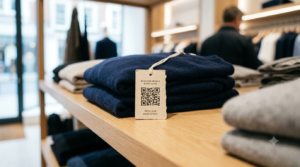
For creators and brands that sell merchandise, putting a subtle Instagram QR code on clothing tags, sticker sheets, or inserts turns every item sold into an ongoing brand touchpoint. People who wear or use your merchandise are your most engaged customers. Giving them a direct path back to your Instagram keeps that relationship active.
Restaurant tables and menus
For food and hospitality businesses, add your Instagram QR code to the same table card as your restaurant menu QR code. Customers can follow you while they wait for their food. Many restaurants have grown significant Instagram followings this way without any paid promotion.
What to Write Next to the QR Code
A QR code with no context next to it gets scanned less often than one with a short, specific prompt. The prompt should tell people what they will find when they follow you, not just that a follow button exists.
Here are prompts that work well for different account types:
- Product brand: “Follow us on Instagram for new products, behind the scenes, and exclusive offers.”
- Restaurant or cafe: “Follow us for daily specials, new menu items, and what is happening this week.”
- Photographer or creative: “See more of our work on Instagram. Scan to follow.”
- Personal brand or creator: “More content every day. Follow along on Instagram.”
Keep it honest and specific. Telling someone what they will actually see when they follow you converts better than a generic “follow us on Instagram.”
Does Your Instagram Handle Matter for the QR Code?
No. The QR code stores a URL, not the handle itself. The handle is part of the URL, but the person scanning the code never needs to read, type, or remember it. They scan, the profile opens, and they decide whether to follow based on what they see on your profile page.
This means the QR code is equally effective whether your handle is short and memorable or long and specific. The friction of an awkward handle is removed entirely.
How to Track Whether Your Instagram QR Code is Working
The simplest way is to watch your follower count in the days after placing the QR code. If it goes up noticeably, the code is working. If nothing changes, either the placement is wrong, the prompt is missing, or the code design is not compelling enough to prompt a scan.
For more precise tracking, add UTM parameters to your Instagram profile URL before creating the QR code. For example:
https://www.instagram.com/yourusername/?utm_source=qr&utm_medium=packaging&utm_campaign=product_launch
Instagram does not pass UTM data through cleanly. Use a link shortener that tracks clicks before redirecting to your Instagram URL. That way you can see exactly how many people came via the QR code versus finding your profile another way.
Alternatively, use a free link tracking service like Bitly to create a short tracked link that redirects to your Instagram profile. Create the QR code using the Bitly link and monitor click data through the Bitly dashboard.
Frequently Asked Questions
Does the Instagram QR code work if someone does not have the app installed?
Yes, if you use the web URL format https://www.instagram.com/yourusername/. The phone opens the URL in the browser, which loads the Instagram web version. If the Instagram app is installed, the phone prompts the user to open it in the app instead. Either way, the profile loads correctly.
Can I use my Instagram QR code in both print and digital materials?
Yes. Download in SVG format for all print materials. SVG scales to any size without losing quality, so the same file works on a business card and a large format poster. Download PNG for digital use such as email signatures, website embeds, and social media posts.
What happens if I change my Instagram handle after creating the QR code?
The QR code will stop working. It stores your old handle in the URL. If you change your handle, create a new QR code with the updated URL and replace all physical copies of the old one. This is a good reason to settle on a permanent handle before printing materials at scale.
Can I add my Instagram QR code to my email signature?
Yes. Export as PNG and embed the image in your email signature. Anyone reading your email on a desktop can photograph their screen with a phone to scan it. It is a small addition that converts email contacts into Instagram followers over time.
Is there a difference between the Instagram QR type and a URL QR type at toolshash.com?
The Instagram QR type at toolshash.com is optimised specifically for Instagram profile links. The URL QR type does the same thing when you paste an Instagram URL into it. For simplicity, use the Instagram type and enter your handle or profile URL. The result is identical in terms of the final code and how it scans.
How large should the QR code be on printed materials?
For a business card scanned at close range, 2cm x 2cm is the absolute minimum but 2.5cm x 2.5cm is safer. For a product label scanned at 20 to 30cm, 3cm x 3cm or larger. For a shop window sign scanned from a standing distance of 50cm or more, 8cm x 8cm minimum. According to Denso Wave’s printing guidelines, a QR code scans reliably at up to ten times its own width, so size up generously when scanning distance increases.