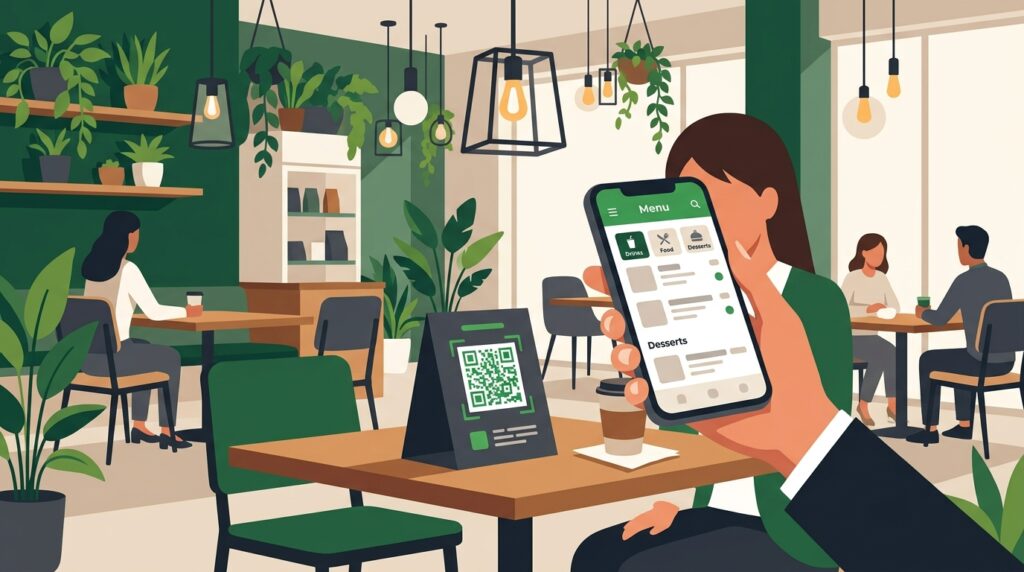
You need a digital menu with a QR code. You do not need a £50 per month subscription to a platform you will spend three hours learning. You need something live by Friday.
This guide covers four free ways to host a digital menu and how to create the QR code for each. With menu content ready, you can have a scannable menu on your tables in under ten minutes.
What a QR Code Menu Generator Actually Does
The phrase “QR code menu generator” describes two different things depending on who is searching for it.
The first is a tool that creates a QR code pointing to a menu you have already built somewhere. The QR code is a link. The menu lives somewhere else: a PDF, a Google Doc, a website page, or a dedicated menu platform. This is what most restaurants actually need.
The second is a platform that both hosts the menu and generates the QR code as a single product. These platforms handle menu layout, updates, and QR code generation in one system. They typically cost money after a free trial.
For most independent restaurants, cafes, and food businesses, the first approach is better. You control the menu. You update it in the tool you already use. The QR code is free. No monthly subscription, no platform dependency, no features you do not need.
Four Free Ways to Host Your Digital Menu
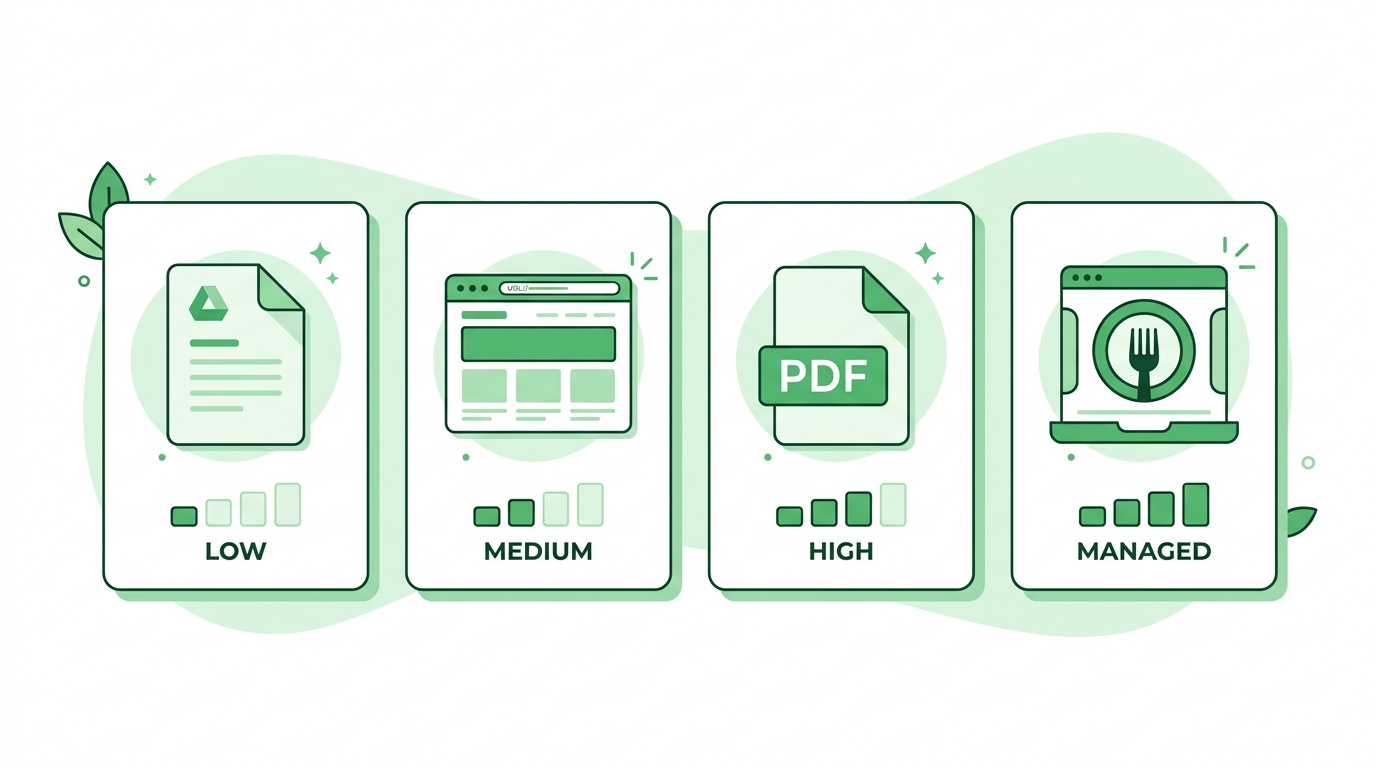
Option 1: Google Docs (fastest to set up)
Write your menu in a Google Doc. Format it with headings for each section (Starters, Mains, Desserts, Drinks), use bold for dish names, and add descriptions and prices below each item. Set the document to “Anyone with the link can view.” Copy the sharing URL.
Advantages: completely free, instantly editable from any device, no design skills required, updates appear immediately when guests scan the QR code. A menu change at noon is live on the QR code at noon.
Limitations: Google Docs does not look like a designed menu. It is functional and clean but not visually sophisticated. For a cafe or casual restaurant, this is often entirely adequate. For a fine dining establishment where the menu is part of the experience, a more designed format is worth the extra effort.
Option 2: A PDF menu (best visual quality, least flexible)
Create your menu in Canva, Adobe Express, or any design tool. Export as a PDF. Upload the PDF to Google Drive, Dropbox, or your website. Get the shareable link. The guest scans the QR code and the PDF opens in their browser.
Advantages: full design control. The menu looks exactly as designed. Works on any device without any formatting issues. A well-designed PDF menu viewed on a phone is a significantly better experience than a text document.
Limitations: updating requires redesigning and re-uploading the PDF. For daily specials or seasonal menus that change frequently, the friction of updating a designed PDF makes Google Docs or a website page more practical. For a stable menu that changes quarterly, a PDF is the right choice.
Option 3: A page on your website (best long-term option)
Create a dedicated menu page on your website. Most website builders including WordPress, Squarespace, and Wix make this straightforward. The page URL becomes the QR code destination. Update the page in your website editor whenever the menu changes. The QR code never needs to change.
Advantages: the menu is part of your website, so a guest who lands on it also has access to your booking page, contact details, and about section. Updates are as easy as editing any web page. The URL is stable permanently.
Limitations: requires a website and basic familiarity with your website editor. Not the fastest path if you need a menu live today.
Option 4: A free dedicated menu platform
Platforms like Menufy, GloriaFood, and Me&U offer free tiers that host a digital menu and generate a QR code. These are purpose-built for the use case and include menu layout features, allergen management, and sometimes basic ordering functionality.
Advantages: purpose-built menu display, often mobile-optimised out of the box, and generates a QR code automatically. A good option if you want the menu to look professional without designing it yourself.
Limitations: free tiers have feature restrictions and some display branding from the platform. Check the current free tier terms carefully before committing, as these platforms change their pricing. For a comparison of the ordering functionality specifically, see QR code restaurant ordering: set up table ordering in under an hour.
How to Create the QR Code for Your Menu (Free, Any Option)
Once your menu is hosted anywhere that produces a URL, creating the QR code takes under two minutes at toolshash.com. No account. No signup. Completely free.
- Go to toolshash.com/custom-qr-code-generator.
- Select Website / URL from the QR Type dropdown.
- Paste the menu URL: the Google Doc sharing link, the PDF download link, your website menu page URL, or the dedicated platform URL.
- Set error correction to H (High). Table cards get wiped, bent, and handled repeatedly. H-level correction keeps the code scanning even with up to 30% surface damage.
- Customise the design. Match the foreground color to your restaurant’s brand palette. Add your logo in the centre if the brand calls for it. Rounded dot shapes suit most hospitality settings better than standard square dots.
- Click Generate. Scan the preview with your phone and confirm the menu opens correctly.
- Download as SVG for print. SVG scales to any size from a small table tent to a large window sign without quality loss.
What to Print the QR Code On
The QR code file is ready. Now it needs to be on something guests can actually scan at the table. Here are the most practical formats for restaurant use.
Table tent card
A folded card that stands on the table. The most common format. Print on card stock at home or order from any print shop. A 3cm x 3cm QR code on an A7 or A6 tent card scans reliably from a seated position. Include a short prompt above or below the code: “Scan to view our menu.” Laminate if the cards will be wiped regularly.
Table insert card in a stand
A flat card in a small acrylic or metal table stand. More permanent-looking than a tent card. Easy to replace the insert when the menu changes without replacing the stand. Consistent with the premium aesthetic of most sit-down restaurants.
Printed directly on the table mat or paper liner
For casual dining and fast-food settings, printing the QR code on a disposable table mat means every guest automatically has the menu in front of them. No cards to manage, no cards to lose. Replace with each sitting.
Window sign or A-frame
A QR code on a window sign or A-frame outside the restaurant lets passers-by view the menu before deciding to enter. Use a larger code (8cm x 8cm or more) for outdoor signage scanned from a pavement distance. For the full guide on QR code signs, see QR code sign generator: create scannable signs for your shop or venue.
Keeping Your Digital Menu Up to Date
The biggest operational benefit of a QR code menu is that updates are immediate and free. No reprinting costs. No waiting for new menus to arrive. Change a price, add a special, remove a sold-out dish: the update is live the moment you save it.
The update process depends on which hosting option you chose.
For a Google Doc: open the document, make the change, save. Done. The QR code already points to the document. Every guest who scans after the change sees the updated version.
For a PDF: update the design file, export a new PDF, replace the old file in Google Drive or Dropbox using the same filename. The shareable link stays the same. The new PDF is what guests see.
For a website page: log in to your website editor, update the menu page, publish. Done.
The QR code itself never needs to change. The code is permanent. Only the content at the other end of the link changes.
Frequently Asked Questions
What is the best free QR code menu generator?
The fastest free path: host the menu on a Google Doc and create the QR code at toolshash.com. Both tools are free with no watermarks or scan limits. Both tools are free permanently with no feature restrictions on the core functionality. For a more visually designed menu, create a PDF in Canva, host it on Google Drive, and create the QR code at toolshash.com pointing to the Drive link.
Can I update the menu without changing the QR code?
Yes, if the QR code points to a URL that stays the same when the content changes. A Google Doc URL does not change when you edit the document. A website page URL does not change when you update the page content. A Google Drive PDF link does not change when you replace the file with the same filename. In all three cases, the QR code keeps working and guests always see the current version. Only if you change the destination URL itself does the QR code need to be replaced.
Do guests need to download an app to view the menu?
No. The QR code opens a URL in the phone’s browser. No app download required. A Google Doc opens in mobile Chrome or Safari. A PDF opens in the phone’s native PDF viewer or browser. A website page opens in the browser. A dedicated menu platform’s page opens in the browser. The guest scans with their native camera app and the menu appears. No friction, no downloads.
Can I include allergen information in a QR code menu?
Yes, and it is one of the strongest reasons to use a digital menu. A physical menu has limited space for allergen detail. A digital menu can include full allergen information for every dish, filterable by allergen type if you build or use a platform that supports filtering. In the UK, the Food Standards Agency requires the 14 major allergens to be declared for food sold in catering businesses. A QR code menu that includes comprehensive allergen information meets this requirement while giving guests a better experience than small-print footnotes on a physical menu.
What size should the QR code be on a table card?
At minimum 2.5cm x 2.5cm for a table card scanned from a seated position at 30 to 40cm. According to Denso Wave’s printing guidelines, a QR code scans reliably at up to ten times its own width. A 3cm code scans from up to 30cm, covering most table scanning scenarios comfortably. For table cards placed flat rather than standing upright, size up to 4cm to allow for the steeper scanning angle.
Can I use the same QR code for multiple locations?
If all locations use the same menu, yes. One QR code pointing to one menu URL works across as many locations as you have. If different locations have different menus, create a separate QR code for each menu URL. For a multi-location group, the most maintainable approach is a single menu page per location on your website, each with its own QR code. Updates to each location’s menu are made on that location’s page without affecting the others.