The standard business card is a rectangle of contact details that ends up in a pile on someone’s desk or at the bottom of their bag. It does one thing: transfer information from one person to another. The transfer only works if they look at it, remember it, and act on it. Most do not.
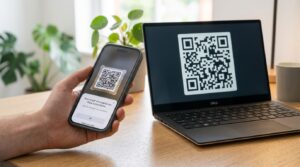
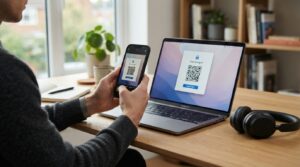
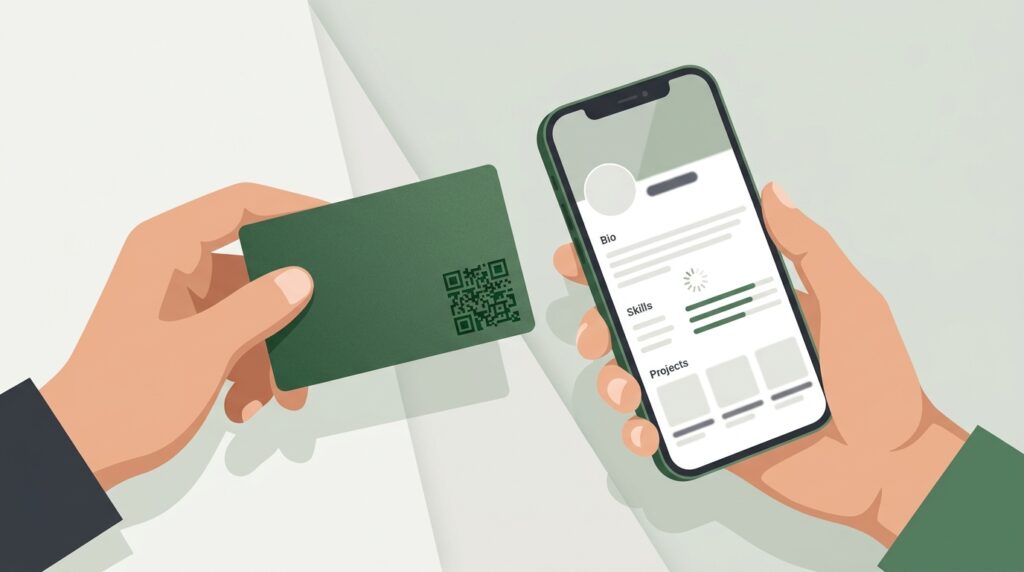
A business card with a QR code does more. The person you meet scans the code before you part ways. Your portfolio opens. Your LinkedIn profile opens. Your contact details save to their phone automatically. The booking page for a call opens. The connection is made before either of you has moved on to the next conversation.
This guide covers what to link the code to, how to create it for free, and how to design it so it fits a professional business card.
What Should Your Business Card QR Code Link To?
The destination is the most important decision. A QR code that links to a generic homepage wastes the moment. Here is what works for different professional contexts.
vCard contact file
The simplest and most universally useful destination. A vCard QR code, when scanned, prompts the person’s phone to save your contact details immediately. Name, phone, email, company, job title, and website all transfer in one scan. No typing. No transcription errors. No card sitting in a pile waiting to be dealt with. Your details go straight into their contacts.
At toolshash.com, select vCard from the QR Type dropdown and fill in your contact details. The generator formats the vCard data correctly. The full setup guide is at vCard QR code generator: share your contact details with one scan.
LinkedIn profile
For business professionals whose LinkedIn is their most complete professional presence, a QR code linking to their LinkedIn URL is more valuable than a vCard. The person who scans sees recommendations, work history, mutual connections, and the ability to connect or message in one step. Use the LinkedIn URL in the format https://www.linkedin.com/in/yourhandle.
Portfolio or website
For designers, photographers, architects, consultants, and anyone whose work speaks louder than a job title, a QR code linking to a portfolio is the most compelling destination. The person you just handed a card to can see your work before they reach their car. The gap between meeting and impression closes to seconds.
Booking page
For professionals who sell time, a QR code linking to a Calendly, Acuity, or booking page converts a business card handshake into a scheduled call. A consultant who hands a card and says “scan this to book 15 minutes with me” removes every barrier between initial interest and a live conversation. The booking is made in the moment when motivation is highest.
Linktree or link aggregator
For professionals with multiple relevant destinations (website, LinkedIn, portfolio, booking page, social media), a single Linktree or Bento page gives the person who scans a curated set of options. One QR code serves every use case without forcing a choice about which destination matters most.
WhatsApp or instant message
For service businesses and sales professionals who prefer WhatsApp as a first contact channel, a QR code linking to a wa.me URL opens a WhatsApp chat with a pre-filled message. The person scans, the chat opens, they send. No saving a number, no finding a message request. For the WhatsApp QR code setup, see QR code for WhatsApp: let customers message you instantly.
How to Create Your Business Card QR Code for Free
Go to toolshash.com/custom-qr-code-generator. No account. No signup. Completely free.
- Select the QR type: vCard for contact details, Website / URL for everything else. If the destination is a social profile, use the relevant social type (LinkedIn uses Website / URL since there is no dedicated LinkedIn type).
- Enter the content: fill in your contact details for vCard, or paste the URL for any link-based destination. For a vCard, include every field you want transferred: name, phone, email, company, job title, website, and any social handles the format supports.
- Set error correction to H (High): business cards get handled, bent, stuffed in wallets, and exposed to all manner of conditions. H-level correction, as defined by the ISO/IEC 18004 standard, recovers up to 30% of damaged data. A card that has been sat on does not become useless.
- Match the design to the card: see the design section below.
- Click Generate and scan the preview: confirm the correct destination loads or the correct contact save prompt appears before downloading anything.
- Download as SVG: SVG is vector and scales without quality loss. Send it to your card designer or printer. A business card QR code printed from a PNG can look soft at close inspection. SVG will not.
Create your business card QR code free at toolshash.com
Designing a QR Code That Fits a Professional Business Card
A business card is a designed object. It represents how you present yourself professionally. A QR code that breaks the card’s visual language undermines that. Here is how to make the code look like it was always part of the design.
Position
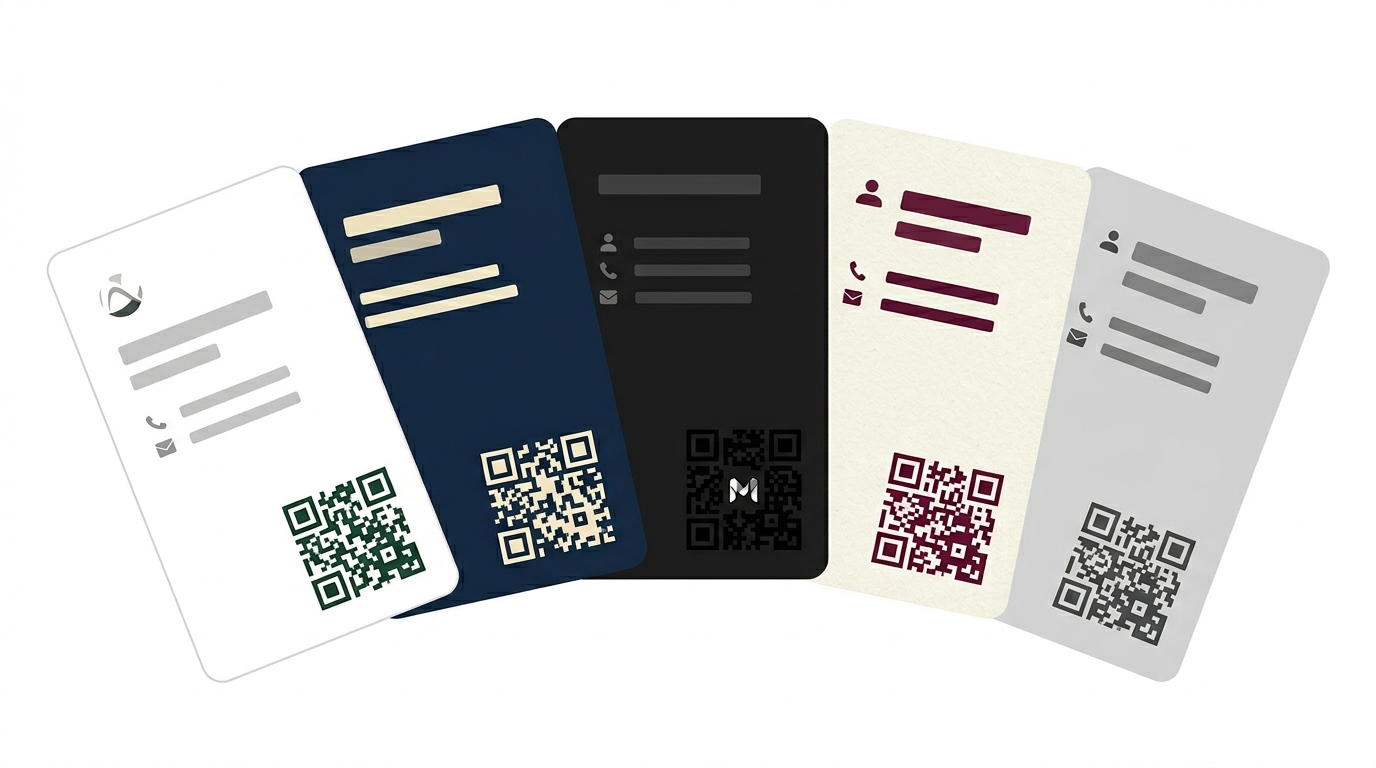
Bottom right corner is the standard position for a business card QR code. It occupies otherwise underused space, does not compete with the name and title on the front, and sits where the eye naturally ends after reading the card. Alternatively, the entire back of the card can be given over to a larger, more prominent code with a short prompt explaining what it does.
Size
A QR code on a business card is scanned at 20 to 30cm, the distance at which someone holds a card they are reading. According to Denso Wave’s printing guidelines, the minimum reliable size is 2cm x 2cm. For a business card, 2cm x 2cm in the bottom corner works. 2.5cm gives more comfortable scanning margin. Do not go smaller than 2cm.
Color
Match the QR code foreground color to the card’s primary brand color or the color used for the name and title text. A dark green code on a white card matches a brand that uses dark green. A charcoal code on a cream card matches an understated premium aesthetic. The background of the QR code area should always stay white or very light to maintain contrast. For the full guide on QR code color combinations and scanning reliability, see can QR codes be different colors?
Dot shape and eye style
Rounded dot shapes give the QR code a softer finish that suits most modern business card designs better than standard square dots. For luxury or premium cards, dots shape with leaf eye styles adds a refined quality. For corporate or technical roles, square dots with standard eyes look appropriately precise.
Logo in the centre
Embedding a small company logo or personal monogram in the centre of the code ties it visually to the brand on the card. Set error correction to H first. Upload the logo as a transparent PNG and keep it under 25% of the code area. The full process is at how to add a logo to a QR code.
Prompt text
A one-line prompt under the code tells the recipient what happens when they scan. “Scan to save my details” or “Scan to view my portfolio” removes ambiguity for anyone who has not encountered a QR code on a business card before. Keep it short and in the same typeface as the card’s other text elements.
Business Card QR Code vs Digital Business Card
A digital business card (services like HiHello, Blinq, or Beaconstac) generates a QR code that opens a digital profile page with your contact details, social links, and a save-contact button. The advantage over a static QR code is that the digital card can be updated without reprinting. Change your phone number, update your job title, add a new social profile, and everyone who scans the same code sees the current version.
The trade-off is platform dependency. If the digital card service closes, changes its pricing, or deactivates your account, the QR code on every printed card you have distributed stops working. For a role or business where contact details change frequently, the updateability is worth the dependency. For most professionals whose details are stable, a static QR code from toolshash.com pointing to a LinkedIn profile or personal website is more reliable and costs nothing.
The middle path: create a static QR code pointing to a URL on your own website (for example yoursite.com/contact) that you control. The code is static and permanent. The page it links to can be updated whenever your details change. Static code. Editable destination. No platform dependency.
Frequently Asked Questions
Should the QR code go on the front or back of the business card?
Either works. Front placement in the bottom right corner is common and keeps the code accessible on the same side as your contact details. Back placement allows a larger, more prominent code with more room for a prompt and design elements. For a card where the front is dense with information, the back is the better canvas. For a minimal front design with white space, a bottom-right front placement is clean and professional.
Can I update the QR code after the cards are printed?
Not the code itself. A static QR code encodes a fixed destination. To update where it points: reprint with a new code, or point the code to a URL you control and update that page instead. If you point the QR code to yourwebsite.com/contact and that page always shows your current contact details, you never need to reprint the cards when details change. The code stays valid. The destination stays current.
Is a vCard QR code better than a LinkedIn QR code for a business card?
It depends on what the recipient is most likely to do with the information. A vCard saves contact details directly to the phone in one tap, which is most useful for anyone who needs to call or email you. A LinkedIn URL opens your full professional profile, shows mutual connections, and allows a direct connection request, which is more useful for networking contexts. For most business professionals, a LinkedIn URL QR code on the card and a vCard QR code in email signatures gives the best of both. When space only allows one, choose based on the most common first action your contacts take after meeting you.
What is the minimum QR code size for a standard business card?
2cm x 2cm is the floor for reliable scanning at the 20 to 30cm distance someone holds a card. A 2.5cm x 2.5cm code gives more comfortable margin and leaves room for the quiet zone on all four sides without crowding the card’s other elements. Standard business cards are 85mm x 55mm, so a 2.5cm code occupies a proportional and visible but unobtrusive area in the bottom corner.
Can I use the same QR code across different card designs or card versions?
Yes. The QR code is an image file. Once downloaded from toolshash.com, the same SVG can be placed on any card design, in any software, at any size. The code does not change regardless of what card it appears on. If you rebrand and change the destination URL, create a new code. If you only change the card design without changing the destination, the existing code works on the new design without any changes.
Do I need to tell people the QR code is there?
A prompt helps, especially for recipients who may not immediately recognise a QR code on a card as something to scan. A short line like “Scan to save my details” or “Scan for more” below the code removes the ambiguity. Recipients who know what a QR code is will scan regardless. Recipients who are less familiar with the format benefit from the instruction. Including the prompt costs nothing and removes friction for a portion of your recipients who would otherwise not engage with the code at all.