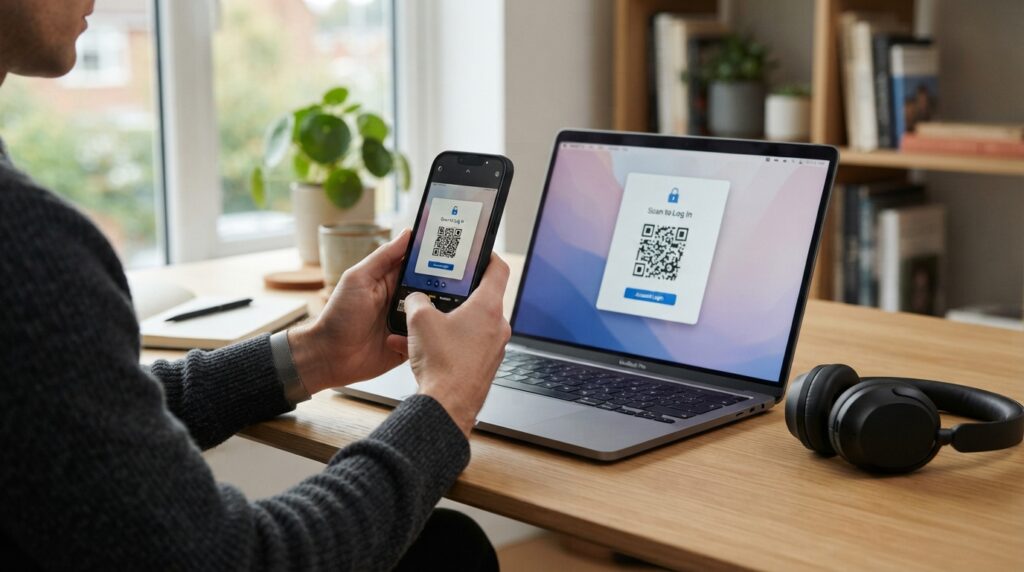
Discord’s QR code login lets you sign into the desktop app or website on a computer by scanning a code with your phone. Instead of typing your email and password, you open the Discord mobile app, scan the QR code on the screen, and tap confirm. The computer logs in immediately. It is quick, it works well, and it comes with one serious security risk that Discord itself warns about prominently.
Here is how Discord QR code login works, the exact steps to scan from a PC, and why scanning a Discord QR code from any source other than your own screen is a bad idea.
How Discord QR Code Login Works
Discord’s QR code login is a device authentication system. The desktop app or browser generates a temporary QR code that contains a session token. When you scan it with the Discord mobile app on a phone where you are already logged in, your mobile app confirms your identity to Discord’s servers and the desktop session activates.
The QR code expires after a short window, typically around 30 seconds, if not scanned. This prevents the code from being used if someone photographs the screen. Once scanned and confirmed, the code becomes invalid for any further use.
This is the same device authentication pattern used by WhatsApp Web, Steam, and several other platforms. Your phone acts as the authenticator because it is already trusted by your account, and the QR code is the bridge between the trusted phone session and the new desktop session.
How to Scan a Discord QR Code to Log In
- Open Discord on your desktop computer or go to discord.com in a browser
- On the login screen, look for the QR code option below the email and password fields
- A QR code appears on screen with a countdown timer showing how long it remains valid
- Open the Discord mobile app on your phone
- Tap your profile picture in the bottom right corner to open your profile settings
- Scroll down and tap Scan QR Code
- Point your phone camera at the QR code on the desktop screen
- A confirmation prompt appears on your phone asking if you want to log in to the device
- Tap Yes, Log Me In to complete the login
- The desktop Discord session activates immediately
The entire process takes about fifteen seconds once the QR code is on screen. If the code expires before you scan it, clicking refresh or waiting generates a new one automatically.
How to Scan a Discord QR Code from a PC
With 590 monthly searches, “how to scan discord qr code from pc” is the most searched Discord QR variant. The question arises because the Discord QR login is designed to be scanned with a phone, but some users encounter QR codes in other contexts and want to process them on a computer.
For the standard login QR code: you cannot scan it from a PC directly because the process requires the Discord mobile app to confirm your identity. The mobile app is the trusted authenticator, and there is no desktop equivalent for this specific flow.
For other types of QR codes related to Discord, such as invite links shared as QR codes, you can decode them by uploading the image to an online QR decoder in your browser. This extracts the URL from the pattern without needing a phone camera. Once you have the URL, paste it into Discord or a browser to join the server or access the invite.
If someone sent you a screenshot of a Discord QR code and you want to process it on a computer, use an online QR decoder to extract the encoded URL and handle it from there.
Discord QR Code Generator for Server Invites
Beyond the login QR code that Discord generates internally, you can create a QR code for any Discord server invite link or profile URL using an external generator.
To create a QR code for a Discord server invite:
- Open Discord and navigate to the server you manage
- Click the server name at the top to open server settings
- Go to Invite People and generate a permanent invite link
- Copy the invite URL, which looks like
discord.gg/yourcode - Paste it into the QR code generator and download
This lets you share a Discord server invite on printed materials, event programmes, business cards, or anywhere you want people to join your server without typing a URL. A QR code on a streamer’s overlay, a poster at a gaming event, or a printed handout at a community meetup all work for this purpose.
The Discord QR Code Scam You Need to Know About
Discord QR login is specifically targeted by account hijackers. The attack works like this: a scammer displays a Discord login QR code in a chat message, a DM, or on a website and asks you to scan it as part of some fake verification or prize claim process. When you scan and confirm, you log the scammer into your account rather than logging yourself in anywhere useful.
The reason this works is that the QR code grants a session to whoever generated it. When you scan and confirm, you are authorising that session. The generator of the code logs into your account on their device. You receive nothing and lose account access.
Discord displays a prominent warning when you are about to confirm a QR login: “Only scan this if you initiated the login yourself on a device you control.” This is not boilerplate. It is a direct warning about this specific attack.
The rule is simple: only ever scan a Discord QR code that you can see on a screen in front of you, on a device you control, where you initiated the login yourself. Never scan one sent to you by another user in any context.
Discord QR Code for Mobile App Login
If you need to log into Discord on a mobile device where you do not have access to another phone for scanning, use the standard email and password login instead of the QR method. The QR login is a convenience feature for situations where you have a trusted mobile session available. It is not required and has no capability advantage over password login.
For accounts with two-factor authentication enabled, QR login still works through the same mobile confirmation flow. The 2FA check happens on the phone during the confirmation step rather than separately on the desktop.
Frequently Asked Questions
How do I log in to Discord with a QR code
Open Discord on desktop or in a browser and look for the QR code login option on the login screen. On your phone, open the Discord app, tap your profile picture, and select Scan QR Code. Point your phone at the desktop QR code and tap Yes, Log Me In when the confirmation prompt appears. The desktop session activates immediately.
How do I scan a Discord QR code from a PC
The standard Discord login QR code must be scanned with the Discord mobile app on a phone because the mobile app provides the authentication confirmation. For other Discord QR codes such as server invites shared as images, upload the image to an online QR decoder in your browser to extract the encoded URL.
Is it safe to scan a Discord QR code
Only if the QR code is on a screen in front of you on a device you control and you initiated the login yourself. Scanning a Discord QR code sent by another user in chat, DMs, or on an external website logs the sender into your account. Discord displays a specific warning about this attack pattern during every QR login confirmation.
How do I create a QR code for a Discord server invite
Generate a permanent invite link for your server through Discord’s Invite People menu. Copy the invite URL and paste it into a free QR code generator. Download the resulting code and use it on any printed or digital material where you want people to join your server by scanning rather than typing the URL.
Why does my Discord QR code expire so quickly
Discord QR login codes expire after around 30 seconds as a security measure. A short expiry prevents someone from photographing the code and using it later. If the code expires before you scan it, wait for the page to refresh or click the refresh option to generate a new one.
Can someone hack my Discord account with a QR code
Yes, if you scan a QR code they generated. Scanning a Discord QR code confirms a login session for whoever generated it. If that person is not you on your own device, you are granting them access to your account. Never scan a Discord QR code from any source other than your own desktop login screen.
Use It on Your Own Screen, Never Anyone Else’s
Discord QR login is a convenience tool that works well when used correctly. The one rule that matters: you generate the code on your screen, you scan it with your own phone. Any other scenario carries real account risk that Discord warns about explicitly.
For creating QR codes for Discord server invites, event promotion, or community sharing, the QR code generator handles any invite URL with full design options. And for a broader look at how QR code login works across other platforms including Steam, Outlook, and streaming services, the QR code login guide covers each one in detail.