You designed everything perfectly. The flyer looks great, the poster is printed, the business card is in someone’s hand — and the QR code won’t scan. They squint at it, move their phone closer, try again. Nothing. A blurred QR code doesn’t just fail technically. It makes your whole thing look unprofessional.
The good news: a blurry or unscannable QR code is almost always fixable. And once you know why it happens, you won’t run into it again.
What Makes a QR Code Blurry?
A QR code blur usually comes down to one of three things: low resolution, bad export settings, or scaling an image beyond what the file can handle. QR codes aren’t like regular images. They encode data through precise patterns of black and white squares — those tiny squares are called modules. When those modules lose their sharp edges, the camera scanner can’t read the pattern correctly.
Think of it like trying to read text that’s been stretched out of shape. The letters are still there, but your brain — or in this case, the scanner — struggles to decode them.
Low Resolution Downloads
Most free QR code tools let you download a PNG or JPG at a default size. If that size is too small — say, 200×200 pixels — and you drop it onto an A4 flyer, the image gets stretched. Stretched pixels blur. It’s that simple.
For any printed material, you need a minimum resolution of 300 DPI. For large-format printing like banners or signage, go even higher or use a vector format like SVG.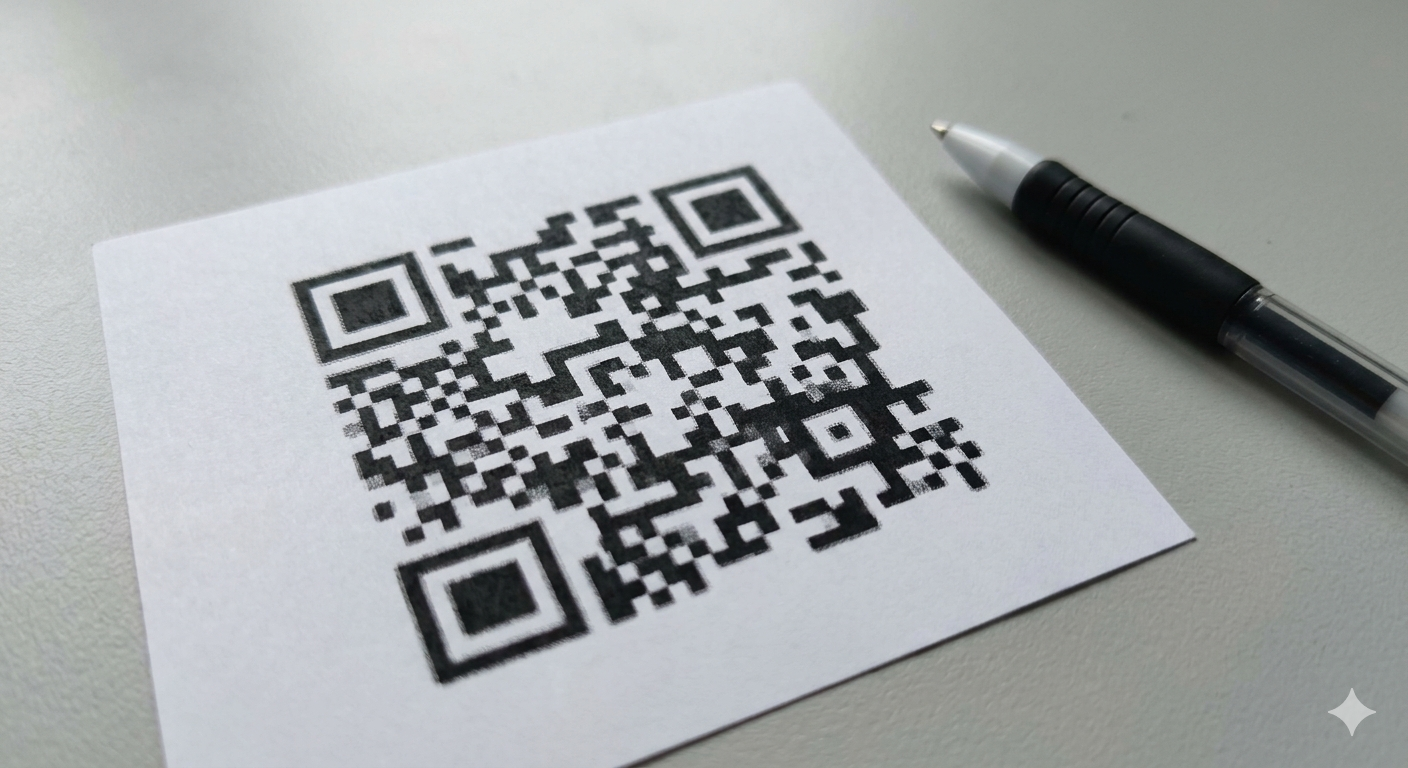
Saving as JPG Instead of PNG
JPG compression is designed for photos. It works by blending nearby pixels together — great for a sunset, terrible for a QR code. That compression softens the sharp black edges of the modules, which is exactly what causes a blurred QR code that scanners struggle with.
Always save QR codes as PNG, SVG, or PDF. Never JPG if you can avoid it.
Scaling Up a Small Image
If you generated a 300x300px QR code and then dragged it to fill half your design canvas, you’ve blown it up beyond its native resolution. The result is a pixelated, blurry mess. This is one of the most common reasons QR codes look fine on screen but come back from the printer looking soft and unscannable.
How to Fix a Blurred QR Code
You don’t need to start from scratch every time. Here’s a straightforward process to get a clean, scannable QR code.
Step 1: Regenerate at Higher Resolution
Go back to your QR code generator and look for a high-resolution download option. A good generator will let you choose the output size or export directly as SVG. SVG files are vector-based, meaning they scale to any size without losing sharpness — perfect for print.
Use the ToolsHash QR code generator to create and download your QR code in high resolution. You can export as PNG at a large size or as SVG for unlimited scalability — no blurring, no quality loss at any size.
Step 2: Choose the Right File Format
Here’s a quick reference for which format to use depending on your use case:
| Use case | Best format | Why |
|---|---|---|
| Website or email | PNG | Lossless, sharp edges |
| Print (business cards, flyers) | SVG or high-res PNG | Scales without blurring |
| Large format (banners, signs) | SVG or PDF | Vector quality at any size |
| Social media | PNG | Clean and platform-friendly |
Step 3: Check Your Quiet Zone
Every QR code needs a quiet zone — a white border around the outside. Without it, scanners get confused because they can’t tell where the code starts and ends. If your QR code is placed directly against a dark background or another design element without padding, that can cause scanning failures that look like a blur problem but aren’t.
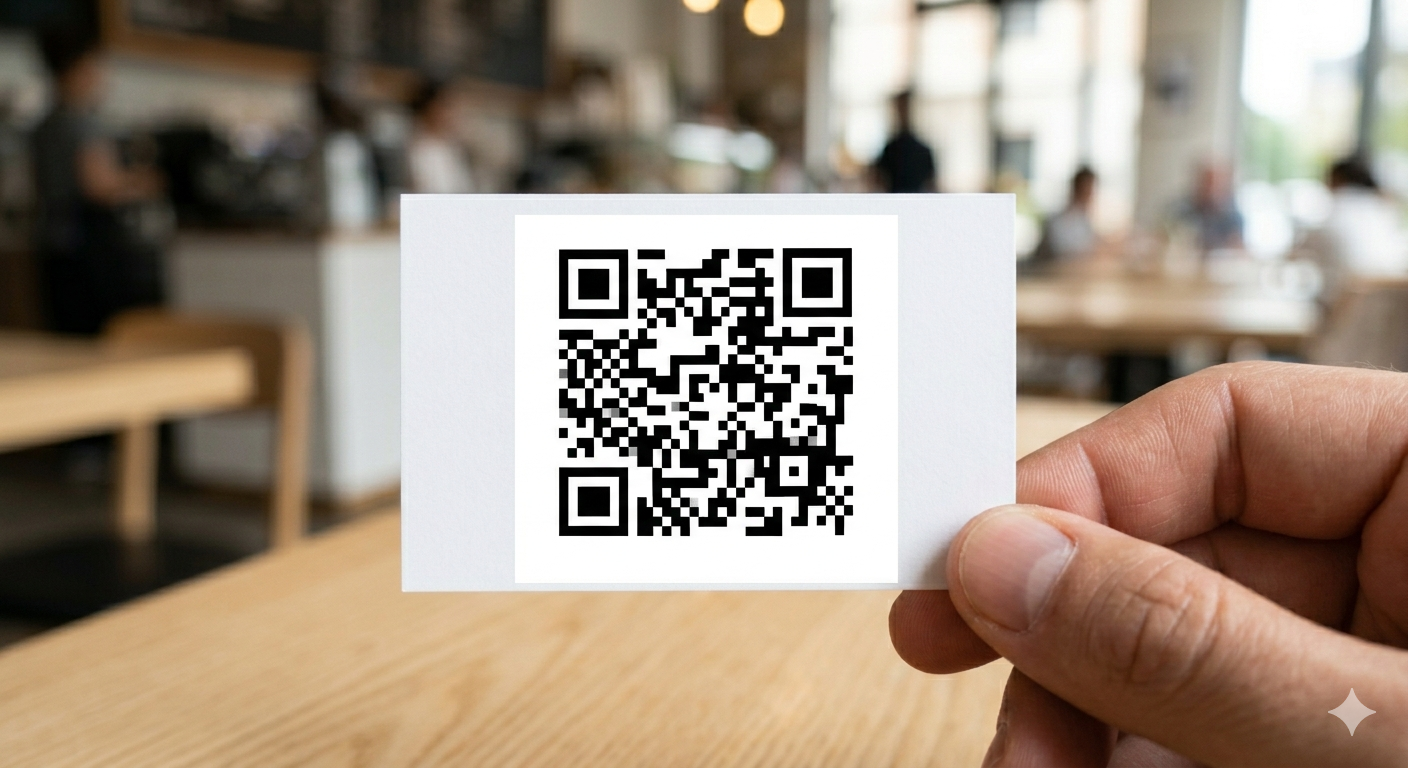
A quiet zone of at least four modules wide on every side is the standard. Most generators add this automatically, but if you’re embedding a QR code into a design, make sure you’re not cropping it out.
Step 4: Test Before You Print or Publish
This one sounds obvious but gets skipped constantly. Before sending anything to print or pushing anything live, scan the QR code yourself from multiple devices. Test on both iPhone and Android. Test from a distance that matches real-world use — if it’s going on a poster, test from two feet away.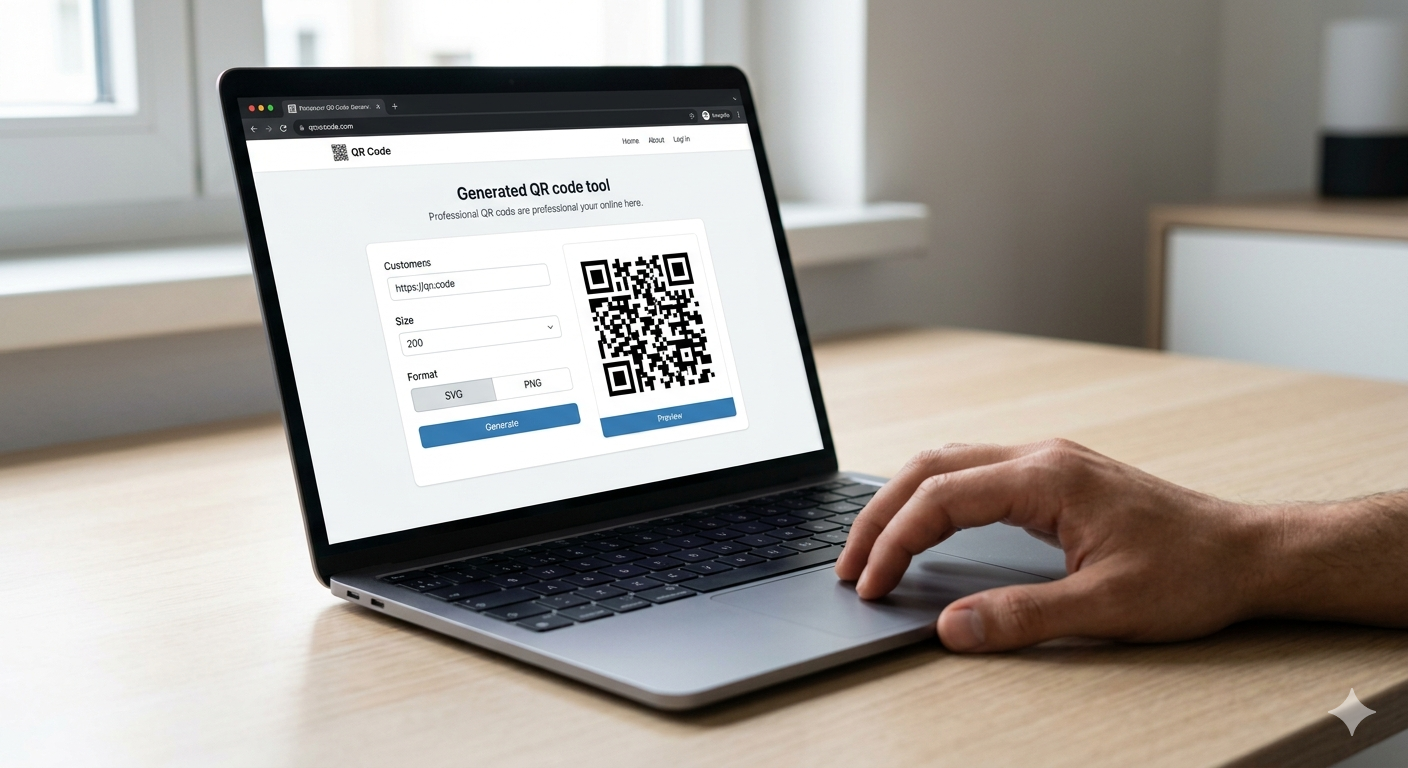
Why Your QR Code Looks Fine on Screen but Blurs When Printed
Screens and printers work differently. A screen displays images at 72–96 PPI (pixels per inch). A printer needs 300 DPI to produce crisp output. So a QR code that looks sharp on your monitor might print as a blurry smear if it was generated at screen resolution.
This is the single most common cause of blurred QR codes in printed materials. The solution is always to generate at print resolution from the start, or to use SVG which bypasses the resolution issue entirely.
Does a Blurry QR Code Still Work?
Sometimes — but not reliably. QR codes have built-in error correction, which means they can tolerate a certain level of damage or distortion and still decode correctly. There are four error correction levels: L (7%), M (15%), Q (25%), and H (30%). A higher level means the code can recover from more damage.
If your QR code is only slightly blurry and was generated with H-level error correction, a good scanner on a modern smartphone might still read it. But you can’t count on that in practice. People give up fast. If it doesn’t scan in two seconds, most people move on.
To understand more about how QR codes encode and protect data, read how QR codes work — it covers error correction in plain language.
QR Code Not Scanning? Other Reasons It Might Fail
If the resolution looks fine but the QR code still won’t scan, blur might not be the real issue. Here are other common causes:
- Low contrast: Light grey on white, or dark brown on black, won’t scan. QR codes need strong contrast — ideally black on white.
- Color inversion: White modules on a dark background can confuse some scanners. Always keep dark modules on a light background.
- Too much design overlay: Adding a logo or graphic over the center is fine if error correction is high enough, but covering too much of the code makes it unreadable.
- Damaged or dirty surface: Physical QR codes on stickers, packaging, or signs can become unscannable if scratched or dirty.
- Wrong link in the code: If the destination URL is broken or expired, the code scans fine but goes nowhere. This looks like a failure to most users.
If you want more control over how your QR code looks and performs, including color, logo placement, and error correction level, the ToolsHash custom QR code generator gives you all of those options in one place.
Best Practices to Avoid QR Code Blur in the Future
- Always download QR codes as SVG or high-resolution PNG (at least 1000x1000px for print)
- Never use JPG for QR codes
- Keep the quiet zone intact — don’t crop the white border
- Use high contrast colors — dark modules on a light background
- Set error correction to Q or H if you’re adding a logo
- Test on multiple devices before finalising
- For large prints, always use vector format
QR Code Blurred: FAQ
Why does my QR code look blurry when I print it?
The most likely cause is low resolution. Your QR code was generated or saved at screen resolution (72–96 PPI) but printing requires 300 DPI. Regenerate your QR code at a higher resolution or download it as an SVG file, which scales to any size without blurring.
Can I fix a blurry QR code without regenerating it?
Not reliably. You can try upscaling with an AI image tool, but results vary and the code may still fail to scan. The safest fix is always to regenerate the QR code at the correct resolution from the source.
What is the best file format for a QR code?
SVG is the best format for any situation involving print or resizing, because it’s a vector format with no resolution limit. For digital use, PNG is the next best option. Avoid JPG — it uses lossy compression that softens the sharp edges QR codes need to scan correctly.
Will a blurry QR code still scan?
It depends on how blurry it is and the error correction level used. QR codes have built-in error correction that allows them to recover from some distortion. But a visibly blurry code is unreliable in real-world conditions — most users won’t try more than once.
How do I make sure my QR code is high resolution?
Use a generator that offers SVG export or lets you set a custom output size. For print, aim for at least 300 DPI at the final printed size. If you’re printing at 2 inches square, that means your PNG should be at least 600×600 pixels. For anything larger, SVG is the safest choice.
Why does my QR code scan on my phone but not others?
Different scanner apps and phone cameras handle image quality differently. A high-end camera with a strong scanner app may decode a slightly blurry code that a basic phone cannot. Always test on multiple devices to make sure your QR code works reliably for everyone.
The Bottom Line
A blurred QR code is a fixable problem, and it’s almost always caused by resolution, file format, or scaling. The fix takes two minutes: regenerate at the right size, download as SVG or high-res PNG, keep the quiet zone, and test before it goes anywhere.
If you want to avoid this entirely, use a generator built for quality output. The ToolsHash QR code generator lets you download in SVG, set custom sizes, and adjust error correction — everything you need to produce a QR code that scans cleanly every time. And if you’re new to QR codes and want to understand them from the ground up, start with what a QR code actually is before diving into design and print settings.