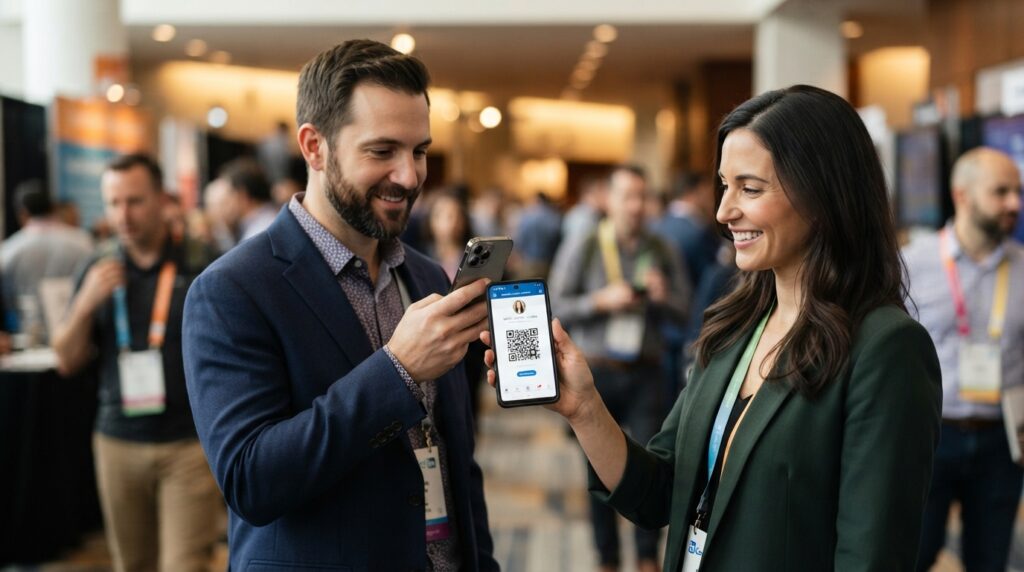
You are at a networking event. Someone asks for your LinkedIn. You could spell out your name while they search for you, or you could pull up your LinkedIn QR code, they scan it in two seconds, and the connection request is already sent before you finish your coffee. The QR code has been in the LinkedIn app for years, but most people either forget it exists or cannot find it when they need it.
Here is exactly where to find your LinkedIn QR code, how to share it, how to use it on a business card, and how to generate a standalone one if you need more design flexibility.
Where Is My LinkedIn QR Code?
LinkedIn moved the QR code feature around across app updates, which is why so many people struggle to locate it. As of the current version of the LinkedIn app, the QR code lives in two places depending on your device.
How to Find Your LinkedIn QR Code on iPhone
- Open the LinkedIn app on your iPhone
- Tap the Search bar at the top of the screen
- Look for the QR code icon on the right side of the search bar and tap it
- Your personal LinkedIn QR code appears on screen under the My Code tab
From this screen you can save the QR code image to your camera roll by tapping the download or share icon. You can also switch to the Scan tab to scan someone else’s LinkedIn QR code directly.
How to Find Your LinkedIn QR Code on Android
- Open the LinkedIn app on your Android device
- Tap the Search bar at the top
- Tap the QR code icon that appears in or beside the search bar
- Your QR code displays under the My Code tab
The location matches the iPhone experience closely. If the icon does not appear in the search bar on your version of the app, tap your profile photo in the top left corner and look for a QR code option in the menu that opens.
How to Get Your LinkedIn QR Code on Desktop
The LinkedIn desktop site and the LinkedIn desktop app do not surface the QR code as prominently as the mobile app. The most reliable method on desktop is to open your LinkedIn profile, copy your profile URL from the address bar, and generate a QR code from that URL using a dedicated tool.
Your LinkedIn profile URL follows the format linkedin.com/in/yourname. Paste that URL into the QR code generator, customise the design if you want it branded, and download it for use in any document, presentation, or print material. This approach also gives you a higher-resolution image than the screenshot from the mobile app.
How to Share Your LinkedIn QR Code
Once you have your QR code on screen, sharing it works through several channels.
- In person: Open the QR code screen in the LinkedIn app and let the other person scan directly from your phone screen. No physical materials needed.
- Save and send: Download the QR code image and send it via email, WhatsApp, or any messaging platform. The recipient can scan the image from their screen.
- Add to email signature: Download the image and embed it as a small graphic in your email signature so every email you send includes a scannable link to your profile.
- Print on materials: Add it to your business card, CV, portfolio, or any printed material where you want people to access your LinkedIn profile quickly.
How to Use a LinkedIn QR Code on a Business Card
A LinkedIn QR code on a business card is one of the most practical uses for the feature. When someone scans it, they land directly on your LinkedIn profile and can connect, message, or view your work history without typing anything.
For business card use, the LinkedIn app’s built-in QR code works but has two limitations. First, the image quality from a screenshot is often insufficient for clean print reproduction at business card size. Second, it offers no design customisation — it is a plain white square with the LinkedIn logo, which may not fit the visual style of your card.
A better approach for business cards is to generate a custom QR code from your LinkedIn profile URL. Use the QR code generator to create a code that matches your brand colours, includes your logo or initials, and downloads as SVG for print-ready quality at any size. The result integrates into your card design far more cleanly than a plain white box dropped into the layout.
For full guidance on adding QR codes to business cards — including sizing, placement, and what content to encode — the QR code for business cards guide covers every decision point.
How to Scan Someone Else’s LinkedIn QR Code
Scanning another person’s LinkedIn QR code works through the LinkedIn app itself, which is more reliable than using a generic camera app since it opens the profile directly within LinkedIn rather than through a browser redirect.
- Open the LinkedIn app
- Tap the Search bar and then the QR code icon
- Switch to the Scan tab
- Point the camera at the other person’s QR code
- LinkedIn opens their profile immediately and you can send a connection request from there
Alternatively, your phone’s standard camera app or Google Lens reads a LinkedIn QR code and opens the profile in a browser. The LinkedIn app method is faster for sending a connection request since it skips the browser step entirely.
How to Generate a LinkedIn QR Code Free
The built-in LinkedIn app QR code is free and requires no external tools. For a customised version — one with your brand colours, a logo, or a specific design — generate it from your profile URL using a free QR code generator.
Copy your LinkedIn profile URL from the app or desktop browser. It typically looks like linkedin.com/in/firstname-lastname. Paste the full URL including https:// into a generator, choose your design options, and download. The resulting QR code points directly to your LinkedIn profile and scans the same way as the in-app version.
The advantage of this method beyond design control is that you get a high-resolution file in SVG or PNG format suitable for print, presentations, and digital materials — not just a screenshot-quality image from the app.
LinkedIn QR Code Not Working: Common Fixes
If your LinkedIn QR code is not scanning or not appearing, a few issues account for most cases.
- App not updated: LinkedIn moves features between app versions. Update the LinkedIn app to the latest version and check the search bar again for the QR icon.
- Wrong tab selected: The QR code screen has two tabs — My Code and Scan. Make sure you are on My Code when showing your code, and on Scan when reading someone else’s.
- Low screen brightness: Scanning from a phone screen requires adequate brightness. Increase screen brightness before asking someone to scan your code in person.
- Profile URL changed: If you generated a custom QR code from your profile URL and then changed your LinkedIn URL, the old code no longer works. Generate a new one from the updated URL.
- Image quality too low: A screenshot of a QR code sent via messaging apps sometimes compresses the image enough to cause scan failures. Share the original downloaded file rather than a screenshot of a screenshot.
Frequently Asked Questions
Where is my LinkedIn QR code?
Open the LinkedIn app, tap the Search bar at the top, and tap the QR code icon that appears beside it. Your personal LinkedIn QR code appears under the My Code tab. From there you can show it for in-person scanning or download it as an image.
How do I get a LinkedIn QR code on desktop?
LinkedIn’s desktop site does not feature the QR code as prominently as the mobile app. The most reliable desktop method is to copy your LinkedIn profile URL from the address bar and paste it into a free QR code generator to create a downloadable, print-ready code.
How do I scan a LinkedIn QR code?
Open the LinkedIn app, tap the Search bar, tap the QR code icon, and switch to the Scan tab. Point the camera at the other person’s QR code and LinkedIn opens their profile directly. Your phone’s standard camera app or Google Lens also reads LinkedIn QR codes and opens the profile in a browser.
How do I add a LinkedIn QR code to my business card?
Generate a QR code from your LinkedIn profile URL using a QR code generator, customise the design to match your card’s visual style, and download as SVG or high-resolution PNG for print. Add it to your business card design at a minimum size of 2 x 2 cm. For detailed guidance, the QR code for business cards guide covers placement and sizing specifically.
Can I customise my LinkedIn QR code?
The in-app LinkedIn QR code is not customisable. For a branded version with custom colours or a logo, copy your LinkedIn profile URL and generate a custom QR code from it using a free generator. The code points to exactly the same profile but gives you full control over the visual design.
Is a LinkedIn QR code free?
Yes. The built-in QR code in the LinkedIn app is free for all LinkedIn users. Generating a custom version from your profile URL using a free QR code generator is also free. No paid LinkedIn plan is required for either method.
How do I share my LinkedIn QR code?
Show it on screen for in-person scanning, download the image and send it via email or messaging, embed it in your email signature, or print it on business cards, your CV, or any physical material. The LinkedIn app lets you download or share the QR code image directly from the My Code screen.
One Code, Instant Connection
Your LinkedIn QR code is already waiting in the app — most people just need to know where to look. For in-person networking, it removes all the friction from exchanging profiles. For printed materials, a custom-generated version from your profile URL gives you a higher-quality, better-designed result than anything you can screenshot from the app.
Generate a custom LinkedIn QR code from your profile URL using the QR code generator — add your colours, upload a logo, and download in SVG for clean print output. And if you want to use it on a business card specifically, the QR code for business cards guide walks through exactly how to integrate it into your card design.