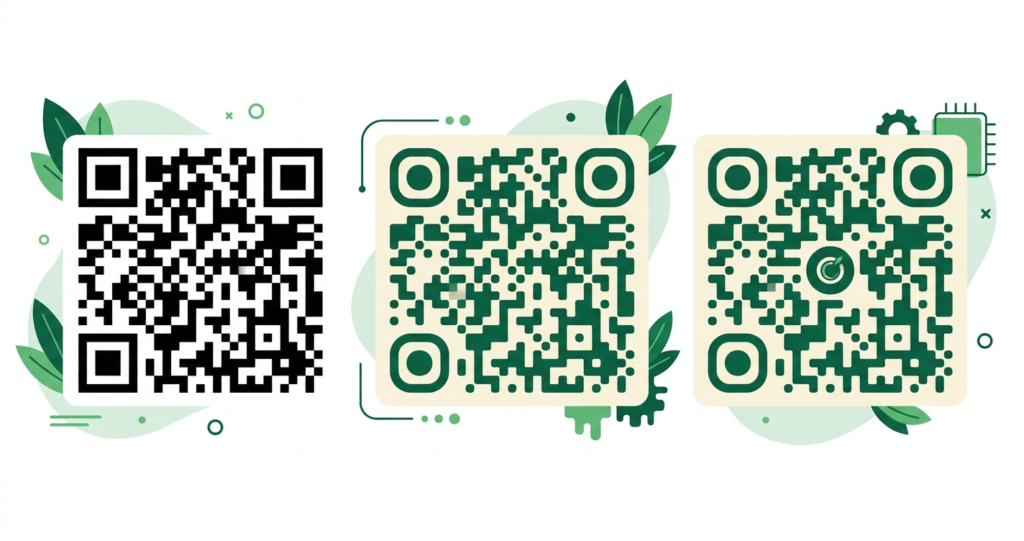
A plain black and white QR code works. Nobody is going to argue with that. But a QR code that carries your logo, uses your brand colors, and looks like it belongs on your materials is a different thing entirely.
Branded QR codes get scanned more often. They build trust before the phone even leaves the pocket. And they look like a deliberate design decision rather than a generic tool.
This guide covers how to add your logo to a QR code for free. What size to use, what format works best, and where it most often goes wrong.
Does Adding a Logo Break the QR Code?
This is the first question most people ask. The short answer is no, as long as you do it correctly.
QR codes have a built-in safety mechanism called error correction. It stores redundant copies of the encoded data throughout the code. If part of the pattern is damaged, obscured, or covered, the scanner reconstructs the missing information from the redundant copies.
The ISO/IEC 18004 international QR code standard defines four error correction levels:
- L (Low): recovers up to 7% of obscured data
- M (Medium): recovers up to 15% of obscured data
- Q (Quartile): recovers up to 25% of obscured data
- H (High): recovers up to 30% of obscured data
When you add a logo to the centre of a QR code, the logo covers part of the data modules. The error correction system fills in the missing data when a scanner reads the code. This works reliably as long as the logo covers less than the error correction threshold.
For logos added to QR codes, always use H (High) error correction. This gives you the maximum 30% recovery capacity, which is enough to accommodate a logo of reasonable size placed in the centre of the code.
What Logo Size Is Safe?
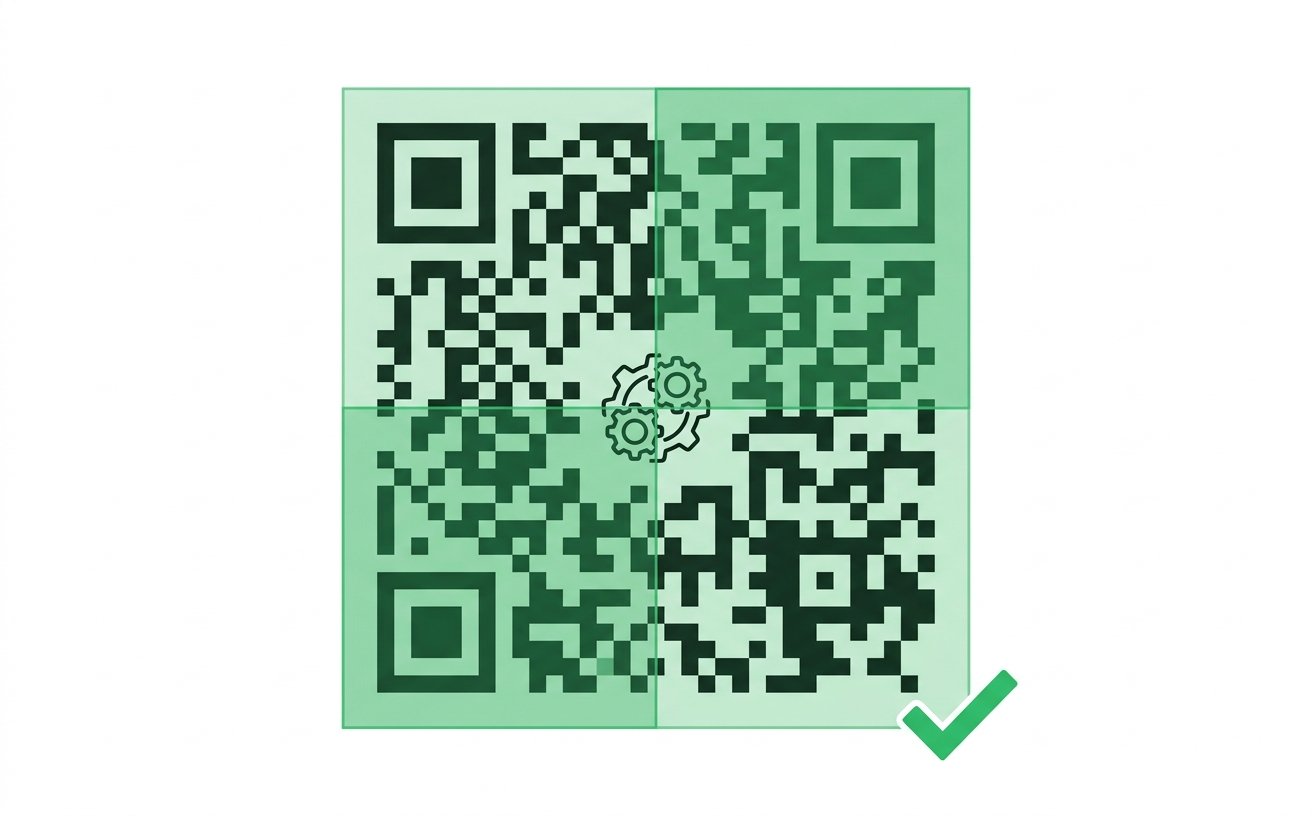
The logo should cover no more than 20 to 30% of the total QR code area. This keeps the obscured data within the recovery capacity of H level error correction.
In practice, this means the logo should be roughly one fifth to one quarter of the width of the full QR code. A QR code that is 4cm wide can safely carry a logo up to about 1cm wide. A QR code that is 10cm wide can carry a logo up to about 2.5cm wide.
The toolshash.com generator includes a logo size slider that adjusts the logo as a percentage of the total code area. The slider goes from 6% to 40%. Stay within 20 to 25% for the most reliable results across different devices and lighting conditions. The live preview in the tool updates as you move the slider, so you can see the result before downloading.
Going above 30% is a risk. The code may scan correctly in ideal conditions but fail in lower light, at an angle, or on a lower-quality scanner. For anything that will be printed at scale, stay conservative with the logo size.
What Logo Format Works Best?
The toolshash.com generator accepts PNG, JPG, and SVG logo files. Each has different characteristics worth knowing.
PNG (recommended for most logos)
PNG supports transparent backgrounds, which is critical for logo embedding. A logo on a transparent background sits cleanly in the centre of the QR code without a visible box or square around it. If your logo has a white background, the square will be visible against the QR code pattern, which looks unprofessional.
Use a PNG with a transparent background wherever possible. Most logo files from a designer or brand kit come with a transparent version. If yours does not, a free tool like remove.bg removes the background automatically.
SVG (best for vector logos)
SVG is a vector format, meaning the logo scales to any size without losing quality. If you have an SVG version of your logo, use it. The embedded logo will look sharp regardless of how large you print the QR code.
JPG (use only if PNG or SVG are not available)
JPG does not support transparent backgrounds. It always has a solid background, which will appear as a square or rectangle in the centre of the QR code. This is not ideal but works if PNG and SVG are not available. Use a white background JPG to minimise the visual disruption.
How to Create a QR Code With Your Logo at toolshash.com
The process takes under two minutes. No account. No signup. Completely free at toolshash.com/custom-qr-code-generator.
Step 1: Select your QR type and enter your content
Choose the QR type that matches your use case from the dropdown. Paste your URL, enter your WiFi details, fill in your vCard information, or select a social media platform. The generator supports 14 QR types including URL, WiFi, vCard, Instagram, WhatsApp, TikTok, and more.
Step 2: Set error correction to H (High)
Before doing anything else with the design, change the error correction level to H (High). This is the most important step when adding a logo. Do not leave it on the default M setting. The dropdown is in the design controls section, labelled Error Correction (ECC).
Step 3: Customise your colors
Match the foreground color to your brand. The color picker accepts any hex code, so if you know your exact brand color value, type it in directly for a precise match. The background should stay white or a very light color to maintain contrast for reliable scanning.
If you are not sure which colors to use, try the AI Colors button. It generates a color combination that works with QR code scannability while producing a visually appealing result. You can cycle through several suggestions and pick the one closest to your brand.
Step 4: Upload your logo
Click the logo upload area and select your PNG, JPG, or SVG file. The logo appears in the centre of the QR code preview immediately. Use the Logo Size slider to adjust the coverage. Keep the percentage between 15 and 25 for reliable scanning. Watch the live preview as you adjust.
Step 5: Choose a dot shape and eye style
The dot shape and eye style do not affect scannability but significantly affect how the finished code looks.
- Dot shapes: square gives the classic QR look. Dots and rounded give a softer, more modern feel. For branded materials, rounded tends to look better alongside a logo.
- Eye styles: the three corner squares are the most noticeable design element at a glance. Rounded or leaf eye styles complement a logo better than standard square eyes in most brand contexts.
Step 6: Generate, test, and download
Click Generate. The preview updates with your final design. Now do the most important thing: pick up your phone, open the camera app, and scan the preview.
Confirm it takes you to the correct destination. Then test again in lower light, at an angle, and from a slightly further distance than you expect it to be scanned from in real use. If it scans cleanly in all three conditions, the design is ready.
Download as SVG for any print material. Download as PNG for digital use, email signatures, and social media.
Create your branded QR code free at toolshash.com
Why Branded QR Codes Perform Better
The practical case for a branded QR code goes beyond aesthetics.
Research by Kang et al. in Computers in Human Behavior found that consumers show significantly higher trust in QR codes that display recognisable brand elements. Plain black and white codes from unknown sources scored considerably lower. The study found that trust was the primary predictor of whether a consumer scanned a QR code or avoided it. This was especially true when the source was not immediately obvious, such as on a poster or a shop shelf.
This is consistent with broader research on visual branding. A study in the Journal of the Academy of Marketing Science found that consistent visual brand identity increases consumer trust. Logo recognition is the single fastest brand identifier. A QR code that carries your logo is recognised as yours before the consumer even decides whether to scan it.
For businesses placing QR codes in public spaces, on packaging, or in printed materials alongside other brands, this differentiation matters. A plain code looks like every other plain code. A code that clearly belongs to your brand looks deliberate and trustworthy.
Common Mistakes When Adding a Logo to a QR Code
Using the wrong error correction level
The most common and most damaging mistake. If you add a logo without switching to H level error correction, the logo covers data that has no redundant backup. The code may appear to scan correctly in ideal conditions but will fail under real-world variables like dim lighting, a scratched print, or an older phone camera. Always set error correction to H before uploading a logo.
Making the logo too large
A logo that covers more than 30% of the QR code area exceeds the recovery capacity of even H level error correction. The code will fail to scan on some or all devices. Keep the logo within 20 to 25% of the total code area. If the logo looks too small at that size, make the QR code itself larger rather than increasing the logo percentage.
Using a logo with a non-transparent background
A JPG or a PNG without a transparent background produces a visible white or coloured square in the middle of the QR code. This disrupts the visual pattern, makes the code look amateurish, and can occasionally cause scan failures if the background color is dark enough to confuse the scanner. Use a transparent PNG or SVG wherever possible.
Low contrast between the QR code and the background
Adding a logo often prompts designers to also experiment with unconventional color combinations. Light-colored dots on a light background, or mid-tone colors on a white background, reduce contrast to the point where scanners struggle. The foreground color of the QR code dots should always be significantly darker than the background. According to Denso Wave’s official guidelines, a reflectance difference of at least 40% between the module color and the background is required for reliable scanning.
Not testing before printing
Always scan the finished code before printing. Test it on multiple devices in multiple lighting conditions. A branded QR code that fails to scan is worse than no QR code at all. It creates a negative first impression at the exact moment you want a positive one.
Branded QR Codes for Different Use Cases
The same process applies across every QR type. Here is how branded QR codes work in the most common contexts.
Business cards
A vCard QR code with your logo on the back of a business card replaces the awkward exchange of details at the end of a meeting. The logo in the centre of the code ties it visually to your card. See the full guide on vCard QR codes for business cards.
Restaurant menus
A branded QR menu code on a tent card or table display looks intentional and professional. Your logo in the centre immediately tells the customer which restaurant’s menu they are about to open. See the full guide on QR codes for restaurant menus.
Product packaging
A QR code on product packaging that carries the product or company logo gets scanned far more often than a plain code. It looks like part of the product design rather than an afterthought. For packaging use, download SVG and confirm the print size keeps the code above 2cm x 2cm to scan reliably, as recommended in Denso Wave’s printing guidelines.
QR code stickers
Branded stickers with a logo QR code are popular for product launches, events, and pop-up stalls. A sticker that carries your brand stays on the product or surfaces where it is placed for months. For print-ready sticker files, always download SVG. See the full guide on QR code stickers: print custom scannable stickers for your business.
Marketing materials and flyers
A branded QR code on a flyer or poster that matches the campaign design looks cohesive and increases the chance of engagement. Plain codes on designed materials look like they were added by a different person using a different tool.
Frequently Asked Questions
Can I use any image as the logo, or does it have to be a company logo?
You can use any image that fits within the size guidelines. A product photo, an icon, a simple illustration, or a symbol all work. The key constraints are the same: keep it under 25% of the code area, use H level error correction, and use a transparent PNG or SVG for a clean result. The term logo is used for simplicity, but the feature accepts any image you want to embed in the centre.
Will the logo be visible when someone scans the QR code on their screen?
Yes. The logo is part of the QR code image. When someone scans the code displayed on a screen, the logo is visible in the preview and in the code itself. It does not disappear or change after downloading.
Does adding a logo make the QR code harder to scan?
When done correctly, with H level error correction and a logo under 25% of the code area, scannability is negligible compared to a plain code in real-world conditions. The error correction system was specifically designed to handle this use case. The risk appears when error correction is left on a lower setting or the logo is made too large.
Can I add a logo to a WiFi QR code?
Yes. The logo upload feature works with all 14 QR types available in the toolshash.com generator, including WiFi QR codes. The same rules apply: H level error correction, logo under 25% of the code area, transparent PNG or SVG format.
What if my logo does not look good at the small size required?
Simplify the logo. Complex logos with fine detail, thin lines, or small text do not reproduce well at the small sizes needed for QR code embedding. Use a simplified version of your logo, often called a logo mark or icon, that works at small sizes. Most brand guidelines include a simplified icon version for exactly these contexts. If not, a single initial or a simple geometric element from your branding works well.
Can I download the branded QR code and use it commercially?
Yes. QR codes created at toolshash.com are yours to use however you want. There is no watermark, no attribution requirement, and no restriction on commercial use. Print it on business cards, packaging, signs, merchandise, or anything else.