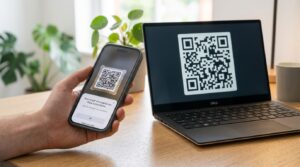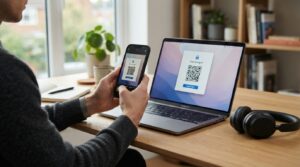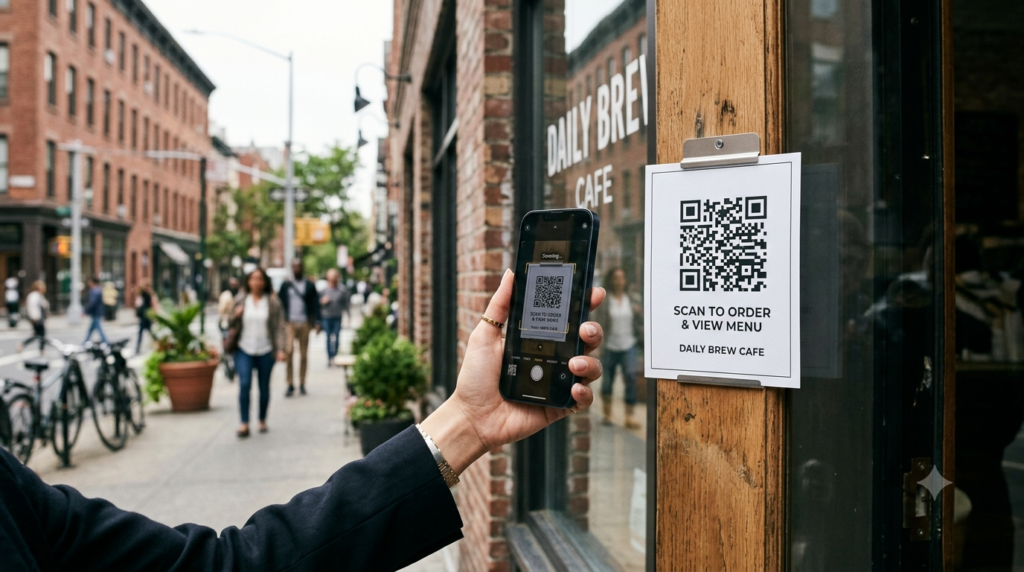
Typing an address into Google Maps while standing on a pavement is nobody’s idea of a good time. A QR code changes that entirely. Print it on a flyer, add it to an invitation, stick it on your front door, or display it on a screen — and anyone who scans it opens your location in Google Maps instantly, ready to navigate. No typing, no searching, no wrong turns from a misheard address.
Here is exactly how to create a QR code for a Google Maps location, a business address, or a specific set of directions — free, in under two minutes.
How to Create a QR Code for Google Maps
The process works by turning your Google Maps link into a QR code. When someone scans it, their phone opens Google Maps and loads the location or directions you specified. Here are the steps.
- Open Google Maps on your phone or computer
- Search for the location you want to share — a business, an address, a landmark, or a specific pin
- Tap or click Share on the location card that appears at the bottom of the screen
- Select Copy link — this gives you a short Google Maps URL for that location
- Open the QR code generator, select URL as the content type, and paste the copied Google Maps link
- Customise the design if needed, then download as SVG for print or PNG for digital use
- Test by scanning the code and confirming it opens the correct location in Google Maps
The shared Google Maps link is short and clean — typically in the format https://maps.app.goo.gl/abc123. Because it is compact, the resulting QR code stays simple and scans reliably at small sizes.
How to Create a QR Code for a Business Address
For businesses, a location QR code on printed materials removes the friction between a customer seeing your address and navigating to it. The process is identical to the steps above — search for your business on Google Maps, copy the share link, and generate the code.
If your business has a Google Business Profile, the share link from Google Maps points directly to your Business Profile page rather than a generic map pin. This means the customer arrives at your full business listing — with phone number, opening hours, photos, and reviews — rather than just a map pin. For most businesses, this is the better destination.
Add the QR code to business cards, flyers, menus, packaging, email signatures, and any printed material where customers might need directions. A short label beneath the code — “Scan for directions” or “Scan to find us” — clarifies the purpose immediately.
How to Create a QR Code for Directions
A directions QR code takes the scan one step further — it opens Google Maps with a specific route already loaded, ready to start navigation. This works particularly well for event invitations, conference materials, and wedding stationery where you want guests to arrive at a specific entrance or parking location rather than just the general address.
- Open Google Maps and enter your destination
- Tap Directions and set the destination address
- Tap the Share or Export icon on the directions screen
- Copy the link — this URL loads the specific directions when opened
- Paste it into the QR code generator and follow the same download steps
Note that directions links sometimes default to the user’s current location as the starting point rather than a fixed origin. Test the link on a device in a different location to confirm it behaves as expected for someone navigating from outside the area.
QR Code for a Location on a Flyer or Invitation
Event flyers and invitations benefit most from location QR codes. Instead of printing a full address and hoping guests remember it or retype it correctly, a QR code takes them directly to the venue in Maps with one scan.
For print, keep the QR code between 2.5 and 4 cm square on a standard A5 flyer. Position it near the address or venue details so the connection between the code and its purpose is visually clear. Add “Scan for directions” or “Scan to open in Maps” as a label beneath the code.
Use a dynamic QR code if the venue is subject to change. With a dynamic code, you can update the Maps destination after printing if the event moves to a different location — without reprinting any materials.
QR Code for Google Maps on iPhone and Android
The QR code opens Google Maps regardless of whether the scanner uses iPhone or Android, provided they have Google Maps installed. On iPhone, tapping the scanned link prompts the user to open it in Google Maps or Safari. On Android, Google Maps opens directly since it is the default maps application on most Android devices.
For audiences where some users may not have Google Maps installed, consider using the standard Google Maps web URL format — https://www.google.com/maps/place/YourAddress — rather than the short share link. The web URL opens Google Maps in a browser on any device, including those without the app installed, while still offering the option to open in the app if available.
QR Code for Apple Maps
If your audience is primarily iPhone users and you prefer to link to Apple Maps, the process is the same — get the share link from Apple Maps and paste it into the generator. Apple Maps share links open directly in the Maps app on iPhone and iPad. On Android or non-Apple devices, the link typically redirects to a web version or prompts the user to open an alternative mapping service.
For mixed audiences where both iPhone and Android users will scan the code, Google Maps links provide broader compatibility since Google Maps works on all platforms.
Location QR Code for a Website or Profile
If you want the QR code to link to your address as displayed on your website or Google Business Profile rather than opening Maps directly, use the URL of your contact page or Business Profile listing instead of a Maps share link. This approach suits contexts where you want the customer to see your full business information first and navigate from there.
For a restaurant, for example, linking to the Google Business Profile shows the address alongside opening hours, menu link, and photos — more useful than a bare map pin for someone deciding whether to visit. For a service business, linking to the contact page with address and phone number gives customers multiple ways to reach you from a single scan.
Frequently Asked Questions
How do I create a QR code for a Google Maps location?
Open Google Maps, find the location, tap Share, and copy the link. Paste the link into a QR code generator, customise the design if needed, and download. When someone scans the code, Google Maps opens and loads the location automatically.
How do I make a QR code for my business address?
Search for your business on Google Maps, tap Share on the business listing, and copy the link. Paste it into a QR code generator and download the code. If your business has a Google Business Profile, the share link points to your full listing — including hours, phone number, and reviews — rather than just a map pin.
How do I create a QR code for directions?
Open Google Maps, enter your destination, tap Directions, then tap the Share or Export icon on the directions screen and copy the link. Paste the link into a QR code generator to create a code that opens the specific route in Google Maps when scanned.
Does a Google Maps QR code work on iPhone?
Yes. Scanning a Google Maps QR code on iPhone prompts the user to open the link in Google Maps or Safari. If the user has Google Maps installed, it opens directly in the app. For guaranteed compatibility across all iPhone users regardless of whether they have Google Maps installed, use the standard Google Maps web URL format rather than the short share link.
Can I use a QR code to share a location for an event?
Yes. Generate a QR code from the Google Maps share link for your venue and add it to invitations, flyers, or event pages with a “Scan for directions” label. For events where the venue might change, use a dynamic QR code so you can update the destination after printing without reprinting the materials.
What is the best format for a location QR code on a flyer?
Download the QR code as SVG for print use, which scales to any size without quality loss. On a standard A5 flyer, a size of 2.5 to 4 cm square works well. Position it beside or below the address details and add a clear label so the purpose is immediately obvious to anyone who sees it.
The Easiest Way to Share Your Location
A Google Maps QR code removes every step between someone seeing your address and starting navigation. For businesses, events, and any situation where getting people to a physical location matters, it is one of the most practical QR code applications available.
Generate your location QR code now using the QR code generator — paste your Google Maps link, customise the design to match your materials, and download print-ready. And if you want to track how many people scan and navigate to your location, the QR code tracking guide explains how to connect scan data to Google Analytics in a few simple steps.