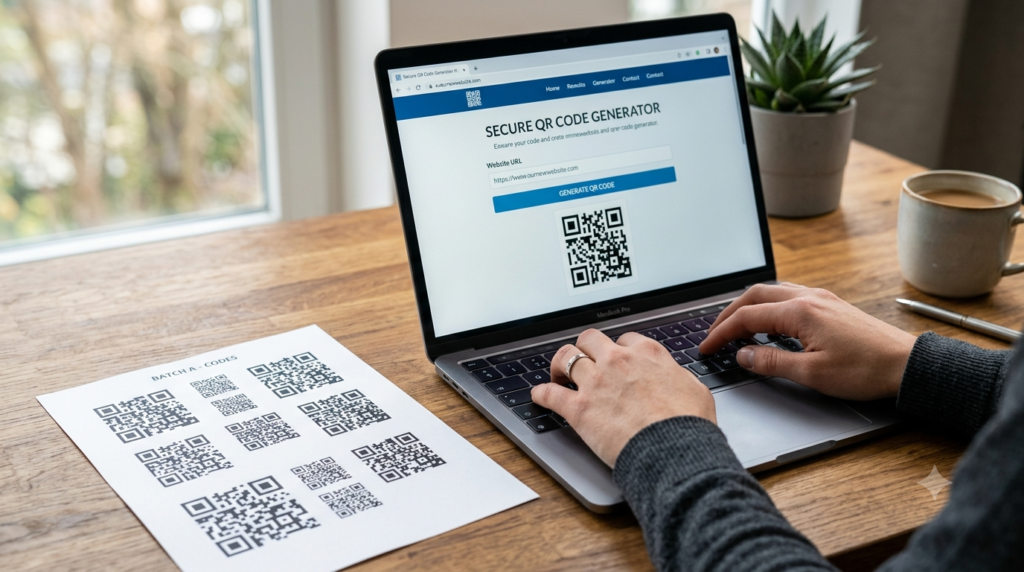
Making a QR code takes about two minutes. Most people overcomplicate it by searching for the best tool, comparing features, and never actually generating anything. This guide skips that part. Here is exactly how to make a QR code for a link, a website, a PDF, a WiFi network, or anything else — step by step, with free options included.
How to Make a QR Code: The Basic Steps
Regardless of what you want the QR code to point to, the process follows the same five steps every time.
- Go to a QR code generator. Open the ToolsHash QR code generator in your browser. No account or download required.
- Choose your content type. Select what the QR code will contain — a URL, plain text, WiFi credentials, contact information, email, or PDF link.
- Enter your content. Paste the link, type the text, or fill in the required fields depending on the content type you selected.
- Customise the design. Adjust the colour, add a logo, or change the shape if needed. This step is optional but worth doing for any professional use.
- Download and use it. Save the code as SVG for print or PNG for digital use, then add it to your design, document, or print file.
That is the complete process. Everything below goes deeper on specific use cases and common questions.
How to Make a QR Code for a Link
Making a QR code for a URL is the most common use case. Paste your full URL into the URL field of the generator, including the https:// at the start. The generator encodes it into the pattern immediately.
Keep the URL as short as possible. Longer URLs create more complex QR patterns with more modules. More modules means a denser code that is harder to scan at small sizes. If your destination URL is long, use a URL shortened first and then paste the shortened version into the generator.
Before downloading, scan the generated code with your phone to confirm it goes to the correct destination. This step takes ten seconds and saves a lot of trouble later.
How to Make a QR Code for a Website
Making a QR code for a website follows the same process as a link. Copy the full URL of the web page you want to link to, paste it into the generator, and download. If the website URL might change in the future, consider using a dynamic QR code instead of a static one. With a dynamic code, you can update the destination URL later without reprinting the code.
For business websites, placing a QR code on printed materials, window stickers, or packaging that links directly to your homepage or a specific product page is a clean way to bridge physical and digital touchpoints.
How to Make a QR Code for a PDF
QR codes cannot directly contain a PDF file. Instead, the process works in two steps: upload the PDF to a hosting location first, then create a QR code pointing to its URL.
- Upload the PDF to Google Drive, Dropbox, your website, or any cloud storage that generates a shareable link
- Copy the direct link to the PDF
- Paste that link into the URL field of the QR code generator
- Download the QR code
When someone scans the code, their phone opens the PDF link directly in the browser or prompts a download, depending on the hosting platform and device settings. For menus, brochures, and instruction manuals, this method works reliably and costs nothing to set up.
How to Make a QR Code for a WiFi Network
A WiFi QR code lets guests connect to your network by scanning instead of typing a password. Most QR code generators include a WiFi content type option.
- Select WiFi as the content type in the generator
- Enter your network name (SSID), password, and security type (WPA, WPA2, or WEP)
- Generate and download the code
When someone scans the code, their device prompts them to join the network automatically. No typing required. This works well in cafes, offices, Airbnbs, and any setting where guest WiFi access is a regular occurrence.
How to Make a QR Code in Canva
Canva includes a built-in QR code generator under its Apps section. Open your Canva design, click Apps in the left sidebar, search for QR Code, and enter your URL. Canva generates a basic static QR code that you can place directly into your design.
Canva QR codes are convenient for quick design work, but they come with a limitation worth knowing: Canva’s free plan generates static codes only, and those codes point to Canva’s own redirect service. If Canva changes or discontinues that service, the codes stop working. For permanent or business-critical materials, generating the QR code separately and importing it as an image into Canva gives you more control over the destination and longevity.
For more on whether Canva QR codes expire and what that means for your materials, the Canva QR code expiry guide explains the specifics clearly.
How to Make a QR Code Free
Most QR code generators offer free static code creation with no account required. The ToolsHash QR code generator lets you create a fully customised QR code and download it in high resolution at no cost. Free static codes work indefinitely since they encode the destination directly with no server dependency.
Free dynamic QR codes exist on several platforms but typically come with monthly scan limits, platform branding on the redirect page, or expiry conditions. For personal use or low-volume testing, free dynamic options work adequately. For ongoing business use, a paid dynamic plan removes those restrictions.
How to Make a QR Code with a Logo
Adding a logo to a QR code makes it visually distinctive and reinforces brand recognition at every scan point. Most full-featured generators support logo upload directly in the design step.
The key technical consideration is error correction level. QR codes have a built-in error correction system that allows them to remain readable even when part of the pattern is covered or damaged. To safely add a logo over the centre of the code, set error correction to level Q or H before generating. Level H allows up to 30 percent of the pattern to be obscured while the code still scans correctly, giving you enough space for a reasonably sized logo.
After adding the logo, always scan the finished code on multiple devices before using it. A logo that looks proportionate on screen can cover too much of the pattern at certain sizes, so testing confirms the code works reliably before it goes to print.
Common Mistakes to Avoid When Making a QR Code
- Not testing before printing: Always scan the code on at least two different phones before committing to print. A code that looks correct can still point to the wrong URL or fail to scan on certain devices.
- Saving as JPG: JPG compression softens the sharp edges of QR modules, which causes scan failures. Always download as PNG or SVG.
- Printing too small: Anything below 2.5 x 2.5 cm becomes unreliable in real-world scanning conditions. Scale up based on how far away people will scan.
- Cropping the quiet zone: The white border around the QR code is not decorative. Scanners use it to locate the code boundaries. Cropping it causes scan failures even on an otherwise perfect code.
- Using a long destination URL: Long URLs create complex patterns. Shorten URLs before encoding to keep the pattern clean and scannable at smaller sizes.
Frequently Asked Questions
How do I make a QR code for free?
Open a free QR code generator like the ToolsHash QR code generator, select your content type, enter your content, customise the design if needed, and download as PNG or SVG. Free static QR codes require no account and work indefinitely. The entire process takes under two minutes.
How do I make a QR code for a link?
Paste your full URL including https:// into the URL field of a QR code generator. The generator creates the code instantly. Download it as SVG for print or PNG for digital use. Scan it with your phone before using it to confirm the destination is correct.
How do I make a QR code for a website?
Copy the full URL of the website or page you want to link to, paste it into a QR code generator, and download. If the website URL might change in the future, use a dynamic QR code so you can update the destination without reprinting.
How do I make a QR code in Canva?
Open your Canva design, click Apps in the left sidebar, search for QR Code, and enter your URL. Canva generates a static code you can place directly into the design. For permanent or business-critical materials, generating the code separately and importing it gives you more control over the destination and longevity.
How do I make a QR code for a PDF?
Upload the PDF to cloud storage or your website to get a shareable link, then paste that link into a QR code generator as a URL. The code links directly to the PDF when scanned. Google Drive, Dropbox, and most website hosting platforms generate shareable links you can use for this purpose.
Can I make a QR code with my own logo?
Yes. Most QR code generators let you upload a logo during the design step. Before adding a logo, set the error correction level to Q or H to ensure the code remains scannable with part of the pattern covered. After adding the logo, test the code on multiple devices before printing.
How do I make a QR code that does not expire?
Generate a static QR code. Static codes encode the destination directly into the pattern with no server dependency, so they work indefinitely regardless of which platform you used to create them. Dynamic codes can expire if the platform subscription lapses or if you configured an expiry date when creating the code.
Ready to Make Yours
The process is genuinely quick once you have done it once. Choose your content type, enter the content, customise the design, download in the right format, and test before distributing. Two minutes from start to finish.
Head to the ToolsHash QR code generator to build your code now with full design customisation and high-resolution download included. And if you want to understand the difference between static and dynamic before choosing which type suits your situation, the static vs dynamic QR code guide covers every angle.