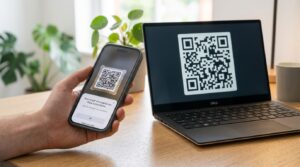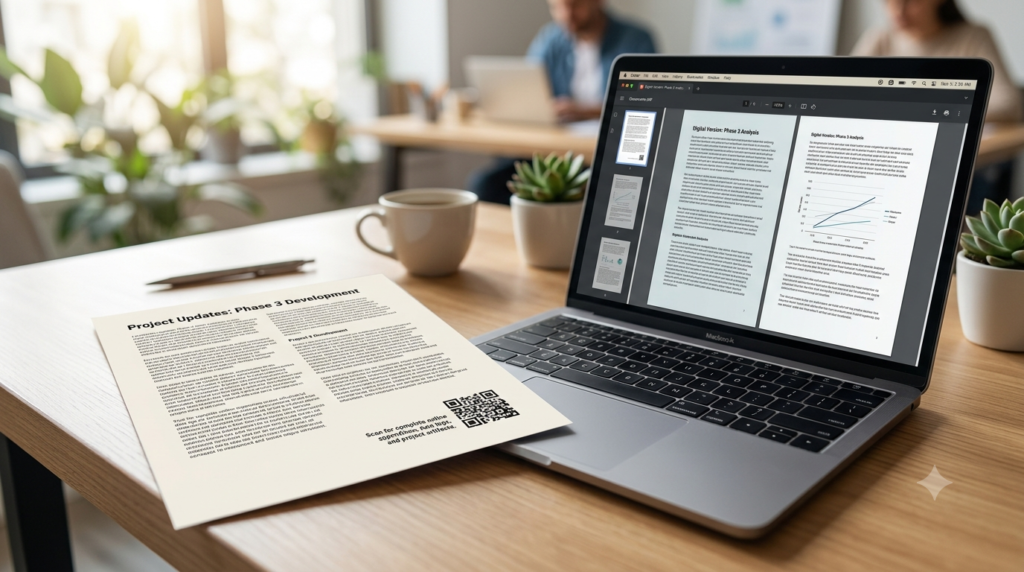
You have a PDF you want people to access — a menu, a brochure, an instruction manual, a price list, a portfolio, a resume. You could print the URL and hope people type it correctly. Or you could add a QR code and let them scan straight to the file in two seconds. A QR code does not link to the PDF directly — it links to a URL that opens or downloads the PDF — but the end result is the same: instant access from any printed or digital surface.
Here is exactly how to create a QR code for a PDF, a Google Drive file, a Google Doc, Dropbox, or any other document type — free, with no technical knowledge needed.
Can You Put a PDF Directly into a QR Code?
No. A QR code stores text data — URLs, plain text, contact information — not binary file data. A PDF file is too large and the wrong format to encode directly into a QR pattern. The correct approach is to host the PDF somewhere online, get a shareable link to it, and then create a QR code that points to that link.
When someone scans the QR code, their phone opens the link in a browser, which then either displays the PDF inline or prompts a download depending on the hosting platform and the device’s settings. From the user’s perspective, it feels like the QR code opens the PDF directly.
How to Create a QR Code for a PDF: Step by Step
- Upload your PDF to a hosting platform. Google Drive, Dropbox, OneDrive, your own website, or any cloud storage that generates a shareable link all work. Choose a platform you control and trust to keep the file accessible long-term.
- Get the shareable link. In Google Drive, right-click the file, select Share, and copy the link. In Dropbox, click the Share button and copy the link. On your own website, copy the direct URL to the PDF file.
- Paste the link into a QR code generator. Open the QR code generator, select URL as the content type, and paste the PDF link as the destination.
- Customise the design if needed. Add your logo, choose brand colours, or adjust the style for the material it will appear on.
- Download in the right format. SVG for print, PNG for digital use. Test the code by scanning it and confirming the PDF opens correctly before distributing anything.
How to Create a QR Code for a Google Drive PDF
Google Drive is one of the most common hosting choices for PDF QR codes because most people already use it and the sharing settings are straightforward.
- Upload the PDF to Google Drive or locate the existing file
- Right-click the file and select Share, or click the Share button in the top right corner when the file is open
- Under General access, change the setting from Restricted to Anyone with the link
- Click Copy link and paste it into the QR code generator as the destination URL
One thing to check: the default Google Drive share link opens the file in Google Drive’s preview interface rather than downloading it directly. If you want the PDF to open for inline viewing, the default link works well. If you want a direct download, modify the share link by replacing /view at the end with /export?format=pdf. This forces a download rather than a preview.
How to Create a QR Code for a Google Doc
Creating a QR code for a Google Doc works the same way as for a Drive-hosted PDF. Open the Google Doc, click Share, set access to Anyone with the link, and copy the link. Paste that link into the QR code generator.
If you want people to receive the Google Doc as a PDF rather than opening it as an editable document, use the export link format instead: replace /edit at the end of the Google Docs URL with /export?format=pdf. The resulting QR code opens a PDF version of the document when scanned.
For forms, surveys, or documents where you want people to fill in and submit content, use the standard edit link rather than the export version so the document opens in its interactive state.
How to Create a QR Code for a Dropbox PDF
- Upload the PDF to Dropbox and locate it in your files
- Hover over the file and click Share, then select Copy link
- Dropbox generates a sharing link that looks like
https://www.dropbox.com/s/abc123/filename.pdf?dl=0 - To make the link trigger a direct download rather than a Dropbox preview page, change
dl=0at the end todl=1 - Paste the modified link into the QR code generator
The dl=1 parameter tells Dropbox to serve the file as a direct download rather than showing the Dropbox interface first. For menus, brochures, and instruction documents where a clean PDF open experience matters, the download link creates a smoother outcome than the preview page.
PDF QR Code for a Resume or CV
A QR code on a printed resume or CV that links to a digital version, a portfolio, or a LinkedIn profile is a practical way to give hiring managers quick access to more information without cluttering the page.
Upload your resume PDF to Google Drive, Dropbox, or your personal website. Generate a QR code from the shareable link. Place it in the header or footer of your printed CV at a small size — 1.5 to 2 cm square — alongside a brief label like “Scan for digital version” or “Scan for portfolio.”
Use a dynamic QR code for a resume if you update it regularly. With a dynamic code, you can replace the linked PDF with a newer version at any time without printing new copies of the resume. The QR code on the old printed copy automatically points to the updated file.
How to Make Sure Your PDF QR Code Works Long-Term
A PDF QR code is only as reliable as the hosting behind it. Several common mistakes cause codes to stop working after they are printed.
- Deleting or moving the hosted file: If you delete the PDF from Google Drive or Dropbox after printing materials with the QR code, every scan leads to a broken link. Keep the file in place for as long as the printed materials are in circulation.
- Changing sharing permissions: Setting the Google Drive or Dropbox file back to restricted access after printing breaks the QR code for anyone who tries to scan it. Leave the sharing settings open for as long as the code is in use.
- Using a free dynamic QR code platform that expires: If you use a dynamic redirect platform to manage the PDF link, ensure the platform keeps the redirect active for the duration of your print campaign. Free plans on some platforms expire codes after a set period.
- Linking to a temporary or expiring URL: Some file hosting services generate links that expire. Always test the link weeks after generating it to confirm it still works before committing to a large print run.
Free vs Paid PDF QR Code Generators
For a static QR code linking to a hosted PDF, a free generator works perfectly well. The code points directly to the URL with no intermediary, so it works indefinitely regardless of which tool you used to create it.
A paid dynamic generator adds value when you need to update the linked PDF after printing, track how many people scanned, or manage multiple document codes across a campaign. For single-use or stable documents where tracking is not a priority, a free static code covers all requirements.
The QR code generator creates free QR codes for PDF links with full design customisation — logo, colours, and print-ready SVG download — at no cost.
Frequently Asked Questions
How do I create a QR code for a PDF?
Upload the PDF to Google Drive, Dropbox, or your website to get a shareable URL. Paste that URL into a QR code generator, customise the design if needed, and download as SVG or PNG. Test the code by scanning it to confirm the PDF opens correctly before printing or distributing anything.
Can you convert a PDF directly to a QR code?
No. A QR code stores text data like URLs, not binary file data. The correct process is to host the PDF online, get a shareable link, and create a QR code pointing to that link. When scanned, the code opens the PDF via the link rather than containing the file itself.
How do I create a QR code for a Google Drive PDF?
Open the file in Google Drive, click Share, set access to Anyone with the link, and copy the link. Paste it into a QR code generator as the destination URL. To force a direct PDF download rather than a Drive preview, replace /view at the end of the link with /export?format=pdf before pasting.
How do I create a QR code for a Google Doc?
Open the Google Doc, click Share, set access to Anyone with the link, and copy the link. Paste it into a QR code generator. To open the document as a PDF rather than an editable Google Doc, replace /edit in the URL with /export?format=pdf before creating the code.
How do I make a Dropbox PDF QR code?
In Dropbox, click Share on the file and copy the sharing link. Change dl=0 at the end of the link to dl=1 to force a direct download rather than the Dropbox preview page. Paste the modified link into a QR code generator to create the code.
Can I put a QR code on my resume that links to my CV?
Yes. Upload your resume PDF to Google Drive or Dropbox, generate a QR code from the shareable link, and add it to your printed CV at 1.5 to 2 cm square with a brief label beside it. For a resume you update regularly, a dynamic QR code lets you replace the linked file without reprinting the physical CV.
How do I make a PDF QR code that does not expire?
Generate a static QR code pointing to your hosted PDF URL. Static codes encode the URL directly with no platform dependency, so they work indefinitely as long as the hosting link stays active. Keep the hosted file in place and maintain open sharing permissions for as long as the code is in use.
Simple When You Know the Process
The two-step approach — host the file, link the QR code — works for any document type on any platform. Google Drive, Dropbox, OneDrive, your own website — the QR code does not care where the file lives as long as the link is publicly accessible and stays that way.
Create your PDF QR code now using the QR code generator — paste your document link, add your branding, and download print-ready. And if you plan to put it on printed materials and want guidance on the right size and format for clean scanning, the QR code size guide covers every format with recommended dimensions.