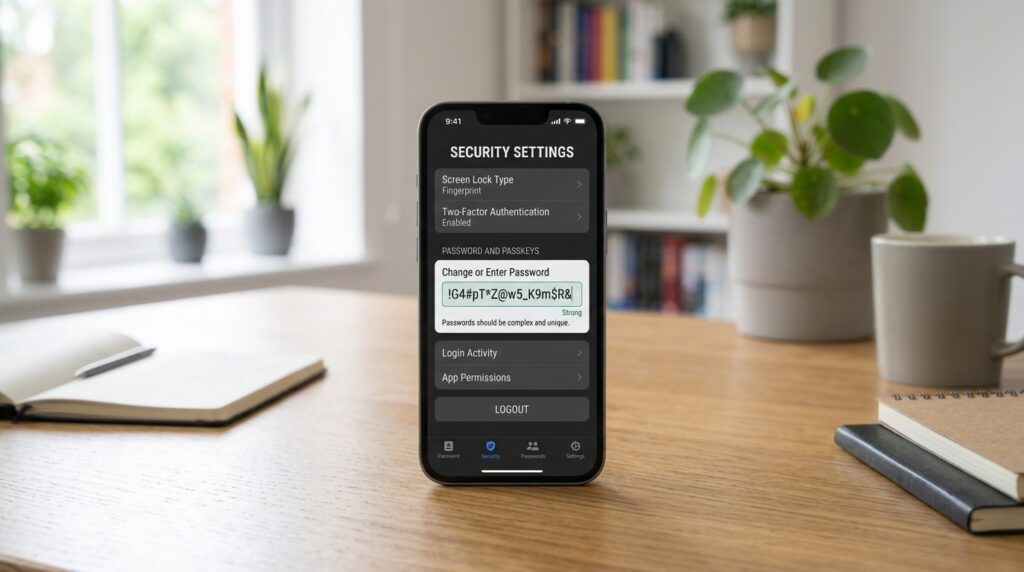
Every major device already includes an apple password generator built directly into its settings. Most people never realize it is there until Safari or Chrome offers to create one during a signup form. Instead, the bigger problem is not generating the password. It is finding that password again later, once you have forgotten which device saved it. This guide covers how to generate a password on iPhone, Mac, Android, and Linux. It also covers exactly where to look when you need to find one you already created.
You will find the built in steps for each platform and how to locate a password your device saved months ago. There is also a look at how these tools compare to a standalone generator that works the same way everywhere. Anyone who has ever searched their settings looking for a password an apple password generator created weeks ago will recognize this exact situation.
How to Generate a Password on iPhone or Mac
Apple builds password generation directly into Safari and into the Passwords section of your device settings. When you sign up for a new account in Safari, a suggested strong password usually appears automatically above the keyboard. Accepting it saves the password into iCloud Keychain right away, without any extra steps on your part. This happens so smoothly that many people never notice it happening at all.
You can also generate one manually, without waiting for a signup form to prompt you. Open Settings on iPhone, or System Settings on a Mac, and go to Passwords. From there, you can create a new password entry and let the device suggest a strong option for it. This works even if you are setting up a password for something outside of Safari entirely, such as an app that asks you to set a password separately. Either path ends with the same result stored in the same place.
How to Find a Password Apple Already Generated for You
This is where most confusion actually happens. A saved password does not disappear just because you cannot remember creating it. Open Settings on iPhone or System Settings on a Mac. From there, go to Passwords and search for the site or app name directly. Face ID, Touch ID, or your device passcode unlocks the list before anything becomes visible. That security step exists specifically to keep the list private even if someone else picks up your device.
If the password was generated recently, it sits near the top of the list, often labeled Recently Deleted or Recently Saved depending on your device version. Searching by the exact website name usually works faster than scrolling through every saved entry. This same process works whether the password was created a day ago or over a year ago. Apple keeps every saved entry until you delete it yourself, so nothing gets lost simply because time has passed.
Password Generator Options for Android and Linux
Android includes a similar feature through Google Password Manager, which appears automatically inside Chrome and many apps during sign up. The generated result saves into your Google account, making it available across any device signed into that same account afterward. This mirrors how iCloud Keychain works, just tied to a different company’s ecosystem instead. The underlying idea stays the same even though the branding and menus look different.
Linux does not include one universal built in option the way iPhone or Android does. This is because it depends heavily on which desktop environment and browser you use. Command line tools such as pwgen, or the browser’s own built in generator inside Chrome or Firefox, cover most needs without installing anything extra. Either approach produces a result just as strong as what a phone or Mac generates automatically, even though the interface looks completely different. Choosing between them mostly comes down to personal preference rather than any real difference in security.
Built In Device Generators vs a Standalone Tool
A device’s built in generator, whether it is an apple password generator or Google’s version on Android, works well for accounts created on that same device. It works this way because saving and retrieving the password happens in the same place. However, switching between an iPhone and an Android device, or between a Mac and a Windows laptop, breaks that convenience immediately. Anyone who has switched phones and lost track of dozens of saved logins already knows this problem firsthand. It usually surfaces at the worst possible moment, right when you need to log in quickly.
A standalone password generator works the same way regardless of which device or operating system you are using at the moment. It also lets you choose between a character based password and a passphrase, an option most built in device generators do not offer at all. That flexibility matters more once you start using more than one type of device regularly, since it removes the guesswork about which system created which password.
Common Mistakes With Device Generated Passwords
These issues show up constantly, mostly because people assume their device handles everything automatically without checking first.
- Assuming a password synced automatically across devices without confirming iCloud Keychain or Google account sync was actually turned on.
- Losing access to saved passwords entirely after switching from an iPhone to an Android phone, or the reverse.
- Forgetting that Face ID, Touch ID, or a device passcode is required before any saved password becomes visible again.
- Relying only on one device’s built in generator, then struggling to access those same passwords from a work computer.
Most of these problems trace back to assuming a device generated password will always be reachable from anywhere, when it usually is not without extra setup. A quick check of your sync settings now avoids a frustrating search later, especially right before you need to log in somewhere urgently. Five minutes spent today is far better than an hour spent locked out tomorrow.
Frequently Asked Questions
Why does my device sometimes suggest a weaker password than expected?
Some websites limit which characters or lengths they accept, which forces the built in generator to adjust its output to match. If a suggested password looks shorter or simpler than usual, the site’s own rules are likely the reason, not a flaw in the generator itself. Checking the site’s stated requirements usually clears up the confusion right away.
Where do I find passwords my iPhone generated for me?
Open Settings, then go to Passwords, and unlock the list with Face ID or your device passcode. Search for the specific site or app name to find it faster than scrolling.
Can I see saved passwords on my Mac the same way?
Yes, open System Settings and go to Passwords, then unlock the list the same way you would on an iPhone. Both devices pull from the same iCloud Keychain if you are signed into the same Apple ID, so the list stays consistent across both.
Does Apple’s password generator work outside of Safari?
Yes, you can create a new password entry manually inside Settings without needing a signup form to trigger it. Instead, this works for accounts tied to apps as well as websites.
What happens to my saved passwords if I switch from iPhone to Android?
They do not transfer automatically, since iCloud Keychain and Google Password Manager are separate systems. Instead, exporting passwords before switching, or using a standalone password manager, avoids losing access entirely during the transition. Planning ahead here saves a lot of frustration on moving day.
Is it safe to check whether my Apple ID email has been breached?
Yes, checking a resource such as Have I Been Pwned takes only seconds. It is worth doing periodically, regardless of which device you use. It costs nothing and takes less time than most password resets, so there is little reason to skip it.
Is a standalone generator better than my phone’s built in one?
Neither is inherently better, since both produce truly random passwords. The standalone option works the same way across every device, which matters most if you switch platforms often or use several devices side by side.
Generate a Password That Works Everywhere
Built in device generators handle the basics well, but they tie your passwords to one ecosystem unless you actively manage syncing yourself. A standalone tool skips that limitation entirely, since it never depends on which phone or laptop you happen to be using. That independence becomes more valuable the more devices you regularly switch between, and it costs nothing extra to set up today.
Try this password generator now to create a password that works the same way on any device. For more on how length affects strength, see Is a 12 Character Password Actually Long Enough Today. If you would rather use a passphrase instead of a character string, The Passphrase Trick That Makes Passwords Easy to Recall covers that option in detail. Whichever device you use today, the same password should still work the next time you need it, on whatever device happens to be in your hand.