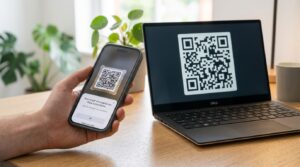
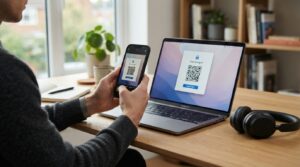
When you activate an eSIM, your carrier sends a QR code that you scan with your phone to download the digital SIM profile directly onto your device. It is a simple process when everything works. When it does not, the carrier’s support pages are often vague about what went wrong, and the fix depends on which carrier you are with and which specific step failed.
This guide covers how to get an eSIM QR code from every major US carrier, the exact steps to scan and activate it, and the most common failure points with their fixes.
How an eSIM QR Code Works
An eSIM QR code is not a URL or a contact card. It contains an activation code that tells your phone which carrier network to connect to and downloads the carrier’s SIM profile onto your device’s embedded SIM chip. When you scan it, your phone communicates with the carrier’s activation server, pulls the SIM profile, and sets up the line on your device.
This process requires an active internet connection to complete. Scanning the QR code without WiFi or data access starts the process but cannot finish it. If you are switching carriers and losing your previous connection in the process, connect to WiFi before scanning the eSIM QR code.
Each eSIM QR code is single-use and tied to a specific device IMEI in most cases. Scanning the same code on two different phones typically fails on the second attempt. If you need to activate on a different device, request a new QR code from the carrier rather than trying to reuse the original.
How to Get an eSIM QR Code: By Carrier
T-Mobile eSIM QR Code
T-Mobile provides eSIM QR codes through its My T-Mobile online account portal and through the T-Mobile app.
- Log into My T-Mobile at my.t-mobile.com
- Go to Account, then select the line you want to convert to eSIM
- Look for the option to activate eSIM or transfer SIM
- Follow the prompts and T-Mobile generates a QR code on screen
- Scan the code from another device if you are activating on the phone you are currently using
T-Mobile also allows eSIM activation through its retail stores if you prefer in-person support. Store staff generate the QR code on their systems and you scan it in the store. This is the most reliable option if the online portal is not showing the eSIM option for your account or device.
Metro by T-Mobile eSIM QR Code
Metro by T-Mobile is one of the most searched carrier variants for eSIM QR codes, appearing as both “metro by t-mobile esim qr code” and “metro by t-mobile esim qr code” in search data with 710 combined monthly searches.
To get a Metro eSIM QR code:
- Log into your Metro account at metrobyt-mobile.com or through the MyMetro app
- Navigate to your account settings and select the line you want to activate as eSIM
- Select the option to switch to eSIM or activate eSIM
- Metro sends the QR code to your email address on file or displays it in the app
Metro store visits work the same as T-Mobile. If the online process is not working, visiting a Metro store is the fastest resolution. Bring your account PIN and a government-issued photo ID for verification.
AT&T eSIM QR Code
AT&T’s eSIM activation process routes through the myAT&T app or the AT&T website.
- Open the myAT&T app or go to att.com and log into your account
- Go to Manage Device and select the line you want to switch to eSIM
- Select Device Unlock or SIM options and choose eSIM activation
- AT&T sends a QR code to your email or displays it within the app
- Scan the code from a second device if activating on the phone you are currently using
AT&T sends the QR code to the email address associated with your account. Check that email address before starting the activation process. If the email does not arrive within 10 minutes, check spam folders before assuming the process failed.
Verizon eSIM QR Code
Verizon handles eSIM activation through the My Verizon app or the Verizon website.
- Open My Verizon or go to verizon.com and log in
- Go to Devices and select the line you are activating
- Select Activate a new device or Transfer to a new device
- Choose eSIM as the SIM type when prompted
- Verizon displays the QR code on screen or sends it to your email
Verizon’s eSIM activation is also available by calling customer support at 1-800-922-0204. If your device is not showing the eSIM option in the activation flow, confirm the device is eSIM compatible and unlocked before contacting support.
Straight Talk eSIM QR Code
Straight Talk, which runs on multiple carrier networks including Verizon, AT&T, and T-Mobile towers, handles eSIM activation through its website and customer service line.
- Go to straighttalk.com and log into your account
- Navigate to Manage Service or Activate eSIM
- Enter your device IMEI when prompted to check eSIM compatibility
- Follow the activation prompts to generate your eSIM QR code
- Straight Talk sends the QR code to your registered email address
Straight Talk’s eSIM process is less polished than the major carrier portals and occasionally requires a call to customer service at 1-877-430-2355 to complete activation when the online flow stalls. Have your account number, phone number, and device IMEI ready when calling.
Cricket Wireless eSIM QR Code
Cricket Wireless, an AT&T subsidiary, activates eSIMs through the MyCricket app or the Cricket website.
- Log into MyCricket and go to My Account
- Select Manage Lines and choose the line for eSIM activation
- Select SIM Management and choose Switch to eSIM
- Cricket sends the QR code to your account email
How to Scan an eSIM QR Code
Scanning an eSIM QR code is done through your phone’s Settings rather than the camera app. Using the camera app opens the QR code as a text string, which is not how eSIM activation works.
On iPhone:
- Go to Settings, then Cellular
- Tap Add Cellular Plan or Add eSIM
- Select Use QR Code
- Point your iPhone camera at the eSIM QR code
- Follow the prompts to complete activation
On Android (Samsung, Pixel, and most Android phones):
- Go to Settings, then Connections or Network
- Tap SIM Manager or SIM Card Manager
- Select Add Mobile Plan or Add eSIM
- Choose Scan QR Code
- Point the camera at the eSIM QR code and follow the activation prompts
The exact menu path varies slightly between Android manufacturers. On Samsung devices running One UI, it is typically Settings, then Connections, then SIM Manager. On Google Pixel devices, it is Settings, then Network and Internet, then SIMs, then Download a SIM instead.
eSIM QR Code Not Working: Common Fixes
Several issues cause eSIM QR code activation to fail, and most have clear solutions.
- No WiFi connection: eSIM activation requires internet access. Connect to WiFi before scanning if your current SIM connection is being replaced.
- Code already used: eSIM QR codes are typically single-use. If you scanned the code on a different device first, request a new code from the carrier.
- Device not eSIM compatible: Not all phones support eSIM. Check your device specifications before starting activation. Most phones released after 2018 support eSIM, but budget devices and some regional variants do not.
- Device locked to another carrier: A phone locked to a previous carrier cannot activate a new carrier’s eSIM. Contact the previous carrier to unlock the device first.
- Scanning from the wrong menu: Scanning an eSIM QR code with the camera app does not activate it. Always scan from within Settings as described above.
- QR code image expired: Some carriers expire eSIM QR codes after 24 to 72 hours if not used. If the code was sent days ago and activation failed, request a fresh code.
Transferring an eSIM to a New Phone
Moving an eSIM from one phone to another requires generating a new QR code in most cases. The process varies by carrier, but the general approach is to log into your account, find the eSIM management section, and request a new activation QR code for the new device IMEI.
Apple’s eSIM transfer feature, available between compatible iPhones, can transfer an eSIM directly without a QR code using a Bluetooth-based transfer. This works when switching between iPhones directly and does not require generating a new carrier QR code for supported carriers.
Android’s Smart Switch or Google’s device transfer tools handle some eSIM transfers directly between Android devices, though carrier support for this varies. When in doubt, contacting the carrier to generate a fresh QR code for the new device IMEI is the most reliable approach.
Frequently Asked Questions
How do I get an eSIM QR code?
Log into your carrier’s account portal or app, navigate to SIM or device management for your line, and select the option to activate or switch to eSIM. Most carriers display the QR code on screen or send it to your registered email address. If the online process does not surface the option, visiting a carrier store or calling customer support generates the code directly.
How do I scan an eSIM QR code?
Scan through your phone’s Settings, not the camera app. On iPhone, go to Settings, then Cellular, then Add eSIM, then Use QR Code. On Android, go to Settings, then Connections or Network, then SIM Manager, then Add eSIM. The exact path varies slightly by device manufacturer.
How do I get a Metro by T-Mobile eSIM QR code?
Log into your Metro account at metrobyt-mobile.com or through the MyMetro app, navigate to your line’s settings, and select the eSIM activation option. Metro sends the QR code to your registered email or displays it in the app. For faster resolution, visit a Metro store with your account PIN and photo ID.
Why is my eSIM QR code not working?
The most common causes are: no WiFi connection during activation, the code having already been used on another device, the phone being locked to a different carrier, scanning through the camera app instead of Settings, or the code having expired. Work through each possibility in order before requesting a new code from the carrier.
Can I reuse an eSIM QR code on a different phone?
In most cases, no. eSIM QR codes are single-use and tied to a specific device IMEI. If you need to activate on a different phone, contact your carrier to generate a new QR code for the new device. Some carriers allow a limited number of reactivations, but this varies by carrier policy.
How long does an eSIM QR code last?
Many carriers expire unused eSIM QR codes after 24 to 72 hours as a security measure. If you received a QR code days ago and it is not working, the code may have expired. Contact your carrier to request a fresh activation code rather than attempting to use the original.
Connect Without the Physical Card
An eSIM QR code is a one-time activation key. Get it from your carrier portal or store, connect to WiFi, scan through Settings rather than the camera app, and the activation completes in under a minute. When something goes wrong, it almost always comes down to one of the six issues listed above.
If you are interested in how the QR code format stores activation data compared to standard URL or contact codes, the how QR codes work guide explains the encoding mechanics clearly. And for creating your own QR codes for any other purpose, the QR code generator handles URL, contact, WiFi, and text codes with full design options.