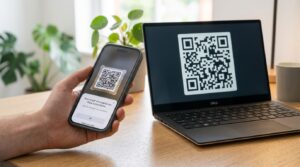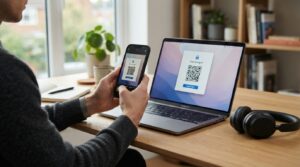
Handing someone a business card and watching them type your number into their phone is a slow, error-prone ritual that nobody enjoys. A QR code changes that entirely. One scan and your phone number, email, website, job title, and company name land directly in their contacts app — no typing, no mistakes, no lost cards. The question is which type of contact QR code to use and how to set it up correctly.
Here is a clear breakdown of every contact QR code format — phone, email, and vCard — with the setup steps for each.
Types of QR Codes for Contact Information
Three main QR code formats handle contact sharing, and each encodes information differently. Choosing the right one depends on how much detail you want to share and what you want to happen when someone scans.
Phone Number QR Code
A phone number QR code encodes a telephone number in a format that triggers a call or opens the phone dialler when scanned. The standard encoding format is tel:+447911123456 — the tel: prefix tells the device to treat the number as a callable contact rather than plain text.
When someone scans a phone number QR code, their device opens the dialler with the number pre-filled. On most phones, they still need to tap the call button to initiate the call — the QR code does not auto-dial. This is a deliberate safety feature that prevents accidental calls.
Phone QR codes work well on business cards, printed flyers, restaurant contact pages, and any material where a direct call is the primary action you want to enable.
Email Address QR Code
An email QR code uses the mailto: encoding format to pre-fill a compose window when scanned. A basic email QR code looks like mailto:name@company.com, and scanning it opens the default email app on the device with the recipient address already filled in.
More advanced mailto encoding lets you pre-fill the subject line and body text as well. For example: mailto:name@company.com?subject=Enquiry&body=Hello%2C%20I%20would%20like%20to%20enquire%20about. This reduces friction further by giving the sender a ready-made starting point, which is useful for enquiry forms, feedback requests, and support contact links.
Email QR codes suit printed materials where you want to drive inbound enquiries — brochures, packaging inserts, conference handouts, and business cards where email is the preferred first contact method.
vCard QR Code
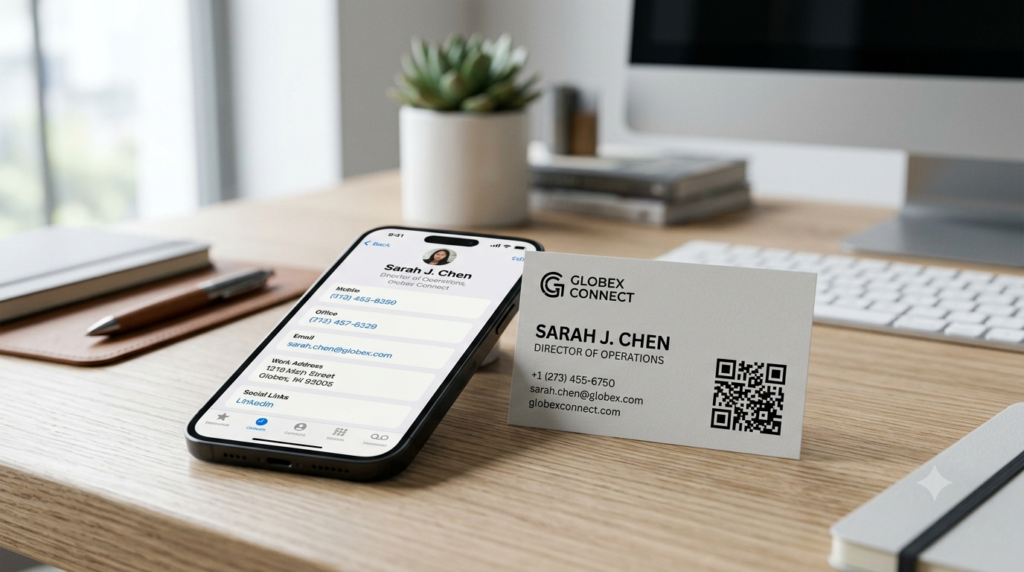
A vCard QR code is the most complete contact sharing format. It encodes a full digital contact card — name, phone number, email address, website, company, job title, and physical address — in a standard format that saves directly to the contacts app when scanned. No typing, no manual entry.
When someone scans a vCard QR code, their phone displays a contact card preview and prompts them to save it. The contact saves with all fields populated exactly as you encoded them. This makes vCard codes the most powerful format for networking, business cards, and any situation where you want someone to have your complete contact details immediately.
The trade-off is that vCard QR codes contain more data than phone or email codes, which produces a denser, slightly more complex pattern. At standard business card sizes, this creates no practical problem. For very small print applications, a simpler phone or email code may scan more reliably.
How to Create a QR Code for Contact Information
Creating any of these contact QR codes follows the same basic process. Open the QR code generator, select the appropriate content type — phone, email, or vCard — fill in the relevant fields, customise the design if needed, and download.
Creating a Phone Number QR Code
- Select Phone as the content type in the generator
- Enter your phone number in international format, including the country code — for example, +447911123456 for a UK number or +12025551234 for a US number
- Generate the code and test it by scanning with your phone to confirm the dialler opens with the correct number
- Download as SVG for print or PNG for digital use
Always include the country code even if the QR code is for local distribution. International format ensures the number works correctly on any device, regardless of the default country setting.
Creating an Email QR Code
- Select Email as the content type
- Enter the recipient email address, and optionally a pre-filled subject line and body text
- Generate and scan to confirm the email app opens with the correct details pre-filled
- Download in your preferred format
Keep pre-filled body text short and natural. An overly long or formal pre-written message can feel presumptuous. A single sentence prompt — “Hello, I’d like to find out more about your services” — works better than a structured template the sender has to edit before sending.
Creating a vCard QR Code
- Select vCard as the content type
- Fill in the contact fields — name, phone, email, company, job title, website, and address as applicable
- Only include fields you want visible in the recipient’s contacts app — leave unused fields blank
- Generate and scan to confirm the contact card previews and saves correctly
- Download as SVG for print or PNG for digital use
Test the vCard on both an iPhone and an Android device before printing. The two platforms handle vCard field mapping slightly differently — for example, the way they handle multiple phone number types — and testing on both confirms the saved contact looks correct across devices.
QR Code for Contact Information on a Business Card
A vCard QR code on a business card is the most practical use case for contact QR codes. It turns a physical card into an instant contact-saving device — the person keeps the card, scans the code when convenient, and your details go into their phone permanently without any manual work.
For business card placement, size the QR code at 2 to 2.5 cm square — enough for a clean scan from close range without dominating the card design. Position it in a corner or on the back of the card where it does not compete with your primary branding. Add a short label beneath it such as “Scan to save contact” so the purpose is immediately clear to anyone unfamiliar with vCard QR codes.
For detailed guidance on integrating QR codes into business card design — including layout, sizing, and what content to prioritise — the QR code for business cards guide covers every decision point.
Static vs Dynamic Contact QR Codes
Contact QR codes for personal use work fine as static codes — the information rarely changes, and static codes work indefinitely without any platform dependency. A static vCard code on a business card performs reliably for years.
For business use where contact details change periodically — a new phone number, a new email address, a new job title — a dynamic QR code is worth considering. With a dynamic code, you update the contact information in the platform dashboard and every existing printed code delivers the updated details immediately. No reprinting needed. The cost is a platform subscription, but for roles where details change regularly or where you print large card quantities, the saving on reprints can justify it quickly.
QR Code for WhatsApp Contact
WhatsApp generates its own QR code for sharing contact within the app, but you can also create a custom QR code that opens a WhatsApp chat directly when scanned. The encoding uses the WhatsApp deep link format: https://wa.me/447911123456 where the number follows international format without the + symbol.
When someone scans this code, their phone opens WhatsApp with a chat to your number ready to start. This works for both personal contacts and WhatsApp Business accounts. For businesses using WhatsApp as a customer contact channel, a scan-to-chat QR code on printed materials reduces the steps between a customer seeing your number and starting a conversation.
Frequently Asked Questions
How do I create a QR code for my phone number?
Open a QR code generator, select Phone as the content type, and enter your number in international format including the country code. Generate the code and test it by scanning with your phone to confirm the dialler opens correctly. Download as SVG for print or PNG for digital use.
How do I create a QR code for my email address?
Select Email as the content type in a QR code generator, enter your email address, and optionally add a pre-filled subject line and body text. Generate and scan to confirm the email app opens with the correct details. A basic email QR code uses the mailto: format and works on all devices without any additional setup.
What is a vCard QR code?
A vCard QR code encodes a complete digital contact card — name, phone, email, company, job title, website, and address — in a standard format that saves directly to the contacts app when scanned. It is the most complete way to share your contact information via QR code, and it requires no typing from the person receiving your details.
What is the difference between a phone QR code and a vCard QR code?
A phone QR code encodes only a telephone number and opens the dialler when scanned. A vCard QR code encodes your full contact card — multiple fields including name, email, company, and address — and saves the complete contact when scanned. For business networking, vCard is almost always the more useful option.
Can I put a QR code on my business card to share contact details?
Yes. A vCard QR code on a business card lets anyone scan and save your complete contact details instantly. Size it at 2 to 2.5 cm square, position it in a corner or on the card back, and add a “Scan to save contact” label beneath it. Test on both iPhone and Android before printing.
How do I create a WhatsApp QR code?
Create a URL QR code using the WhatsApp deep link format: https://wa.me/ followed by your number in international format without the + symbol. For example, https://wa.me/447911123456. When someone scans this code, WhatsApp opens with a chat to your number ready to start.
Should I use a static or dynamic QR code for contact information?
Static works well for personal use where details rarely change. For business use where contact details may update — new number, new email, new company — a dynamic code lets you update the information without reprinting. If you print business cards in large quantities, a dynamic vCard code can save significant reprint costs when anything changes.
One Scan, Saved Forever
A vCard QR code turns a forgettable interaction into a permanent entry in someone’s contacts app. It takes two minutes to set up, prints cleanly on any business card, and removes every step between meeting someone and them having your complete details saved correctly.
Build your contact QR code now with the QR code generator — choose phone, email, or vCard format, add your details, customise the design, and download print-ready. For everything about putting it on a business card specifically, the QR code for business cards guide has the full layout and sizing guidance.