A customer picks up your flyer. They want to ask a question before they commit. You have a phone number printed at the bottom but they do not want to call. They want to message.
A WhatsApp QR code on that flyer opens a chat with you in one scan. No saving a number, no searching for a contact, no typing. They scan, WhatsApp opens with your number pre-loaded, and they send the message before they put the flyer down.
This guide covers how to create a WhatsApp QR code for free. How to get the right link format, where to place it, and how to add a pre-filled message so customers know what to say when they open the chat.
How a WhatsApp QR Code Works
A WhatsApp QR code stores a WhatsApp link in the format https://wa.me/[phone-number]. When someone scans it, their phone opens WhatsApp directly on a new chat with your number. If they add a pre-filled message to the link, that text appears in the message box ready to send.
No contact saving required. No opening WhatsApp and searching for your name. One scan to an open conversation.
According to Statista, WhatsApp had approximately 2 billion monthly active users globally as of 2023, making it the most widely used messaging platform in the world. For businesses serving customers in the UK, Europe, Latin America, Asia, and the Middle East, WhatsApp is often the preferred contact channel over email or phone.
How to Get Your WhatsApp Link
Before creating the QR code, you need a WhatsApp link in the correct format. There are two versions, and adding a pre-filled message significantly improves conversion.
Basic WhatsApp link (no pre-filled message)
The format is: https://wa.me/[country-code][phone-number]
Remove any spaces, dashes, or brackets from the phone number. Include the country code without the plus sign or leading zeros.
Examples:
- UK number 07700 900123:
https://wa.me/447700900123 - US number (555) 867-5309:
https://wa.me/15558675309 - India number 98765 43210:
https://wa.me/919876543210
Test the link by opening it in a browser on your phone before creating the QR code. WhatsApp should open with a new chat to your number. If it does not, check that the country code and number format are correct.
WhatsApp link with a pre-filled message (recommended)
Adding a pre-filled message to the link means the customer arrives in the chat with a ready-to-send message. This removes the hesitation of figuring out what to write and increases the conversion rate from scan to message sent.
The format is: https://wa.me/[country-code][phone-number]?text=[your-message]
The message text needs to be URL-encoded. Spaces become %20, and special characters need encoding too. The easiest way is to use WhatsApp’s own link generator at wa.me or search for “URL encoder” and encode your message before pasting it into the link.
A few pre-filled messages that work well by business type:
- Retail shop: “Hi, I’d like to ask about your products.”
- Restaurant: “Hi, I’d like to make a reservation.”
- Service business: “Hi, I’d like to get a quote.”
- Event: “Hi, I have a question about the event.”
Keep the pre-filled message short and neutral. The customer will edit or replace it when they send, but starting them with something relevant removes the blank page problem.
How to Create Your WhatsApp QR Code for Free
This takes under 60 seconds at toolshash.com. No account. No signup. Completely free.
Step 1: Open the generator and select WhatsApp
Go to toolshash.com/custom-qr-code-generator. From the QR Type dropdown, select WhatsApp. A field appears for your WhatsApp number. The generator formats the wa.me link automatically, so you just enter the number in the correct format.
Step 2: Enter your WhatsApp number
Enter your phone number with the country code but without the plus sign. Use the same format as the wa.me link examples above. If you want to include a pre-filled message, switch to Website / URL as the QR type and paste the full wa.me link including the ?text= parameter directly.
Step 3: Customize the design
A WhatsApp QR code on a business card, flyer, or counter sign should match your brand rather than looking like a generic placeholder.
- Foreground color: use your brand primary color or a dark neutral. Keep it significantly darker than the background for reliable scanning.
- Background color: white is safest for scannability across all lighting conditions.
- Logo: upload your business logo as a transparent PNG. Set error correction to H (High) and keep the logo under 25% of the code area. Full guidance at how to add a logo to a QR code.
- Dot shape: rounded or dots suit most business contexts. Square is cleaner for more corporate or professional environments.
- Eye style: rounded or leaf eyes give the code a finished, designed look.
Step 4: Generate, test, and download
Click Generate. Scan the preview with your phone. Confirm WhatsApp opens on a new chat with the correct number. If you added a pre-filled message, confirm it appears in the message box. Download as SVG for print and PNG for digital use.
Create your WhatsApp QR code free at toolshash.com
WhatsApp QR Code vs WhatsApp Business QR Code
WhatsApp Business has its own built-in QR code feature. You can find it in the app settings under Linked Devices or in your profile. This generates a QR code that opens a chat with your WhatsApp Business account.
The difference between using WhatsApp Business’s own QR code and a custom one from toolshash.com comes down to design control and flexibility.
WhatsApp’s native code uses a fixed visual format with WhatsApp’s own branding. You cannot change the colors, add your logo, or match it to your business materials. It also only works by opening WhatsApp directly, which requires WhatsApp to be installed.
A custom QR code from toolshash.com stores a wa.me URL. This works in any phone browser if WhatsApp is not installed, directing the user to install WhatsApp or use WhatsApp Web. It is fully customisable with your brand colors and logo. And it can include a pre-filled message, which the WhatsApp Business native code does not support.
For a professional appearance and better conversion through pre-filled messages, the custom QR code is the stronger option.
Where to Place Your WhatsApp QR Code
WhatsApp QR codes work best at moments when a customer has a question but the path to asking it is normally too high-friction to act on.
Shop counter and point of sale
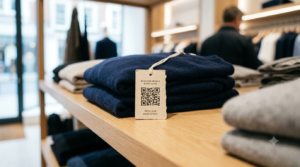
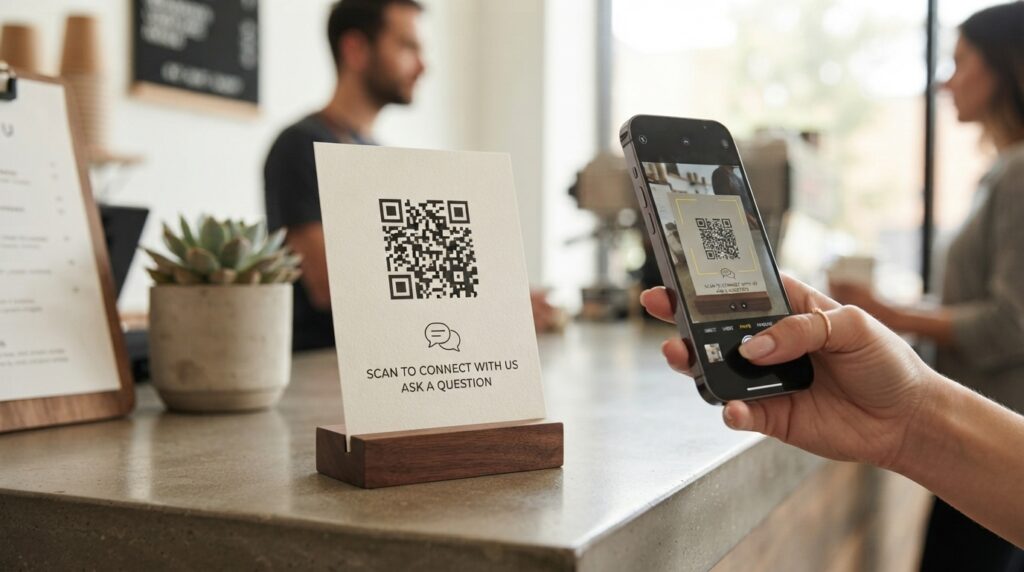
A small card beside your till with the QR code does the job. Add a prompt like “Message us with questions or orders.” Customers get a direct line without a phone call. For businesses that take orders or bookings, WhatsApp reduces the barrier significantly compared to a phone call.
Product packaging and labels
A WhatsApp QR code on packaging gives customers a direct support channel after purchase. Instead of searching for a customer service email or holding on a phone line, they scan the code and send a message. This is particularly effective for premium products where personal customer service is part of the value proposition.
Business cards
A WhatsApp QR code on the back of a business card gives anyone you meet a direct path to message you rather than call. Many people who would not call a new contact will happily send a WhatsApp message. The lower formality of WhatsApp reduces the hesitation that stops people following up after networking events. See QR codes for business cards for the full guide.
Printed marketing materials
Flyers, brochures, and direct mail with a WhatsApp QR code give potential customers a frictionless next step. Instead of finding a phone number and making a call, they scan and send a message. The conversion from print to enquiry improves noticeably when the next step is this simple.
Quotes and invoices
Adding a WhatsApp QR code to printed or emailed quotes and invoices gives clients an instant way to ask questions about the document. A client who has a quick question about a line item is more likely to send a WhatsApp message than to find a phone number and call.
Service vehicles and outdoor signage
For tradespeople, delivery services, and any business with vehicles or outdoor signage, a WhatsApp QR code sticker on a van or a sign gives passers-by a direct contact route. Someone who sees your van parked outside a neighbour’s house can scan the code and enquire about your services without writing down a phone number.
What to Print Next to the QR Code
A WhatsApp QR code with no context gets fewer scans than one with a specific, honest reason to act. The prompt should tell people exactly what will happen when they scan.
Prompts that work well:
- “Scan to message us on WhatsApp.”
- “Have a question? Scan to chat with us now.”
- “Scan to get a quote via WhatsApp.”
- “Message us for faster responses. Scan here.”
Keep the prompt to one line. WhatsApp’s reputation for fast, informal responses is itself a selling point. The prompt does not need to oversell it.
Frequently Asked Questions
Does the customer need WhatsApp installed to use the QR code?
If WhatsApp is installed, scanning the QR code opens the app directly on a new chat. If WhatsApp is not installed, the wa.me link opens in the browser and prompts the user to download WhatsApp or continue in WhatsApp Web. The code works either way. For markets where WhatsApp is near-universal, the vast majority of scans will open the app directly.
Can I use a personal WhatsApp number or does it need to be a business account?
Either works. The wa.me link format is the same for personal and business accounts. WhatsApp Business offers additional features like automated replies, business hours, a product catalogue, and a verified badge, but these are separate from the QR code itself. If you handle significant customer enquiry volume, WhatsApp Business is worth setting up. For occasional enquiries, a personal number works fine.
Can I add a pre-filled message to the WhatsApp QR code?
Yes. Use the Website / URL QR type at toolshash.com and paste the full wa.me link including the ?text= parameter with your URL-encoded pre-filled message. The text appears in the customer’s message box when WhatsApp opens, ready to send or edit. This is the single most effective improvement you can make to a WhatsApp QR code for business use.
What happens if I change my WhatsApp number?
The QR code will stop working because it stores the old number. Create a new QR code with the updated number and replace all printed materials carrying the old code. For any placement that is difficult to update, consider pointing the QR code to a dedicated landing page you control rather than directly to a wa.me link. You can update the landing page redirect without reprinting the QR code.
Is a WhatsApp QR code the same as a WhatsApp link?
A WhatsApp link is the wa.me URL in text form. A WhatsApp QR code is a visual pattern that encodes that same URL. They do the same thing. The QR code is more useful on printed materials because it requires no typing. The text link is more useful in digital contexts like websites, email signatures, and social media bios where the person can tap it directly.
How large should the WhatsApp QR code be on a business card?
At minimum 2cm x 2cm for reliable scanning at close range. According to Denso Wave’s printing guidelines, a QR code scans reliably at up to ten times its own width, so a 2cm code scans from up to 20cm. For back-of-card placement with room to breathe, 2.5cm x 2.5cm is more comfortable and easier to scan quickly.