Shopify does not include a built-in QR code generator. There is no button in the admin panel that generates a code for your product page, your checkout, or your store. What Shopify does have is a marketplace full of QR code apps — most of them paid, several of them unnecessary for what most store owners actually need.
The reality is that most Shopify QR code use cases require nothing more than a free external generator and the right URL from your store. Here is how to create QR codes for every common Shopify scenario, what the paid apps actually add, and when they are worth installing.
Does Shopify Have a QR Code Generator?
Not natively. Shopify’s admin panel does not include a QR code tool in its core features. The only built-in QR code in Shopify is the one used during Point of Sale setup — Shopify generates a QR code to connect a card reader to the POS app during hardware configuration. That is a device pairing code, not a content QR code.
For all other QR code needs — product pages, store URLs, checkout links, discount codes, campaign tracking — you either use an external generator or install a third-party Shopify app.
How to Create a QR Code for Your Shopify Store: No App Required
For most Shopify QR code use cases, an external generator works better than an app because it gives you full design control, costs nothing, and creates a code that is not dependent on a third-party app’s continued operation.
The process is the same for any Shopify URL:
- Go to your Shopify admin and navigate to the page you want to link to — a product page, a collection, your homepage, or a specific landing page
- Copy the URL from the address bar or from the View button in the admin
- Open the QR code generator, paste the URL as the destination, and customise the design to match your brand
- Download as SVG for print materials or high-resolution PNG for digital use
- Use the code on packaging, marketing materials, business cards, stickers, or anywhere else you want to drive traffic to your store
This approach produces a static QR code — permanent, free, no app dependency. For product URLs that will not change, this is all you need.
QR Code for a Shopify Product Page
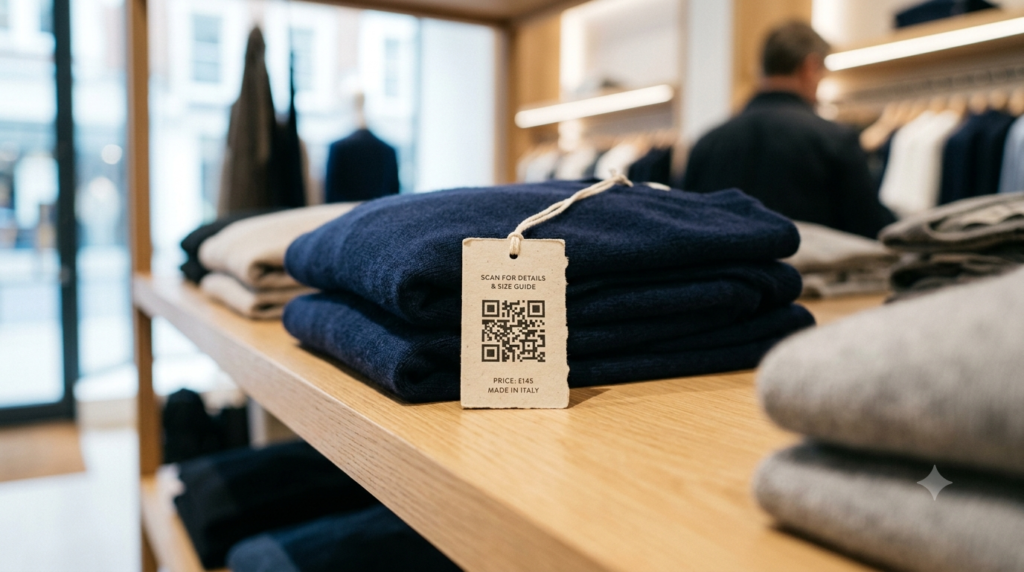
Product page QR codes are the most common Shopify use case. A code on product packaging, a shelf tag, a postcard insert, or a trade show display links customers directly to the product page where they can read full details, check reviews, and purchase.
To get the correct product URL: go to your Shopify admin, navigate to Products, open the product, and click View in the top right corner. Copy the URL from the browser — it will look like yourstore.myshopify.com/products/product-name or your custom domain equivalent.
One practical consideration for product QR codes: if the product URL changes — because you change the product handle in Shopify — the QR code on your existing printed materials breaks. Shopify does allow you to set up URL redirects for old handles, which preserves existing codes if you plan ahead. Alternatively, using a dynamic QR code through an external dynamic platform means you can update the destination if the URL ever changes without reprinting any physical materials.
QR Code for Shopify Checkout and Discount Codes
Shopify lets you create direct checkout links that pre-fill a cart or apply a discount code automatically when the customer arrives. These links work as QR code destinations and create a frictionless path from a physical marketing material to a completed purchase.
A Shopify cart permalink with a discount code applied looks like:
https://yourstore.com/cart/variant_id:quantity?discount=DISCOUNTCODE
When someone scans this QR code, they land directly on a pre-filled cart with the discount code already applied. For printed promotional materials — flyers, postcards, packaging inserts — this removes every step between the scan and the purchase decision.
For the discount to appear correctly, the discount code must be active in Shopify at the time of scanning. Always test the full flow before printing materials: scan the code, confirm the cart pre-fills correctly, and verify the discount applies before committing to a print run.
Shopify QR Code Apps: What They Add
The Shopify App Store has dozens of QR code apps. Most of them are genuinely redundant for basic use cases — they charge monthly fees to do something a free external generator handles in two minutes. But a few scenarios exist where an app adds real value that the free approach cannot match.
Bulk generation from product catalogue: If you need a unique QR code for every product in a catalogue of hundreds or thousands of items, a Shopify QR app can pull product data directly and generate codes in bulk. Doing this manually through an external generator is impractical at scale. Apps like Flux QR Code and Shopcodes (Shopify’s own discontinued experiment, now handled by third parties) handle bulk generation from your product catalogue with CSV export options.
Dynamic codes with scan tracking per product: If you want to know which product QR codes get scanned most — on packaging, at trade shows, in catalogs — a dynamic QR app that integrates with Shopify provides per-product scan analytics in one dashboard. This is meaningful for large product ranges where understanding scan performance by SKU informs marketing decisions.
POS QR codes for in-store use: Shopify POS users can generate QR codes that customers scan in-store to complete a purchase on their own device — useful in markets where customers prefer not to interact with a shared payment terminal.
For store owners with fewer than 50 products, no in-store QR POS requirement, and no need for per-product scan analytics, an external free generator covers every requirement without a monthly app fee.
QR Code for Shopify on Packaging and Marketing Materials
Product packaging is one of the highest-value QR code placements for Shopify stores. A code on the packaging that links to a how-to page, a loyalty programme sign-up, a review request, or a complementary product recommendation extends the customer relationship beyond the first purchase.
For packaging use, a few technical requirements matter:
- Download the QR code as SVG — packaging print runs require vector files for clean output at any size
- Maintain a quiet zone of at least 3mm on all sides — packaging design tools sometimes crop this accidentally
- Test the printed code in the actual packaging environment, not just on screen — packaging materials, finishes, and lighting conditions affect scan reliability in ways a screen test does not reveal
- Use a dynamic QR code if the destination might change — packaging printed in large quantities is expensive to reprint if a URL changes
For detailed guidance on QR code sizing for product packaging specifically, the QR code for product packaging guide covers material choices, minimum sizes, and print specifications.
Shopify QR Code for Marketing Campaigns
QR codes in Shopify marketing campaigns follow the same principles as any marketing QR code — dynamic code, UTM-tagged destination URL, campaign-specific landing page. The Shopify-specific element is that the destination URL should go to a page with a clear purchase path, not just a generic store homepage.
For a discount campaign, link to a landing page that features the promoted products with the discount code pre-applied in the URL. For a product launch, link to the new product page with a countdown or limited stock indicator visible. For a seasonal campaign, link to a collection page filtered to the relevant items.
Using UTM parameters in the destination URL lets you see QR-driven traffic and conversions in Google Analytics alongside your other Shopify traffic sources. This gives you a clear picture of how much revenue your physical marketing materials generate compared to other channels.
WooCommerce and WordPress QR Codes
WooCommerce follows the same pattern as Shopify — no native QR code generator, but straightforward external generation from any product or store URL. The WordPress ecosystem has several free QR code plugins including QR Code Generator by WebExpenses and similar tools that add QR code generation to the WordPress admin. These work adequately for basic URL codes but offer limited design control compared to external generators.
For serious WooCommerce use, the same external generate and import approach that works for Shopify applies here: create the code with full design control, download as PNG or SVG, and place it wherever it is needed in your theme, product pages, or print materials.
Frequently Asked Questions
Does Shopify have a built-in QR code generator?
No. Shopify does not include a native QR code generator for store owners. The only built-in Shopify QR code is used during POS hardware setup. For product pages, store URLs, checkout links, and marketing materials, you need either an external generator or a third-party Shopify app.
How do I create a QR code for my Shopify store?
Copy the URL of your store, product page, or any other Shopify page from the browser. Paste it into a free QR code generator, customise the design to match your brand, and download as SVG for print or PNG for digital use. This produces a static QR code that works permanently without any app or monthly fee.
How do I create a QR code for a Shopify product page?
Go to your Shopify admin, open the product, click View to see the live product page, and copy the URL from the browser. Paste it into a QR code generator and download. Place the code on packaging, product tags, print materials, or anywhere you want to drive customers directly to that product.
What Shopify QR code apps are worth using?
For most store owners with a small to medium product range, free external generators cover every QR code need without an app. Shopify QR apps add genuine value for bulk generation from a large product catalogue, per-product scan analytics, and in-store POS QR checkout functionality. If none of those apply to your operation, the app fee is not justified.
Can I create a QR code for a Shopify discount code?
Yes. Create a Shopify cart permalink URL that includes the discount code as a URL parameter: https://yourstore.com/cart/variant_id:quantity?discount=DISCOUNTCODE. Generate a QR code from this URL and customers who scan it land directly on a pre-filled cart with the discount applied. Always test the full checkout flow before printing materials.
How do I create a QR code for WooCommerce?
Copy the URL of the WooCommerce product page or store page and paste it into a free external QR code generator. WordPress has QR code plugins available through the plugin directory, but external generation gives you better design control and no plugin dependency. Download as PNG or SVG and use wherever needed.
Most Store Owners Need Less Than They Think
The Shopify app marketplace makes QR codes look like a complex paid feature. For the majority of store owners, a free external generator and the right URL from the Shopify admin covers every use case — product pages, packaging, marketing materials, and discount campaigns — without a monthly fee or an app taking up a slot in your store.
Start with the QR code generator — paste your Shopify URL, match it to your brand design, and download print-ready in SVG. And if your packaging QR codes need to survive a product URL change without reprinting, the QR code for product packaging guide covers dynamic code options and print specifications that make packaging QR codes reliable long-term.