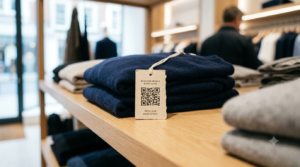
Someone walks into your shop, loves what they see, and leaves. Three days later they cannot remember your name to search for you on Facebook. The follow you almost got disappears because there was no frictionless path from standing in your space to liking your page.
A QR code on your counter, your packaging, or your window gives people that path in the moment. They scan, your Facebook page opens, and one tap gives you a new follower before they leave.
This guide covers how to create a free QR code for your Facebook page. How to get the right URL, where to place it, and how to design it so people actually scan it.
Why a Facebook QR Code Works Better Than Asking People to Search
Asking someone to “find us on Facebook” puts the entire burden on them. They have to remember your business name, spell it correctly, filter through multiple results if your name is common, and find the right page. Most people mean to do it and never get around to it.
A QR code removes every one of those steps. The scan takes one second. The page opens instantly. The decision to like or follow happens in the moment when their experience of your business is still fresh.
According to Statista, Facebook had approximately 3.07 billion monthly active users as of the third quarter of 2023, making it the most-used social platform globally. For local businesses in particular, a Facebook page with consistent followers is a direct channel to repeat customers. A QR code is one of the lowest-cost ways to grow that following from the people who are already in your physical space.
How to Get Your Facebook Page URL
Before creating the QR code, you need the URL of your Facebook page. There are two versions and one works better in a QR code than the other.
Method 1: The standard page URL (recommended)
- Open Facebook and go to your business page.
- Look at the URL in your browser address bar.
- If your page has a custom username set, the URL looks like:
https://www.facebook.com/yourbusinessname - Copy this URL exactly.
This format is clean, short, and produces a simpler QR code pattern. A simpler pattern means a less dense code, which scans more reliably at small sizes.
Method 2: The numeric ID URL (use only if no custom username)
If your page does not have a custom username, the URL contains a long numeric ID: https://www.facebook.com/profile.php?id=123456789012345
This URL works but produces a denser, more complex QR code because of the additional characters. If you do not have a custom username, set one first. Go to your page settings in Facebook, find the Username section, and create it before building the QR code. A clean username URL produces a better QR code.
Method 3: The Facebook shortlink
Facebook also generates short links in the format https://fb.me/yourbusinessname for pages with custom usernames. This is the shortest version and produces the simplest QR code pattern. You can use this format if it is available for your page.
How to Create Your Facebook QR Code
This takes under 60 seconds at toolshash.com. No account. No signup. Completely free.
Step 1: Open the generator and select Facebook
Go to toolshash.com/custom-qr-code-generator. From the QR Type dropdown, select Facebook. A field appears for your Facebook page URL. Paste the URL you copied in the previous step.
Step 2: Customise the design
A plain black and white QR code gets the job done. A branded code that matches your business colors and includes your logo looks professional and builds more trust before the scan happens.
- Foreground color: use your brand primary color. For businesses with no strong brand color, a deep navy or dark charcoal on white works well and looks clean. Enter the hex code directly for an exact match.
- Background color: white gives the highest contrast and the most reliable scanning across all lighting conditions.
- Logo: upload your business logo as a transparent PNG. Set error correction to H (High) before uploading and keep the logo under 25% of the code area. Full guidance at how to add a logo to a QR code.
- Dot shape: rounded or dots shapes suit most retail and hospitality businesses. Square is cleaner for professional services.
- Eye style: rounded or leaf eyes give the finished code a considered rather than generic appearance.
Step 3: Generate, test, and download
Click Generate. Scan the preview with your phone. Confirm your Facebook page opens correctly. Test on both iPhone and Android if possible. Download as SVG for anything printed and PNG for digital use.
Create your Facebook QR code free at toolshash.com
Where to Place Your Facebook QR Code
The placements that convert best are the ones where your customer is already in a positive emotional state about your business. That is when they are most likely to follow you.
At the point of payment
A small printed sign next to your card reader or cash register catches customers at peak satisfaction. They have just completed a transaction they chose to make. A short prompt like “Follow us on Facebook for offers and updates” gives them a reason to scan before they put their phone away.
On receipts and packaging
Printing your Facebook QR code on receipts or on product packaging gives customers a second opportunity after the purchase is complete. Someone who bought something and enjoyed it is in exactly the right state to follow your page. The QR code on the receipt or the bag goes home with them.
In your shop window
A QR code in a visible window position captures people who notice your shop but are not ready to come in. They can follow your page and learn more about you before their next visit. This is particularly effective for businesses that post regular content like daily specials, new stock arrivals, or upcoming events.
On your menu
For restaurants and cafes, place a small Facebook QR code on the back of your table tent card. Customers have something to do while they wait for their food. A two-sided tent card handles both: menu on one side, Facebook follow prompt on the other.
On business cards and printed materials
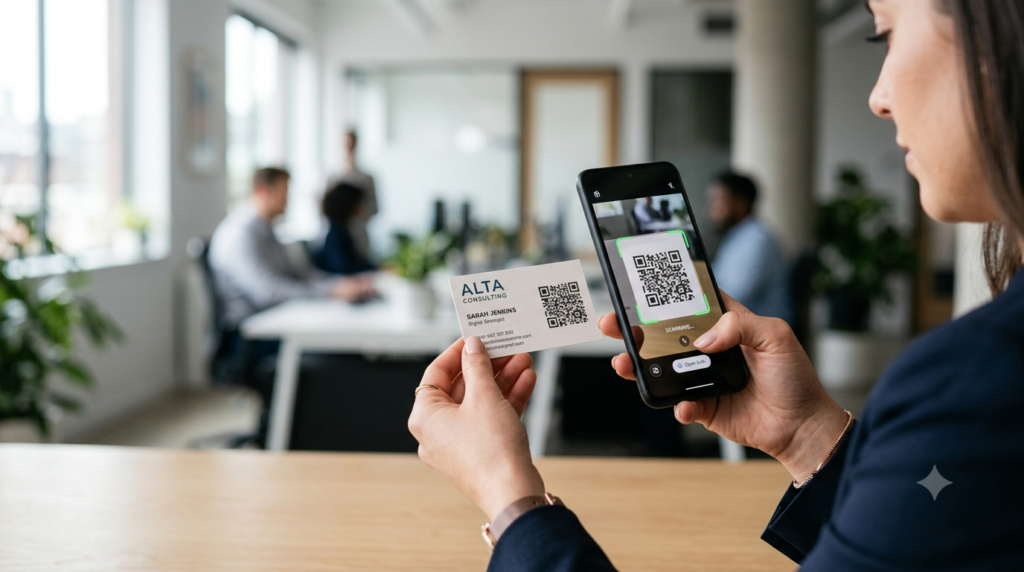
A Facebook QR code on a business card or flyer gives anyone who receives your materials a direct path to your page without searching. For service businesses like plumbers, cleaners, and personal trainers, a business card with a Facebook QR code lets satisfied customers follow you for future needs. No searching required on their part. See the full guide on QR codes for business cards.
At events and markets
A printed sign at a market stall or event table lets people who are interested but not ready to buy follow your Facebook page for later. The low-friction commitment of a page like keeps you in front of them until they are ready to purchase.
What to Print Next to the QR Code
A QR code with no context gets scanned less often than one with a specific, honest reason to act. The prompt should tell people what they will get by following your page, not just that the option exists.
Prompts that work well for Facebook:
- For a retail shop: “Follow us on Facebook for new arrivals, exclusive offers, and opening hours updates.”
- For a restaurant: “Follow us for daily specials, events, and what is on this week.”
- For a service business: “Follow our Facebook page for tips, updates, and seasonal offers.”
- For an event stall: “Follow us to find out where we are popping up next.”
Keep the prompt to one sentence. Tell them the benefit. Give them a reason specific to your business rather than a generic “find us on Facebook.”
Facebook QR Code vs Instagram QR Code
Both platforms have different audiences and different content strengths. Facebook tends to perform better for local community engagement, event promotion, and older demographics. Instagram tends to perform better for visual product discovery and younger audiences.
For most small businesses, both platforms are worth maintaining. If you have space for two codes, place both a Facebook and an Instagram QR code side by side. That covers both audiences in one placement. Label each one clearly so customers know which platform they are being taken to.
If you can only fit one, choose based on where your existing followers are most active and where you post most consistently. A QR code that drives people to a page you never post on creates a poor first impression.
How to Track Whether Your Facebook QR Code is Working
Watch your Facebook page’s follower count in the weeks after placing the QR code. If it increases noticeably, the placement is working. Facebook Page Insights shows you when new followers were gained, which helps you correlate spikes with specific placements or campaigns.
For more precise tracking, use a URL shortener like Bitly to create a tracked link that redirects to your Facebook page URL. Build the QR code using the Bitly link. The Bitly dashboard shows you exactly how many people clicked through the QR code and from which devices.
Frequently Asked Questions
Do I need a Facebook business page or will a personal profile work?
You can create a QR code for either a business page or a personal profile by using the profile URL. However, for any business use, a Facebook business page is strongly recommended. Business pages have access to Page Insights analytics, can run paid promotions, display business information like opening hours and location, and allow customers to leave reviews. A personal profile used for business purposes also violates Facebook’s terms of service, which prohibits using personal profiles to represent a business.
What if someone does not have a Facebook account?
The QR code opens the Facebook page URL in a browser. If the person is not logged in to Facebook, they can still see your page content. Facebook allows public page content to be viewed without an account. The option to like or follow requires logging in, but browsing your content does not. Someone without a Facebook account can still see your page, your posts, and your contact details after scanning.
Can I use the same QR code on multiple materials?
Yes. The QR code is a static image file. The same SVG or PNG you download from toolshash.com can be used on business cards, receipts, signs, window clings, flyers, and any other material. Every copy of the same code takes the scanner to the same Facebook page. There is no limit on scans.
What happens if I change my Facebook page username after creating the QR code?
The QR code stores the URL you entered when you created it. If you change your Facebook username, the old URL stops working and the QR code becomes useless. Create a new QR code with the updated URL and replace all physical materials. This is a good reason to decide on a permanent username before printing at scale.
Should I use a static or dynamic QR code for my Facebook page?
For most small businesses, a static QR code is the right choice. It is free, has no scan limits, never expires, and does not depend on any third-party service staying active. The only reason to use a dynamic code is if you expect to change the destination regularly or need detailed scan analytics beyond what Bitly provides. For a Facebook page URL that will not change, static is simpler and more reliable. See the full comparison at static vs dynamic QR codes: which one do you actually need?
How large should the QR code be on a printed sign or counter card?
For a counter card scanned from 40 to 60cm, a minimum of 4cm x 4cm. For a wall sign scanned from 60 to 100cm, a minimum of 6cm x 6cm. According to Denso Wave’s printing guidelines, a QR code scans reliably at up to ten times its own width. Sizing up from these minimums gives you more comfortable scanning for customers who are not holding the sign close to their phone.