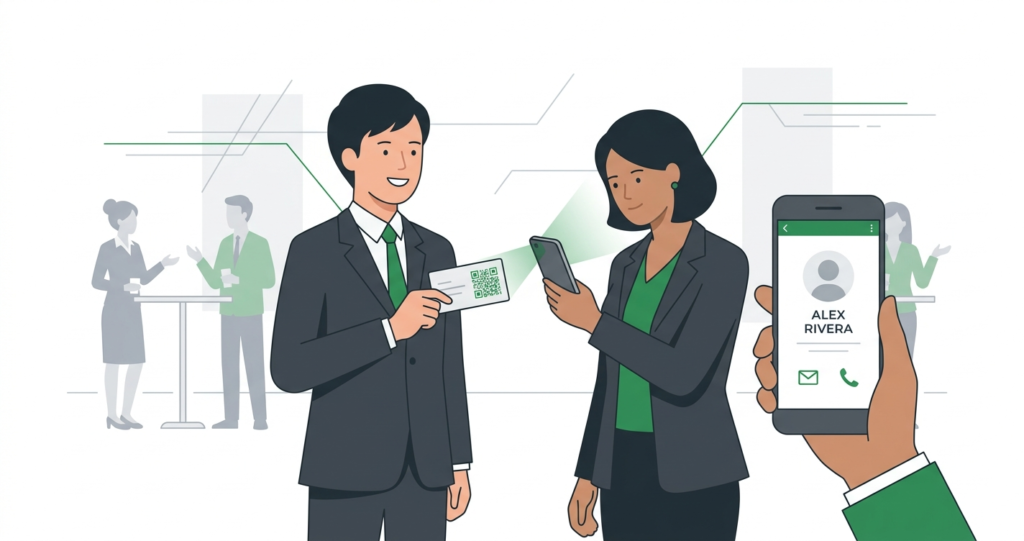
You hand someone your business card at a networking event. They take it, smile, and put it in their pocket. A week later it is at the bottom of a bag, creased, with your phone number half-illegible. They try to type your email into their phone, make a mistake, and give up.
A vCard QR code on that business card would have saved the contact details the moment you handed it over. One scan. Every detail saved to their phone automatically. Name, number, email, company, website, social media links. All of it. No typing, no mistakes, no lost cards.
This guide explains what a vCard QR code is, what information you can store in one, and how to create yours for free in under 60 seconds.
What is a vCard QR Code?
A vCard QR code is a QR code that stores contact information in the vCard format. The vCard format is an open standard for digital contact cards, defined in RFC 6350 by the Internet Engineering Task Force (IETF). It is the same format your phone uses when you export a contact or receive one via email as a .vcf file.
When someone scans your vCard QR code, their phone reads the encoded contact data and asks whether they want to save it to their address book. One tap and the contact is saved. Everything you included: name, job title, phone numbers, email addresses, company name, website, and more.
No app download needed. Any iPhone running iOS 11 or later handles vCard QR codes natively, as confirmed by Apple’s iOS support documentation. Any Android running Android 8 or above does the same, per Google’s Android documentation.
What Information Can You Store in a vCard QR Code?
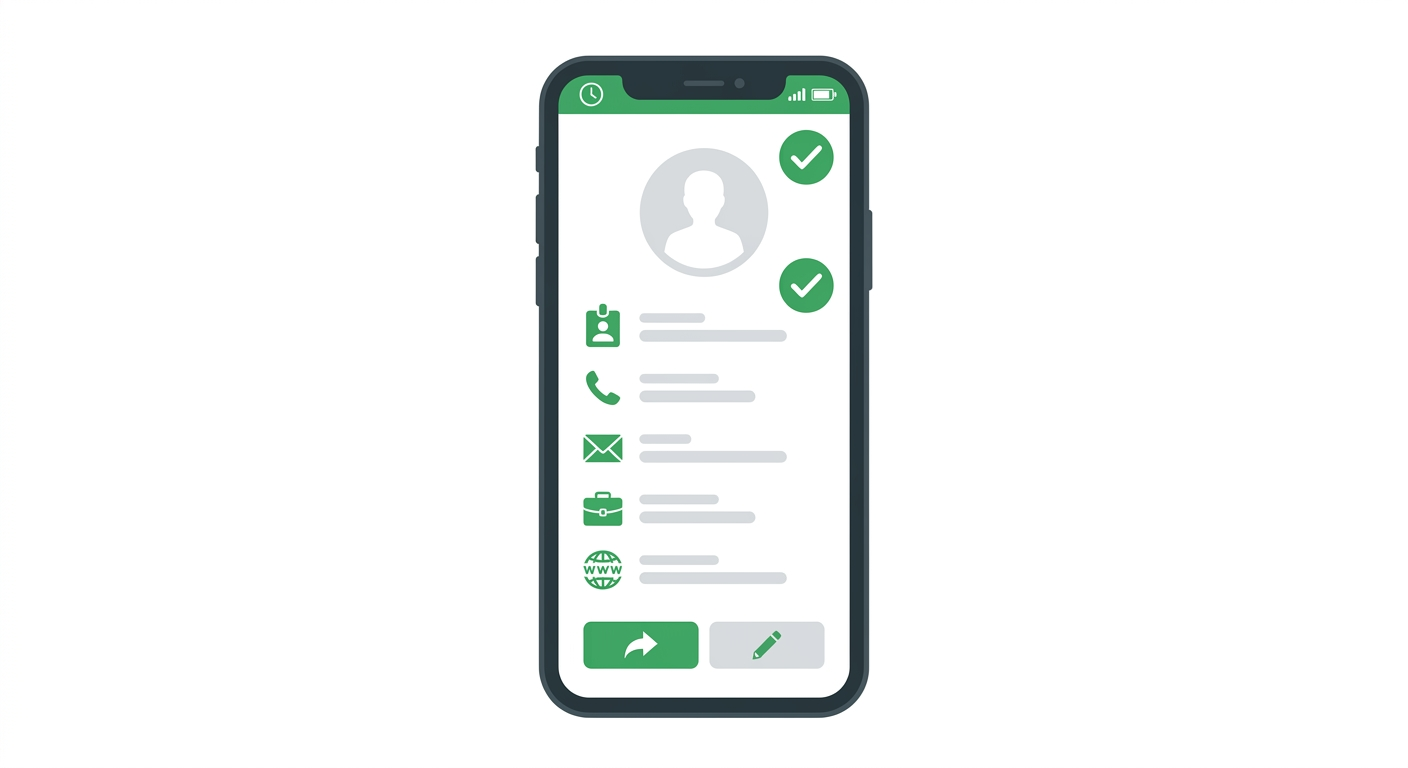
The vCard format supports a wide range of contact fields. Here is what you can include:
- Full name: first name, last name, and optionally a prefix or suffix
- Job title: your role or position
- Company name: the organisation you work for
- Phone numbers: mobile, work, and home numbers can all be stored separately
- Email addresses: work and personal emails can both be included
- Website: your personal site, company site, or portfolio URL
- Physical address: work or home address
- Social media profiles: LinkedIn, Twitter, and other profiles can be linked
- Notes: a short field for any additional information
You do not have to include all of these. Most professionals include name, job title, company, one phone number, one email, and a website. Keep it to the details you actually want people to have and that you are comfortable sharing widely.
vCard QR Code vs a URL QR Code for Contact Sharing
You have two main options when creating a QR code for your business card. A vCard QR code stores your contact data directly inside the code. A URL QR code points to an online profile, like a LinkedIn page or a personal website.
Here is how they compare:
| Feature | vCard QR code | URL QR code |
|---|---|---|
| Saves directly to phone contacts | Yes, with one tap | No, opens a browser |
| Works without internet | Yes | No |
| Updatable after printing | No (static by default) | Yes, if URL content changes |
| QR code complexity | Denser pattern (more data) | Simpler pattern (short URL) |
| Best for | Saving contact directly | Showing portfolio or profile page |
If your priority is getting someone to save your contact details immediately, a vCard QR code is the better choice. If you want to send people to a page where they can read about you first, a URL QR code pointing to your website or LinkedIn profile makes more sense.
Some professionals use both on the same business card: a vCard QR code on the front and a URL QR code on the back pointing to their portfolio.
How to Create a vCard QR Code for Free
This takes under 60 seconds at toolshash.com. No account. No signup. Completely free.
Step 1: Open the generator and select vCard
Go to toolshash.com/custom-qr-code-generator. From the QR Type dropdown, select vCard. A form appears with fields for all the contact information you want to include.
Step 2: Fill in your contact details
Enter the information you want stored in the code. At minimum, include your name and one way to contact you (phone or email). Everything else is optional.
A few things to double-check before generating:
- Phone numbers should include the country code for international contacts, for example +1 for the US or +44 for the UK
- Email addresses are case-sensitive in some systems, so enter them exactly as you use them
- Company name should match how you want it to appear in someone’s address book
Step 3: Customise the design
A vCard QR code that matches your personal brand or your company’s brand makes a stronger impression than a plain black square. In the design section you can:
- Change the foreground color to match your brand palette
- Upload your company logo or a personal logo mark to embed in the centre
- Change the dot shape to “rounded” or “dots” for a more modern look
- Choose an eye style to add character while keeping the code scannable
- Try the AI Colors button to generate a branded color combination automatically
vCard QR codes contain more data than a simple URL, which means the code pattern is denser. This makes error correction more important. If you add a logo, set the error correction level to H (High). This follows the ISO/IEC 18004 standard, which defines H level as recovering up to 30% of obscured data. With a logo covering the centre, you need that buffer.
Step 4: Generate and test
Click Generate. A live preview appears on the right side. Scan it with your phone before downloading. Confirm all fields save correctly to your contacts. Check the name, phone number, and email are all accurate.
If any field saves incorrectly, go back, fix the typo, and regenerate. Catching mistakes at this stage costs nothing. Catching them after 500 business cards are printed is expensive.
Step 5: Download the right format
For business cards, letterheads, or any printed material, download the SVG format. SVG is a vector file that prints sharply at any size, from a tiny corner of a business card to a full-page flyer. PNG works for digital use and for printers that cannot handle SVG.
Create your vCard QR code free at toolshash.com
Where to Use Your vCard QR Code
A vCard QR code is not just for business cards. Here are the most effective places to use it.
Business cards
The most obvious use. Place the QR code on the back of your card in a corner or as a central feature. Keep it at least 1.5cm x 1.5cm to scan reliably from a close-up distance. According to Denso Wave’s printing guidelines, a QR code reliably scans at a distance of up to ten times its width, meaning a 1.5cm code works from up to 15cm. That is well within comfortable hand-held scanning distance.
Email signature
Add your vCard QR code image to your email signature. Anyone reading your email on a desktop can photograph the screen with their phone to save your contact. It is a small touch that removes friction for anyone who wants to add you to their address book.
LinkedIn and social profiles
Add your vCard QR code as an image to your LinkedIn profile or Twitter bio. Connections can scan it and save your details without copying anything from the page.
Presentations and slide decks
Putting your vCard QR code on the final slide of a presentation is a clean way to let the audience save your contact details before they leave the room. Far more effective than displaying a phone number or email address that people try to type while gathering their things.
Name badges at events
Printing your vCard QR code on your name badge at a conference means anyone who meets you can scan it and have your details saved instantly. No exchanging cards. No missed connections.
Printed marketing materials
Brochures, flyers, and direct mail pieces all benefit from a vCard QR code if you want the recipient to save your details rather than visit a website. Particularly useful for real estate agents, consultants, and anyone whose primary call to action is “call me or email me.”
How Many Contacts Can Scan the Same vCard QR Code?
Unlimited. A vCard QR code created at toolshash.com is a static code with no scan limits. It can be scanned thousands of times and will keep working indefinitely, as long as the contact information it contains is still accurate.
There is no platform dependency, no account to maintain, and no subscription that could lapse and break the code. The information is encoded directly in the QR pattern.
What Happens When Your Contact Details Change?
If your phone number, email address, or job title changes, the vCard QR code becomes outdated. It will still scan, but it will save the old information.
You have two options. Create a new vCard QR code with the updated information and reprint any materials that carry the old code. Or, instead of a vCard QR code, use a URL QR code pointing to an online profile or contact page that you can update at any time without reprinting. A LinkedIn profile or a personal website contact page works well for this.
For most professionals, details do not change often enough to make this a significant problem. Creating a new QR code takes 60 seconds and printing a fresh batch of business cards is a normal part of any career change or rebranding.
For a full explanation of the static versus dynamic choice and when each one makes sense, see static vs dynamic QR codes: which one do you actually need?
Frequently Asked Questions
What is a vCard or VCF file?
vCard is a file format for storing contact information. Files in this format use the .vcf extension, which stands for Virtual Contact File. The format is defined in RFC 6350 by the Internet Engineering Task Force. Every major address book supports it, including Apple Contacts, Google Contacts, Outlook, and Android contacts. When you scan a vCard QR code, your phone reads the data and offers to save it as a new contact using this standard format.
Is a vCard QR code different from a contact QR code?
They are the same thing. The terms vCard QR code, contact QR code, and VCF QR code all refer to a QR code that stores contact information in the vCard format. Some generators call the QR type “vCard” while others call it “Contact.” The underlying format is identical.
Can I include a photo in my vCard QR code?
Technically the vCard standard supports including a photo. However, adding a photo significantly increases the data size of the vCard, which makes the QR code much denser and harder to scan reliably. For practical purposes, leave the photo out of the QR code itself and instead link to a professional photo on your website or LinkedIn profile via the URL field.
Will the vCard QR code work on older phones?
Any smartphone with a QR code scanner can read a vCard QR code. iPhones from iOS 11 onwards and Android phones from Android 8 onwards handle it natively with the camera app. For older devices, a free QR scanner app from the App Store or Google Play reads the code and prompts the user to save the contact.
How do I put a QR code on a business card without making it look cluttered?
Place the QR code on the back of the card as the main feature. Add a short line beneath it: “Scan to save my contact details.” The front stays clean with your name, title, and company. This way the QR code has room to breathe and is large enough to scan reliably. A minimum of 1.5cm x 1.5cm is needed for close-up scanning according to Denso Wave’s guidelines, but 2.5cm x 2.5cm or larger looks better and scans more reliably.
Does the vCard QR code need internet to work?
No. This is one of the key advantages of a vCard QR code over a URL QR code. The contact information is encoded directly into the QR pattern. Your phone reads it and saves the contact with no internet connection required. It works in areas with no signal, on aeroplanes, and anywhere else you might be handing out business cards without reliable connectivity.