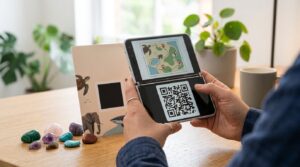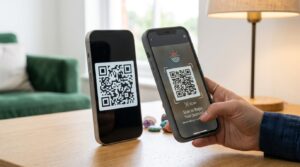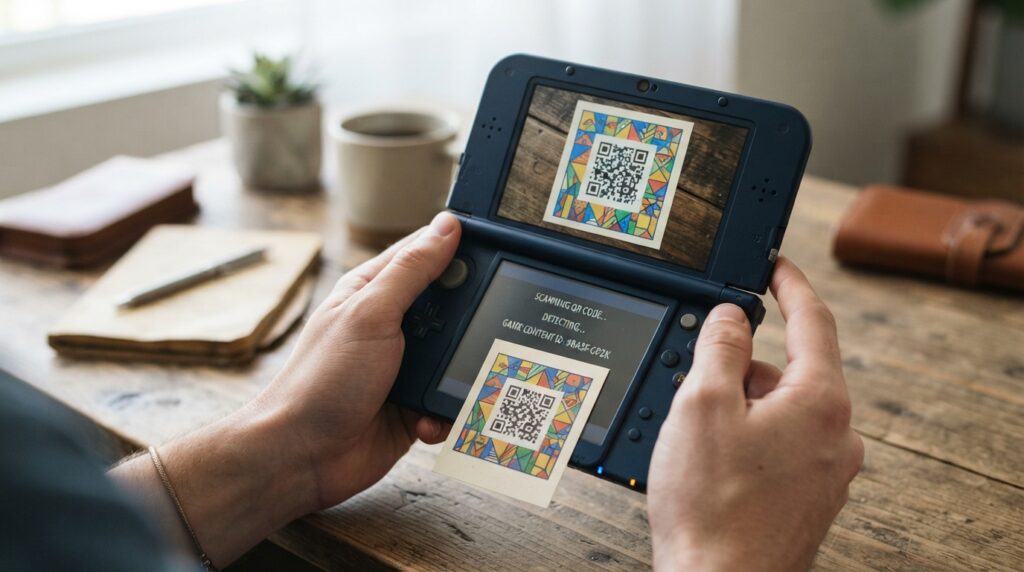
Custom 3DS theme QR codes work through the Anemone theme manager, a homebrew application that installs custom home menu themes on a Nintendo 3DS running custom firmware. The QR code encodes a download link for the theme file, and Anemone scans it to pull the theme directly from the internet without manually downloading and transferring files. If you are not familiar with the 3DS homebrew setup, the QR code step is near the end of a longer process that starts with installing custom firmware.
Here is how the full system works, where to find theme QR codes, and how the hShop QR code fits into the picture.
What Are 3DS Theme QR Codes
On a stock Nintendo 3DS, you can only use themes purchased from the Nintendo eShop. Custom firmware removes that restriction and allows third-party themes through homebrew theme managers. QR codes in this context serve as quick-install links: instead of downloading a theme file to your computer, copying it to the SD card, and pointing the installer at it, you scan a QR code with Anemone and the theme downloads and installs directly.
The QR code encodes a direct URL to the theme file, typically a .zip containing the theme assets. Anemone reads the URL from the QR pattern, fetches the file from that URL over your 3DS’s internet connection, and installs it to the home menu.
Requirements Before Using Theme QR Codes
3DS theme QR codes only work if your console already has custom firmware installed. The stock Nintendo 3DS cannot install homebrew applications or third-party themes regardless of what QR code you scan. The standard custom firmware for 3DS is Luma3DS, which requires a one-time installation process documented on the 3ds.hacks.guide website.
Once Luma3DS is installed, you need the Anemone3DS homebrew application. Install it through the Universal Updater homebrew application, or download it directly and copy it to your 3DS SD card. Anemone is the application that scans QR codes and handles theme installation.
How to Use Anemone 3DS Theme QR Codes
- Open the Homebrew Launcher on your 3DS
- Launch Anemone3DS from the homebrew list
- Press the Y button to open the QR code scanner within Anemone
- Hold the 3DS camera up to the theme QR code on your phone or computer screen
- Anemone downloads the theme from the encoded URL
- Once downloaded, select the theme and press A to install it to your home menu
- Exit to the home menu to see the theme applied
The 3DS needs an active internet connection during the download step. If the QR code encodes a URL that is no longer active or the file has moved, the download fails. Theme QR codes from older posts sometimes point to files that have been removed from their original hosting location.
Where to Find 3DS Theme QR Codes
Several community sources maintain 3DS theme collections with QR codes for direct Anemone installation:
- ThemePlaza (themeplaza.art): The primary community repository for 3DS custom themes. Most themes on ThemePlaza display a QR code on the theme’s page that you scan directly with Anemone for instant installation. The site has thousands of themes across categories including custom art, game-themed designs, animated themes, and more.
- r/3DS and r/3dshacks on Reddit: Both subreddits have theme sharing threads and wikis linking to ThemePlaza collections and individual theme QR codes
- Discord servers for 3DS homebrew: The Nintendo Homebrew Discord server maintains resources and channels where community members share theme QR codes
ThemePlaza is by far the most organised and reliable source. Its direct integration with Anemone means themes display a purpose-built QR code formatted for the Anemone scanner rather than a generic URL code.
The hShop QR Code
hShop is a homebrew Nintendo 3DS game and content shop that operates separately from the official Nintendo eShop. It hosts game content that was previously available through the official eShop before Nintendo shut it down, as well as homebrew applications.
The hShop QR code refers to the QR code used to add hShop as a title database source in a 3DS content manager application, typically FBI (Free Binary Installer). Scanning the hShop QR code in FBI adds hShop’s content list to the manager, allowing you to browse and install titles from hShop directly on the 3DS.
To use it:
- Open FBI on your 3DS (installed through a homebrew process)
- Navigate to Remote Install or Title Database
- Select the QR code scan option
- Scan the hShop QR code from the official hShop website at hshop.erista.me
- FBI adds hShop as an available content source
The hShop QR code changes periodically as hShop updates its database URL. Always get the current QR code from the official hShop website rather than from cached copies on third-party sites, which may point to outdated or broken endpoints.
3DS Homebrew QR Codes Generally
Beyond themes and hShop, QR codes appear in several other 3DS homebrew contexts:
Universal Updater: The Universal Updater homebrew application uses QR codes to add third-party content sources to its database. Scanning a QR code in Universal Updater adds a new repository of homebrew apps, games, or tools to the application’s browsable library.
FBI title installation: FBI can scan QR codes encoding direct URLs to .cia files for installation. This allows remote installation of compatible content without manual file transfer.
Game QR codes: Some 3DS games with their own QR systems, like the ones covered in the Pokemon and Yo-Kai Watch articles on this site, use in-game scanners rather than FBI or Anemone. These function completely independently from the homebrew tools.
Why Some 3DS Theme QR Codes Do Not Work
Several reasons cause 3DS theme QR codes to fail during installation:
- Dead hosting URL: The QR code encodes a URL to a file that no longer exists at that address. The host moved, deleted, or renamed the file. Finding a fresh QR code from ThemePlaza or another current source resolves this.
- No internet connection: Anemone needs WiFi to fetch the theme file. Check that your 3DS is connected before scanning.
- Outdated Anemone version: Older versions of Anemone sometimes have compatibility issues with newer QR-encoded URLs. Update Anemone through Universal Updater if scans are failing across multiple codes.
- File format mismatch: Anemone expects themes in a specific zip format. Some theme QR codes from very old posts may link to files formatted for older theme managers that Anemone does not support.
Frequently Asked Questions
What are 3DS theme QR codes
3DS theme QR codes encode download URLs for custom home menu themes. Scanning them with the Anemone3DS homebrew application installs the theme directly onto a 3DS running custom firmware. Stock 3DS consoles cannot use these codes as they require homebrew support.
How do I use a 3DS theme QR code
Open Anemone3DS from the Homebrew Launcher, press Y to activate the QR scanner, and point the 3DS camera at the theme QR code. Anemone downloads and installs the theme automatically. Your 3DS needs an active internet connection for the download step.
Where can I find 3DS custom theme QR codes
ThemePlaza at themeplaza.art is the main community repository. Each theme on the site displays a QR code for direct Anemone installation. The r/3DS and r/3dshacks subreddits also link to theme collections, and the Nintendo Homebrew Discord server maintains community resources.
What is the hShop QR code for 3DS
The hShop QR code is used in FBI to add hShop as a content database source, allowing you to browse and install 3DS titles from hShop directly on your console. Get the current QR code from the official hShop website at hshop.erista.me rather than from third-party cached copies, as the URL changes with updates.
Why is my 3DS theme QR code not working
The most common causes are a dead hosting URL from an old post, no WiFi connection during installation, an outdated version of Anemone, or a file formatted for an older theme manager. Try finding the same theme on ThemePlaza for a fresh QR code, confirm your 3DS is connected to WiFi, and update Anemone through Universal Updater.
Do I need custom firmware for 3DS theme QR codes
Yes. Theme QR codes require Anemone3DS, which is a homebrew application that only runs on a 3DS with custom firmware installed. Stock consoles without custom firmware cannot install homebrew apps or use theme QR codes. The 3ds.hacks.guide website documents the custom firmware installation process.
Themes on Demand
Once Anemone is running on a custom firmware 3DS, installing a new theme takes about thirty seconds: open Anemone, scan a QR code from ThemePlaza, and apply. ThemePlaza has thousands of themes available, and the QR integration makes browsing and installing from a phone screen the most convenient workflow.
For creating your own QR codes linking to any URL, the QR code generator creates standard URL codes that work across any scanner, including custom homebrew implementations. And for understanding how QR codes encode URL data, the how QR codes work guide covers the mechanics clearly.