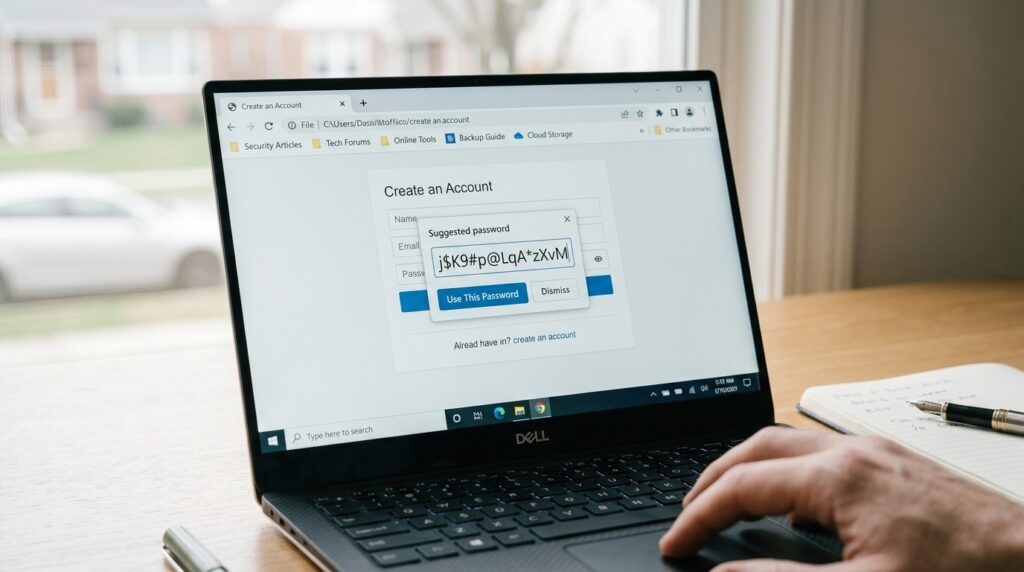
An auto generate password prompt usually appears on its own. It shows up the moment your browser or phone recognizes a signup or password change form, without you clicking anything first. This automatic behavior is different from opening a standalone generator yourself. Knowing the difference explains why the suggestion sometimes shows up and sometimes does not. This guide covers where these automatic prompts come from and why they occasionally fail to appear. It also covers when accepting one makes sense versus generating your own instead.
You will find how automatic suggestions actually get triggered and what happens once you accept one. There are also the mistakes that undo the convenience this feature is supposed to provide.
Where Automatic Password Suggestions Actually Come From
Modern browsers scan a page’s form fields looking for patterns that match a typical signup or password change screen. When it recognizes one, it offers to generate a password automatically. This suggestion appears right above the field itself, without any separate tool needed. Phones do something similar at the operating system level, often across every app rather than just a browser tab. This is why an auto generate password prompt can show up during a mobile app signup just as easily as on a website.
This detection happens through standard code patterns that most legitimate signup forms already use. A site built with unusual or nonstandard form fields sometimes confuses this detection. That confusion is exactly why an auto generate password option occasionally fails to show up, even on a normal looking signup page. Nothing about the site is necessarily broken. It simply falls outside what the automatic detection process expects to see.
Why an Auto-Generated Suggestion Sometimes Does Not Appear
A missing prompt usually comes down to one of a few causes. The site’s form field might not follow the standard pattern your browser or phone expects, which breaks the automatic detection process entirely from the start. The feature itself might also be turned off somewhere in your settings, often without you remembering you disabled it weeks or months earlier. Either cause produces the same practical result, since no automatic suggestion appears at all in either situation.
When this happens, falling back to a standalone password generator solves the problem immediately, without waiting on any browser fix. Copy the result into the field manually, then save it right away into whichever password manager you actually use day to day. The outcome ends up identical either way, just with one small extra manual step involved instead of an automatic one requiring no input. Neither path leaves the actual password any weaker than the other.
When to Accept the Suggestion vs Generate One Yourself
Accepting the automatic suggestion works well when it already meets your own length and character preferences. It saves you a step with no real downside. This covers the vast majority of everyday signups without any extra thought required at all, since most sites happily accept whatever a modern browser or phone suggests by default. There is little reason to second guess a suggestion that already fits what you need without any obvious problems at all.
Generating your own becomes truly worthwhile in a couple of fairly common situations worth knowing about. A site might have unusual character restrictions the automatic suggestion does not account for. You might also specifically want a passphrase instead of a character string. A standalone generator gives you that control directly, rather than accepting whatever fixed format the automatic system happens to default to. That extra control costs only a few seconds more of your time.
What Happens Behind the Scenes When You Accept One
Accepting an automatically generated password saves it into your browser’s or device’s built in password manager immediately. That entry then syncs across other devices signed into the same account, assuming sync has been properly enabled on each individual one. Most people never notice this happening at all, since the whole process works quietly in the background without any visible prompt. It simply appears the next time you visit that same site.
This convenience comes with a real tradeoff worth understanding before you rely on it too heavily. The password becomes tied to that specific ecosystem, whether that means a particular browser account, a phone’s operating system, or a specific signed-in profile. Switching primary devices or browsers later sometimes means spending real time tracking down passwords that were saved this way. They end up stored separately from anything kept in a dedicated password manager. Knowing this upfront saves confusion the day you actually need to find one.
Common Mistakes With Auto-Generated Passwords
These mistakes tend to happen because people trust the automatic system completely, without ever double checking what it actually produced behind the scenes.
- Accepting the suggestion without checking it actually meets the target site’s specific length or character rules.
- Ending up with passwords split across a browser’s built in manager and a separate password manager entirely, with no single place left to find them all.
- Assuming an automatically generated password is always the strongest possible option, without ever checking its actual length and randomness directly.
- Forgetting that automatic suggestions tie to a specific account or device, making them harder to find after switching either one.
Watching for these patterns turns a convenient feature into a truly reliable one, rather than something that quietly causes problems later.
Checking the result once, right after accepting it, catches most of these problems before they become a real headache later, right when the account actually starts to matter.
How Mobile Devices Handle This Differently Than Browsers
iOS and Android both offer an auto generate password option built directly into the operating system itself, which works across nearly every app rather than just a browser. This means the suggestion can appear during an app signup just as easily as on a website. The operating system itself handles the detection rather than any single browser or app. This consistency is one of the more convenient parts of the mobile experience.
The tradeoff here closely mirrors the browser version described earlier in this guide, just applied to a phone instead. A password generated this way saves into that phone’s built in credential system, tied to your Apple or Google account rather than a specific app. Finding it later means checking your phone’s password settings directly, rather than searching for it within the specific app itself. That single settings menu covers every app on the device, not just the one you were using at the time.
Frequently Asked Questions
Why does my browser sometimes offer to generate a password automatically?
It recognizes the signup or password change form based on standard patterns most sites already use. When those patterns are missing or nonstandard, the automatic suggestion may not appear at all.
Is an automatically generated password as strong as one from a standalone generator?
Usually yes, since both rely on the same basic principle of random character selection under the hood. Checking the actual length is still worth doing, since defaults vary between browsers and systems.
What should I do if the auto generate option does not show up?
Use a standalone password generator instead and paste the result into the field manually yourself. The outcome is the same either way, just with one extra step.
Where do automatically generated passwords get saved?
They save into your browser’s or device’s built in password manager by default. This may be separate from a third party password manager you also use, so it is worth checking both locations if you cannot find one.
Can I turn off automatic password suggestions?
Yes, this setting usually lives in your browser’s or phone’s password or autofill settings menu. Turning it off means you will need to generate passwords manually going forward from that point on.
Should I check if my saved passwords have been exposed in a breach?
Yes, checking a resource such as Have I Been Pwned takes only a few seconds. This is worth doing periodically, regardless of how the password was originally generated or where it currently lives.
Let Automation Help, But Stay in Control
Automatic password suggestions save real time and remove a small but meaningful amount of friction from everyday account signups. They work best when you understand exactly where they come from and know what to do whenever they do not appear as expected. A standalone generator remains a reliable fallback whenever the automatic option falls short or fails to appear at all. Neither approach is wrong, and switching between them as needed is perfectly reasonable to do depending on the situation you find yourself in at that particular moment.
Try this password generator right now whenever an automatic suggestion is not available or does not fit your needs. For more on how length affects strength, see Is a 12 Character Password Actually Long Enough Today. If you would rather generate a passphrase instead, The Passphrase Trick That Makes Passwords Easy to Recall covers that option in full detail right now.