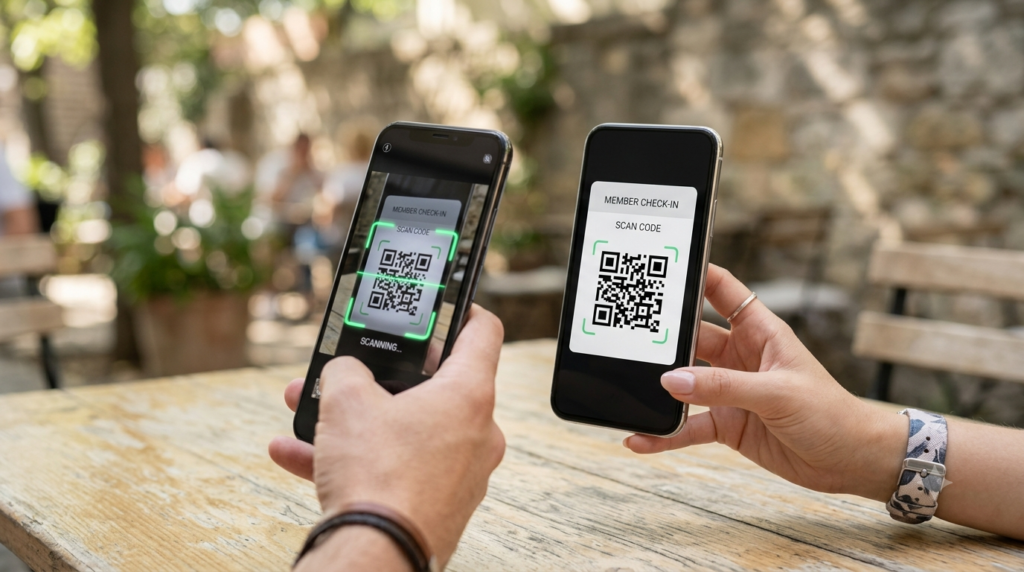
Snapchat’s QR code system — officially called a Snapcode — is one of the most straightforward ways to add someone on the platform without searching for their username. You scan their code, the app recognises their profile, and the friend request goes out in under three seconds. The trick is knowing exactly where to find your own code and how to scan one from a screenshot when you cannot point the camera at a physical surface.
Here is everything you need to know about Snapchat QR codes on both iPhone and Android.
What Is a Snapchat QR Code?
A Snapcode is Snapchat’s proprietary QR code format. It uses a distinctive ghost-shaped design surrounded by small dots rather than the traditional black and white square module pattern. Despite the custom visual style, it functions the same way as a standard QR code — the Snapchat app reads the dot pattern and identifies the associated profile or content.
Every Snapchat account has its own unique Snapcode linked to that profile. Scanning someone’s Snapcode adds them as a friend directly without requiring you to know or search for their username. Snapchat also uses Snapcodes for other purposes including linking to websites, unlocking lenses, and sharing group chats.
How to Find Your Snapchat QR Code
Your personal Snapcode lives in two places within the Snapchat app.
From Your Profile Screen
- Open Snapchat and tap your Bitmoji or profile icon in the top left corner of the camera screen
- Your profile page opens — your Snapcode appears near the top of the screen beneath your display name and username
- Tap the Snapcode to expand it to full screen
- From the expanded view, tap the share icon or press and hold the code to save it to your camera roll
From the Add Friends Screen
- Tap your profile icon, then tap Add Friends
- Select Share Username or look for the QR code option
- Your Snapcode appears alongside sharing options for other platforms
Both methods reach the same Snapcode. The profile screen route is faster for most people since it requires fewer taps.
How to Scan a Snapchat QR Code
Snapchat’s built-in camera handles Snapcode scanning directly. You do not need a separate QR code app.
Scanning a Physical Snapcode
- Open Snapchat and go to the camera screen
- Point the camera at the Snapcode
- Press and hold on the Snapcode on your screen
- Snapchat recognises the code and shows a preview of the profile
- Tap Add Friend to send the friend request
How to Scan a Snapchat QR Code from a Screenshot or Camera Roll
This is the most commonly searched Snapchat QR question — and the answer is simpler than most people expect.
- Open Snapchat and go to the camera screen
- Press and hold anywhere on the camera screen to open the snap selection screen, or tap the small image thumbnail in the bottom left corner
- Find and select the screenshot containing the Snapcode from your camera roll
- Snapchat scans the image automatically and recognises the Snapcode
- The profile preview appears — tap Add Friend to connect
Alternatively, open the screenshot in your camera roll, then switch back to Snapchat and point the camera at the screen displaying the image. The camera scan method works but requires good screen brightness and a steady hand. The direct camera roll method is more reliable.
How to Add a Snapchat QR Code to Your Home Screen
Keeping your Snapcode on your home screen as a widget or saved image means you can show it to someone instantly without opening the app and navigating to your profile. Here is how to do it on both platforms.
On iPhone
- Open your Snapcode from the profile screen and save it to your camera roll
- Open the saved image in Photos
- Set it as a wallpaper, or add a Photos widget to your home screen that displays the image
- For a more direct approach, save the image to your Files app and use a shortcut or widget that opens it immediately
On Android
- Save the Snapcode image to your gallery
- Long-press the home screen and select Widgets
- Add a photo widget that displays the saved Snapcode image
- Resize the widget so the code is large enough for someone to scan comfortably from a phone screen
A displayed Snapcode needs adequate size and screen brightness for scanning. At a minimum, the code should fill at least a third of the phone screen when displayed for someone else to scan.
How to Share Your Snapchat QR Code
Beyond showing it in person, your Snapcode works across multiple sharing channels.
- Save and send: Download the Snapcode image and send it via iMessage, WhatsApp, email, or any messaging platform. The recipient can scan it from their screen.
- Add to Instagram or other social profiles: Post your Snapcode as a story or post to let followers add you on Snapchat without searching for your username.
- Print on materials: Add your Snapcode to business cards, flyers, or event materials for in-person contexts where growing your Snapchat following is a goal.
- Embed in email signature: Adding the image to an email signature gives every email recipient a one-scan path to adding you on Snapchat.
For print use, save the Snapcode at the highest available resolution before placing it in a design. A Snapcode printed below 2 cm square becomes difficult to scan reliably. For general guidance on QR code sizing across different print formats, the QR code size guide covers the minimum dimensions for every use case.
Snapchat QR Code for a Website Link
Snapchat lets you create a Snapcode that links to a website rather than a profile. When someone scans it, the Snapchat app opens the URL directly within its built-in browser. This feature is available through Snapchat’s creator and business tools for accounts that qualify.
For a standard website QR code that works outside the Snapchat ecosystem — on printed materials, packaging, or any surface where people may not have Snapchat installed — a regular URL QR code serves the purpose better. The QR code generator creates fully customised URL codes with any design style, logo, and high-resolution download for print or digital use.
Does Snapchat Scan Regular QR Codes?
Yes. Snapchat’s camera can scan standard QR codes as well as Snapcodes. Open the camera screen, point it at a regular QR code, and press and hold. Snapchat reads the code and opens the linked URL within its in-app browser.
This makes Snapchat a functional general QR code scanner for users who prefer not to switch between apps. The limitation is that it works best for URL-based codes. Content types like WiFi credentials, contact cards, and plain text may not trigger the expected response through Snapchat’s scanner.
Frequently Asked Questions
Where is my Snapchat QR code?
Open Snapchat and tap your profile icon in the top left corner of the camera screen. Your Snapcode appears on your profile page beneath your display name. Tap it to expand it to full screen, then save it to your camera roll or share it directly from that screen.
How do I scan a Snapchat QR code?
Open Snapchat and go to the camera screen. Point the camera at the Snapcode and press and hold on the code on your screen. Snapchat recognises it and shows the profile preview. Tap Add Friend to send the friend request.
How do I scan a Snapchat QR code from my camera roll?
Open Snapchat, go to the camera screen, and tap the small image thumbnail in the bottom left corner to open your camera roll. Select the screenshot containing the Snapcode. Snapchat scans the image automatically and recognises the code without needing to point the camera at a screen.
Can I scan a Snapchat QR code from a photo or screenshot?
Yes. Open Snapchat’s camera screen, access your camera roll through the thumbnail in the bottom left corner, and select the photo containing the Snapcode. Snapchat reads the code from the saved image directly.
How do I save my Snapchat QR code to my phone?
Open your profile in Snapchat, tap the Snapcode to expand it, then press and hold the code or tap the share icon to save it to your camera roll. From there you can share it, print it, or add it to a home screen widget.
Can Snapchat scan regular QR codes?
Yes. Snapchat’s camera reads standard QR codes as well as Snapcodes. Open the camera, point it at a regular QR code, and press and hold to scan. Snapchat opens the linked URL in its in-app browser. It works most reliably for URL-based QR codes.
How do I add a Snapchat QR code to my home screen?
Save your Snapcode to your camera roll, then use a photo widget on your home screen to display it. On Android, long-press the home screen, select Widgets, and add a photo widget set to show the saved Snapcode image. On iPhone, add a Photos widget or set the Snapcode as a wallpaper for quick access.
The Fastest Way to Add Someone
A Snapcode removes every step between meeting someone and connecting with them on Snapchat. Show your code, they scan it, friend request sent. Or share the image and they scan from their camera roll at any point after. Either way, the process takes a few seconds rather than a username search that might return the wrong account.
For printed materials where you want to drive Snapchat follows alongside other contact details, the QR code generator creates a custom URL QR code in your brand style that works across all platforms — not just Snapchat. And for sizing guidance on any printed QR code, the QR code size guide covers minimum dimensions for every format.