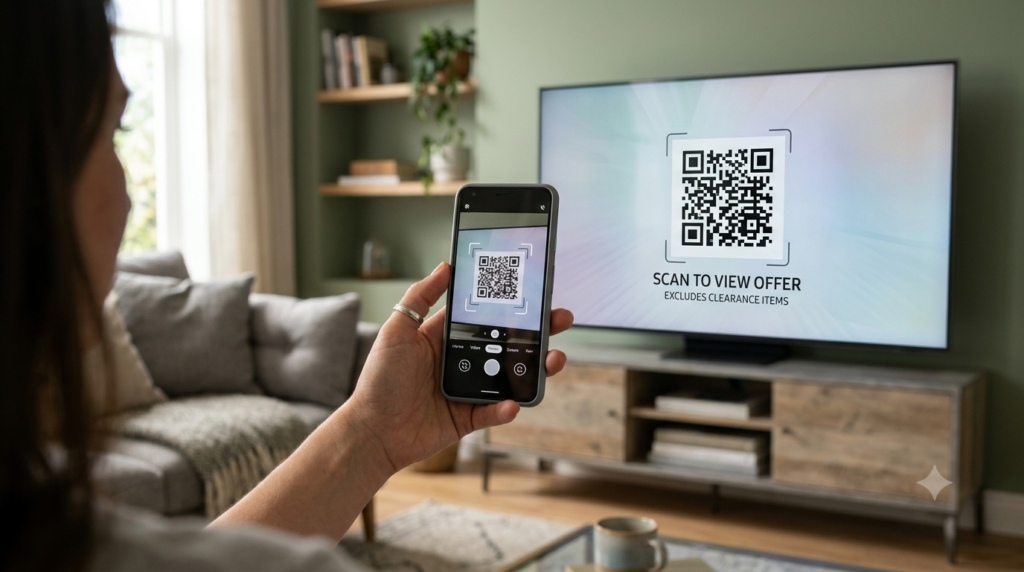
You open a streaming service on your TV, and instead of asking you to type a password with a remote control — one of the most frustrating experiences in modern technology — it shows you a QR code. You scan it with your phone, tap confirm, and the TV logs in instantly. That is QR code login in its most satisfying form, and it works across far more platforms than most people realise.
Here is how QR code login works, which platforms support it, and what to do when the code does not scan or expires before you can use it.
How Does QR Code Login Work?
QR code login works through a process called device authentication. The device you want to log into — a TV, a console, a second computer — generates a temporary QR code that contains a unique session token. When you scan that code with a phone or tablet where you are already logged in, your authenticated session confirms the login on the other device.
The process transfers authentication between devices without requiring you to enter credentials on the device with limited input capability. Your phone acts as the trusted authenticator, and the QR code is the bridge between the two devices. Most login QR codes expire after a short window — typically 60 to 300 seconds — to prevent someone else from using the same code if the screen is visible to others.
This is a fundamentally different use case from a marketing QR code that links to a website. Login QR codes carry a session token rather than a URL, and they work only within the platform’s own app ecosystem. Scanning a login QR code with a generic camera app or QR reader typically opens a regular URL or shows an error rather than completing the login.
Prime Video QR Code Login
Amazon Prime Video uses QR code login when you open the app on a smart TV or streaming device for the first time, or after signing out. The TV displays a QR code alongside a registration code as an alternative.
To log in with the QR code:
- Open the Prime Video app on your TV or streaming device
- Select Sign In and then QR Code if prompted, or wait for the code to appear on the welcome screen
- Open the Amazon Shopping app or Prime Video app on your phone or tablet where you are already signed in
- Tap the camera or scan icon within the app and point it at the TV screen
- Confirm the sign-in prompt on your phone and the TV logs in automatically
If the QR code expires before you complete the steps, refresh it by selecting Get New Code or restarting the sign-in flow on the TV. Scanning the expired code produces an error rather than completing the login.
Outlook QR Code Sign In
Microsoft Outlook on desktop and the Microsoft Authenticator app support QR code-based sign-in as part of Microsoft’s passwordless authentication system. The flow works slightly differently depending on whether you are adding a new account or signing in to an existing session.
For adding a work or school Microsoft account to the Authenticator app:
- Open Microsoft Authenticator on your phone and tap the + icon to add an account
- Select Work or school account, then Scan QR code
- On your computer, go to your Microsoft account security settings and follow the steps to set up the Authenticator app — a QR code appears on screen
- Scan the code with Authenticator on your phone to link the account
For passwordless sign-in to Outlook or other Microsoft 365 services, the Authenticator app generates a one-time approval notification rather than displaying a QR code on the service itself. The QR code appears primarily during the initial account setup phase.
Steam QR Code Login
Steam introduced QR code login as a convenient option for signing into the Steam desktop client when you already have the Steam Mobile app on your phone.
- Open the Steam desktop client and click Sign In
- Select Sign in with QR code at the bottom of the login screen
- A QR code appears on the desktop client
- Open the Steam Mobile app on your phone — you must already be signed in
- Tap the Steam Guard icon in the app and select Scan QR code
- Point your phone at the desktop QR code and confirm the login prompt on your phone
Steam’s QR code login requires the Steam Mobile app specifically. A generic QR code scanner does not complete the authentication step — it only reads the URL embedded in the code, which goes to a Steam web page rather than triggering the login.
PlayStation QR Code Sign In
PlayStation Network supports QR code sign-in on PS4 and PS5 consoles through the PlayStation App on your phone.
- On your PlayStation console, go to Settings, then Users and Accounts, then Sign In
- Select Sign In with QR Code if the option appears
- Open the PlayStation App on your phone and navigate to the sign-in or account section
- Use the scan feature within the PlayStation App to scan the code on the TV
- Confirm the sign-in on your phone to complete the process
As with other platform QR logins, the PlayStation App needs to be already authenticated on your phone for the QR sign-in to work. The QR code transfers the session — it does not initiate a fresh login from scratch.
Google Gmail QR Code Sign In
Google supports QR code-based sign-in as part of its passkey and cross-device authentication system. When signing into a Google account on a new device or browser, Google sometimes offers a QR code option that lets you authenticate using your phone.
- Start the sign-in process on the new device or browser and enter your Google account email
- When prompted for verification, look for the option to use a phone or QR code
- A QR code appears on the new device’s screen
- Open your phone’s camera or Google’s built-in QR scanner and scan the code
- A prompt appears on your phone asking you to confirm the sign-in — tap Yes, it’s me to complete it
This method works as part of Google’s two-step verification system and appears most commonly when signing in from an unrecognised device or browser.
QR Code TV Login: General Troubleshooting
QR code login failures across all platforms usually come down to a small number of causes.
- Expired code: Most login QR codes expire within one to five minutes. If too much time passes between the code appearing and you scanning it, the code becomes invalid. Refresh it by restarting the sign-in flow on the device.
- Wrong app used to scan: Login QR codes require the platform’s own app to authenticate correctly. Using a generic camera app or third-party QR reader reads the code but cannot complete the login step.
- Not logged in on the scanning device: The authentication transfer only works if you are already signed into the platform on your phone. Logging in to the phone app first resolves this.
- Poor scan quality: Low TV brightness, screen glare, or holding the phone at an angle can make the scan fail. Increase TV brightness, reduce room lighting if possible, and hold the phone parallel to the screen rather than at an angle.
- Account mismatch: On shared devices, confirm that the account signed in on your phone matches the one you intend to log into on the TV or computer.
Using QR Codes for Two-Factor Authentication
Beyond device login, QR codes play a central role in setting up two-factor authentication (2FA) across most platforms. When you enable an authenticator app — Google Authenticator, Microsoft Authenticator, Authy, or similar — the platform displays a QR code during setup that you scan with the authenticator app to link your account.
This QR code contains the secret key that the authenticator app uses to generate time-based one-time passwords (TOTP). Scanning it once during setup is all that is required — the app stores the key and generates codes from that point forward. If you switch phones, you need to scan the setup QR code again from the platform’s security settings, or use your authenticator app’s backup transfer feature.
Keep a copy of the backup codes that most platforms provide during 2FA setup. These codes let you recover account access if your phone is lost and you cannot scan the QR code again.
For a broader look at QR code security and how to identify legitimate versus fraudulent codes in login and authentication contexts, the are QR codes safe guide covers the full security picture.
Creating Your Own Login or Authentication QR Code
If you build web applications or services that require device pairing or authentication, QR code-based login is a well-established pattern that significantly improves user experience on devices with limited input capability. The technical implementation uses a session token encoded as a URL that your backend validates when scanned.
For simpler use cases — such as generating a QR code that links to a login page, a registration form, or an app download — the QR code generator handles URL encoding with full design customisation and high-resolution download for any platform or print context.
Frequently Asked Questions
How does QR code login work?
QR code login uses a temporary session token encoded in the code. The device you want to sign into generates the QR code. When you scan it with your phone — where you are already logged in — your authenticated session confirms the login on the other device. The QR code bridges the two devices without requiring you to type credentials on the target device.
How do I use the Prime Video QR code login?
Open Prime Video on your TV and select the QR code sign-in option. Open the Amazon Shopping or Prime Video app on your phone, use the scan feature within the app to scan the TV screen, and confirm the sign-in prompt. The TV logs in automatically without requiring a password entry on the TV itself.
Why is my QR code login not working?
The most common causes are an expired code, using the wrong app to scan, not being logged in on the scanning device, or poor scan quality from screen glare or low brightness. Refresh the code by restarting the sign-in flow, use the platform’s own app rather than a generic scanner, and ensure your phone is already signed into the platform before scanning.
Can I use a QR code to sign into Steam?
Yes. The Steam desktop client offers a QR code sign-in option on the login screen. Open the Steam Mobile app on your phone, tap the Steam Guard icon, select Scan QR code, and point your phone at the desktop QR code. Confirming the prompt on your phone completes the sign-in.
How long does a login QR code last?
Most login QR codes expire within 60 to 300 seconds. The exact duration varies by platform. If the code expires before you scan it, refresh it by restarting the sign-in flow on the device showing the code.
What is a QR code used for in two-factor authentication?
In two-factor authentication setup, a QR code contains the secret key that links your account to an authenticator app. Scanning it once during setup allows the app to generate time-based codes for future logins. You only need to scan the setup QR code once — the authenticator app stores the key and generates codes automatically from that point.
The Easiest Login You Will Ever Do
QR code login removes the most painful part of authenticating on a TV, console, or shared device — typing credentials with a remote or unfamiliar keyboard. Once you have the right app on your phone and you know where to find the scan option, the whole process takes under ten seconds.
For marketers and developers who want to create their own QR codes for app downloads, registration pages, or campaign landing pages, the QR code generator builds fully customised, high-resolution codes for any destination. And if you want to understand the security side of QR codes in authentication and login contexts, the are QR codes safe guide explains exactly what to trust and what to watch out for.