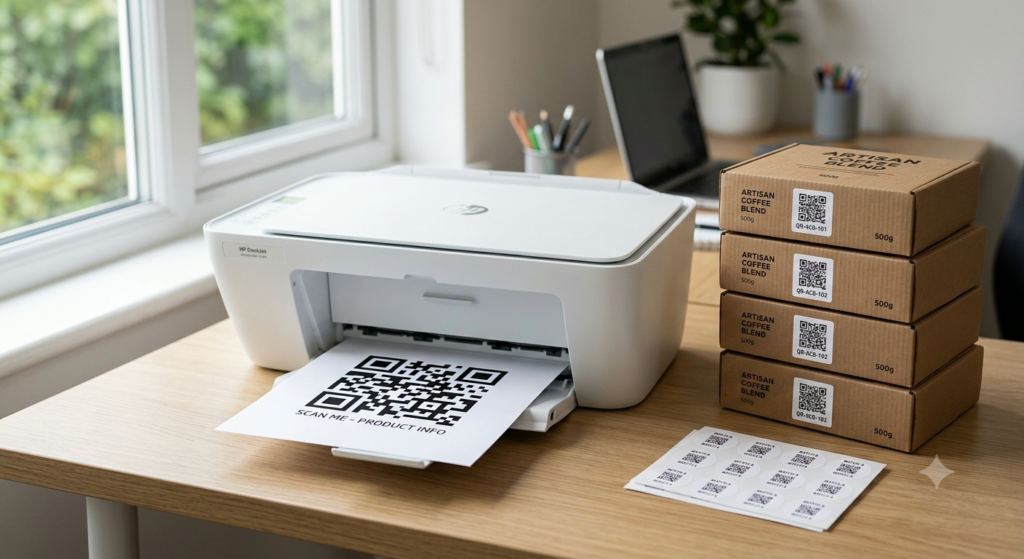
Generating a QR code takes two minutes. Printing it correctly takes a bit more thought. Get the resolution wrong and the code blurs. Choose the wrong surface and the scanner struggles. Skip the quiet zone and nothing works at all. This guide covers every printing method — paper, stickers, shirts, wood, metal, 3D printing, and laser engraving — with the specific settings that make each one work reliably.
Before You Print: Get the File Right
The single most important step happens before anything reaches a printer. Download your QR code in the right file format and at the right resolution for the surface you are printing on.
For any printed use, download as SVG or high-resolution PNG. SVG is a vector format that scales to any size without losing sharpness — it is the best choice for professional print work. PNG at a large pixel size works well for smaller formats like business cards and flyers. Never use JPG for QR codes. JPG compression softens the sharp module edges that scanners depend on, and even a slight blur can cause scan failures on smaller prints.
For print resolution, target a minimum of 300 DPI at the final printed size. A PNG downloaded at 500 x 500 pixels prints cleanly at roughly 4 x 4 cm at 300 DPI. For anything larger, scale up the pixel dimensions proportionally or use SVG to sidestep the resolution issue entirely.
The QR code generator on ToolsHash lets you download your code as SVG or high-resolution PNG with custom dimensions before saving — the right starting point for any print project.
How to Print a QR Code on Paper
Printing a QR code on standard paper is the most straightforward scenario. Place your downloaded QR code file into your document or design software, size it appropriately for the context, and print at the highest quality setting your printer supports.
A few things worth checking before printing:
- Set print quality to the highest available setting, not draft or economy mode
- Make sure the quiet zone — the white border around the code — is fully intact and not cropped by margins or design elements
- Print a test page first and scan it before printing the full quantity
- Use laser printing rather than inkjet where possible — laser produces sharper module edges, which matters most at small sizes
For home printing, inkjet works adequately for sizes above 3 x 3 cm on standard paper. Below that size, laser printing or professional printing services produce more reliable results.
How to Print QR Code Stickers
QR code stickers are one of the most versatile print formats — they go on packaging, products, windows, equipment, and anything else with a flat surface. Printing them well requires attention to both the printer type and the sticker material.
For small batches at home, use a laser printer with sticker label sheets designed for laser printing. Inkjet sticker paper exists but smears easily and produces softer edges. For larger quantities, professional label printing services and online print shops produce significantly better results with weather-resistant laminate options.
A dedicated QR code sticker printer — a compact thermal or label printer — is worth considering if you print QR code stickers regularly. Thermal label printers produce crisp, durable output without ink cartridges and work directly from most QR code tools. KD on this category is very low, which reflects genuine demand from small business owners and product sellers who print stickers in-house.
For a deeper look at QR code stickers specifically — including size options, material choices, and placement tips — the QR code stickers guide covers the full picture.
How to Print a QR Code on a Shirt
Printing a QR code on a t-shirt or other fabric requires a transfer method that preserves the sharp edges of the modules through washing and wear. Three methods work reliably for fabric.
Screen Printing
Screen printing produces the most durable fabric QR codes. Professional screen printers can handle QR codes provided you supply a high-contrast, high-resolution file and specify a minimum module size that survives the printing process. For screen printing, keep the QR code at least 5 x 5 cm to ensure individual modules remain distinct after printing.
Heat Transfer Vinyl (HTV)
HTV involves cutting the QR code design from vinyl sheet using a cutter plotter and heat pressing it onto fabric. This method works for single items or small runs and produces clean, durable results. Because HTV requires cutting each module individually, simpler QR codes with fewer modules work better than complex high-data codes.
Direct to Garment (DTG)
DTG printing applies ink directly to the fabric surface using a specialised printer. It handles complex designs well and suits small quantities without setup costs. For QR codes specifically, use a high-contrast colour scheme and print at the largest practical size since DTG can introduce slight texture variation that affects very small modules.
After printing on fabric, test the code by scanning before washing. Then wash the garment and test again. Heat transfer and DTG prints sometimes shift slightly after the first wash, and catching that before distributing or wearing the item saves embarrassment.
3D Printed QR Codes
3D printing a QR code creates a physical, raised or recessed version of the pattern that works as a tactile object — a keychain, a sign, a decorative element, or a functional code embedded into a product or packaging prototype.
For a scannable 3D printed QR code, two factors determine success: contrast and module size. Raised modules on a flat base scan reliably when the contrast between the two surfaces is strong enough for a camera to read. Painting the raised modules dark against a light base, or vice versa, increases contrast significantly and improves scan reliability.
Module size matters more in 3D printing than in flat print. Individual modules need to be at least 2 to 3 mm square to remain distinguishable after printing. Most consumer-grade 3D printers handle this comfortably at a total code size of 5 x 5 cm or above. STL files for 3D printed QR codes can be generated using dedicated 3D QR code generator tools that convert a standard QR pattern into a printable 3D model.
Laser Engraved QR Codes
Laser engraving burns or etches the QR code pattern directly into wood, metal, leather, acrylic, or other hard surfaces. The result is a permanent, high-contrast code that requires no ink and withstands physical wear extremely well.
For laser engraving, use a vector SVG file rather than a raster image. The laser cutter reads vector paths precisely, producing clean module edges without the pixel-level imprecision that comes from raster files. Set the engraving depth and power settings to achieve strong visual contrast between the engraved and unengraved surface — the greater the colour or texture difference between the two, the more reliably the code scans.
Wood engraving produces natural contrast as the burned areas darken against the lighter wood surface. Metal engraving sometimes requires a contrast-enhancing finish — a light paint or powder coat applied after engraving — to create enough difference for scanners to read the pattern reliably.
QR Code on Wood and Other Materials
Beyond laser engraving, QR codes transfer to wood through direct printing with a UV flatbed printer, vinyl sticker application, or wood burning by hand for decorative applications. UV flatbed printing produces photographic-quality output directly on wood surfaces and suits signage, furniture labels, and branded wooden products.
For glass, acrylic, and metal surfaces, UV printing and vinyl sticker application both work reliably. Etching works on glass and acrylic using chemical or laser methods. For all non-paper surfaces, always test the finished code in its actual environment — lighting conditions, viewing angle, and surface reflection all affect scan reliability in ways that are difficult to predict without testing.
How to Print a QR Code Using Vistaprint or a Print Shop
For business cards, flyers, posters, and branded materials in larger quantities, professional print shops deliver results that are difficult to match with home printing. Vistaprint, Moo, and similar services accept QR codes in design files directly, provided you supply them at 300 DPI or higher.
When ordering through a print shop, always request a physical proof before approving the full print run. Scan the proof on multiple devices and in different lighting conditions before confirming. A proof that looks fine on screen can reveal resolution or colour issues that only appear on the actual printed surface.
Frequently Asked Questions
How do I print a QR code at home?
Download your QR code as SVG or high-resolution PNG, place it in your document at the desired size, and print at the highest quality setting on your printer. Laser printers produce sharper edges than inkjet at small sizes. Always print a test copy and scan it before printing the full quantity.
What is the best file format for printing a QR code?
SVG is the best format for printing because it scales to any size without resolution loss. PNG at a large pixel size works well for smaller formats. Avoid JPG, which uses lossy compression that softens module edges and causes scan failures.
Can I 3D print a QR code?
Yes. A 3D printed QR code uses raised or recessed modules on a flat base to create a scannable physical pattern. For reliable scanning, keep individual modules at least 2 to 3 mm square and ensure strong visual contrast between the module surface and the base. Painting the raised modules significantly improves scan performance.
Can I laser engrave a QR code?
Yes. Laser engraving works on wood, metal, leather, acrylic, and many other hard surfaces. Use an SVG vector file for the cleanest engraved edges. On materials where the engraved contrast is low, applying a contrast-enhancing finish after engraving helps scanners read the pattern more reliably.
How do I print a QR code on a shirt?
Screen printing, heat transfer vinyl, and direct to garment printing all work for fabric QR codes. Use a minimum size of 5 x 5 cm, choose high contrast colours, and test the code after printing and again after the first wash. DTG printing suits small quantities without setup costs.
What resolution does a QR code need for printing?
A minimum of 300 DPI at the final printed size. For a 5 x 5 cm print, that means at least 591 x 591 pixels in PNG format. For anything larger, use SVG to avoid resolution constraints entirely.
What size should a QR code be when printed?
The minimum reliable size for everyday scanning is 2.5 x 2.5 cm. For posters and signs scanned from a distance, scale up using the 1:10 rule — the code should be at least one tenth of the scanning distance. For detailed size guidance across every use case, the QR code size guide covers every format with recommended dimensions.
Print It Right the First Time
The difference between a QR code that scans reliably every time and one that fails half the time usually comes down to three things: the right file format, the right resolution, and a test scan before committing to the full print run. Get those three right on any surface — paper, sticker, fabric, wood, metal, or plastic — and the rest follows.
Start by generating your code at the right quality. The QR code generator gives you SVG and high-resolution PNG download options with full design control, so your code arrives at the printer in exactly the right shape for whatever surface you are printing on.