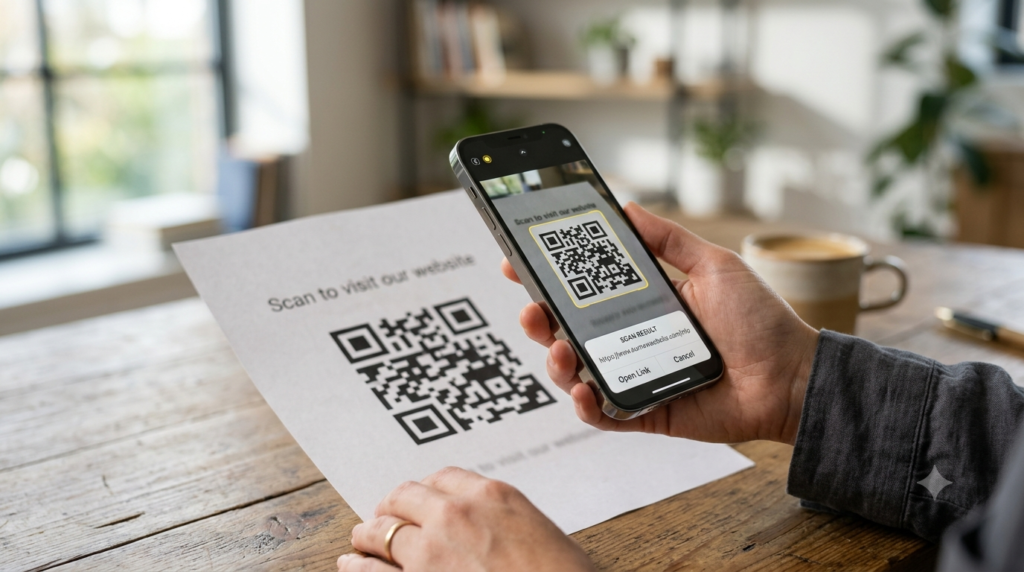
Sometimes you cannot just point a camera at a QR code. The code is in a PDF someone sent you. It is in a screenshot saved to your phone. It is in an image file on your computer and you need to know where it goes before clicking anything. In all of those situations, scanning does not work — decoding does.
Decoding a QR code means extracting the data stored inside it without a live camera scan. Here are the fastest ways to do it on any device, plus how to understand what the result actually tells you.
What Does Decoding a QR Code Mean?
When you decode a QR code, you extract the raw data encoded in its pattern. That data could be a URL, a plain text message, a phone number, an email address, WiFi credentials, contact information, or any other supported data type. Decoding reveals exactly what the code contains before you act on it.
Most people decode QR codes through scanning, where the camera reads the pattern in real time. Decoding from a saved image, screenshot, or file is the same process technically — the difference is that the input comes from a stored file rather than a live camera feed.
How to Decode a QR Code Online
The simplest method for decoding a QR code from an image on any device is an online QR code decoder tool. No app installation needed, and it works on both desktop and mobile browsers.
- Open an online QR code decoder in your browser
- Upload the image file containing the QR code, or paste the image URL if the code exists online
- The tool reads the pattern and displays the decoded content immediately
- Copy the URL or text result and use it as needed
Online decoders handle most common image formats including PNG, JPG, GIF, and WebP. For best results, use a clear, well-lit image where the QR code fills a reasonable portion of the frame. Blurry or very small codes sometimes fail to decode even with a good tool.
The QR code generator on ToolsHash includes both creation and reading capabilities, so you can decode a QR code from an uploaded image in the same place you generate new ones.
How to Decode a QR Code from a Screenshot
Decoding from a screenshot follows the same process as decoding from any image file. Save the screenshot to your device, then upload it to an online decoder. The tool locates the QR code within the image automatically and returns the decoded content.
On iPhone running iOS 16 or later, a faster built-in method works directly in the Photos app. Open the screenshot, tap and hold on the QR code within the image, and a contextual menu appears with options to open the link or copy it. This approach skips the browser entirely on supported devices.
On Android, Google Lens handles the same task. Open Google Lens, select the screenshot from your gallery, and Lens identifies the QR code and presents the decoded result. Both methods work without uploading anything to an external service.
How to Decode a QR Code from a PDF
Decoding a QR code embedded in a PDF requires one extra step: extracting the code as an image first. Take a screenshot of the PDF page showing the QR code, then use any of the methods above to decode it from the saved screenshot. Alternatively, use the snipping or screenshot tool on your computer to capture just the QR code portion of the PDF, save it as a PNG, and upload it to an online decoder.
On Mac, Command + Shift + 4 lets you select a specific area of the screen to screenshot. On Windows, the Snipping Tool or Windows + Shift + S does the same. Either produces a clean image file ready for uploading to a decoder tool.
How to Decode a QR Code on iPhone
iPhone offers three methods depending on what you need.
From a Live Physical Code
Open the Camera app, point it at the QR code, and tap the notification banner that appears. This is the standard scanning method covered in more detail in the how to scan a QR code guide.
From a Saved Image (iOS 16+)
Open the image in Photos, tap and hold on the QR code, and select the action from the menu that appears. iOS reads the pattern directly from the image without needing the camera.
From Any Image Using Google Lens
Open Google Lens on iPhone, tap the image icon to select from your photo library, choose the image containing the QR code, and Lens decodes it. This method works on all iPhone models regardless of iOS version.
How to Decode a QR Code on Android
Google Lens is the most reliable tool for decoding QR codes from saved images on Android. Open the Lens app or tap the Lens icon inside Google Photos, select the image from your gallery, and tap the QR code in the image. The decoded result appears as a tappable link or text.
For live scanning from a physical code, the built-in camera app handles decoding on most Android 8 and later devices automatically. Samsung devices include a dedicated QR scanner in the Quick Settings panel for faster access.
How to Decode a QR Code on a Computer
On a PC or Mac, the most practical method is uploading the image to an online QR code decoder in your browser. Most online tools work without creating an account and process the image in under a second.
For users who work with QR codes regularly on a computer, Google Lens in Chrome offers an additional option. Right-click any image on a webpage and select Search Image with Google Lens. If the image contains a QR code, Lens detects and decodes it as part of the visual search result.
To decode a QR code from a file saved on your computer, drag the image directly into the Google Images search bar, or upload it to an online decoder tool directly.
What the Decoded Result Actually Means
After decoding, the result tells you exactly what the QR code contains. Here is what different outputs indicate:
| Decoded output | What it means | What to do |
|---|---|---|
| A URL starting with https:// | Links to a secure website | Check the domain before visiting |
| A URL starting with http:// | Links to an unsecured website | Treat with extra caution |
| Plain text | Contains a message or information | Read and use as needed |
| WIFI:S:networkname; | WiFi connection details | Use to connect to the network |
| BEGIN:VCARD | Contact card information | Save to contacts |
| MAILTO:address | Pre-filled email link | Opens email compose window |
| SMSTO:number | Pre-filled SMS message | Opens messaging app |
| A short redirect URL | Dynamic QR code using a redirect | Check where the redirect leads before visiting |
Short redirect URLs — those that look like qr.io/abc123 or similar — indicate a dynamic QR code. The decoded URL is the redirect, not the final destination. To see the final destination, paste the redirect URL into a browser and observe where it sends you before entering any information.
How to Decode a QR Code Without Internet
Offline decoding requires a local app rather than a browser-based tool. Several QR scanner apps available on iOS and Android work without an internet connection since they decode the pattern locally on the device. The app reads the image, processes the pattern using built-in decoding logic, and returns the result without sending anything to a server.
For situations where privacy matters — such as decoding QR codes that might contain sensitive internal information — an offline app keeps the data entirely on your device. Check the app’s permissions before installing to confirm it does not require network access to function.
Frequently Asked Questions
What is a QR code decoder?
A QR code decoder is a tool that reads the pattern in a QR code image and extracts the data encoded within it. Unlike a live scanner that uses a camera in real time, a decoder processes a saved image file and returns the URL, text, or other content the code contains.
How do I decode a QR code from an image?
Upload the image to an online QR code decoder tool in your browser. The tool reads the pattern and displays the decoded content immediately. On iPhone (iOS 16+), you can also open the image in Photos and tap and hold on the QR code to read it directly. On Android, Google Lens reads QR codes from saved images in your gallery.
How do I decode a QR code from a PDF?
Take a screenshot of the PDF page showing the QR code, then upload the screenshot to an online decoder or use Google Lens. On Mac, use Command + Shift + 4 to capture just the QR code area. On Windows, use the Snipping Tool or Windows + Shift + S to do the same.
Can I decode a QR code without scanning it?
Yes. Online decoder tools process QR code images uploaded directly from your device without requiring a live camera scan. Google Lens on both iPhone and Android also decodes QR codes from saved images in your photo library.
How do I convert a QR code to text or URL?
Upload the QR code image to an online decoder. The tool extracts and displays the raw content — a URL, plain text, contact data, or other encoded information. Copy the result directly from the decoder output.
Why is my QR code not decoding?
The most common causes are a blurry or low-resolution image, a QR code that takes up too small a portion of the image, or a damaged pattern where too many modules are obscured. Try cropping the image so the QR code fills more of the frame, or use a higher-resolution version of the image if one is available.
Is it safe to use an online QR code decoder?
For most purposes, yes. Reputable online decoders process the image in your browser or on their server and return the decoded text. Avoid uploading images that contain sensitive personal or business data to unverified tools. For sensitive content, use an offline app that decodes locally on your device without sending anything to a server.
The Quick Version
For decoding a QR code from a saved image on any device, an online decoder tool in your browser is the fastest route with no setup required. On iPhone, the Photos app handles it natively from iOS 16. On Android, Google Lens covers it across all devices. For PDFs, take a screenshot first and decode from that.
If you need to create a QR code rather than decode one, the QR code generator builds fully customised codes for any content type with high-resolution download options. And if your QR code is failing to scan or decode, the QR code blurred guide covers every cause and fix in detail.