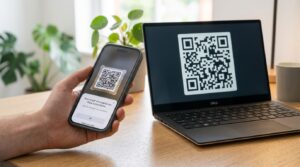
A flyer gets read for about three seconds. In those three seconds it either creates enough interest to prompt an action or it goes in the bin. The problem is that most flyers ask people to do something that requires more than three seconds. Call a number. Visit a website. Find the business online.
A QR code collapses that action into one second. Scan and land exactly where the flyer intends. No dialing, no typing, no searching.
But a QR code on a flyer is only worth something if people actually scan it. This guide covers what to link the code to, where on the flyer to place it, how large it needs to be, and how to make it fit the design.
What Should the QR Code on Your Flyer Link To?
The biggest mistake with QR codes on flyers is linking to the homepage of a website. The flyer was created for a specific purpose. The QR code should serve that same specific purpose. Not a general front page that makes the visitor search for what they were just promised.
Here is the right destination for every common flyer type:
- Event flyer: link directly to the booking or registration page, not the events homepage. Reduce the number of steps between scan and ticket.
- Restaurant flyer: link to the menu or the online ordering page. A hungry person who scans wants to see the food, not a welcome page.
- Retail promotion flyer: link to the specific product or offer page mentioned on the flyer. If the flyer promotes a 20% discount, the QR code should land on the discount page, not the shop homepage.
- Service business flyer: link to a booking form, a quote request form, or a contact page. Give the visitor a clear next step.
- Music or entertainment flyer: link to a preview track, a trailer, or a ticket sales page. A music flyer with a QR code linking to a Spotify playlist is far more compelling than one linking to a band website homepage.
- Charity or fundraising flyer: link directly to the donation page. Every click away from the donation button loses potential donors.
The principle is the same in every case. The QR code is a shortcut. It should take people exactly where the flyer is pointing, with no intermediate stops.
How to Create Your Flyer QR Code for Free
Creating the code takes under 60 seconds at toolshash.com. No account. No signup. Completely free.
- Go to toolshash.com/custom-qr-code-generator.
- Select Website / URL from the QR Type dropdown.
- Paste the destination URL. If you want to track how many people scan the flyer, add UTM parameters to the URL before pasting. For example:
https://yoursite.com/offer?utm_source=flyer&utm_medium=print&utm_campaign=summer_launch. For a full guide on tracking, see QR code tracking: how to know how many people scanned your code. - Customize the design to match your flyer’s color scheme. Match the foreground color to the dominant print color and keep the background white.
- Click Generate. Scan the preview with your phone. Confirm the right page opens.
- Download as SVG. SVG is a vector file that prints sharply at any size. You can scale it from a small corner element to a large central feature without any quality loss. Send the SVG to your designer or import it directly into your design software.
Create your flyer QR code free at toolshash.com
Where to Put the QR Code on a Flyer
Placement on a flyer is a design decision as much as a practical one. The QR code needs to be visible, scannable at the distance someone holds a flyer, and positioned so it does not compete with the main message.
Bottom right corner
The most common and most effective placement. The bottom right of a flyer is where the eye naturally ends up after reading down the page. Placing the QR code here with a short call-to-action line beneath it captures the reader at the moment they have finished taking in the message and are ready to act. It is out of the way of the headline and key visual but prominent at the decision point.
Bottom center
Centering the QR code at the bottom of the flyer gives it more visual weight than a corner placement. This works well when the QR code is the primary call to action on the flyer rather than a secondary option. A flyer for a music event where scanning to hear the music is the main purpose, for example, justifies a centered, larger code.
Alongside contact details
For service business flyers and leaflets, placing the QR code alongside the phone number and email address in the contact section works naturally. It gives the reader three ways to act: call, email, or scan. The QR code is the easiest of the three and will get more use.
Back of the flyer
For two-sided flyers, dedicating space on the back to a larger QR code with supporting context works well. “Scan to see our full menu,” “Scan to book directly,” or “Scan to watch the trailer” can have more copy and a larger code than fits naturally on the front.
How Large Does the QR Code Need to Be on a Flyer?
A flyer is typically held at arm’s length or slightly closer when being read. That is roughly 30 to 50cm from the eye to the page. For reliable scanning at that distance, the QR code needs to be at least 2.5cm x 2.5cm.
According to Denso Wave’s official printing guidelines, a QR code scans reliably at a distance of up to ten times its own width. A 2.5cm code scans from up to 25cm. A 3cm code scans from up to 30cm. At typical flyer reading distance, 3cm x 3cm is a comfortable minimum that leaves margin for older phone cameras and lower light conditions.
For A4 posters displayed on a wall and scanned from standing distance of 60 to 80cm, go larger. An 8cm x 8cm code is comfortable from that distance. For a poster visible from across a room, scale up further. The same SVG file works at all sizes.
Designing a QR Code That Fits the Flyer
A plain black and white QR code on a professionally designed flyer looks like it was added by a different person using a different tool. A code designed to match the flyer looks like it was always part of the concept.
Match the color to the flyer palette
Use the foreground color picker at toolshash.com to match the QR code to the dominant color in your flyer design. Enter the exact hex code from your brand palette for a precise match. Keep the background white or very light. Dark modules on a light background scan reliably in any lighting. For a full guide on color choices and contrast requirements, see can QR codes be different colors?
Add your logo for brand recognition
A QR code with your logo embedded in the center looks like it belongs to your brand rather than being a generic tool output. Upload the logo as a transparent PNG, set error correction to H (High), and keep the logo under 25% of the code area. See the full guide at how to add a logo to a QR code.
Choose a dot shape that matches the flyer aesthetic
Rounded or dots shapes give the QR code a softer look that sits well alongside most modern flyer designs. Square dots are cleaner for corporate or formal materials. The dot shape does not affect scannability, so choose based on what looks best with your design.
What to Print Next to the QR Code
A QR code with no context on a flyer gets scanned less often than one with a clear prompt. The text next to the code should do two things: tell people what will happen when they scan and give them a reason to do it now rather than later.
Prompts that convert well on flyers:
- Event flyer: “Scan to book your place. Limited availability.”
- Restaurant flyer: “Scan to see the full menu and book a table.”
- Retail flyer: “Scan to claim your 20% discount online.”
- Music flyer: “Scan to listen before you come.”
- Service business flyer: “Scan for a free quote. Takes 60 seconds.”
Keep the text to one line. A short specific prompt outperforms a long explanation every time. The scarcity signal in the event flyer example (“limited availability”) creates a reason to act now rather than later that a generic “scan here” does not.
Tracking Whether Your Flyer QR Code Is Working
A QR code on a flyer without tracking is a one-way street. You distribute, you hope, you never know. Adding UTM parameters to the destination URL before creating the QR code gives you visit data in Google Analytics that is attributed specifically to this flyer and this campaign.
Add ?utm_source=flyer&utm_medium=print&utm_campaign=[campaign-name] to your destination URL. If you distribute flyers in multiple locations, use a different utm_source value for each location to see which distribution point drove the most scans.
For the complete tracking setup guide, see QR code tracking: how to know how many people scanned your code.
Frequently Asked Questions
Should I use a static or dynamic QR code on a flyer?
For most flyers, static is the right choice. Static codes from toolshash.com never expire, have no scan limits, and have no platform dependency. The only reason to use a dynamic code on a flyer is if the destination URL will change after printing. That is rare for a single-campaign piece. For an ongoing promotional flyer reprinted regularly, a dynamic code with an editable destination might be worth the overhead. For a one-off campaign flyer, static is simpler and safer.
What file format should I give my designer for the QR code?
SVG is always the correct format for print. It is a vector file that scales to any size with no quality loss. Your designer can resize it to any dimension within the flyer layout without it pixelating. If your designer cannot work with SVG, a high-resolution PNG at 600 DPI or higher is acceptable for most flyer print sizes. For large format like A3 or bigger, SVG is essential.
Can I put a QR code on a flyer I am printing at home?
Yes. Download the QR code as a PNG from toolshash.com, place it in a free design tool like Canva at the correct size, and print on a standard home printer. Test the printed code by scanning it before distributing. Ink density on a home printer can vary, so scan the actual printed version rather than the screen preview to confirm it works under real conditions.
How do I add a QR code to a Canva flyer?
Create the QR code at toolshash.com and download it as a PNG. In Canva, open your flyer design, click Uploads in the left panel, upload the PNG, and drag it onto the flyer at the position and size you want. This gives you a fully customized branded QR code inside your Canva layout without being limited to Canva’s own basic QR tool.
Will the QR code still work after the flyer is photocopied?
It depends on the copy quality and the code’s error correction level. A high-quality photocopy of a well-printed flyer with a high-contrast QR code will usually scan. A low-quality copy, particularly one that reduces the print quality of the fine squares in the code, may not. For any flyer that will be photocopied in significant quantities, set error correction to H (High) when creating the code at toolshash.com. The ISO/IEC 18004 standard defines H level as recovering up to 30% of damaged or degraded data modules.
Is there a maximum number of times a flyer QR code can be scanned?
No. Static QR codes have no scan limit. A flyer distributed to 10,000 people can be scanned 10,000 times and the code will work for every single scan. There is no counter, no cap, and no platform that could throttle or block scans. The code works independently of any service, indefinitely.