Facebook does not give you a QR code for your page. There is no button in Meta Business Suite, no option in your Page settings, and no built-in tool anywhere in Facebook’s interface that generates a scannable code for your profile, business page, group, or event. What Facebook does have is a URL for every page, group, profile, and piece of content it hosts — and any URL can become a QR code in about thirty seconds using an external generator.
Here is exactly how to create a QR code for every type of Facebook destination, which URLs work best for each, and a few things worth knowing before you print anything.
How to Create a QR Code for a Facebook Page
The process for any Facebook QR code starts the same way: get the right URL, generate the code, download and use it. The URL you choose determines what happens when someone scans — whether they land on your page directly, get prompted to like it, or open a specific post or section.
For a Facebook Business Page:
- Go to your Facebook Business Page and copy the URL from the address bar. A clean page URL looks like
https://www.facebook.com/yourpagenameorhttps://www.facebook.com/pages/yourpage/123456789 - Open the QR code generator, select URL as the content type, and paste the Facebook page URL
- Customise the design — match your brand colours, upload your logo, or keep it simple
- Download as SVG for print materials or PNG for digital use
- Test by scanning on both iPhone and Android before using on any printed material
One important URL consideration: Facebook sometimes shows a tracking-heavy URL in the address bar when you navigate to your own page while logged in. These URLs contain session parameters that can create inconsistent experiences for scanners. Always copy the clean page URL by navigating directly to facebook.com/yourpagename without any extra parameters after the page name.
How to Get a QR Code for a Facebook Page
The cleanest way to get a Facebook page URL is through the About section of your page. On your Facebook Business Page, click About in the left column, then scroll to find your Page’s website or username. The username confirms your clean URL — facebook.com/username. Use this format as the destination for your QR code.
If your page does not yet have a custom username, it uses a numeric ID instead: facebook.com/pages/name/123456789. This URL works as a QR code destination, but setting up a custom username makes the URL cleaner and easier to verify when someone previews the link before tapping. Go to your Page settings, then General, then Page Info to set or confirm your username.
QR Code for a Facebook Business Page
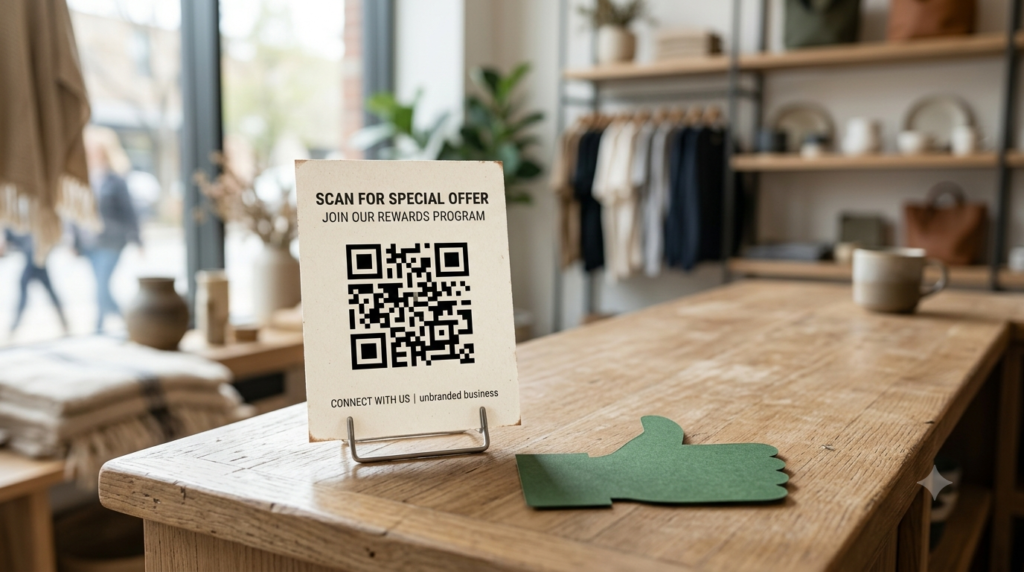
A Facebook Business Page QR code on printed marketing materials — flyers, business cards, receipts, in-store signage — gives customers a frictionless path to your page without searching by name. One scan and they are on your page, where they can follow, message, view your posts, and access your contact information.
For business use, a few placement decisions matter. On a business card, a QR code linking to your Facebook page alongside your phone number and email creates a complete contact kit — customers choose how they prefer to reach you. On in-store materials, a QR code with a label like “Follow us on Facebook” or “Leave us a review on Facebook” drives two of the most valuable social actions: follows and reviews.
For a Facebook review QR code specifically — one of the most searched variants in this cluster — the destination URL needs to point to your review section directly rather than the general page. The URL format for Facebook reviews is https://www.facebook.com/yourpagename/reviews. When someone scans this code, they land directly on your reviews tab rather than having to navigate there from the page home. This removes enough friction to meaningfully increase the number of people who complete a review.
QR Code for a Facebook Group
Facebook group QR codes work the same way as page codes. Navigate to your group, copy the URL from the address bar — it will look like https://www.facebook.com/groups/groupname or https://www.facebook.com/groups/123456789 — and generate the code from that URL.
When someone scans a Facebook group QR code, they land on the group page. If the group is public, they can see the content immediately and join from there. If it is a private group, they see the group description and a Join Group button. For community-building at events, on printed materials, or at physical locations where you want to grow a specific group, a QR code removes the barrier of searching for the group by name.
One group-specific consideration: private groups with approval requirements mean scans do not result in immediate access. Make clear in the label beneath the code what type of group it is — “Scan to request access to our private group” sets accurate expectations and reduces confusion when the scanner does not get immediate entry.
QR Code for a Facebook Event
Facebook event QR codes are particularly useful on physical event promotion materials — posters, flyers, venue signage — because they let people add the event to their Facebook calendar with one scan rather than searching for it.
To get the event URL: open the Facebook event, copy the URL from the address bar. Event URLs contain a numeric ID and look like https://www.facebook.com/events/123456789012345. Generate the QR code from this URL.
Facebook event URLs are static — the URL does not change as the event details update. If you change the event date, time, or location, the QR code on existing printed materials still leads to the correct event page where updated information is visible. This is a meaningful advantage over creating a separate landing page for event details.
QR Code for a Facebook Profile
Personal Facebook profile QR codes work for networking contexts where you want to connect with people without exchanging contact details. The URL format is https://www.facebook.com/yourprofileusername.
Privacy settings matter here. If your profile is set to public, anyone who scans the code can view your profile and send a friend request. If your profile is set to friends-only, scanners see a limited view and can send a request from there. Check your privacy settings before printing a personal profile QR code on any publicly distributed material.
For most professional networking contexts, a LinkedIn QR code is more appropriate than a Facebook profile code. Facebook’s association with personal rather than professional content means a Facebook profile QR code on a business card can send mixed signals depending on your industry and audience.
Facebook QR Code for Authentication
Facebook uses QR codes for two-factor authentication setup, following the standard authenticator app pattern. When you enable 2FA on your Facebook account through an authenticator app rather than SMS, Facebook displays a QR code containing the secret key. You scan it with your authenticator app — Google Authenticator, Microsoft Authenticator, Authy, or similar — to link your account.
To access it: go to Facebook Settings, then Security and Login, then Two-Factor Authentication, then choose Authentication App as the method. Facebook displays the QR code during the setup flow. This code is for your personal use only and should not be shared or photographed — it contains the secret key that generates your login codes.
QR Code for Facebook Without an App
No Facebook app is needed on either end of a Facebook QR code. The person creating the code uses any external generator. The person scanning lands on a mobile browser version of the Facebook page, group, or event — from which they can open the Facebook app if they have it installed, or interact with the content through the browser.
Facebook does attempt to detect mobile browsers and redirect to the app. Someone without the Facebook app installed will see Facebook’s mobile website, which functions adequately for viewing pages and sending messages but with slightly reduced functionality compared to the native app experience.
Frequently Asked Questions
How do I create a QR code for my Facebook page?
Go to your Facebook page, copy the clean page URL from the address bar — ideally in the format facebook.com/yourpagename — and paste it into a free QR code generator. Customise the design, download as SVG or PNG, and use it on any printed or digital material. No Facebook app or account is needed to generate the code.
How do I get a QR code for my Facebook business page?
Copy the URL of your Facebook Business Page and paste it into a QR code generator. For a cleaner URL, confirm your page’s custom username in Page settings and use facebook.com/username as the destination. For a review-specific QR code, use facebook.com/yourpagename/reviews as the destination to send scanners directly to your reviews tab.
How do I create a QR code for a Facebook group?
Navigate to your Facebook group and copy the URL from the address bar. Paste it into a QR code generator and download. If the group is private, add a label beneath the code telling people what to expect when they scan — they will see a join or request access option rather than entering immediately.
How do I create a QR code for a Facebook event?
Open the Facebook event and copy the event URL — it contains a numeric ID in the format facebook.com/events/123456789. Generate a QR code from this URL and place it on event promotion materials. The URL remains valid even if event details change, since the event page itself reflects all updates.
Does Facebook have its own QR code generator?
No. Facebook does not include a built-in QR code generator anywhere in its interface, Meta Business Suite, or Page settings. Every Facebook QR code is created using an external generator pointed at the relevant Facebook URL.
How do I create a QR code for Facebook reviews?
Use the URL format facebook.com/yourpagename/reviews as the destination for the QR code. This takes scanners directly to your reviews tab rather than your general page, removing the navigation step that prevents many people from leaving a review even when they intend to.
How do I create a QR code for a Facebook profile?
Copy your profile URL in the format facebook.com/yourprofileusername and generate a QR code from it. Check your privacy settings before distributing the code publicly — if your profile is friends-only, scanners will see a limited view and a friend request option rather than your full profile.
One Scan to Your Facebook Presence
Every Facebook destination has a URL, and every URL becomes a QR code in under a minute. The only decision is which destination serves your specific goal — a page for general brand presence, a reviews URL for reputation building, a group URL for community growth, or an event URL for promotion.
Create your Facebook QR code now using the QR code generator — paste the Facebook URL, match your brand design, and download in print-ready format. And for guidance on where to place QR codes on physical marketing materials to maximise scan rates, the QR code on flyer guide covers placement, sizing, and call-to-action best practices.