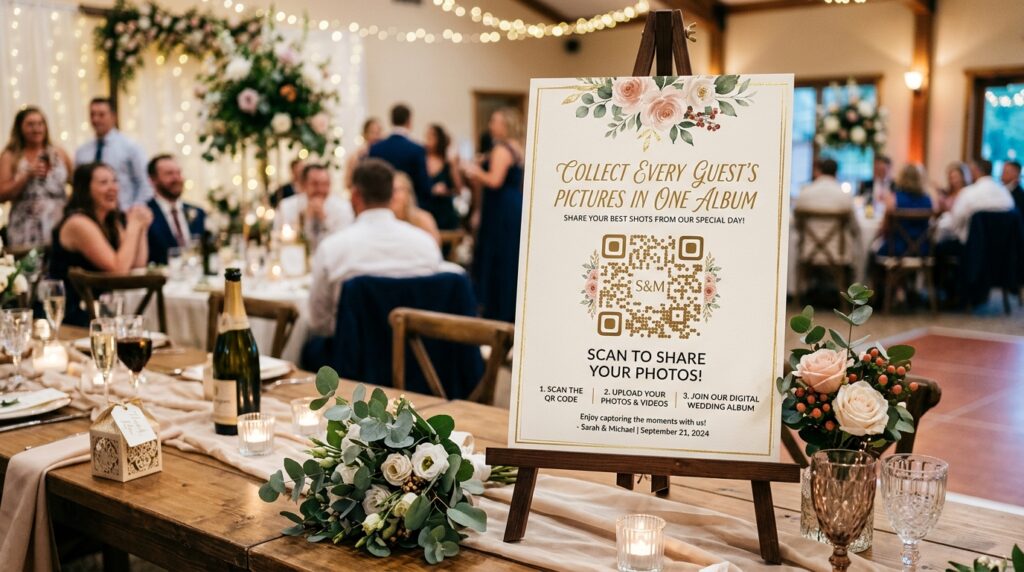
Your photographer captures every formal moment. Your guests capture everything else: the candid laughs between speeches, the dancing that starts when the photographer has gone home, the table conversations that make up most of the day.
The problem is collecting those pictures. You ask guests to share them. Some do, immediately. Most mean to and forget. Some have already deleted the duplicates by the time you remember to chase them. Three months later you have a fraction of what was captured.
A wedding photo QR code on every table card solves this completely. Guests scan at any point, upload directly to the shared album, and you have every picture from every angle in one place before the venue closes.
This guide covers how to set it up for free, which platforms work best, where to place it for maximum uploads, and how to design it for the day’s aesthetic.
How It Works
You create a shared photo album on any platform that supports link-based photo uploads. You copy the sharing link. You create a QR code at toolshash.com that stores that link. You print the QR code on table cards, in the order of service, on a welcome sign, or on any surface guests will see during the day. Guests scan, the album opens, they upload. Simple.
The QR code is static. It stores the link directly in the pattern. No platform dependency beyond whatever service hosts the album. No expiry. No scan limit. The code works from the moment you create it until whenever you close the album.
Which Photo Sharing Platform Works Best?
The right platform depends on your guest list’s devices and your own comfort with each service. Here is an honest assessment of the main options.
Google Photos shared album (recommended for most couples)
The strongest free option for most weddings. Google Photos shared albums let anyone with the link add photos without creating a Google account. This matters because you cannot predict which guests have which accounts. A guest who does not use Google Photos on their own phone can still open the link in a browser and upload directly.
To set it up: open Google Photos on your phone or computer, tap Library, then New album. Give it a name, tap the share icon, and enable “Anyone with the link can add photos.” Copy the link. That link becomes the destination for your QR code.
Storage limit: Google Photos offers 15GB free with a Google account, shared across Google Drive and Gmail. A wedding with 100 guests uploading smartphone photos will typically produce between 5GB and 20GB of uncompressed photos. For larger guest lists or high-resolution uploads, a paid Google One plan starting at £1.59 per month provides 100GB of additional storage.
iCloud Shared Album
Free and works well on iPhone. The limitation is Android guests. An Android user who scans an iCloud Shared Album link is directed to a browser view where uploading is far less intuitive than on an iPhone. For weddings where the majority of guests use iPhones, iCloud Shared Albums work well. For a mixed guest list, Google Photos is more reliable across devices.
Dropbox shared folder
Free up to 2GB on the standard plan. Dropbox allows anyone with a shared folder link to upload without an account on most plan types. The 2GB limit is the constraint. A wedding with many guests uploading full-resolution smartphone photos will hit 2GB quickly. Dropbox works well for smaller weddings or when you primarily want guests to upload a handful of their best pictures rather than everything they took.
Dedicated wedding photo apps
Apps like Momento, Capsule, and WedPics are built specifically for event photo sharing. They offer better upload experiences than generic cloud storage, often generate their own QR code automatically, and keep photos organised in a shareable album designed for the event context. Most offer a free tier for a single event. You can also copy the sharing URL and create a customized code at toolshash.com if you want it to match your wedding stationery rather than using the app’s default.
Step-by-Step: Setting Up Your Wedding Photo QR Code
Step 1: Create and configure the shared album
Using whichever platform you have chosen, create the shared album and enable link-based uploading. Test it yourself first. Copy the link, open it in a private browsing tab as a guest, and confirm you can view the album and add a photo without logging in to any account. This test catches sharing permission errors before they affect your guests on the day.
Step 2: Create the QR code
Go to toolshash.com/custom-qr-code-generator. Select Website / URL from the QR Type dropdown. Paste the sharing link. Set error correction to H (High). Table cards get handled throughout the evening and H-level correction keeps the code scannable even with minor wear.
Customize the design to fit your wedding palette. Match the foreground color to the ink color used elsewhere on your stationery. A dusty sage code on cream card, a navy code on white, a dark terracotta on ivory. Rounded dot shapes and leaf eye styles look softer and more appropriate for a wedding aesthetic than standard square dots. For the full color guide, see can QR codes be different colors?
To embed your couple monogram or a small botanical illustration in the center of the code, upload a transparent PNG and keep it under 25% of the code area. See how to add a logo to a QR code for the full process.
Click Generate. Scan the preview with your phone and confirm the album opens and uploading works. Download as SVG for anything printed by a stationer, or PNG if you are printing at home.
Step 3: Design and print the table cards
The QR code needs to be at minimum 3cm x 3cm on a table card for reliable scanning from a seated position. A 3.5cm to 4cm code on an A7 or A6 card gives comfortable scanning margin and enough room for a short prompt beneath.
Place the QR code alongside a one-line prompt. Something specific works better than something generic. “Scan to add your photos to our shared album” is clear. “Share your pictures with us” is vaguer and gets fewer scans. “Scan here” with no context gets the fewest of all.
Place the table card so the QR code faces outward when the card is folded, or flat on the table facing upward if it is a flat insert card. Guests need to see it and reach it without moving things. A code buried under a place card or a centerpiece does not get scanned.
Where to Place the QR Code for Maximum Uploads
Placement determines how many guests actually use the code. The more times a guest encounters it during the day, the more likely they are to scan at least once.
Table cards at every seat
The highest-converting placement. Every guest has the code directly in front of them during dinner when they are most likely to have their phones out. A small A7 tent card with the code on one side and a short prompt on the other works on any table layout.
Order of service or ceremony program
Including the QR code in the printed ceremony program gives guests the link early in the day. A guest who spots it during the ceremony and scans it during the drinks reception will upload throughout the afternoon rather than waiting until the evening.
Welcome sign at the venue entrance
A larger QR code (at least 8cm x 8cm) on the welcome sign introduces the photo sharing concept before guests sit down. A prompt like “We want your pictures too. Scan to add yours to our album” alongside the code sets the expectation at the start of the day.
Bar area sign
People have their phones out at the bar. A small laminated sign near the drinks station gets scanned consistently throughout the evening, catching guests who missed the table card or are only now thinking about uploading.
Exit sign or door card
A final reminder near the exit catches guests on the way out who have been meaning to upload all evening. “Before you go, scan to add your photos” placed at the exit door captures last-minute uploads from guests who are leaving.
Designing the Code to Match Your Wedding
A wedding has a visual identity. Every piece of stationery, every sign, every table element has been chosen to work together. A plain black QR code on a white square interrupts that. A code designed to fit does not.
The combination that works best for most wedding aesthetics at toolshash.com is:
- Foreground color: match the primary ink color of your stationery using the hex code. Sage green, dusty rose, navy, dark burgundy, or deep forest green all work well as QR code foreground colors on light backgrounds.
- Dot shape: rounded or dots. Softer than standard square, suits floral and organic design themes.
- Eye style: leaf or rounded. Adds an organic quality that works alongside botanical and romantic design elements.
- Centre element: a couple monogram, a small botanical illustration, or a subtle heart icon. Keep it to under 25% of the code area and set error correction to H before uploading.
- Background: white or cream to match the stationery stock.
For design options covering RSVP and seating chart applications too, see wedding QR code: RSVP, photo sharing, and seating charts made easy.
Frequently Asked Questions
Do guests need to create an account to upload photos?
With Google Photos shared albums, no. Guests can add photos via the shared link without signing in to a Google account. The same applies to most Dropbox shared folder configurations and most dedicated wedding photo apps on their standard sharing settings. Always test by opening the link in a private browsing tab before printing the QR code to confirm that account sign-in is not required.
What is the best free wedding photo QR code?
A Google Photos shared album with a QR code created at toolshash.com is the best free option for most couples. Google Photos allows uploading without an account via the shared link, works on all devices, offers 15GB free storage, and the QR code has no scan limit and no expiry. The toolshash.com generator is free, requires no account, and produces a fully customised code that matches your stationery.
How many photos can guests upload?
As many as they want, subject to the storage limit of the album platform. Google Photos’ 15GB free tier is sufficient for most weddings. If you have a large guest list and expect high upload volumes, upgrade to a Google One 100GB plan (around £1.59 per month) before the wedding day. You can cancel after the event once all uploads are complete.
Can guests upload videos as well as photos?
Yes, on most platforms including Google Photos and Dropbox. Videos take significantly more storage than photos. A single minute of smartphone video can range from 60MB to 350MB depending on the recording quality. To limit uploads to photos only, check the platform’s file type settings or add a note to the prompt asking guests to share photos rather than videos.
When should I close the shared album?
Leave it open for at least two to three weeks after the wedding. Some guests upload immediately on the night. Others upload the following day when they are going through their camera roll. A small number will not get around to it until the week after. Closing the album too early means missing those later uploads. When you are ready to close it, download all the photos to a permanent storage location first, then disable the sharing link.
Will the QR code still work a year after the wedding?
The QR code created at toolshash.com never expires. It will work indefinitely. Whether the album it links to remains open is your choice. If you close the shared album, the code scans but returns an access error rather than opening the album. If you want the album to remain accessible long-term as a keepsake that guests can revisit and continue adding to on anniversaries, keep the shared link active. The code itself has no time limit.