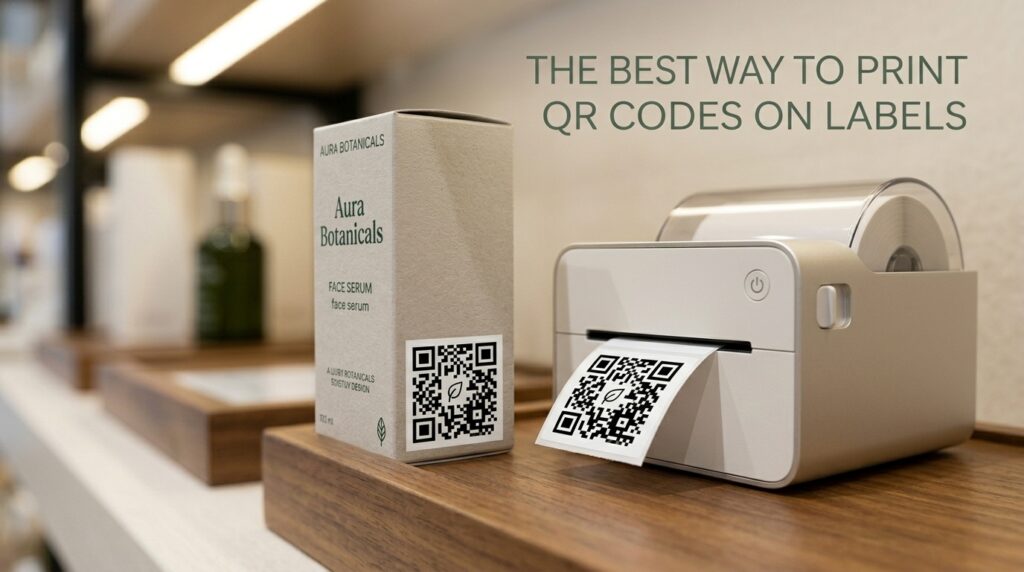
A QR code printed on standard office paper and taped to a shelf is not a label. It looks improvised, it does not survive handling, and it tells anyone who scans it something unflattering about the business that made it.
A proper QR code label, printed on the right stock at the right size, looks professional and scans reliably. It lasts as long as the product it is attached to.
This guide covers printers for every scale, label stock for every environment, minimum print sizes, and how to create the QR codes free before you print.
How to Create Your QR Code Before Printing
The QR code file you send to the printer determines the quality of the printed result. A poor-quality source file produces a poor-quality printed label no matter how good the printer is.
Create every QR code intended for print at toolshash.com. No account. No signup. Completely free. Follow these settings for print-ready output:
- QR type: select the appropriate type for your use case. URL for most applications, WiFi for network access codes, vCard for contact labels.
- Error correction: always set to H (High) for labels. High error correction allows up to 30% of the code to be damaged and still scan correctly. Labels get handled, scratched, and partially obscured. H-level correction is the safety margin that makes printed labels reliable in real-world use. The ISO/IEC 18004 standard defines H as recovering 30% of damaged data.
- Download format: always download as SVG for print. SVG is a vector format that scales to any size without losing quality. A QR code SVG printed at 2cm is as sharp as the same file printed at 20cm. PNG files pixelate when scaled up and should only be used when SVG is not an option.
- Color: use a high-contrast dark foreground on a white or very light background. Mid-tone colors on light backgrounds reduce scan reliability, particularly on printed materials where ink density can vary. For the full guide on colors, see can QR codes be different colors?
Minimum Print Size for QR Code Labels
The most common printing mistake is making the code too small. According to Denso Wave’s official printing guidelines, the absolute minimum size for reliable scanning is 2cm x 2cm. At that size a QR code scans from up to 20cm away, which covers close-range label scanning but leaves no margin for error.
For most label applications, use these size guidelines:
| Application | Minimum QR size | Recommended QR size |
|---|---|---|
| Small product label (scanned at 15–25cm) | 2cm x 2cm | 2.5cm x 2.5cm |
| Shelf or bin label (scanned at 30–50cm) | 3cm x 3cm | 4cm x 4cm |
| Asset label on equipment (scanned at 20–40cm) | 2.5cm x 2.5cm | 3.5cm x 3.5cm |
| Wall-mounted sign or display (scanned at 50–100cm) | 5cm x 5cm | 8cm x 8cm |
| Outdoor signage (scanned at 100cm+) | 10cm x 10cm | 15cm x 15cm |
Always test a printed sample at the intended scanning distance before committing to a full print run. A code that scans on screen may not scan on a printed label if the ink coverage is uneven or the label stock reduces contrast.
The Best Label Printers for QR Codes
For small businesses and home offices: thermal label printers
Thermal label printers are the most practical option for small to medium QR code label production. They print without ink cartridges or toner, using heat to activate a coating on thermal label stock. Running costs are low. Print speed is fast. The output is consistently high-contrast black on white, which is ideal for QR codes.
Brother QL series (QL-800, QL-820NWB): the most widely used label printers for small business QR code production. They print on continuous label rolls at speeds of up to 93 labels per minute and connect via USB, WiFi, or Bluetooth depending on the model. Label widths from 12mm to 62mm cover most product and asset label sizes. Brother’s free label printing software accepts SVG or PNG imports and lets you position the QR code on a label template. Street price is typically £80 to £150 depending on the model.
Dymo LabelWriter series (LabelWriter 450, LabelWriter 550): similar capability to the Brother QL range at a comparable price point. Dymo labels are widely available and the software is straightforward. The 550 model supports Bluetooth in addition to USB. Good for low to medium volume QR label printing in office environments.
NIIMBOT label printers: a more affordable alternative at £30 to £60 for the device. The B21 and D11 models are popular for small-scale label printing and connect via Bluetooth to a smartphone app. Print quality is adequate for most QR code label applications. The lower entry cost makes them a practical starting point for anyone new to label printing.
For medium volume production: inkjet label printing on sheet stock
A standard inkjet printer printing on A4 adhesive label sheets is a practical option for batches of 20 to 200 labels per run. A4 label sheets with standard label sizes are widely available from office supply retailers. Avery, Herma, and similar brands produce label sheets compatible with most inkjet and laser printers.
The advantage of this approach is no specialist equipment. The disadvantage is that inkjet-printed labels are not water or abrasion-resistant unless you use waterproof label stock or apply a laminate over the printed sheet. For indoor use on shelves, filing, and low-handling assets, standard inkjet label sheets are adequate. For products, outdoor assets, or anything that will be handled repeatedly, use waterproof inkjet label stock or switch to a thermal printer.
For high volume and outdoor applications: professional label printing services
For print runs of 500 or more identical or variable-data labels, an online label printing service is more cost-effective than printing in-house and produces higher quality results. Services like Avery WePrint, Moo, and Stickermule print QR code labels on high-quality materials including polyester, polypropylene, and weatherproof vinyl.
Upload your QR code SVG to the service’s design tool, set the size, choose the material, and order the quantity you need. Per-label cost at 1,000 units is significantly lower than in-house thermal printing. The turnaround is typically 3 to 7 business days.
For custom QR code stickers specifically, see QR code stickers: print custom scannable stickers for your business.
Choosing the Right Label Stock for QR Codes
The printer is only part of the equation. The label material determines how well the printed code holds up in its environment.
Standard white paper labels
The default for most desktop label printers. White paper thermal labels are sharp, cheap, and work well for indoor use where the label will not be exposed to moisture or heavy handling. Suitable for: office assets, shelf labels, filing systems, indoor event badges. Not suitable for: products, outdoor use, high-handling environments.
Polyester (Mylar) labels
Polyester labels are significantly more durable than paper. They resist moisture, oils, and moderate abrasion. They do not tear easily and hold adhesion better on curved or rough surfaces. Suitable for: equipment and tool tracking, retail products, items that will be handled regularly. Most thermal label printers that support polyester stock cost slightly more than standard paper-only models. Check compatibility before purchasing stock.
Clear transparent labels
Clear labels allow the surface below the label to show through, which works well for products where you want the label to look embedded rather than applied. The QR code prints in black on the clear film. Important: the contrast of a black QR code on a clear label depends on the surface it is applied to. Test scanning before committing to a full run on any non-white surface.
Weatherproof and outdoor labels
For assets or signs exposed to outdoor conditions, UV light, temperature variation, or regular washing, use vinyl or polypropylene label stock rated for outdoor use. These materials hold print quality and adhesion in conditions that destroy standard paper labels within weeks. UV-resistant inks are required for QR codes that will be in direct sunlight for extended periods. Most in-house printers do not support UV-resistant inks. For outdoor QR code labels at scale, an online printing service using UV-resistant materials is the practical option.
Printing QR Codes on Labels: Step by Step
- Create the QR code: go to toolshash.com/custom-qr-code-generator. Set error correction to H. Download as SVG.
- Open your label design software: Brother P-touch Editor, Dymo Label Software, Canva, Microsoft Word, or any design tool that accepts SVG imports. Set the canvas to your label dimensions.
- Import the SVG: place the QR code on the label at the correct size. Add any supporting text (item ID, URL, brand name) if the label has space. Ensure the QR code maintains a quiet zone (white border) of at least 4 modules around all four sides.
- Test print on paper first: print one label on plain paper, cut it to size, and scan it at the intended distance. Confirm it scans before printing on label stock.
- Print on label stock: load the correct stock in the printer. Print the label. Allow ink to dry fully before applying if using inkjet (typically 30 seconds to a few minutes depending on ink type).
- Apply and test again: apply the label to the asset or product and scan it in the actual location it will be used. Lighting conditions, surface reflectivity, and label placement all affect real-world scanning performance.
Frequently Asked Questions
What is the cheapest way to print QR code labels at home?
A standard inkjet printer and A4 adhesive label sheets is the cheapest entry point. Avery and Herma produce A4 label sheets with a range of label sizes that work with any inkjet printer. Download the QR code as a PNG from toolshash.com, place it in a free tool like Canva or Word at the label dimensions, and print. Total cost beyond the printer: under £5 for a sheet of 20 to 65 labels depending on the size format.
Can I print QR codes on a standard laser printer?
Yes. Laser printers produce high-contrast, sharp output that works well for QR codes. Laser-printed QR codes on plain paper or standard laser label sheets scan reliably. The limitation is the same as inkjet: standard label stock is not water or abrasion-resistant. For durable labels, use laser-compatible polyester or waterproof label stock. Not all polyester stocks are laser-compatible. Check the manufacturer’s specification before printing.
Does the label background color affect scanning?
Yes. A QR code requires a minimum contrast between the dark modules and the background to scan reliably. A black QR code on a white label gives maximum contrast. A dark green code on a cream label works. A dark code on a mid-tone or dark label stock will not scan reliably. Always use a light background, ideally white, for the area behind the QR code. If the label has a colored background, add a white box behind the QR code to maintain contrast. For the full guide, see can QR codes be different colors?
How do I print QR codes on round or irregularly shaped labels?
The QR code itself is always square. The label can be any shape. The QR code simply sits inside the label boundary. Create the label design with the QR code centered on the label face, leaving adequate quiet zone on all sides. Round labels with a QR code in the centre work well for circular bottle caps, jar lids, and similar applications. Test scanning after application. Curved surfaces can distort the code and reduce scan reliability, particularly at smaller sizes.
Can I print a QR code directly on packaging without a label?
Yes, for high-volume packaging where printing is done during manufacturing. Flexographic, digital, and offset printing processes all reproduce QR codes well on cardboard, paper, and most packaging materials. For small runs, laser or inkjet printers with direct printing capability (printing onto flat packaging rather than label stock) work for flat cardboard packaging. The same SVG file used for labels works for packaging print. Ensure the printed size meets the minimum dimensions for the expected scanning distance.
My printed QR code is not scanning. What should I check?
Check in this order. First, is the code large enough? Compare the printed size against the minimum dimensions for the expected scanning distance. Second, is the contrast sufficient? Hold the label against a white background and check whether the code looks sharp and high-contrast. Third, is there a quiet zone? A QR code needs a clear white border of at least 4 module widths on all sides. Fourth, is the label surface reflective? Glossy laminate in direct light creates glare that prevents scanning. Fifth, test the original digital file at toolshash.com to confirm the code itself is valid before assuming the problem is the print.