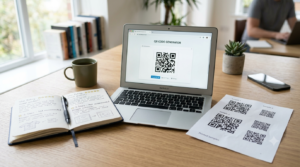
A plain black and white QR code works perfectly well. But a plain black and white QR code sitting on a branded flyer, a product label, or a business card looks like an afterthought. Custom QR code design — the right colors, shapes, and logo placement — turns a functional element into something that actually fits the visual context around it. And done correctly, it does not cost you a single scan.
Here is how to design a QR code that looks intentional without breaking the thing that makes it useful.
Can You Customize a QR Code?
Yes, and more than most people realise. A QR code consists of several distinct visual components, each of which you can modify independently. The module color, the background color, the shape of the dots, the design of the corner squares, the quiet zone, and any logo placed in the center are all adjustable in a full-featured generator.
The key constraint is contrast. QR code scanners work by distinguishing dark modules from a light background. As long as that contrast remains strong enough for a camera to detect, the code scans reliably regardless of what colors or shapes you use. Remove sufficient contrast and the code fails — not because of the design itself, but because the scanner can no longer read the pattern.
The QR code generator on ToolsHash supports full design customization including module color, background color, dot style, corner shape, and logo upload — all in one place before you download.
QR Code Color Rules: What Works and What Does Not
Color customization is the most requested design feature and also the one most likely to break a code if handled carelessly. Two rules govern everything.
Dark Modules on a Light Background
The modules — the dark squares that form the pattern — must always be darker than the background. Inverting this relationship, with light modules on a dark background, confuses most smartphone scanners. Some advanced scanner apps handle inverted codes, but the majority do not. For broad compatibility across all devices, keep the modules darker than the background at all times.
Sufficient Contrast Ratio
The contrast between module color and background color needs to be strong enough for a camera to distinguish them cleanly. Dark navy on white works well. Dark green on white works well. Mid-tone grey on light grey does not work. As a practical test, squint at the code from a slight distance. If the modules still look visibly distinct from the background, the contrast is probably sufficient. If they start to blend together, increase the contrast before using the code.
Gradients present a specific challenge. A gradient that transitions from dark to light across the code can create areas where the contrast drops below a usable threshold. If you use a gradient, test thoroughly across the full code area rather than just the center.
Color Combinations That Work Reliably
| Module color | Background color | Result |
|---|---|---|
| Black | White | Maximum reliability |
| Dark navy | White or light grey | Excellent |
| Dark green | White or cream | Excellent |
| Dark purple | White | Good |
| Dark brown | White or light beige | Good |
| Medium grey | White | Acceptable with good lighting |
| Any color | Transparent | Test carefully — depends on placement surface |
| Light color | Dark background | Unreliable — avoid |
QR Code Transparent Background
A transparent background QR code lets the surface beneath show through instead of displaying a solid white or colored background. This works well on designs where you want the code to sit directly over a plain light background without a white box around it.
The risk with transparent backgrounds is placement. If the code lands over a dark or busy area of the design, the module contrast disappears and the code fails to scan. Always test a transparent background QR code in its actual design context before finalizing anything for print or digital use. Download as PNG with transparency enabled, place it in your design exactly as it will appear, and scan the result.
QR Code Dot Styles and Shapes
Standard QR codes use square modules. Most full-featured generators let you switch to alternative dot styles including rounded squares, circles, diamonds, and various custom shapes. These variations change the visual feel of the code significantly without affecting scannability, provided the shape fills enough of each module cell to remain detectable.
Rounded dots give a softer, more modern appearance that suits lifestyle brands, hospitality, and consumer products. Circular dots read as more playful. Diamond shapes lean toward luxury or geometric aesthetics. The standard square remains the most versatile and reliable choice for technical or industrial contexts.
Beyond the modules themselves, the three corner squares — called finder patterns or position detection patterns — are also customizable in most generators. Rounded corners on the finder patterns, or even circular outer borders with square inner squares, create distinctive visual styles while maintaining scanner compatibility.
Adding a Logo to a QR Code
A logo in the center of a QR code is the most recognizable form of branded QR design. The center of the code is the safest place to add a logo because QR codes dedicate part of their redundancy to that area specifically.
Before adding a logo, set the error correction level to Q or H. Level H allows up to 30 percent of the code pattern to be obscured while the code still decodes correctly, which gives you enough space for a reasonably sized logo without compromising scannability. At lower error correction levels, even a small logo can cover critical modules and cause scan failures.
Keep the logo to no more than 30 percent of the total code area. Centre it precisely. After placing the logo, always test the finished code on at least two different devices — an iPhone and an Android — before using it on any printed or published material.
For step-by-step instructions on creating a QR code with a logo already embedded, the QR code with logo guide walks through the full process including sizing and error correction settings.
QR Code Background Color Options
The background of a QR code does not have to be white. Any light or pale color works as a background provided it maintains sufficient contrast against the module color. Cream, light grey, pale blue, and soft yellow all work well as backgrounds with dark module colors.
Matching the background color to the surrounding design rather than defaulting to white is a simple way to integrate the QR code more naturally into printed materials. A code with a cream background on a cream business card looks deliberately designed rather than dropped in as a functional afterthought.
Colored backgrounds do require more careful testing than white backgrounds, particularly under varied lighting conditions. Print a physical test copy and scan it under different light sources before committing to the final version.
QR Code on Black Background
Placing a QR code on a black or very dark background is possible but requires inverting the usual color relationship carefully. The standard approach — light modules on a dark background — does not work reliably with most scanners. Instead, use a light background color within the code itself and let the dark color exist only outside the quiet zone border.
In practical terms, this means the QR code retains its light background internally while the surrounding design uses dark colors. The quiet zone creates a clear visual separation. This approach lets you place a QR code on dark packaging, posters, or backgrounds without inverting the internal contrast relationship.
QR Code Design for Branding
Branded QR codes — those that incorporate brand colors, logo placement, and custom dot styles — perform better in marketing contexts than generic black and white codes. Research consistently shows that people scan custom-designed QR codes at higher rates than plain ones, likely because a branded code signals legitimacy and intentionality in a way a generic code does not.
For effective branded QR code design, align the module color with one of your primary brand colors, use the background color to match or complement your material design, center your logo with adequate quiet zone space around it, and keep the corner finder patterns consistent with the overall visual style. The result is a code that reads as part of the design rather than an addition to it.
Common QR Code Design Mistakes
- Insufficient contrast: Light grey on white, pastel on pastel, or any mid-tone combination reduces contrast below reliable scanning threshold
- Inverted colours: Light modules on a dark background fails on most standard scanner apps
- Logo too large: Covering more than 30 percent of the pattern with a logo risks scan failure even at high error correction levels
- Transparent background on dark surfaces: Without testing in context, transparent backgrounds frequently end up with insufficient contrast against the surface below
- Not testing after customisation: Every design change is a reason to test again before finalising
- Cropping the quiet zone: Removing or reducing the white border around the outside of the code breaks scanner detection regardless of how good the internal design is
Frequently Asked Questions
Can I change the color of a QR code?
Yes. You can change both the module colour and the background colour of a QR code. The only requirement is maintaining strong contrast between the two — dark modules on a light background. Avoid light modules on a dark background, which most scanners cannot read reliably.
Can QR codes be colored?
Yes, QR codes can use any colour combination provided the contrast between modules and background remains strong enough for a camera scanner to detect. Dark colours on light backgrounds in virtually any hue work well. The key is contrast, not the specific colours used.
What is a QR code transparent background?
A transparent background QR code has no solid background colour, allowing the surface beneath to show through. It works well on light surfaces but requires testing in context before use. On dark or busy backgrounds, transparent codes frequently fail to scan due to insufficient module contrast.
Can I add a logo to a QR code?
Yes. Set the error correction level to Q or H before generating, keep the logo to no more than 30 percent of the total code area, centre it precisely, and test the finished code on multiple devices before printing or publishing.
What dot styles are available for QR codes?
Common options include standard squares, rounded squares, circles, and diamonds. The corner finder patterns can also be styled independently with rounded or custom shapes. All standard dot styles maintain scannability provided they fill enough of each module cell.
How do I make a QR code match my brand colors?
Choose your primary brand colour as the module colour and a light or white version of your background colour. Upload your logo with error correction set to H. Test the finished code on both iPhone and Android before finalising. Most branded QR code generators let you enter specific hex colour values for precise brand colour matching.
Does QR code design affect scan rate?
Yes. Branded and custom-designed QR codes consistently achieve higher scan rates than plain black and white codes in marketing contexts. A visually intentional code signals legitimacy and draws more engagement than a generic one dropped onto a design as an afterthought.
Design It Once, Use It Everywhere
A well-designed QR code takes ten minutes to create and works on everything from business cards to billboards without modification. Get the contrast right, set error correction appropriately before adding a logo, test on multiple devices, and download as SVG for unlimited scalability.
The QR code generator gives you full control over every design element — module colour, background, dot style, corner shape, logo upload, and download format — all before you save. And if you want to understand the colour rules at a more foundational level, the can QR codes be different colors guide covers the basics clearly.